Search and keyboard controls
Use sidebar search to return to a conversation or jump to a setting. The search menu accepts keyboard navigation, while Settings has its own search field. Keyboard controls apply to the area that currently has focus.
Find a setting from Chat or Coding
- Open Chat or Coding.
- Select Search chats or Search coding sessions in the left sidebar.
- Type a setting name, such as
General,Language, orBackground model. - Press ↓ or ↑ to highlight a result.
- Press Enter to select it. A settings result opens its page; a specific setting may take you directly to that section.
- Select Back to app to return to your conversation.
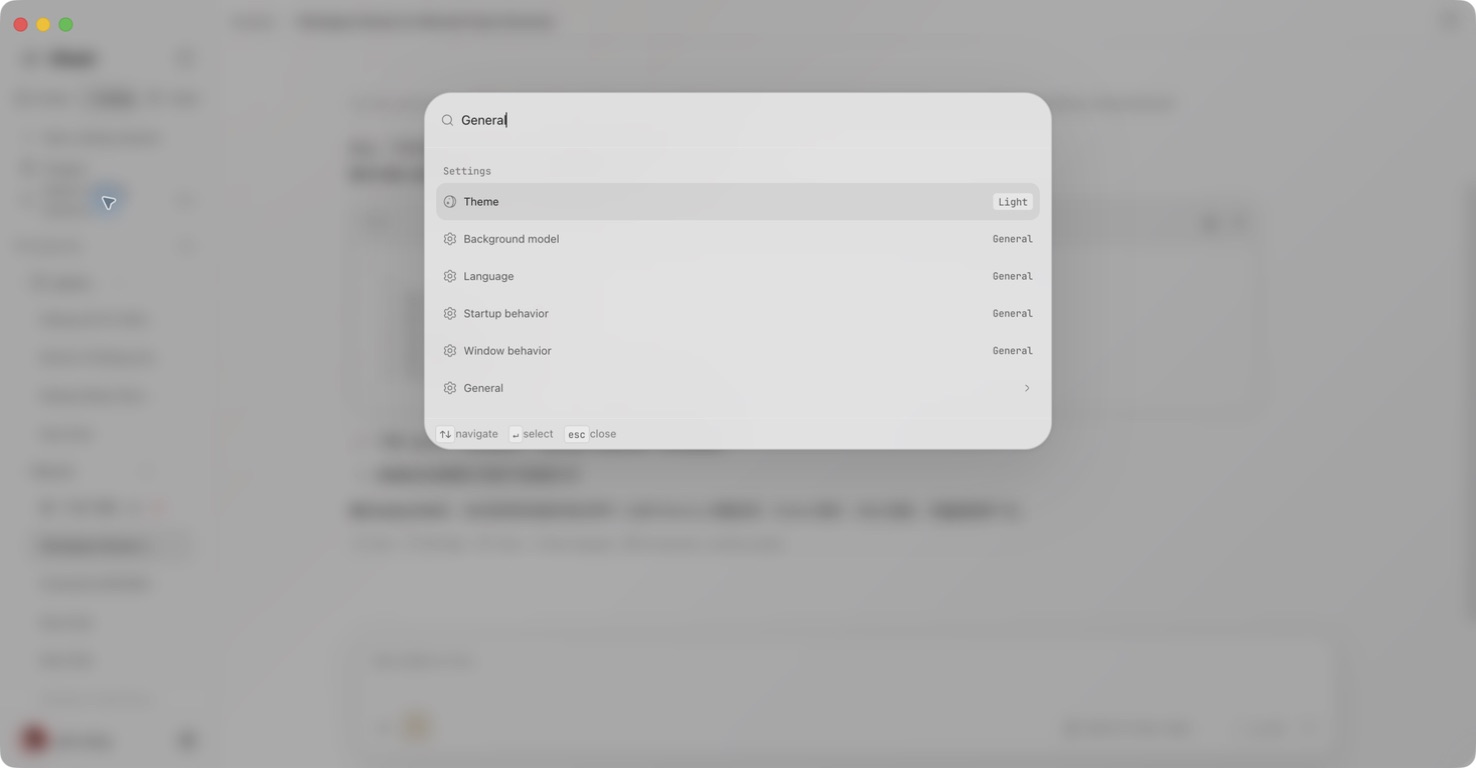
For example, searching General shows Background model alongside Language, Startup behavior, Window behavior, and the General page. Selecting Background model opens General at the model section.
Some results are direct controls. Selecting Theme, for example, changes the theme instead of opening a page. Other results can toggle a setting. The value or switch beside the label identifies these controls.
Find a previous conversation
- Open the surface where the conversation belongs: Chat for chats, Coding for coding sessions.
- Open its sidebar search.
- Enter a distinctive word from the title or message text. Search starts after two characters, but message-content search works with words and does not guarantee a match for every two-character fragment.
- Wait for the conversation results to appear, then select the matching title and snippet.
- Confirm the title in the opened conversation before continuing your work.
The Chat search is scoped to chats; the Coding search is scoped to coding sessions. If a known conversation is missing, switch to the other surface and search there. This search does not search the contents of your workspace files. Use the Files panel for project files.
No results found can also appear before you enter a query. It does not mean your conversation history has been deleted. Try a distinctive word, check that you are in the correct surface, and allow the search to finish.
Find a message in Team
- Open the Team direct message or group that contains the message.
- Press ⌘F on macOS or Ctrl+F on Windows/Linux to open Search messages.
- Check Scope. In a work thread, choose the current work or Whole conversation (including work threads) as needed.
- Enter a distinctive phrase in Search conversation history.
- Select a result. The dialog closes and the conversation focuses the matching message.
If you see No matching messages, try a different phrase or widen Scope when that option is available. An unavailable-search error means the search failed, not that the message is absent.
Keyboard controls in search
| Action | Keys | Where it applies |
|---|---|---|
| Move through results | ↑ / ↓ | Search menu |
| Select the highlighted result | Enter | Search menu |
| Close search without selecting | Esc | Search menu |
| Focus and select the settings search text | ⌘F on macOS; Ctrl+F on Windows/Linux | Settings window |
| Find messages in the current Team conversation | ⌘F on macOS; Ctrl+F on Windows/Linux | Team conversation |
The sidebar currently displays ⌘K on macOS or Ctrl+K on Windows/Linux beside search. If this shortcut does not open the menu, click Search chats or Search coding sessions. Use the button as the reliable entry point in this version.
Search within Settings
- Open Settings.
- Press ⌘F on macOS or Ctrl+F on Windows/Linux, or click Search settings.
- Type a term such as
language. - Choose a matching page in the filtered navigation.
- Clear the search text to restore the full list of settings pages.
This field filters settings navigation. It does not search conversation history or act as a find-in-page command for a message. See Settings for the full page index.
Write a message with the keyboard
In the Chat and Coding composer:
| Action | macOS | Windows/Linux |
|---|---|---|
| Send the current message | Enter | Enter |
| Insert a line break | Shift+Enter | Shift+Enter |
| Undo a draft edit | ⌘Z | Ctrl+Z |
| Redo a draft edit | ⌘Shift+Z | Ctrl+Shift+Z |
| Select the draft text | ⌘A | Ctrl+A |
Click the composer first so the shortcut applies to your draft. Enter submits when a message is ready to send; it does not add a new line. With a Chinese or Japanese input method, finish selecting the current character or phrase before submitting.
Undo and redo here edit the unsent draft. They do not undo an already sent message or reverse a Tool action. For a sent message, use message editing and branches. To interrupt a response, use Stop generating.
Configure the app-context shortcut
The app-context shortcut captures the foreground app for use in a conversation. It is separate from search and only works while Ghast is running.
In Chat and Coding, an app-context attachment can include the screenshot and accessible text. In the current Team composer, rely on the screenshot: accessible text is not included in the sent message. If the task needs exact text in Team, paste the relevant passage into your message.
- Open Settings → General → App context shortcut.
- Click the current shortcut to record a replacement.
- Use ⌘ on macOS or Ctrl on Windows/Linux, together with Shift, Alt/Option, or both, and a letter, digit, Space, or function key.
- Check whether Ghast accepts the combination. If another application already uses it, choose a different one.
- Use Clear shortcut to remove the global binding.
Check the combination displayed in your own settings; it may have been customized. Capturing an app can include both its screenshot and accessible text. Review the attachment and destination conversation before sending it. See App context in the composer for the capture and confirmation flow.
When a key does something unexpected
- A menu is open: finish or close that menu first. Enter may select an item instead of sending a message.
- The terminal or file editor has focus: its own keyboard controls apply. Click the composer or search field before trying again.
- Search does not open: use the sidebar search button.
- Settings pages seem missing: clear Search settings.
- The global capture shortcut is unavailable: keep Ghast running and review its shortcut state in General settings.