Files panel
Files shows the current workspace tree and a file preview. Open Workspace panel → New tab → Files.
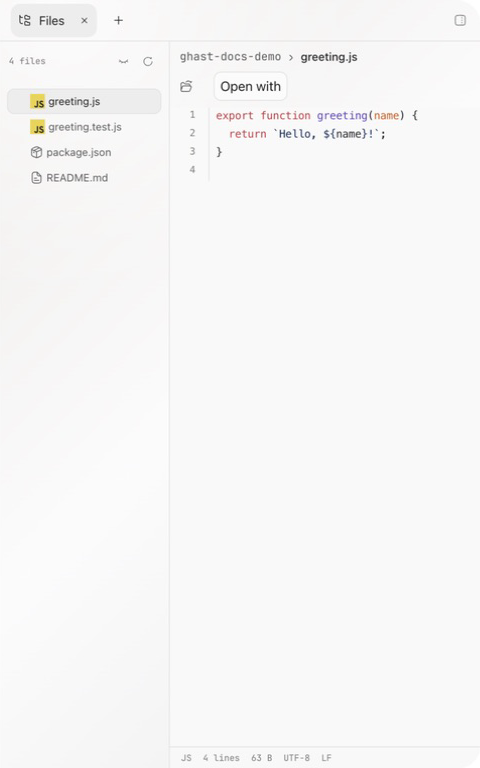
Browse the directory
- The header shows the number of discovered files.
- Expand folders and select a file to open its preview.
- Show hidden files includes or excludes hidden entries.
- Refresh files reloads the tree after an external change.
The count reflects the current scan, not Git tracking state. Dependency folders, ignored content, and unreadable locations can vary by project and settings.
Read the preview
The preview includes a path breadcrumb and can provide:
- Show in folder to reveal the target in Finder or File Explorer;
- Open with to use an application installed on the computer;
- a text preview for checking complete context;
- footer information for type, lines, bytes, and the currently fixed UTF-8 and LF labels.
UTF-8 and LF are fixed labels in the current text preview, not detected file encoding or line-ending metadata. Use a project tool or editor to inspect or convert the original file when that distinction matters.
Preview supports text, images, PDF, DOCX, Excel, PPTX, ZIP, video, and audio. Large, password-protected, or other unsupported files may not render fully. Preview is not format or content validation; use the project's own tooling to verify important output.
For Markdown, use Preview for the rendered document and Code for its source.
If No content to display appears just after selection, allow loading to settle, then refresh the file list and select the file again if needed. The notice does not necessarily mean the file is empty. If it remains, right-click the file and reveal it in Finder or File Explorer, then check it with an external editor.
File action menu
These are direct filesystem actions, not requests for the agent to propose a change. They do not wait for a chat reply or Settings Save.
Open the context menu on a file or folder to see applicable actions:
| Action | Behavior |
|---|---|
| Copy / Cut / Paste | Copy or move items in the workspace; Paste appears only on a suitable target |
| New folder | Create a directory at the selected location |
| Rename | Change a file or folder name |
| Reveal in Finder / File Explorer | Locate the target in the operating system |
| Copy relative path / Copy absolute path | Put the path on the clipboard for a task or terminal |
| Delete | Permanently delete the selected item after confirmation |
Copying a path does not grant the agent permission. Before sending an absolute path, check it for a username, mount name, or other information that should not be shared.
Copy or move an item
- Right-click the source file or folder and choose Copy to retain the source, or Cut to move it.
- Right-click the destination folder in the same workspace and choose Paste. Paste is not offered on a file or before an item has been copied/cut in this panel.
- Check the refreshed destination tree and open the result. For a move, also confirm the source is no longer at its old location.
Copy and Cut select one item in the panel's own clipboard; they are not the same as copying file text or a path into the operating-system clipboard. Cutting alone does not move anything. Successful cut-and-paste clears that selection; a copied item remains available for another paste.
Paste keeps the source name. The current flow has no replace-or-skip confirmation, and copying can overwrite an existing file of the same name. Rename the source copy or choose an empty destination folder when you need to preserve both versions. Renaming and moving can also replace existing targets depending on the filesystem.
Rename an item or create a folder
For a rename, right-click the item and choose Rename. Replace the name, including its extension where appropriate, then click Save or press Enter. Cancel before saving to leave it unchanged. The Save button is unavailable for a blank or unchanged name. Renaming is not a code refactor: check imports, links and scripts that reference the old path.
For a folder, right-click its intended parent and choose New folder. Enter the name and click Create or press Enter. After success, the parent expands if necessary and the tree refreshes. The current create operation can accept an already-existing directory without making a second copy; confirm the path, not just the closed dialog.
Verify an operation or recover from failure
After copying, moving, renaming or deleting, inspect both the tree and actual file content. A previously open preview can still refer to the old path; select the result again. Use Refresh files after an external change.
Not every failed file action displays an inline explanation. If nothing changes or a dialog stays open, check whether the source still exists, the destination conflicts, or filesystem permissions prevent the operation. Inspect the actual destination before retrying a folder copy, since it may have completed only part of its work.
To delete, right-click the exact item, choose Delete, read the target name in the confirmation, then confirm only when you intend permanent removal. Choosing Cancel before confirmation leaves it in place. The confirmation is not a backup and there is no general Undo for these file actions.
Files deletion does not move the item to a Ghast recycle bin. Check the target and Git state; an untracked file without a backup may not be recoverable.
Files does not show staging state and does not replace a diff. After a change, combine it with Review and inline diffs and the Git panel.