Message versions, branches, and Rollback
Use Edit to change a prompt, Regenerate to request another answer, or Create branch to continue separately. None of these actions reverses work already done by tools. Rollback is a separate operation that restores workspace files.
Hover over the relevant message to reveal its action bar. Edit is the pencil on a user message; branching, side conversations and available Rollback actions are inside More actions. Wait for an active reply to finish, or stop it and inspect its partial work, before choosing a new direction.
Edit your message
- Save any unsent composer text you want to keep: editing replaces the current draft.
- Hover over your message and click Edit. The composer shows Edit Mode, restores that message's text and restores its file attachments where available.
- Revise the text and review the attachments, selected model, workspace and permissions. Editing an old message is not a promise to reuse its original model or capability settings.
- Click Send to create a new version and generate a response from that point.
- To abandon the edit, use Cancel beside Edit Mode. It clears the edit text and attachments; it does not restore the draft you had before editing.
Opening Edit Mode does not change the stored message. Sending the edited prompt creates another version rather than simply overwriting the earlier one. If submission fails, the composer can restore the edited draft and show an error. Check whether a response already started before resending.
Regenerate a message
- Locate the response you want to replace and reveal its action bar.
- Choose Regenerate. An applicable user message can also offer this action for its following response or an unfinished final turn; only Edit is exclusive to user messages.
- Wait for the new response, then compare it with the earlier version using the version arrows.
Regenerate performs a new model request; it is not a different rendering of a saved answer. It can consume additional tokens and repeat tool actions. Check whether the earlier version already changed a file, sent a message or created an external object before trying again.
Switch between saved versions
When a message has more than one version, its action bar shows ‹, a counter such as 1/2, and ›.
- Use an arrow to select another saved version. The counter identifies the selected version and total versions.
- Read the selected message and the subsequent messages now shown. The selection changes the conversation path, not just one displayed paragraph.
- Confirm this is the path you want before sending your next message.
The arrows cycle: previous from the first version selects the last, and next from the last selects the first. Selecting a saved version does not itself regenerate an answer or roll back files. If later messages appear to disappear, first return to the version you were using; they may belong to that other path rather than having been deleted.
No arrows means this message has no multiple versions exposed by the interface. If selection does not visibly update the counter and message, reopen the conversation and inspect it before continuing.
Create a branch
- Select the message at which the two directions should diverge.
- Open More actions → Create branch.
- Confirm that Ghast opens a separate conversation and that its last copied message is the intended branch point. A brief menu success indicator alone is not enough if you remain in the original conversation.
- Check the model, workspace and command authorization, then describe the new direction.
The new conversation copies history through the selected message, not the later messages after it. The original remains available in Recents. A regular Chat branch has no workspace; a Coding branch inherits the source conversation's workspace. Because a regular Chat branch already contains history, selecting a workspace at that point creates a separate empty Chat instead of binding the workspace to the branch.
A conversation branch is not a Git branch or a separate filesystem copy. Two Coding branches with the same workspace can change the same files.
Branches created from either regular Chat or Coding do not copy the source command authorization and currently return to Full access. Check authorization again before continuing. By contrast, changing workspace from a Coding conversation that already has messages creates a new Coding conversation that carries the current Ask or Full access choice; the equivalent action in regular Chat uses the new-conversation default. The branch appears as a separate history item. If the original conversation was compacted, summary inheritance depends on the branch point; an earlier point can bring original older messages back into context and increase usage.
Open a side conversation
- Open a message's More actions → Open side conversation.
- Confirm that a separate conversation panel opens on the right while the original stays on the left.
- Ask the related question in the side panel. Keep file edits or external actions in the main Chat or Coding workflow.
- Copy or restate any useful conclusion in the main conversation yourself. Closing the panel is not a merge operation.
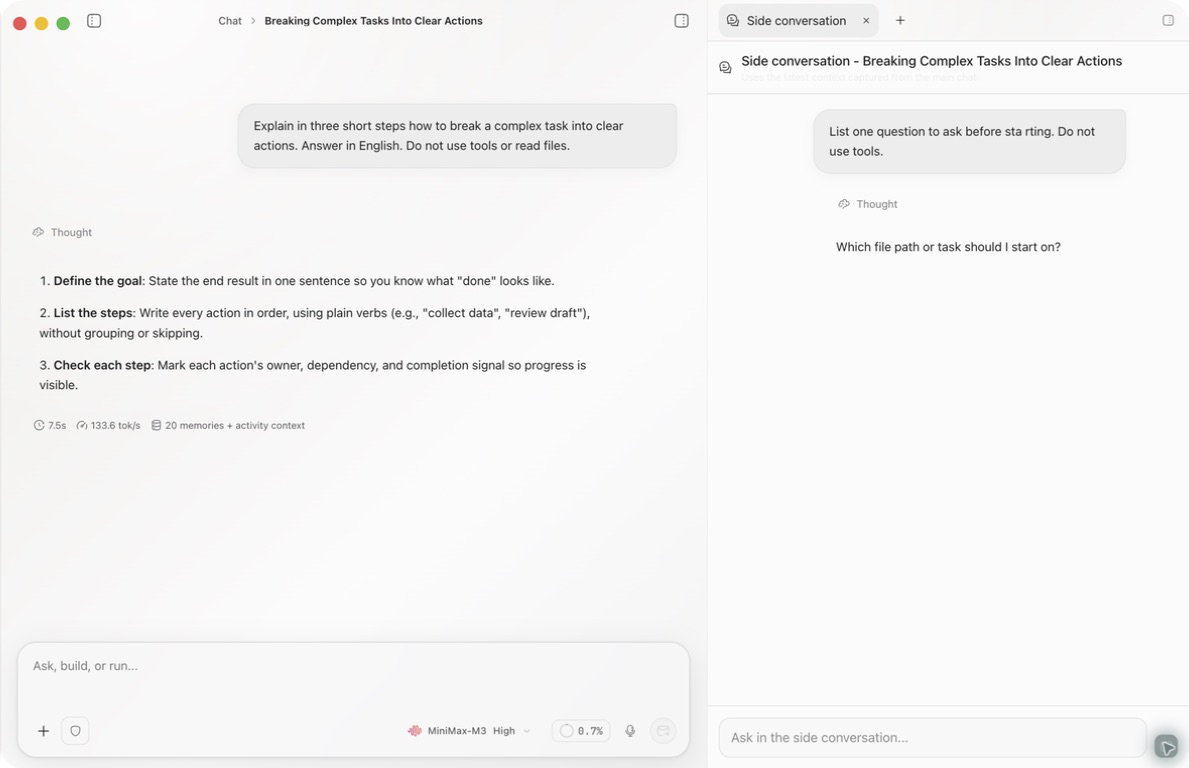
A side conversation receives a recent text snapshot of at most 12 messages and 6,000 characters. The snapshot is built from the currently loaded conversation's recent text, not necessarily only the messages before the message whose menu you opened. Older or longer text can be omitted or truncated; attachment content and tool results are not a complete part of this text snapshot.
The snapshot is a reference at creation time, not a live mirror of later main-chat changes. Tools, MCP and code assistance are disabled in the side conversation, and its answer is not written back to the main chat.
Roll back workspace changes
- Save important uncommitted work separately and inspect the current workspace.
- Open More actions → Rollback on the message with the snapshot you want. The item is absent when that message has no available restorable snapshot.
- Choose one of the scopes below; do not treat them as equivalent.
- Confirm only after checking the target. While rollback is processing, confirmation and cancellation are unavailable.
- Inspect the actual files and remaining conversation afterwards. A closed dialog does not replace checking the result.
| Mode | Result |
|---|---|
| Files only | Restore workspace files to the message snapshot and keep chat history |
| Files and messages | Restore files and remove conversation messages after that point |
Confirm the current workspace and target message first. External services, remote state, and processes outside the snapshot are not reversed. Save important uncommitted work separately.
Delete one message
More actions → Delete message removes the selected message immediately without a second confirmation. It does not restore files, undo Tools, or change an external service.
Ghast first attempts to stop generation in that conversation. Deleting one message is not the same as deleting all following messages or the entire conversation. Copy any text you need before choosing it.
For interrupted coding tasks, use the separate task recovery procedure: inspect files, processes and external results before retrying.