Create and manage conversations
Chat is for questions, writing, analysis, research, attachments, and one-off Tool tasks. Move to Coding for ongoing edits and review in a local directory, or to Team when several agents need to divide the work.
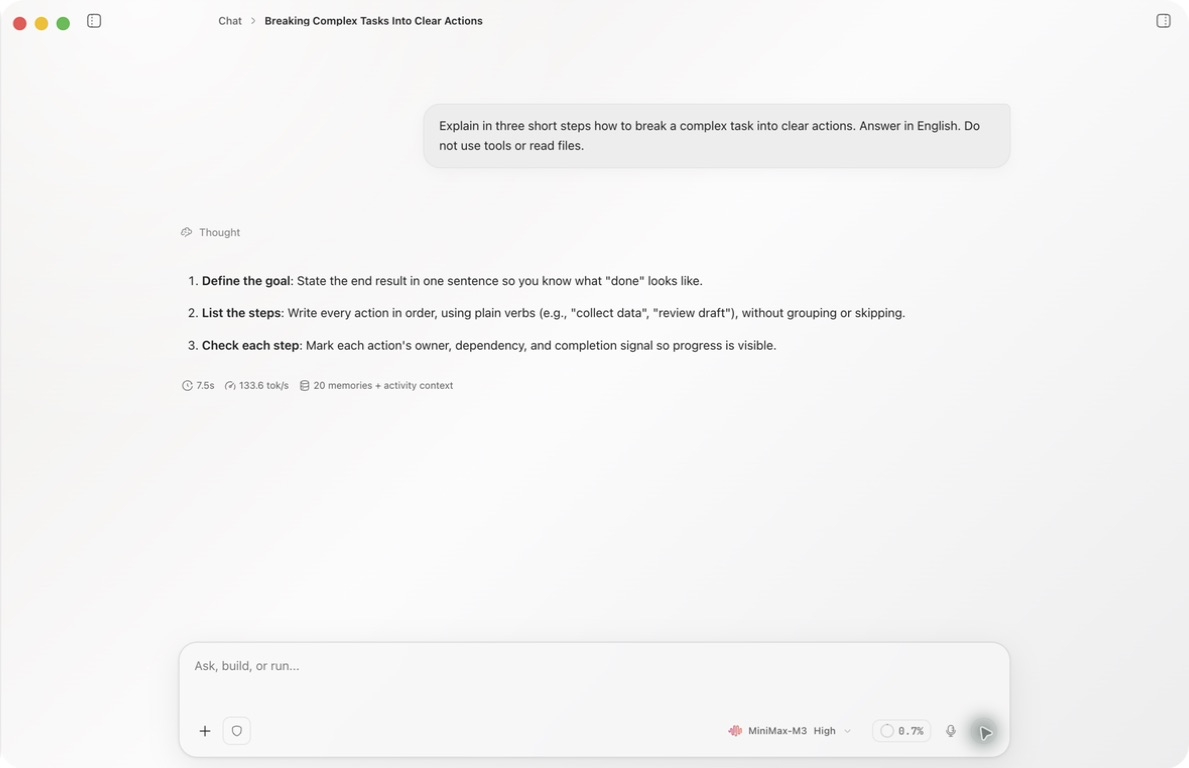
Create a conversation
- Select Chat in the left navigation.
- Choose New chat.
- Describe the outcome in the composer.
- Check the model, Tools, Skills, workspace, and command authorization.
- Select Send.
The conversation appears in Recents immediately. After the first user message is saved, Ghast asynchronously attempts to generate a title from its content; it does not wait for the AI response. If title generation fails, New Chat can remain temporarily.
State the goal, material, and boundary
A useful request states what you want, what Ghast may use, what it must not do, and how to format the result:
Turn the attached meeting transcript into a decision brief.
Use only the attachment. Do not browse or fill in missing facts.
Return Decisions, Open questions, Risks, and Next actions.
“Do not browse the web” states your intent but does not disable network access. The current composer has no per-tool switch or guaranteed offline mode. Keep sensitive material out of the request, inspect any proposed action and decline unintended operations. Do not use an ordinary connected session for work that requires enforced offline processing.
Continue an existing conversation
Choose a chat from Recents to resume it. Before sending “continue,” confirm that:
- The conversation title matches the task you intend to resume.
- The workspace, model, Tools, and Skills are still appropriate.
- Referenced files, pages, and external objects still exist.
- The previous run did not leave a partial result that needs inspection.
Use Search chats to find older conversations. On macOS, the interface also shows the ⌘K shortcut. Model and capability changes affect later runs; they do not recompute earlier messages.
Organize Recents
Right-click or open a conversation's context menu:
| Action | Result |
|---|---|
| Rename | Edit the sidebar title; press Enter to save or Escape to cancel |
| Favorite | Mark the conversation as a favorite |
| Pin favorite | Available after favoriting; keep it at the front of Favorites or unpin it later |
| Select | Enter selection mode, choose items or Select all, then delete them together |
| Delete | Open the delete confirmation |
Favoriting and pinning only change list organization. They do not alter messages, the model, or workspace.
Add messages while a response is running
You can keep typing during generation, then choose:
- Queue message to send the draft after the current response finishes.
- Interrupt and send to stop the current response and send the draft immediately.
- Remove individual messages from the queue shown above the composer.
- Queue up to 32 messages in one conversation.
The queue preserves the model, attachments, Skills, and available Tool configuration selected for each queued message. Changing those controls afterward does not update existing queue items. Remove an item and compose it again when its content or options need to change.
The arrow in the queue header interrupts the current run and sends the first queued message, not the draft currently in the composer. If a send fails, the item can return to the queue; check before adding a duplicate.
Stop a run
While Ghast is generating, Send becomes Stop generating. Stopping ends the current generation; it does not undo completed tool calls, file writes, or external actions. Inspect existing results before running the task again.
Stop does not clear queued messages. Remove pending items you no longer want before stopping; otherwise, a queued message can start automatically when the conversation becomes idle. The same rule applies in Coding; see queue and interruption controls.
Delete a conversation
Delete in the sidebar first asks for confirmation. Confirming removes the conversation and its messages from Ghast while leaving files in an associated workspace intact. Batch deletion has the same boundary.
Save any text you need first. Neither action reverses files or external state that already changed.
When to switch surfaces
| Goal | Better surface |
|---|---|
| Writing, explanation, research, one-off tool task | Chat |
| Ongoing work inside one local project | Coding |
| Coordinated work across several agents | Team |
When a task begins to make repeated changes in one local folder, switch to Coding and verify the workspace shown in the composer. For message editing, branching, side conversations, and file restoration, see Message versions, branches, and Rollback.