Projects, workspaces, and coding sessions
Ghast organizes coding work with three objects. A project is a navigation group in the sidebar, a workspace is the local directory used by Files, Terminal, and Git, and a coding session stores the messages and runs for one task. Check both the project and workspace before starting; identical project names do not imply identical paths.
Add a project and start a session
- Open Coding.
- Choose Select Directory… in the sidebar’s Projects section. In stable 0.1.33, the composer also has Add (+) → New chat in workspace; use the project-list route for this walkthrough.
- Select the project root in the system file picker.
- Return to Ghast and verify the added project and its full path. Adding a project can leave the previously open session on screen.
- Select New coding session under that project, then check the workspace folder in the session header before sending. Hover over the folder to inspect its full path. Continue with the tested coding example.
The top-level New coding session does not require a project, but select a workspace before sending the first message. Adding a directory only makes it available in the project and workspace lists; it does not approve edits or commands.
Use the workspace selector
The menu can include:
- No workspace, which leaves the session without a user-selected project directory; the coding session can still use an internal session directory managed by Ghast;
- Default, Ghast's managed internal
Defaultworkspace; it is separate from the directory selected under Settings → General → Default workspace; - added projects, with their names and complete paths;
- Select Directory… for adding another local folder.
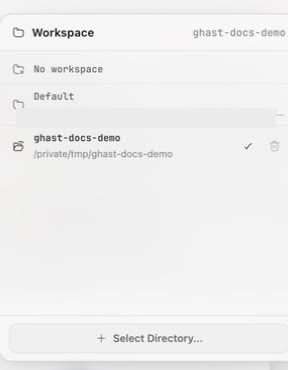
A session created under a project normally inherits that project. Still check the complete path before sending, especially when the computer contains a main checkout, temporary copy, or similarly named repository.
Switch workspaces in a session
In an empty session, selecting another workspace updates the current session. After the session has messages, selecting a different workspace creates and opens a new New Chat coding session and carries the current Ask or Full access command authorization. The old session and its history remain under the original project; they are not moved.
After switching, check the composer path, project location, and current Git branch. Do not rely on the previous session's directory when deciding where the next run will operate.
Set the default workspace
Open Settings → General → Default workspace to select a fallback workspace, or choose Automatic. The choice saves immediately. It does not change the internal Default item in the workspace menu or automatically bind ordinary new Chat/Coding conversations. Existing local conversations keep their own project. External-channel chats follow their binding/default rules, including platform differences for existing conversations; see default workspace behavior.
About managed worktrees
If a session uses a Ghast-managed worktree, treat it as a separate Git checkout: verify its complete path in the composer, confirm its branch in Git, and inspect uncommitted and unpushed work separately. The Pull Request section requires a managed worktree with a recorded branch and an authenticated GitHub connection. The post-merge cleanup dialog appears after a successful merge through that section.
Delete a coding session
The confirmation states that the session and its messages are removed from Ghast while workspace files remain on disk. Deleting a session is not a code rollback; use snapshot rollback or Git when files must be restored.
After confirmation, Ghast stops client-managed terminal sessions associated with that conversation. Detached child processes, independent applications, or external services can continue running, so inspect the operating system and target services after cleanup.
Delete a project
Deleting a project from Coding removes it from the current surface and deletes that surface’s associated sessions. If the same path is still used by another surface, the underlying Workspace record and that surface’s conversations can remain. The directory on disk is not deleted. Associated Ghast terminal sessions are stopped, but detached children and external jobs can survive.
Deletion cannot be undone. Check the conversation count and preserve any needed conclusions first; afterward, inspect files on disk, Git, system processes, and remote state.