Input, attachments, and workspace
The composer determines which material accompanies the next message, which model handles it, and which capabilities are available. Changes apply to later runs and do not rewrite completed responses.
Add (+) opens attachments, app-context capture and workspace selection. Skills and commands are available through / in the input.
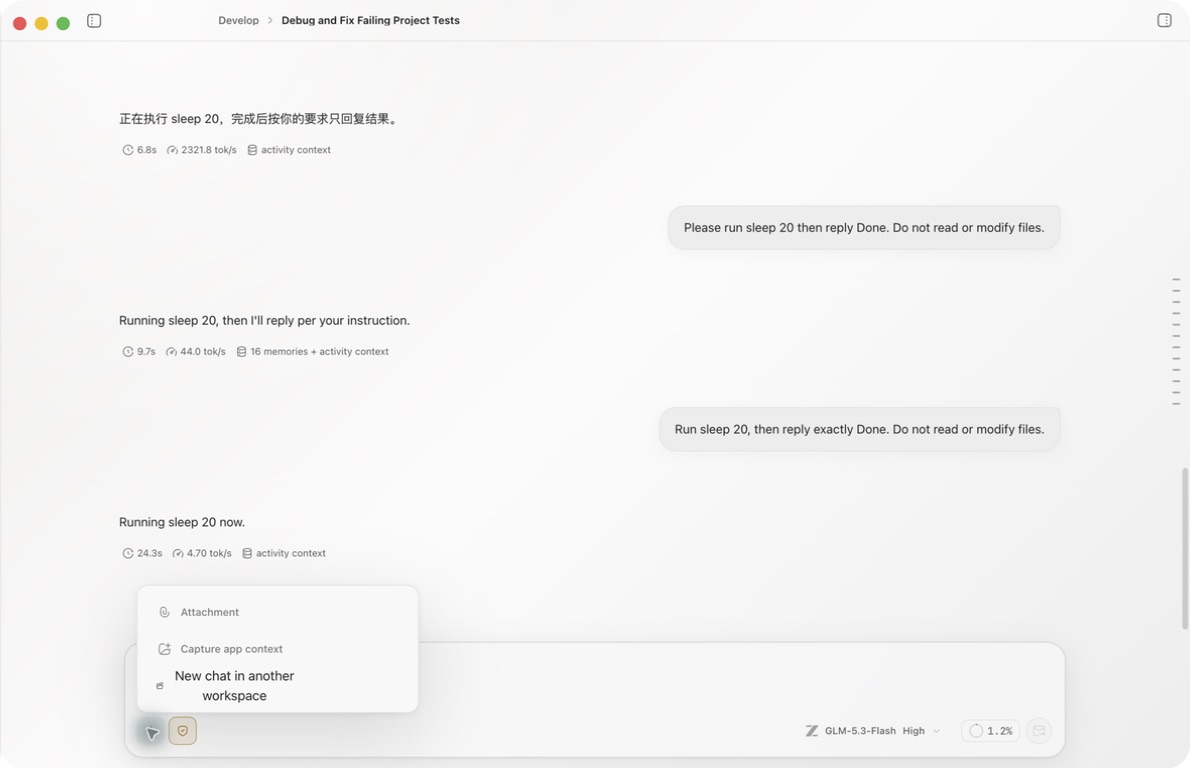
Text input
The composer accepts plain text, Markdown, and code blocks. For multi-step work, organize the prompt as outcome, scope, constraints, and acceptance criteria. Attach long logs or source material instead of pasting them repeatedly.
Type / to open suggestions for currently available commands, prompts, and Skills. During generation, you can prepare another message and either queue it or interrupt the current response and send it immediately; see Create and manage conversations.
Attachments
Choose Add (+) → Attachment to open the operating-system file picker. Selected files first appear above the composer. Recheck the attachment card before sending and remove anything that should not be submitted.
Supported attachments are images, PDF, DOC, DOCX, TXT, MD, JSON, and CSV. The limit is 10 MB per file.
- Open Add (+) → Attachment and select one or several files.
- Wait for each selected file to appear as an attachment card. Selecting a file is not proof that it was successfully added.
- Check each filename and remove unwanted cards before sending. Removing a draft attachment does not delete the original file.
- Add a specific request, such as “Summarize this document and identify any sections you could not read.”
- Send, then check whether the reply actually used the supplied material. If it reports unavailable content, provide a readable replacement rather than asking it to guess.
The picker checks the original file size before image processing. An oversized file is rejected with a size-limit alert; when selecting several files, other valid files can still be added. If no card appears, retry with a readable local copy. Re-selecting the same file can add another attachment, so remove duplicates yourself.
An attachment becomes message context. It does not automatically authorize Ghast to modify the original file. For project edits, selecting a workspace and using Coding makes the scope easier to inspect.
Before sending, check:
- Is this the correct version of the file?
- Does it contain credentials, personal data, or unrelated pages?
- Is the full file necessary, or would a smaller excerpt be enough?
- Does the request clearly say whether to read, edit, extract, or compare?
What the model receives
Images are passed as image content and require a suitable model. Documents are converted locally to text or Markdown before the model request. This does not guarantee that every image, chart, page layout or scanned page in a document is understood.
Extracted text is limited to 160,000 characters per attachment in this conversion path, with a truncation notice when longer. This is not a guarantee that the selected model has enough context for that much text plus the rest of the conversation. Split long documents into relevant sections when necessary.
If conversion fails, finds no reliable text or cannot handle the format, the model receives an unavailable-content notice rather than the document's contents. Keeping an attachment in the conversation is not proof that the model read it. For scanned or complex documents, provide readable text or relevant page images and ask the model to state any remaining gaps.
Local conversion does not mean offline use: the extracted text or image content is sent to the selected model provider when you send the message. Removing a card from a later draft cannot recall an attachment already sent.
App context
Choose Add (+) → Capture app context. Ghast displays a confirmation before capturing anything.
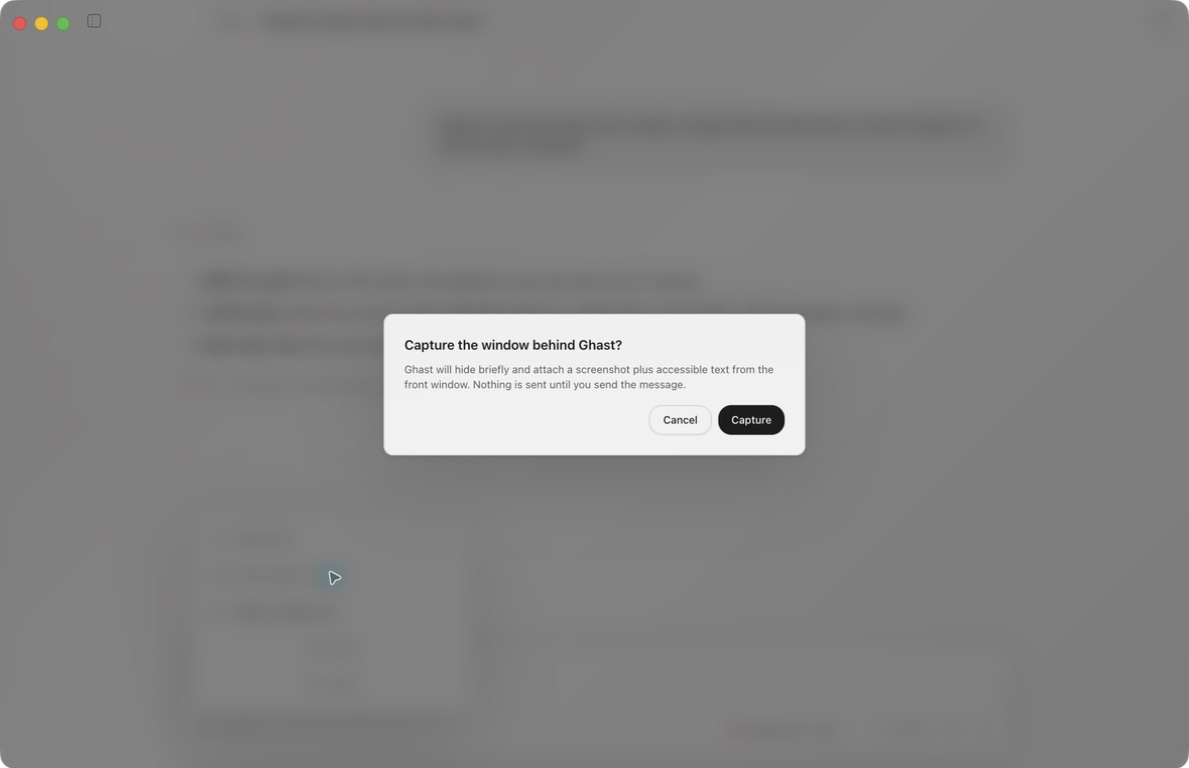
After Capture, review the captured material shown in the composer and remove anything that should not be submitted before you send.
App context may include the window title, visible text, account information, and a screenshot. Put the target window directly behind Ghast and close unrelated or sensitive windows. It becomes the front capture target after Ghast hides. Review both captured items before sending.
Workspace
Choose Add (+) → Select workspace. The picker offers:
- No workspace for a chat that is not tied to a local folder.
- An existing workspace.
- Select Directory… to add a directory through the system picker.
If an empty conversation has no messages, the selected workspace binds to that conversation. If the current conversation already contains messages, choosing a different workspace creates and opens a new conversation with that workspace. The original conversation and its history do not move. In regular Chat, the new conversation uses the default Full access instead of inheriting Ask. In Coding, the new conversation carries the current Ask or Full access choice. Check the breadcrumb, Recents, workspace, and command authorization after switching.
The workspace determines the main location for file and shell actions. When you work across projects, recheck it before every run.
Model and reasoning
The model control shows the current model. For a model that supports reasoning, it also offers levels such as None, Low, Medium, High, and Extra high. Models without reasoning support do not show that control. Tool selection applies only to models that support Tool calls.
Context limits, Tool support, speed, and usage can differ by model. A visible model name does not prove a successful request; verify a new setup with a simple message.
For context totals, automatic compaction, and /compact, see Context usage and compaction.
Voice input
In Chat, select Voice input to start recording and select it again to stop. Wait for first-use preparation to finish before speaking. The recognized text is appended to your draft; stopping a recording does not send the message. This microphone control is not available in Coding or Team.
Review the transcript before sending—especially paths, amounts, names, and negations. For setup, microphone access, language selection, and recovery, see Voice input and replies.