Quickstart
This page has one goal: create a conversation, send a message, and confirm that Ghast returns a complete result. For the first run, do not read files, call Tools, or connect an external service.
Before you start
You need:
- Ghast Desktop installed and open using System requirements and installation.
- A signed-in account.
- 0G Compute configured and Account funds able to refresh.
- The account funded as needed, with at least one model enabled and tested.
- That model visible and selectable at the lower right of the composer.
If the model area is empty or unavailable, do not keep sending. Return to Enable, test, and select models and follow its unavailable-model checks.
1. Create a conversation
Select Chat in the left navigation, then choose New chat. The composer at the bottom reads “Ask, build, or run…”
You can collapse the sidebar at any time. This only changes the available space; it does not delete the conversation.
2. Check the run controls
Review the controls along the bottom of the composer:
| Control | First-run choice |
|---|---|
| Add (+) | Leave attachments, captured app context and workspace selection empty for this example |
| Attachment / app context / workspace | Do not add any yet |
| Command authorization | Actively switch to Ask; a new conversation currently defaults to Full access |
| Model / reasoning effort | Use a model that is already available |
| Context usage | A new chat should use little context; no adjustment is required |
| Voice input | Start with the keyboard; first-time voice use may download a small model |
3. Send the first message
The current Add menu does not contain Tools or Skills selectors. Do not look for an All off control there. Keep this first request free of private data and ask for a text-only answer. That instruction is not a permission barrier: inspect unexpected tool activity and decline actions you did not intend. Existing Memory or activity-context settings can still contribute background information even when you attach nothing.
Enter:
Explain in three short steps how to break a complex task into clear actions.
Do not use tools or read files.
Select Send. While Ghast is generating, the button becomes Stop generating and can end the current run.
4. Verify the result
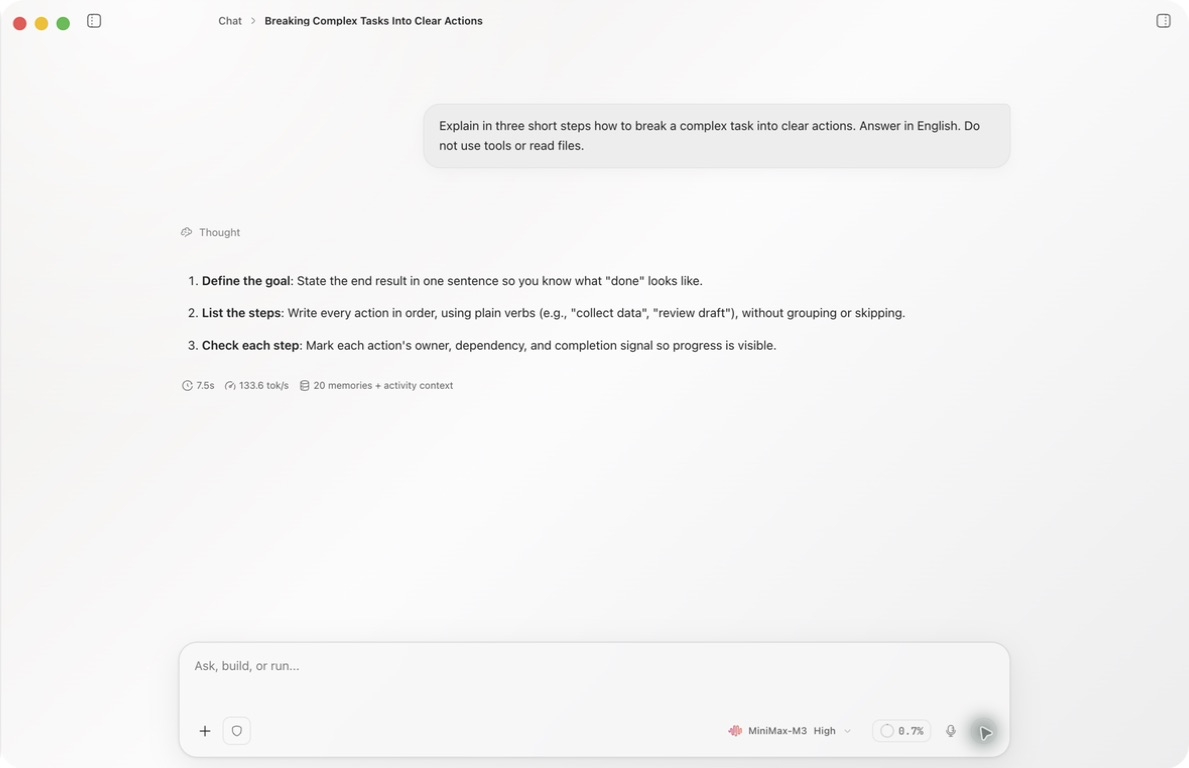
A successful run shows:
- A complete answer with no remaining thinking or “Processing” state.
- Any run summary available for that response, such as duration, generation speed, or memory activity. Fields vary by model and run type.
- An active composer ready for the next message.
This no-tool example should not produce a Tool card. For later file or external-service work, use both the Tool card and the target location to verify the result.
If sending fails:
- Keep the complete visible error instead of deleting the conversation.
- Check sign-in, available usage, provider status, and network access.
- Correct the issue and retry in the same conversation. If a Tool card appeared before failure, inspect any partial result first.
5. Learn the response actions
Move the pointer near a message to reveal actions appropriate to that message and its current state:
- Your messages can be copied or edited. Editing returns the content to the composer and enters edit mode.
- Both user messages and AI responses can conditionally show Regenerate. It creates another selectable version instead of simply overwriting the earlier content.
- Style feedback and Report this reply appear only on AI responses. Style feedback is stored locally; a report shows a sending preview first.
- Branch, side-conversation, Rollback, report, and delete actions appear only on messages and states where they apply.
- The two feedback actions have different data destinations. See Feedback and privacy.
Continue with Tour the client, the final page in Get started. Then read Conversation basics, followed by the composer, Tools and Skills, and run output as needed.
Done when You can create a chat, send a message, wait for the run to finish, and continue with another message.