Add a custom MCP server
Obtain the official configuration from the server provider and confirm its transport first. Do not infer a startup command or permissions from a package name, blog excerpt, or unknown repository.
Choose Plugins → Manage connections → Add server.
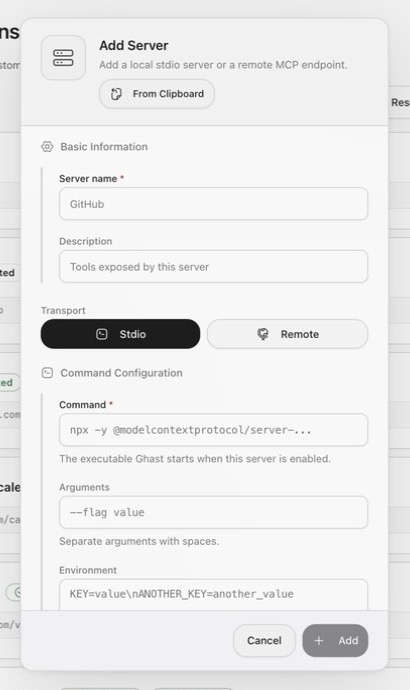
Import from clipboard
If the provider gives you JSON, copy the complete object and choose From clipboard. Ghast can read:
- a configuration containing
mcpServers, importing its first server; - a direct stdio object containing
command; - a direct remote object containing
url.
Do not save immediately after import. Verify name, command, arguments, environment, URL, headers, and Remote Transport. Clipboard import currently does not preserve an SSE/transport field and resets a remote entry to Streamable HTTP; manually select SSE when required. Invalid JSON produces a clipboard-format error.
{
  "mcpServers": {
    "example": {
      "command": "npx",
      "args": ["-y", "@example/mcp-server"],
      "env": {
        "EXAMPLE_TOKEN": "replace-me"
      }
    }
  }
}
Basic information
- Server name is required and appears in Manage connections and tool groups. Use a name that identifies the account or environment, such as
notion-work. Use distinct names for test, staging, and production servers.
Add a local stdio server
Choose Stdio and enter:
- Command, the required executable command;
- Arguments, split on whitespace;
- Environment variables, one
KEY=valueper line.
npx
-y @modelcontextprotocol/server-filesystem /path/to/allowed-folder
API_TOKEN=replace-me
LOG_LEVEL=warn
Important boundaries:
- the command runs locally as the current user;
- the process can access what its parameters and operating-system permissions allow;
- environment values are passed to the server process;
- arguments are split on whitespace and are not a full shell-quoting interface;
- the first run of an unknown package-manager command may download and execute code.
Prefer the provider's fixed version and documented entry point. The environment field is plain text and shows existing values again when edited. Never paste a private key, recovery phrase, or long-lived master credential into arguments; prefer OAuth or a plugin credential vault for durable credentials.
Add a remote server
Choose Remote and enter:
- the complete MCP URL;
- Streamable HTTP or SSE transport;
- optional Headers, one
Header: valueper line; - Requires OAuth when browser authorization is needed.
Authorization: Bearer replace-me
X-Workspace-ID: workspace_123
Prefer HTTPS. Confirm the domain, certificate, terms, and data-processing scope. The Headers field is plain text and shows existing values again when edited. Custom headers are sent to that URL with MCP requests; do not reuse one token across unrelated services.
Use OAuth
- Enter the complete remote URL.
- Turn on Requires OAuth.
- Choose Authorize.
- Verify domain, account, and scopes in the browser.
- Complete authorization and return to Ghast.
- Confirm Authorized before adding the server.
Changing the URL or OAuth toggle clears the Authorized indicator, but does not itself delete a local token or revoke the remote grant. Custom Server cards and the edit dialog currently have no Disconnect or Revoke OAuth action. Before editing a saved OAuth Server, revoke the old grant in the provider's account-security page, then change the URL or name and authorize again. Renaming does not automatically remove the local token associated with the old name. Preserve the exact error on failure; do not fall back to a long-lived token unless the provider supports it and you understand its scope.
Save and accept the connection
After choosing Add, verify in order:
- the server card appears;
- status moves from Connecting to Connected;
- no Failed connection or Limited connection diagnostic remains;
- connection diagnostics identify the intended server without a capability-discovery error;
- the resource count is expected;
- a new Chat can complete a small read-only request naming this service;
- returned identity, project, and data are correct;
- test a write only if needed and explicitly authorized; a read-only connection needs no write test.
Do not treat a visible card or Connected badge as full acceptance.
Common failures
Local server exits immediately
Check that the command exists, arguments were not split incorrectly, the runtime is installed, the pinned version can be obtained, and required environment variables are present.
Remote server returns 401 or missing credential
Check OAuth completion, header name and prefix, token environment, and whether the provider requires a preregistered OAuth application.
URL is reachable but handshake fails
Confirm this is the actual MCP endpoint and choose the documented Streamable HTTP or SSE transport. A normal REST endpoint is not automatically an MCP server.
Connected with no tools
The server may publish only resources, or capability discovery may have failed. Read diagnostics, reconnect, and confirm the server's published capabilities with its official client or documentation.