Connect and manage MCP
An MCP server exposes an external service or local program to Ghast. A connected server can publish:
- Tools for actions such as query, create, update, or send;
- Resources that can be browsed and read;
- each tool's name, description, and input parameters.
Installing a plugin is the preferred way to connect common services. Add a custom MCP server only for a custom deployment, an in-development server, or a connection that is not packaged as a plugin.
Open Manage connections
Choose Plugins → Manage connections.
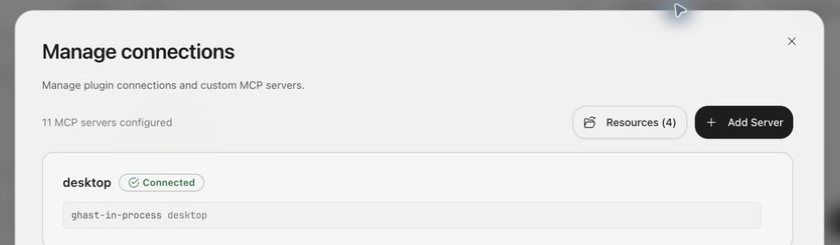
Each server card shows its name, status, and local command or remote URL.
| Status | Meaning | Next step |
|---|---|---|
| Connected | Ghast established a session and discovered server capabilities. | Run a small read-only request and inspect the actual call. |
| Connecting | Startup or handshake is not complete. | Wait; if it persists, open diagnostics. |
| Disconnected | Configured without an active connection. | Connect or reconnect. |
Startup, network, protocol, credential, or discovery failures appear as Failed connection, Limited connection, or last-error diagnostics rather than a stable Error status badge.
Connected proves only that the current MCP session was established. It does not prove every tool, resource, OAuth scope, or write operation works.
Plugin connections and custom servers
Plugin connection
A plugin supplies the server and usually owns its OAuth or credential UI. Its lifecycle follows the plugin: disabling the plugin deactivates its connection and tools. It may be read-only configuration that cannot be edited or deleted in Manage connections.
Custom server
You create it with Add server. It can be edited, reconnected, or deleted. Deleting removes the Ghast configuration; it does not delete remote data and may not revoke a provider token.
Use MCP tools in a conversation
- Confirm the server is Connected.
- Open Chat or Coding and select a model that supports tool calls.
- Name the intended service, account and operation. The current Add menu has no per-server tool selector; naming a service does not isolate other connected capabilities.
- Start with a read-only request such as listing projects or reading one record.
- Inspect the server, tool, input parameters, and output in the process card.
- Only then create, update, send, or delete—and verify the final state in the service.
Tool names and descriptions come from the server. Never infer side effects from the name alone. Check IDs, account, project, recipients, amounts, and deletion scope.
Browse MCP resources
When a connected server publishes resources, the top of Manage connections shows Resources (count):
- choose Resources;
- browse by server on the left;
- select a resource;
- read its content and MIME type on the right.
A resource is a read surface, not something automatically attached to every message. Use only the material required for the task and inspect it for sensitive data before sending.
Reconnect
Reconnect after:
- the computer wakes or changes networks;
- a local server process exits;
- a remote connection drops;
- credentials or OAuth authorization change;
- the server is updated and restarted.
Recheck tools and resources after reconnecting. A recovered connection does not guarantee an earlier session, cache, or unfinished action resumed.
Edit or delete a custom server
A custom Server card provides Settings and Delete actions. When editing, verify transport, command or URL, arguments, environment values, and headers. The custom Server UI currently has no OAuth Disconnect or Revoke action; revoke the old grant at the provider before changing its URL or name. Saving a new address or renaming does not guarantee that the old token was removed. Reconnect and run the smallest test after saving.
Before deleting:
- ensure no active run uses the server;
- retain configuration you need;
- revoke unused tokens at the provider;
- verify the server name;
- reopen Manage connections and confirm the custom server card is absent. This does not revoke remote authorization.
Connected but tools are missing
Check in order:
- Does the current model support tools?
- Does the request identify the intended service and action?
- Is the server enabled and connected?
- Did the server actually publish tools?
- Is its plugin enabled?
- Is a changed tool descriptor waiting for review?
- Reconnect, check any previous partial result, then retry a small read-only request.
- Expand connection diagnostics and tool-card errors.
If resources appear but tools do not, that can be the server's intended capability set.