Browse, install, and use plugins
A plugin is a bundle of Ghast extensions installed together. It may include skills, external service connections and MCP tools, slash commands, or lifecycle hooks. Details shows part of a catalog entry, but it does not fully enumerate a local plugin's commands, individual MCP tools, or hooks. Inspect the package manifest from a trusted source before installation.
Choose Plugins in the main navigation to open the library.
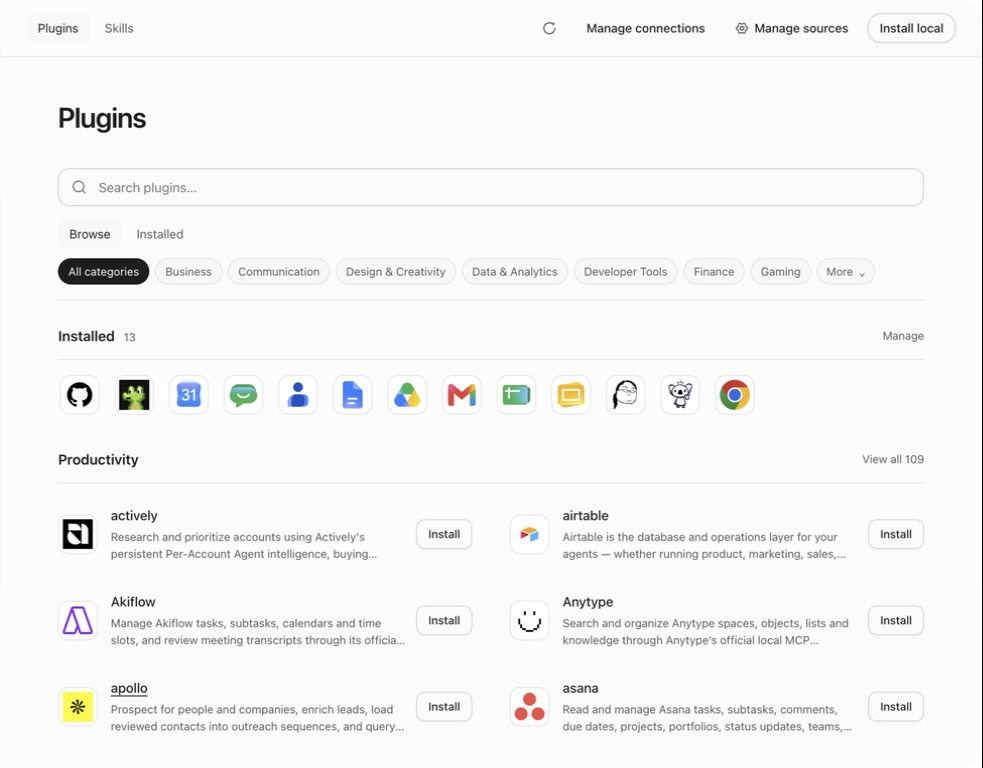
Find the right plugin
The library provides:
- search by name, author, or description;
- Browse / Installed views;
- categories such as Business, Communication, Design & Creativity, Data & Analytics, and Developer Tools;
- a shelf of installed plugins;
- category previews and View all links.
Open the detail page instead of installing from the name or icon alone. Check:
- the concrete task it addresses;
- included skills, apps, tools, commands, or hooks;
- author, version, source, and compatibility;
- website, repository, documentation, privacy policy, and terms;
- whether it requires a third-party account or credentials.
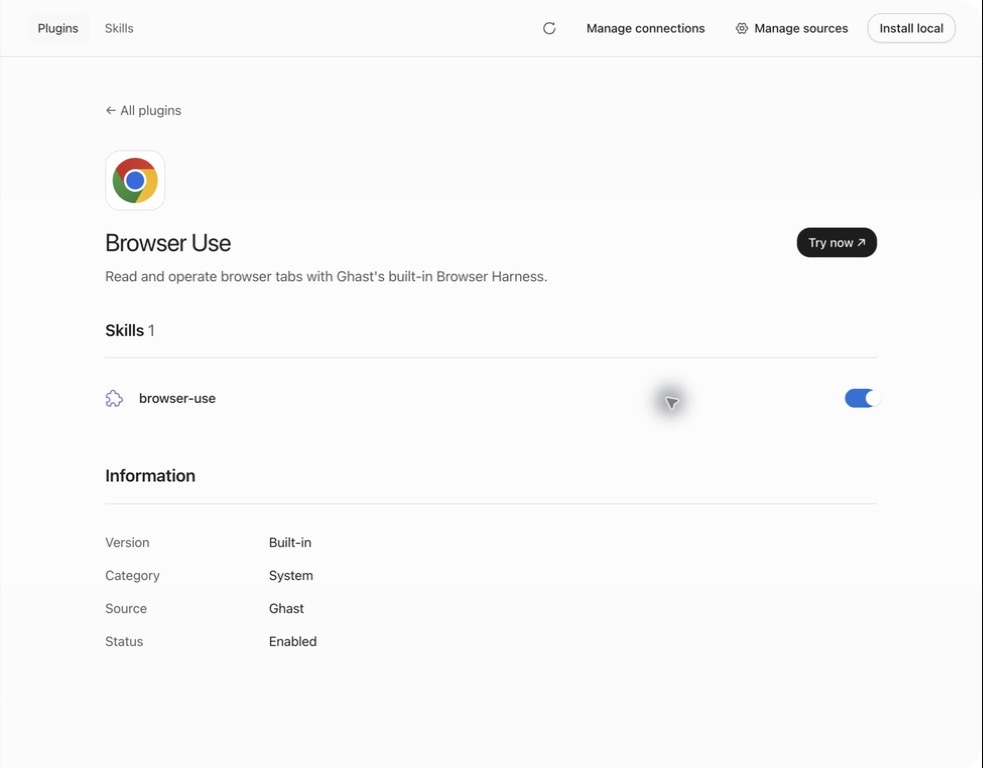
Install from the official catalog
Choose Install on a card or detail page. A new plugin is enabled immediately and its skills, commands, MCP servers, and lifecycle hooks are registered. Ghast then opens the detail page. Confirm:
- the plugin is shown as installed and enabled;
- included skills have the intended individual enable state;
- apps still show Not connected until you authorize them;
- starter prompts are available when supplied;
- no compatibility or loading error is present.
Installation adds files and declared capabilities to Ghast. It does not grant access to third-party accounts.
Connect a plugin service
The detail page for an enabled plugin lists its apps. Depending on the service, you may see:
- Connect to complete OAuth in a browser;
- Save and connect for an API key or token;
- Reconnect to restart a connection;
- Connected to… with the current account;
- Disconnect to revoke Ghast's authorization state.
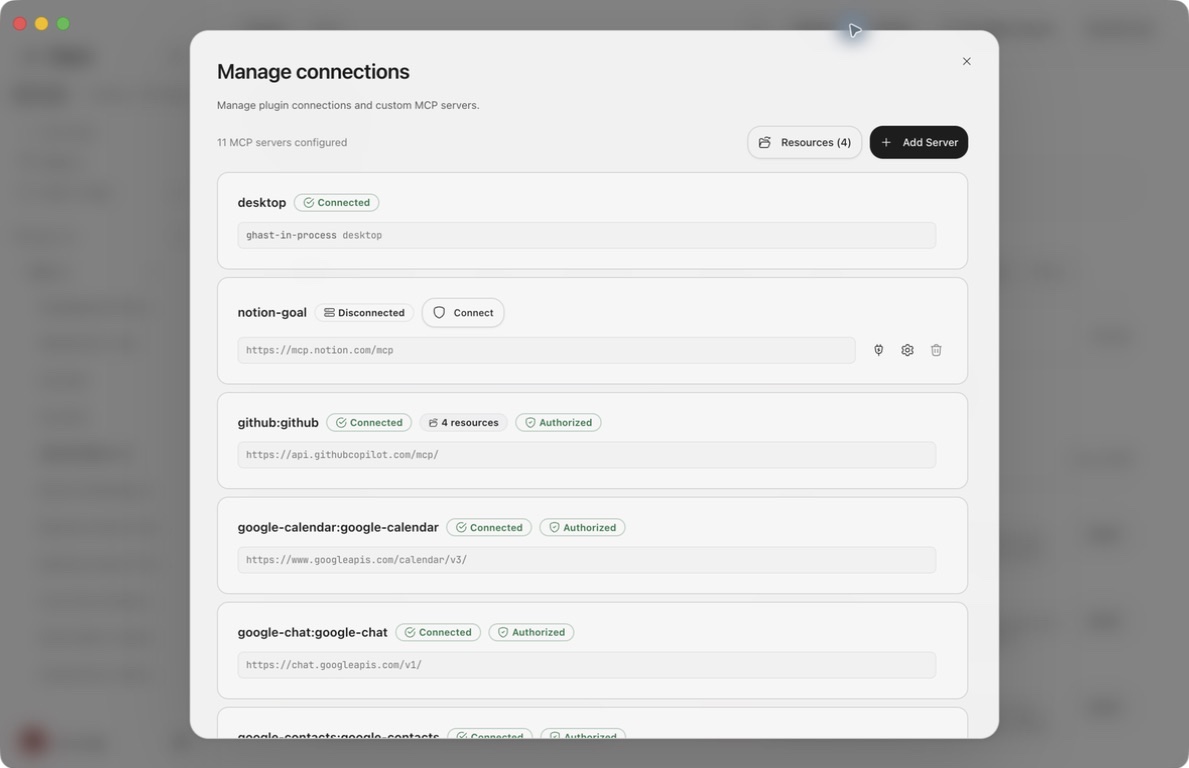
Before authorizing, confirm the provider domain, account, workspace, and requested scopes in the browser. After connection, start with a read-only query in Chat. A Connected label does not by itself prove that every tool or requested scope has been exercised successfully.
Disconnecting prevents later Ghast calls. Whether the provider also revokes the remote token depends on the integration. Check the action's scope first: some services share one authorization across several plugins. A Google menu can show Disconnect all Google apps, which clears the shared credential and tokens for every associated Google server; Webex can also use a shared connection scope. Do not treat group-wide disconnect as a required step for removing one plugin. First identify every affected service and workflow. If the UI says manual revocation is required, remove the authorization from the provider's account-security page as well.
Use Try now
An installed, enabled plugin can show Try now and starter prompts. Selecting one:
- creates a new conversation in Chat or Coding based on the most recently used surface;
- inserts
@plugin-idand the example text into the composer; - leaves the text as a draft—it is not submitted automatically.
Before sending:
- Confirm the connected account and workspace.
- Replace the example with the task you want completed, including what may be read or changed.
- Check the selected skills and tools, then send the draft.
- Inspect the returned tool result before assuming the task succeeded.
What mentioning a plugin selects
A plugin mention helps Ghast choose that plugin's capabilities; it is not an “only this plugin may run” permission boundary.
- Ghast attempts to limit automatically discovered MCP servers to the mentioned plugin.
- When that plugin already has an enabled Skill among the automatic candidates, automatic Skill selection narrows to its Skills instead of ordinary personal, project and built-in Skills.
- If the plugin provides only MCP, or all its Skills are disabled, other automatic Skills remain available.
- Skills you selected manually and eligible Skills configured to be included in every request are not removed.
Mention parsing currently recognizes a complete Plugin ID only when it contains ASCII letters, numbers, underscores, and hyphens. The manifest permits dots, but a token such as @release.tools is not recognized as that complete ID and must not be relied on for scoping. For a skill, use slash search to insert the intended skill reference. For an external service, verify its connection and name the service and operation explicitly in the request. The current Add menu has no per-tool selector, and neither approach guarantees isolation from other capabilities.
Manage installed plugins
Choose Installed, or Manage beside the installed shelf. A detail page can offer:
- Enable to reactivate a plugin only when it is already disabled;
- Update when the catalog contains a different package;
- Remove for a removable plugin;
- Try now to create a referenced draft;
- individual switches for included skills;
- connect, reconnect, and disconnect actions.
The current public detail page does not provide a control to disable an enabled plugin. To stop its complete contribution set, choose Remove when available. An individual Skill switch controls only that Skill. You can disconnect an external connection dedicated to that plugin first; for shared authorization, identify the wider impact instead of disconnecting the whole service by default. Removal does not delete earlier conversations or data already written to a third-party service, and it does not revoke remote authorization for you. A system plugin may be manageable but not removable.
Before removal:
- finish or stop runs that depend on the plugin;
- retain any output you need;
- determine whether each external account is dedicated or shared, then disconnect only after confirming the affected scope and revoke remotely when necessary;
- confirm no workflow still depends on its skills, commands, or MCP tools;
- verify the plugin name in the confirmation dialog.
Update a plugin
Before selecting Update, reread the detail page and external release notes. An update can change:
- skill triggers and workflows;
- MCP endpoints, tools, or parameters;
- credentials and OAuth scopes;
- slash commands;
- local lifecycle hooks.
After updating, recheck plugin and skill enablement, the connected account, and the first tool call. Do not update a critical plugin in the middle of a production task.
Add a custom catalog source
Choose Manage sources. The official Ghast catalog remains present; you can add a trusted plugin-catalog.json URL and remove sources you added yourself.
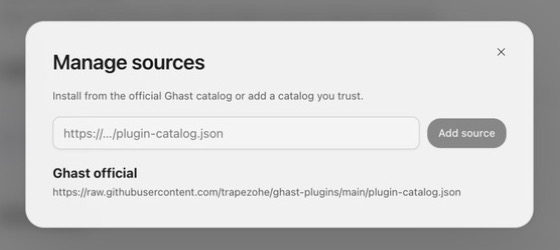
The first install from a non-official source shows an additional confirmation. The current dialog summarizes skills, commands, and MCP servers, but does not fully disclose lifecycle hooks. Inspect the manifest and hook configuration separately before confirming. New installs are enabled by default, so also verify the catalog domain, publisher, package location, and integrity digest.
Install a local plugin
Choose Install local, then select the plugin root in the system directory picker. Ghast validates the manifest and installs the bundle into the current account's plugin area.
Use this for:
- developing your own plugin;
- installing a trusted build that is not yet in a catalog;
- validating a packaged directory before publication.
Local install does not mean “execute any folder.” The directory needs a supported manifest and declarative contributions. There is no separate pre-install capability confirmation for a local bundle, and it is enabled immediately. Inspect its manifest, hooks, and MCP commands before selecting the folder; then connect and test each capability.
A plugin cannot install or run
Check in order:
- Is it marked incompatible or missing an installable package?
- Does catalog refresh show an error?
- Can the current network or proxy reach the catalog and package URL?
- For local install, did you choose the plugin root?
- Is the plugin enabled?
- Are required skills enabled?
- Is the app or MCP server connected?
- Does the current model support tools?
- Does the selected model support tool calls, and does the request name the intended service and action?
- Does the tool card or connection diagnostic show a specific error?
Treat installation, connection, and task outcome as separate states. Installed does not mean connected; connected does not mean a write action completed.