Use skills in a conversation
A skill is reusable working guidance. It tells Ghast how to approach a kind of task, what to check, when to stop, and how to present the result. A skill is not a model, agent, or tool. It may guide tool use, but it cannot bypass permissions.
Choose a skill with /
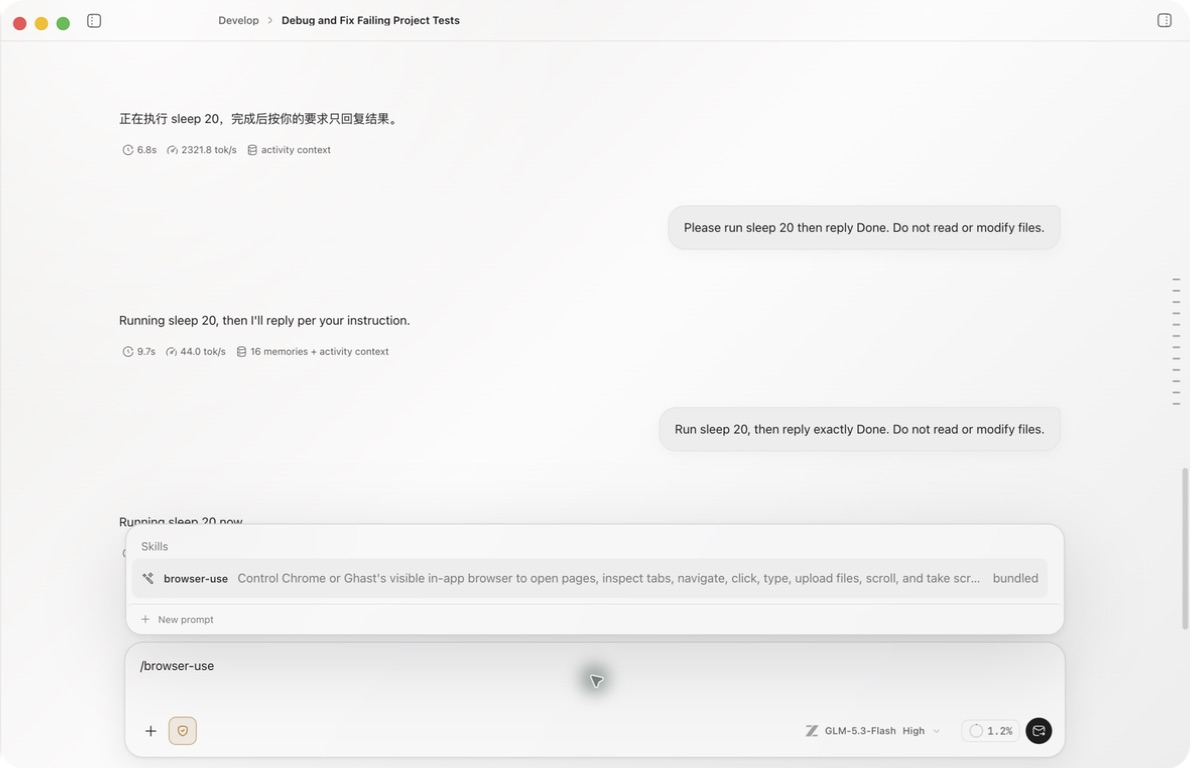
- In Chat or Coding, type
/and part of the skill name. - Read the result type and description: this menu also contains prompts and commands.
- Select the skill result. Ghast inserts its reference into the draft; selecting a skill does not send the task.
- Add your goal, inputs, allowed scope and completion criteria.
- Review the draft and command authorization before sending.
The current Add (+) menu has no Skills selector. To browse complete instructions and source information first, use the Skills library.
Selecting a disabled skill from slash results enables it before inserting the reference. This is a saved enablement change, not just a preview. Archived skills are excluded. If enablement fails, Ghast shows an error; check the library state before retrying.
Do not select a command while merely exploring skills: some command entries execute immediately. Check the result type before selecting.
To avoid using a selected skill, remove its reference from the draft before sending. This does not disable it in the library or guarantee that automatic selection will never use it. Manage enabled state in the library. A skill's required tools remain subject to command approvals and account permissions.
How a skill affects one run
After you send, Ghast first reads skill names and descriptions, then loads full instructions when a skill matches. Loaded content guides that run.
The governing order remains:
- Ghast safety and system rules;
- your explicit request in the current message;
- conversation and workspace boundaries;
- the skill's workflow guidance.
If a skill assumes a tool, service, file, or platform that is unavailable, Ghast should report what is missing. Skill text is guidance, not proof that its assumptions are true for the current task.
Skill, tool, plugin, and agent
| Object | What it answers | Executes actions? |
|---|---|---|
| Skill | “How should this kind of work be done?” | Not directly; it can request tools. |
| Tool | “What action can be taken?” | Yes—for example reading a file or searching the web. |
| Plugin | “How can a capability bundle be installed?” | It can contribute skills, connections, commands, and hooks. |
| Agent / Team coworker | “Who should own ongoing work?” | It works with its own model, capability set, workspace, and memory. |
Enabling a skill therefore does not grant Shell access, file writes, or access to a third-party account. Required tools must still be available, command approval remains active, and remote services must be connected.
Sources and scope
The Skills library combines skills discovered on this computer and labels their source:
- Built-in skills shipped with Ghast;
- Ghast / Personal skills in the current Ghast account's skills folder;
- Marketplace skills supplied by installed plugins;
- Project skills associated with an added project;
- Other agents from compatible local agent tools or shared folders.
Library visibility does not guarantee that a skill appears in every composer picker. Availability also depends on enabled and archived state, current project, source compatibility, and model capabilities. Use slash search and the library's source details to identify the intended skill; there is no separate manual composer picker.
Project skills and global skills
Use a global skill for habits that apply across projects, such as a review format, research deliverable, or writing policy. Use a project skill for commands, directories, release steps, and domain constraints that are true only for one project.
When more than one source contains the same skill name, do not identify the effective content by name alone. Open the detail view and check the source, file location, and complete instructions. If the exact variant matters, select it explicitly and state the intended source in your request.
See which skills a run used
After a response, the run summary can show automatically selected or explicitly loaded skills. More actions → Usage also retains the run's skill information. A listed skill means it was recorded for the run; it does not prove every step succeeded.
To verify a skill:
- run a small task with an inspectable result;
- confirm the target skill in the run summary;
- check the workflow, delivery format, and stop conditions;
- when tools are involved, inspect their process cards and real results.
Set the default for new conversations
Open Settings → Chat behavior → Default skill selection and choose Auto, All, or None. This sets only the starting state for new conversations. It does not overwrite a selection already saved in an existing conversation.
When not to use a skill
A direct request is usually better when:
- the procedure will be used only once;
- the workflow is still changing frequently;
- critical constraints apply only to one file or release;
- the skill would repeat ordinary work the model already handles;
- what you actually need is a new tool, external connection, or persistent agent.
Turn stable, reusable procedures with clear success and failure conditions into skills. Keep temporary requirements in the current message.