Coding overview
Coding is for investigating a local project, changing files, running commands, and checking the result. Each coding session is organized around a workspace. The conversation records task activity, while the workspace panel provides Files, Terminal, Browser, Review, Plan, Side conversation, and Git views.
When to use Coding
Use Coding when the task includes at least one of these:
- reading and changing several files in the same project;
- running project commands, tests, or a development server;
- inspecting diffs, Git branches, commits, stashes, or Pull Requests;
- reproducing a local page in the built-in Browser;
- grouping several coding sessions under one project.
Use Chat for questions, writing, or temporary attachments that do not need project operations. Both surfaces are message based, but Coding adds project and workspace controls. Entering Coding does not authorize changes to a folder.
Page map
| Area | Main use |
|---|---|
| Left navigation | New coding session, Plugins, search, Projects, and history |
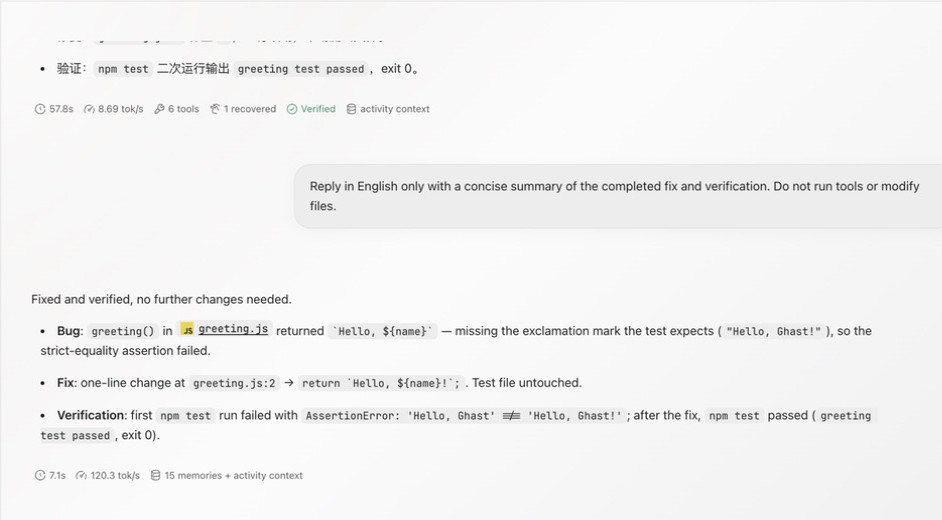
| Main conversation | Task brief, reasoning, Tools, commands, edit records, and final response |
| Composer | Workspace, model, reasoning, Tools, Skills, and command authorization |
| Workspace panel | Terminal, Review, Browser, Files, Side conversation, Plan, and Git |
From project to completion
- Open Coding, then add or select a project.
- Create a New coding session under the project and confirm the complete workspace path.
- State the outcome, allowed scope, constraints, and completion criteria.
- Select required Tools and Skills and check command authorization. A new session currently defaults to Full access.
- Send the task and inspect command and edit cards as it runs. Stop and inspect current state when an action is unexpected.
- Check changes through Edited files, Review, Files, and Git.
- Run checks appropriate to the task and confirm the user flow in the target app or Browser.
- Only then stage, commit, push, or create a Pull Request when needed.
Four separate boundaries
- The workspace chooses the project directory; it is not a permission sandbox.
- Tools and Skills determine the capabilities and instructions available to the run.
- Command authorization chooses risk-based approval or direct shell and file access within the current accessible scope.
- Operating-system and external-service permissions separately control folders, Screen Recording, accounts, network access, and remote objects.
Stopping, disconnecting, or seeing an error does not undo commands, file changes, or external actions that already occurred. Inspect current state before retrying.
For a first task, continue with Projects and coding sessions, Write a coding task, and Complete a coding task.