Search, edit, and delete Memory
Open Settings → Memory with Enable memory on. This page manages Main Memory. Team teammate and group records have their own management surfaces.
The checkmark in a record editor saves that record immediately. Single-record deletion also runs immediately, without a second confirmation. Close → discard changes only discards configuration drafts; it cannot undo these actions.
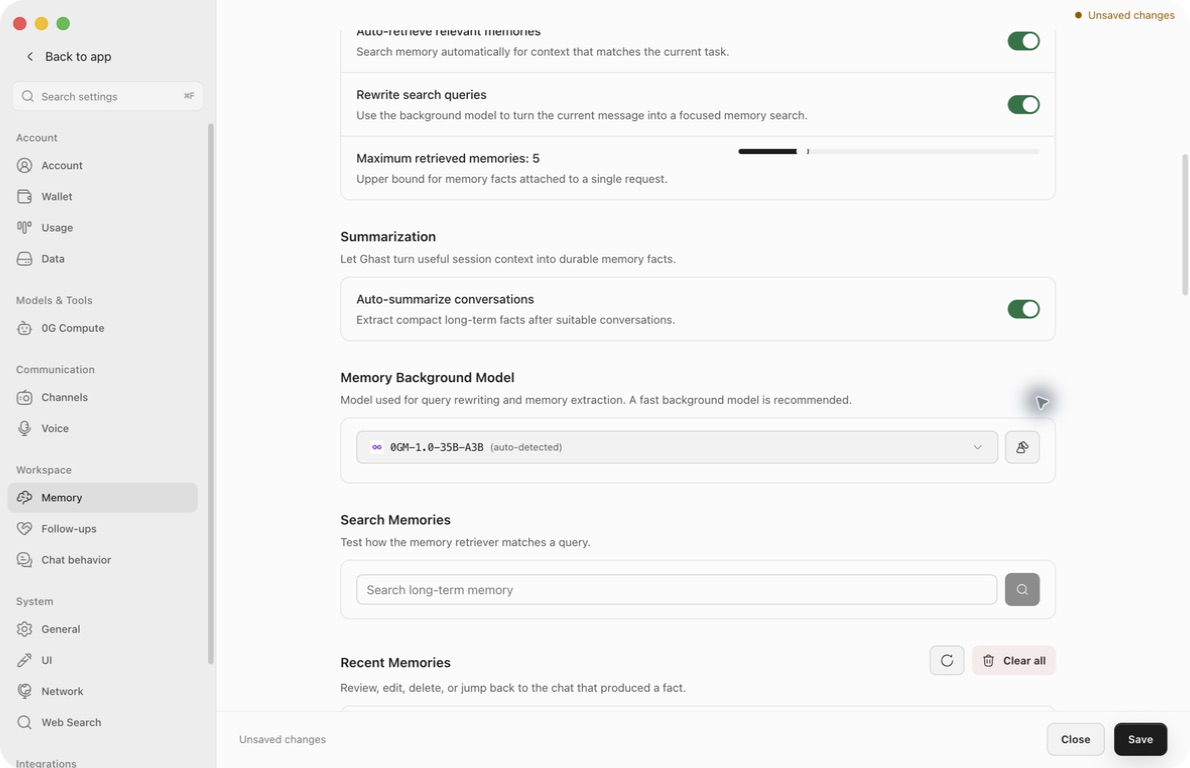
Know what the page lists
- Total memories / L0–L3 count Main Memory records across levels. They are not Team-wide totals.
- Recent Memories lists L1 facts only, with up to 20 records per page. Use the arrows and displayed range to move between pages.
- Search Memories searches L0 and L1, with up to 10 results. It does not filter the Recent Memories list.
- Team and Group Memory, L2 scenario indexes, and L3 core material are not a single editable list here.
- There is no Add memory, Pin, Archive, or Restore button in this personal list. Group invalidation, archived views, and restoration live under Group settings → Group memory.
A nonzero total with an empty Recent Memories list can mean other levels contain records. It does not automatically mean those records were deleted.
Search
- Enter a specific phrase in Search Memories, such as
release checklist timezone. - Press Enter or click the magnifying glass. An empty or whitespace-only query cannot run.
- Wait for the results. There is no search-cancel control.
- Read the actual returned content, not just its score. Add a project, date, object, or constraint if the matches are too broad.
- Reverify changing facts such as prices, permissions, production state, and deadlines before acting.
You can search with automatic retrieval off. The Rewrite search queries switch uses its current draft value, while the rewriting model comes from saved settings; see configure query rewriting.
Rewritten queries and match labels
When a changed query is returned, Rewritten as… shows it. Some exact keyword or identifier queries skip rewriting. A timeout, unavailable model, or unchanged rewrite may leave no label and search with the original query; a missing label does not prove no model request occurred.
A result may show semantic, keyword, or hybrid matching and a semantic percentage. This describes the match to your query, not the probability that the fact is true. The retrieval-limit slider does not change this ten-result search limit.
Empty, failed, or stale results
A successful zero-match search does not currently display a dedicated “No results” message. Absence from these results is not proof the fact was never saved: it may be in a different level or Team/Knowledge scope.
A failed search can show an inline error. A rewrite label from the previous search may remain, so do not treat it as evidence for the failed request.
Search results are snapshots. Editing, deleting, clearing records, or refreshing Recent Memories does not automatically rerun your existing search. Search again before deciding whether a change took effect.
Read and refresh records
Click a record's body or expand chevron to read beyond the collapsed preview. The first nonempty line is displayed as a title; the remaining text keeps its line breaks. This is not a rich Markdown document editor.
Available metadata may include source type, temporary/permanent status, creation date, and reference count or last-reference time. Hover source or time labels for details when present. A reference count is not evidence that a fact is still correct or was used in the latest answer.
The from chat label identifies a source when available, but its current action does not navigate to that conversation. Do not rely on it to reopen the original chat.
The circular-arrow button reloads the current Recent Memories page only. It does not rerun Search or refresh the top statistics. If the list fails to load, there may be no dedicated inline list error; an empty view alone is not proof that the store is empty.
Edit one record
- Find the L1 record in Recent Memories, not in the search result cards.
- Click its pencil button.
- Edit the full text. Keep the correct subject and remove stale or unsupported details.
- Click the checkmark next to the text to save immediately, or X to cancel editing.
- Check the reloaded list and run your search again.
Blank or whitespace-only content is not saved; use Delete to remove a record. Editing changes the fact, not its originating conversation or independent Team/Group copies. It does not expose controls for changing source metadata or durability.
If saving fails, the editor may remain open without a dedicated error notice. Do not assume the text is saved until the list reflects it. The bottom Settings Save button is not the record-save button.
Delete one record
Use the trash button only after checking the record. It deletes immediately with no second confirmation and no Undo or Restore control here.
The original chat and independent teammate/group copies remain. A successful deletion reloads the list and statistics, but old Search cards can remain until you rerun the search. If deletion fails, there may be no dedicated inline notice; check the refreshed list rather than assuming success.
For teammate or group content, use its profile or Group settings instead.
The real Clear all scope
Clear all performs:
- a complete clear of Main Memory;
- deletion of saved durable facts (L1) for every Team teammate;
- deletion of saved durable facts (L1) for every Group.
Team teammates and Groups retain their temporary conversation/activity records (L0), topic indexes (L2), and core profiles (L3). Knowledge / Agent knowledge also remains. Retained content may still be retrieved in later tasks: Clear all does not make Ghast forget all Team content. You cannot limit this confirmation to one teammate, one group, or the visible list.
Before continuing:
- review teammate profiles and Group settings for records you need;
- record any preferences or project facts that must be recreated;
- separately retain teammate and group material you need. The Data-page Memory export and its 0G snapshot include only personal Main Memory's temporary records, durable facts, and core profile—not its topic indexes or Team/Group memory. That backup cannot restore the teammate or group facts deleted here. See Export and backup;
- read the ordinary confirmation dialog and continue only after checking the scope; there is no confirmation-text entry;
- verify Main, teammate, and group surfaces afterward.
The button is unavailable when the current Recent Memories list is empty, even if other levels contain records. The confirmation is a normal dialog, not a typed-name challenge. Cancel leaves records unchanged; confirming starts deletion immediately. A later Settings discard cannot reverse it.
Troubleshoot missing facts
- Check Enable memory; enable it to reveal search and management controls.
- If manual Search works but automatic use does not, check Auto-retrieve relevant memories, the conversation's capture/retrieval restrictions, and whether you are working in the right scope.
- If expected new facts are absent, check summarization, preference-learning choices, and the background model. Not every exchange is saved.
- After any edit or deletion, rerun Search. List refresh alone is not enough.
- Preserve visible errors and use About → Send feedback when the problem persists. Do not include private memory text unless needed and intentionally shared.
There are no Rebuild embeddings, Similarity threshold, Dry run, or scheduled Consolidator controls on this page. A model Test checks the model, not the entire memory store or every retrieval path.