Activity Recorder
Use Activity Recorder to help Ghast recall what you were working on: recent applications, screen text and activity summaries. Open Settings → Activity Recorder to control it. This is periodic screen capture, not continuous video recording or a complete audit trail.
Set up activity recall
- Read what can be captured and sent to a model before enabling it. New profiles have the recorder and text extraction on, visual history off, and an empty app blacklist.
- Add applications you do not want captured under Privacy · app blacklist. No password manager or other sensitive app is excluded for you by default.
- Check screen permissions. Use a non-sensitive window when testing.
- Leave Keep visual history off unless you need retained screenshot files. Screen-text extraction and summaries work without retaining those files.
- Check the model under Settings → Memory → Memory Background Model. If no Memory-specific model is selected, Ghast uses Settings → General → Background Model. Its provider must be configured and available. See Memory model selection.
- Turn on the master switch if needed. Check the status and, after some activity, Recent segments. A segment can appear before its summary is ready.
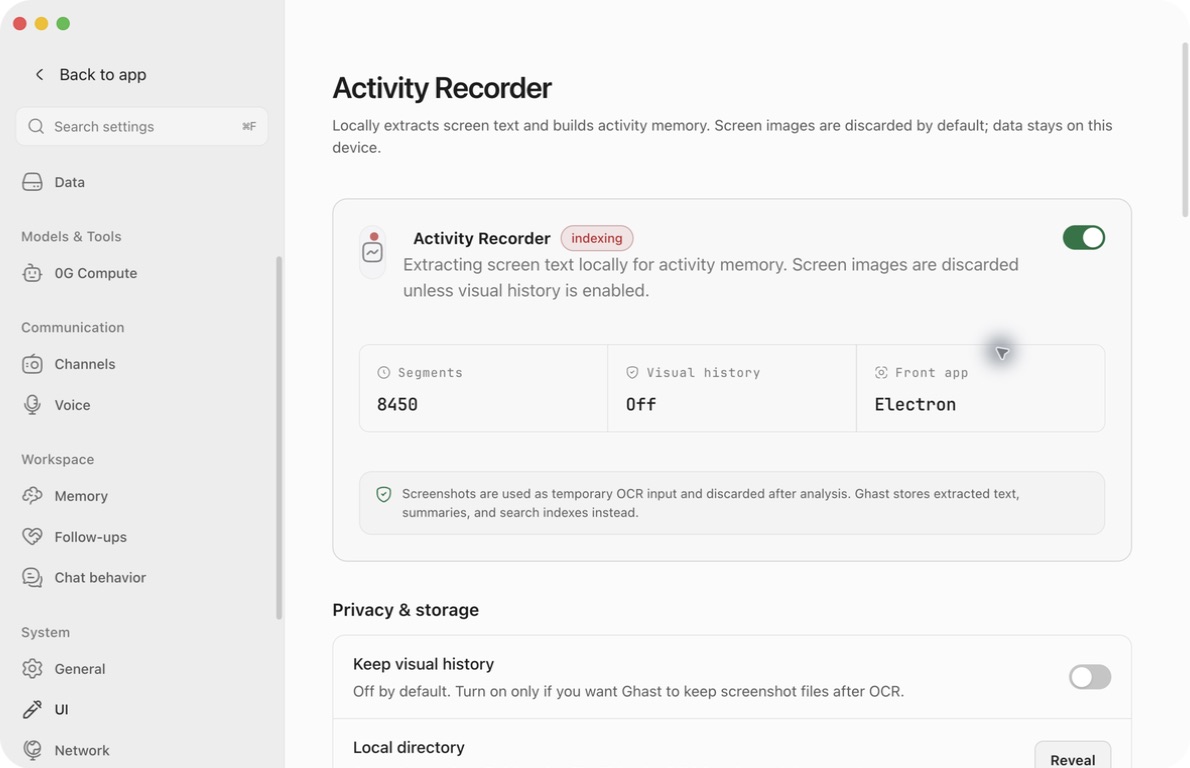
OCR and activity search embeddings are processed locally, but background summaries can send extracted text and activity metadata to the configured model provider. Chat can also include activity context in a request. The current settings header's “data stays on this device” wording does not describe this whole workflow.
Save changes and stop recording
Most controls on this page save automatically. There is no separate Save step for Activity Recorder.
| Action | When it takes effect |
|---|---|
| Master switch, visual-history switch, text-extraction switch | Saves when changed. The master switch also starts or stops the service. |
| Sampling numbers and OCR frequency | Type a value, then press Enter or leave the field to save. Esc restores the value from when you started editing. Blank or out-of-range values revert. |
| OCR language tags | Saves as the text changes; do not use this field for a temporary example. |
| Manual blacklist entry | Typing is only a draft. Click Add or press Enter to add it. |
| Choose an application or remove a blacklist item | Saves immediately after selection or removal. |
| Maximum visual storage | Saves on Enter or leaving the field; reducing it below recorded use requires confirmation. |
Wait for saving to finish and check any inline error. Closing settings does not undo changes already saved. Reopen the page to check the effective value, especially after changing an interval.
To stop new recording, turn off the master switch, not just visual history or OCR. This stops capture timers and closes the current segment; it also stops future scheduled analysis/indexing work. A model request already in progress may still finish. Locking the screen pauses capture while locked, but is not the same as disabling the recorder.
Turning recording off does not delete existing segments, screenshots, summaries, memories or previously sent chat context. New automatic activity-context lookup and the ActivityLog tool are disabled while the recorder is off; existing chat content and separately stored Memory entries remain. See cleanup limits.
Read the status and recent segments
| Status | What it tells you |
|---|---|
| Disabled | The recorder is off. |
| Idle | Recording is configured as enabled, but the recording service is not running. This is not a measurement of how long you have been inactive. |
| Indexing | The recording service is running. It does not prove that a screen capture, OCR pass or model summary succeeded. |
| Screen locked | The screen-lock state is active and capture is paused. |
The overview shows the stored segment count, whether visual history is enabled, and the front application. Its status refreshes roughly every five seconds while this page is open.
Recent segments shows up to eight latest segments while recording is enabled. Use its refresh button to fetch the list again; it also refreshes roughly every ten seconds. A row shows a title or application name, relative time, duration, capture/event counts and an available summary. It is a compact preview, not a browsable screenshot timeline: there is no pagination, search box or per-row detail action on this card.
An application name without a summary does not by itself indicate failure. Short or low-information segments may be skipped by analysis, and processing can lag behind capture. Duration is rounded to minutes; an “active” label is not sufficient proof that an older segment is still open.
Ask Ghast about recorded activity
In Chat, try requests with a clear time range or topic:
Summarize what I worked on today. Separate observed activity from anything you infer.
Find my recent activity related to the release checklist.
What was I doing in the last two hours?
When available and enabled, the ActivityLog tool can retrieve a daily report, a recent digest, or keyword/semantic search results. Dates such as today, yesterday and a calendar date refer to local time. This settings page itself is not the report viewer.
Ghast can also add a short recent-activity digest to Chat automatically; you do not have to explicitly request activity recall for context to be included. The automatic digest considers the previous 48 hours, with up to five analyzed segments and a limited text budget. Relevant-activity recall can add matches from the previous 24 hours. These are bounded context selections, not the full history.
Treat generated summaries as aids to recall. Seeing a document or task title does not prove that you edited the document or completed the task. Ask for supporting observations when accuracy matters. Activity analysis can also create entries in Memory; those entries have their own controls and are not removed simply by stopping the recorder.
Understand capture and privacy boundaries
Ghast captures the primary display, not just the front application's window. Visible background windows, notifications and split-screen content on that display can therefore enter a capture. This page does not offer a display selector, region selector, per-website exclusion list or masking tool.
The normal processing sequence is:
- Capture a screen image, subject to permissions, lock state, app exclusions, timing and duplicate checks.
- Extract screen text locally when OCR is enabled and due for that capture.
- Apply sensitive-text handling and store activity records locally.
- With visual history off, remove the temporary image after the OCR/capture-processing stage; it does not wait for a model summary.
- Analyze eligible segments in the background using the effective Memory background model.
Background analysis can include redacted OCR text, application/window titles, available browser URLs or tab titles, and activity events. It can run without a Chat message and may incur provider usage. Later Chat recall can send activity summaries or recalled text to the provider selected for that conversation. The recorder's normal background analysis uses text and metadata, not the retained screenshot files as image attachments.
Sensitive-text detection is best effort. Detected secrets can be redacted from text and cause the image to be discarded even when visual history is on. This is not a guarantee that every secret, image or notification will be detected, particularly when OCR is disabled or runs less often. Temporary files can also remain after an interrupted or failed operation.
Before handling sensitive material, turn off the master switch. Neither an empty blacklist, a green permission badge, nor visual history being off is a privacy guarantee.
Exclude applications
Select an installed application
- Under Privacy · app blacklist, click Add from Applications….
- Select the application in the system picker. On macOS this is an application bundle; on Windows select the executable.
- Confirm the selection and check that it appears in the list. The addition is saved immediately. Canceling the picker makes no change.
Enter an identifier manually
- Expand Advanced: paste app id.
- Enter the actual application's identifier: a bundle ID on macOS, or the corresponding executable/process identifier on Windows.
- Click Add or press Enter. An empty field cannot be added; an already-listed value produces an error.
- To stop excluding an application, use its remove button. Removal saves immediately, without a confirmation or undo step.
com.example.app below is an illustrative identifier, not an app you should add. Typing it without pressing Add does not enable an exclusion.
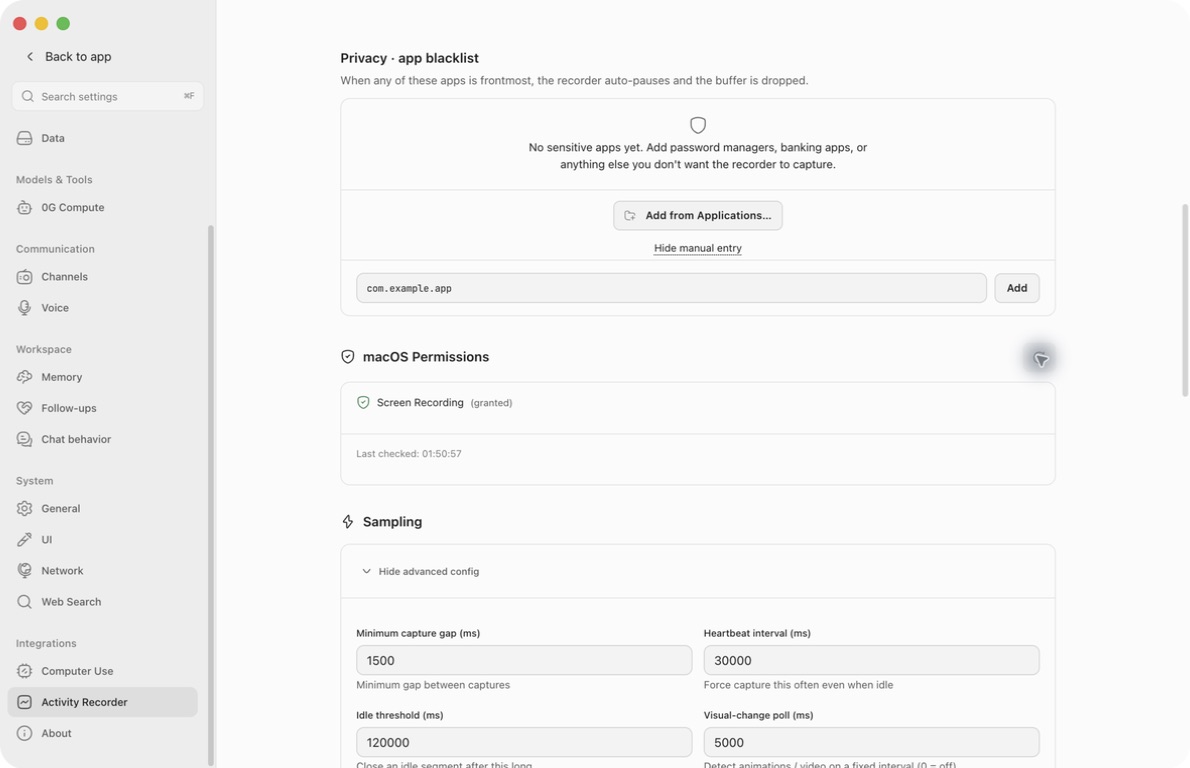
An excluded app must be frontmost for this screen-capture exclusion to apply. A sensitive window visible behind another app is not masked. Excluding a browser affects the application, not a selected website. The rule does not erase older records, and app-focus events or redacted window titles may still be recorded. An app's friendly name/icon can disappear after reopening settings; the saved identifier is what matters.
Check screen permissions
On macOS, use the Screen Recording permission row. If access is missing, open the system permission settings using the available button, grant access to the Ghast application you are actually running, then return and click Refresh permissions.
Refresh performs a small real screen-capture availability check on macOS. Last checked should update; inspect any capture unavailable, Capture check, or Refresh failed message instead of relying on the permission label alone. Keep a non-sensitive window visible for this check.
On Windows, the page shows Screen capture and Accessibility rows. The current permission response reports these as granted; that badge alone does not verify a working screen-capture/OCR pipeline. Windows also requires OCR and does not let you disable it here.
If permission changes do not take effect, reopen the application when the operating system requests it, then test again with non-sensitive content. Do not repeatedly enable visual history to troubleshoot missing permission.
Control retained images and disk use
Keep visual history
Off is the default. Screenshots are temporary OCR input; extracted text, segment information and summaries may still be stored. Turning this switch off does not delete images already retained.
On keeps eligible screenshot files after OCR and reveals Max visual storage. It does not turn the recorder into video capture or guarantee that every interval produces an image. The switch and storage limit are unavailable while the master switch is off.
Set the storage limit
The default is 10,240 MB (10 GiB). The accepted range is 100–200,000 MB; the displayed “MB” uses 1,024 × 1,024 bytes. Type the limit and press Enter or leave the field. Esc cancels the current edit; invalid input restores the previous value.
If recorded image use exceeds the new limit, a confirmation warns that older visual history will be permanently removed toward about 75% of the new cap. Cancel to keep the previous limit. Cleanup runs asynchronously: a saved limit is not proof that cleanup has finished.
The visual-storage meter measures tracked snapshot bytes, not the entire profile directory, database, summaries or orphaned files. Zero visual storage does not mean zero activity data.
Find the local files
Click Reveal next to Local directory. On macOS this opens Finder and selects the activity-records directory; open the selected folder to inspect it. Retained images are organized under snapshots in dated folders.
The directory is specific to the current Profile. This control does not move it, change its location, export a backup or open a history viewer. Avoid sharing screenshots of its full path or private contents.
Automatic retention
The default age policy is measured from each capture, not from the previous cleanup:
| Capture age | Treatment during cleanup |
|---|---|
| Up to 1 day | Recent “hot” tier. |
| 1–3 days | “Warm” tier; retained images can be reduced to fit 1280 × 720, JPEG quality 40. |
| 3–7 days | “Cold” tier; retained images can be reduced to fit 640 × 360, JPEG quality 30. |
| Over 7 days | Eligible snapshot records and files are removed. |
Cleanup is periodic, normally every 30 minutes after an initial delayed pass. Pending analysis can protect snapshots temporarily. The storage cap can remove eligible older data before seven days. These retention ages are not editable on this settings page.
Snapshot cleanup also removes OCR text and search data attached to those snapshots, including when visual files were not retained. Segment summaries and separately created memories are different records; do not assume that the image policy clears them or that raw screen text is retained forever.
Adjust capture sampling
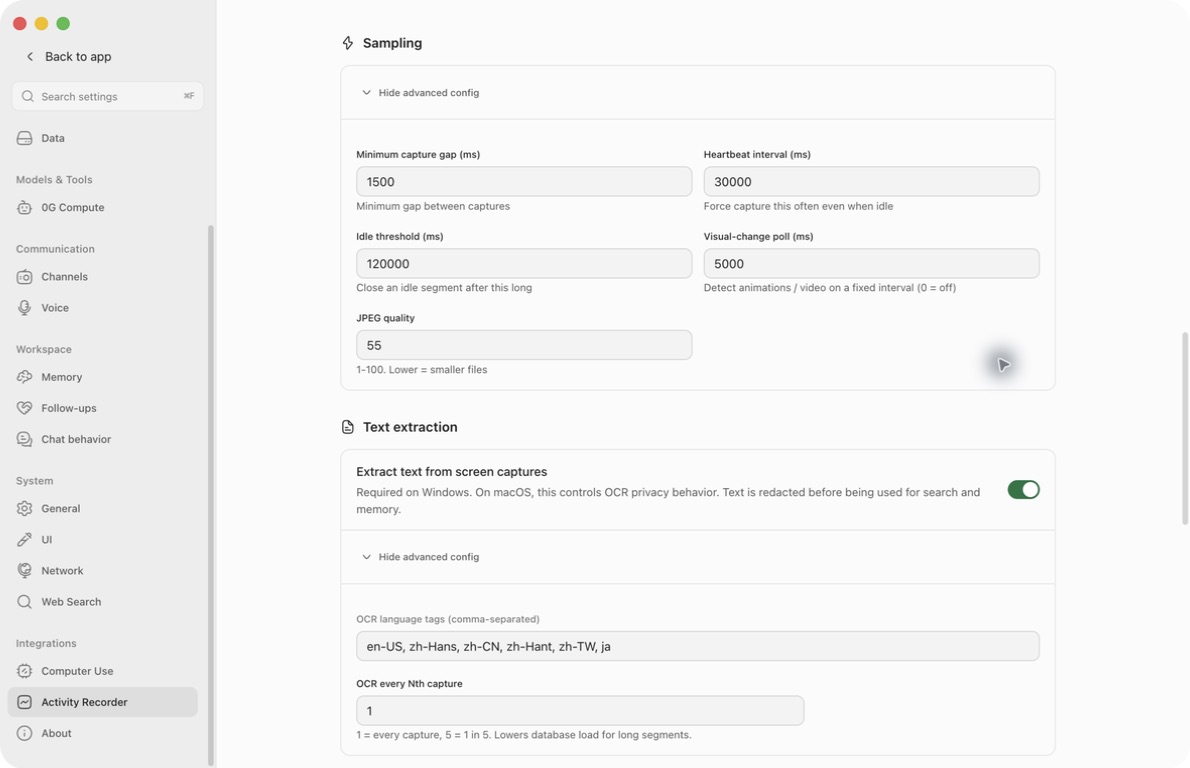
Expand Sampling → Advanced config. Values are milliseconds except JPEG quality; 1,000 ms equals one second. Start with the defaults and change one field at a time.
- Minimum capture gap: accepts 200–30,000 ms; default 1,500 ms. Prevents captures from occurring too close together. It is a minimum gap, not a fixed screenshot schedule.
- Heartbeat interval: accepts 5,000–300,000 ms; default 30,000 ms. Attempts periodic capture even without a new app-focus event. Other capture gates still apply.
- Idle threshold: accepts 10,000–600,000 ms; default 120,000 ms. Closes an idle activity segment. It does not turn off the recorder.
- Visual-change poll: accepts 0, or effectively 5,000–30,000 ms on macOS and 10,000–30,000 ms on Windows. Checks screen changes such as animation/video. Defaults to 5,000 ms on macOS and 10,000 ms on Windows. Zero disables only this check, not heartbeat or focus-triggered capture.
- JPEG quality: accepts 30–95; default 55. Lower values reduce file size but can make fine text harder to recognize. The current “1–100” hint is wider than the accepted range.
The input arrows use steps of 100, 1,000, 5,000 and 500 ms respectively; JPEG uses steps of 5. Those are increment sizes, not requirements that a typed value be a multiple of the step. Effective numeric settings are rounded to whole numbers.
Two current normalization behaviors matter: a positive visual poll below the platform minimum is raised to that minimum, and an idle threshold of exactly 30,000 ms is treated as the previous default and becomes 120,000 ms. Check the value after saving.
Most settings update live; segment/idle-timer changes take effect on the next segment. Duplicate detection, capture backoff, permissions and exclusions can prevent a new frame. Similar heartbeat frames may reuse OCR. Shorter intervals do not guarantee more useful memories and can increase processing load.
Configure screen-text extraction
Extract text from screen captures controls OCR on macOS. Turning it off does not stop screen capture, metadata collection or all model analysis; use the master switch to stop recording. Windows fixes this option on.
Expand the separate Text extraction → Advanced config section:
- OCR language tags: enter comma-separated language tags. Defaults are
en-US, zh-Hans, zh-CN, zh-Hant, zh-TW, ja. This changes recognition languages, not Ghast's interface or reply language. Availability depends on the local OCR runtime. Windows keeps these required default tags even if you remove them. - OCR every Nth capture: accepts 1–20, default 1. One processes every eligible capture; five samples one in five. Increasing it can miss brief on-screen text and reduce the material available for recall. Windows fixes this value at one.
For missing text, check permissions, the OCR switch, languages and sampling frequency before changing the background model. OCR produces text; the model produces a later summary. They can fail independently.
Clear recorded activity
Despite the “Clear all activity data” and “Delete everything” labels, the current action handles at most 1,000 segments per invocation. It does not reliably remove all retained image files, standalone activity summaries or memories already created from activity. Do not use it as a secure-erasure guarantee.
- Turn off the master switch first if you do not want new records created during cleanup. The delete button itself does not stop recording.
- Note the segment count. Open Danger zone → Clear all activity data.
- Read the confirmation. Cancel closes it without deleting records. Delete everything starts irreversible deletion of the selected batch; the dialog's total count is not the batch size.
- When it closes, refresh and check the remaining segment count. Repeat only if you intend to delete further batches. Individual deletion failures are not listed separately, so the dialog closing is not proof of success.
- Inspect the local directory for remaining files and Memory for derived entries if those also need removal. The current page does not provide a verified one-click way to erase all of them.
The button is disabled when there are no segments, even if other activity-derived data remains. Deletion does not retract information already sent to a provider or present in existing conversations.
Settings → Data export does not include the Activity Recorder history tables or screenshot directory. Memory entries derived from activity may be included as ordinary exported memories. Do not clear activity expecting that a normal data export can restore it.
Troubleshoot activity recall
| What you see | What to check or do |
|---|---|
| Switch on, but Idle or an inline start error | Check permissions and the error first. A saved enabled preference is not proof that the service started. |
| Indexing, but few captures | Check lock state, front-app exclusions, permissions and minimum gap. Unchanged screens may be deduplicated. |
| Segments exist but summaries are missing | Allow background processing time; check Memory Background Model or its General fallback and provider availability. Short/low-information segments can be skipped. |
| Screenshots absent with visual history off | Expected after temporary OCR processing. Do not enable retention merely to make summaries work. |
| Old images remain after disabling visual history | The switch controls future retention; it is not a deletion action. |
| Old text is no longer searchable | Snapshot retention also removes attached OCR/search data. A segment title or summary may outlive the underlying text. |
| App still appears in activity after blacklisting | Focus/title metadata can remain. Exclusion blocks new screen captures while the app is frontmost; it is not retroactive deletion. |
| Numeric value changes or reverts | Check accepted ranges, Enter/blur behavior, platform minimums and the special 30-second idle value described above. |
| Storage remains above the cap | Cleanup is asynchronous and can protect pending analysis. The meter and actual directory size cover different data. |
| Records remain after “Delete everything” | Check the 1,000-segment batch limit and separate files/summaries/Memory records; do not infer complete erasure. |
When reporting a problem, include the platform, recorder status, permission/check error and the relevant settings. Do not publish full recent-segment text, screen images, private URLs or the profile directory path.