Back up, restore, and sync your data
Use Settings → Data → Export data to save a local backup before changing devices or importing another archive. Use 0G Storage sync when you want to retrieve an encrypted snapshot on another device with the same App Wallet.
These are selected-data backups, not a copy of your entire Ghast installation. Keep project files, wallet recovery information, and anything excluded below separately.
Choose a backup method
| You want to… | Use | What to expect |
|---|---|---|
| Save a local copy now | Export data | Choose categories and save a ZIP. No blockchain upload is required. |
| Bring a saved archive into this device | Import data | Select a Ghast ZIP or compatible Ghast JSON backup. Import merges supported data; it is not an exact rollback. |
| Save an encrypted snapshot remotely | Upload latest, with 0G sync enabled | Upload selected categories and publish a wallet pointer on 0G Mainnet. This spends Gas. |
| Retrieve that wallet's latest snapshot | Pull latest | Download, decrypt, and import the snapshot using the same App Wallet. This changes data on the receiving device. |
Local exports are ordinary ZIP archives, not encrypted backups. Providers can contain both inference API keys and the 0G Management Key in readable form; settings, messages, memory, and server configuration can contain private information. Store archives on encrypted or access-controlled storage. Do not attach a full backup to a support request.
Export a local backup
- Open Settings → Data, then scroll to Data management.
- Click Export data. Select export data opens with all seven categories selected on a newly opened Data page.
- Click Select none, then choose only the categories you need. Click a selected row again to deselect it. Select all selects the seven available categories, not the entire installation.
- Scroll inside the category list to check the lower rows. Confirm the selected count; Export is disabled at 0 / 7.
- Click Export. Ghast prepares a ZIP and hands it to the download flow. Complete the system save dialog if one opens. The suggested name is
ghast-backup-YYYY-MM-DD.zip. - Find the saved file and check that it opens. Export ready means Ghast handed the archive to the download flow; it does not prove that you completed the save dialog or retained a usable file.
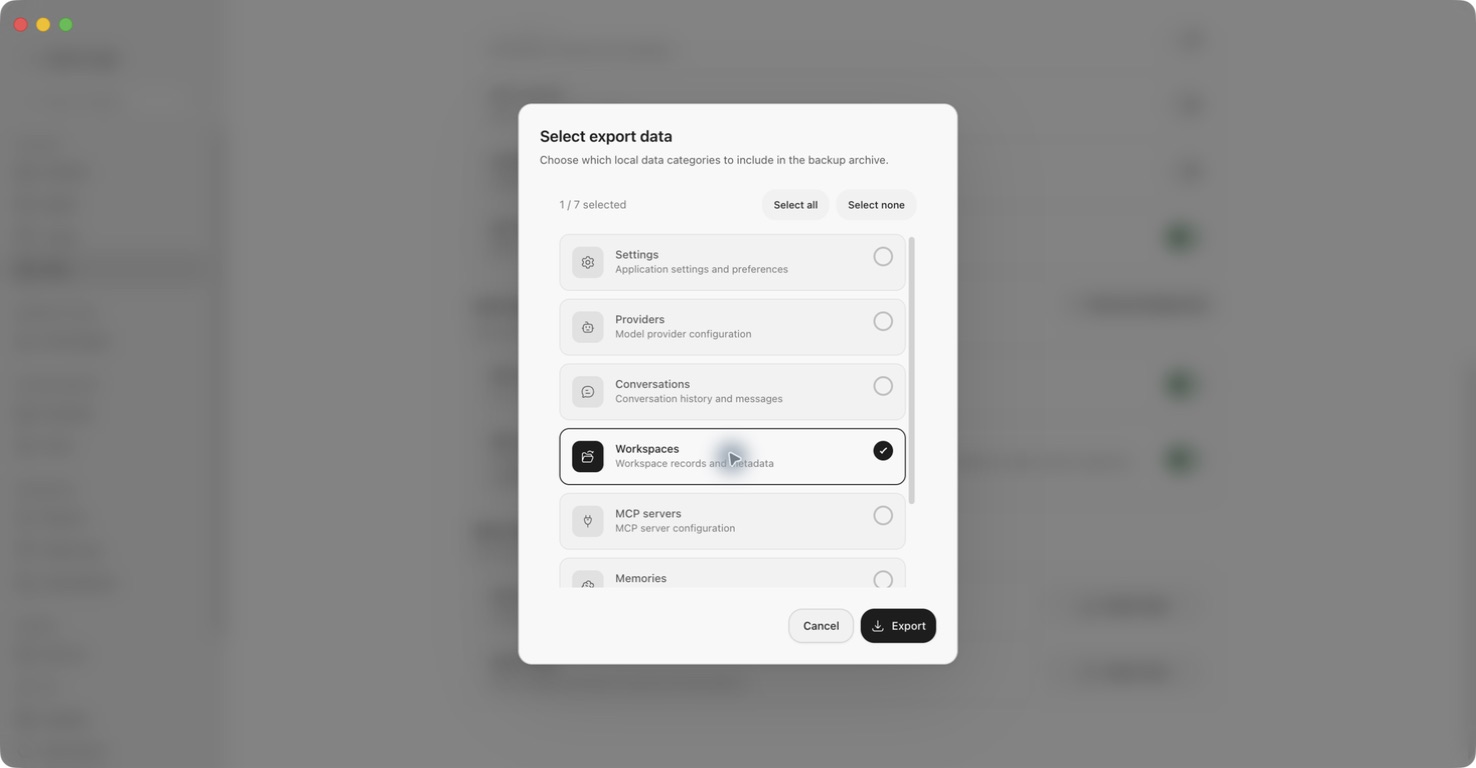
Cancel closes the category dialog without exporting. Reopening it while you remain on Data keeps that page's selections; leaving and returning resets them to all seven. Export selections do not change Sync data, and sync selections do not change a local export.
Keep a dated copy away from the original device. Record the Ghast version and categories beside it. A ZIP's manifest.json records its export time and included categories; inspecting that file does not require importing the backup.
What the seven categories include
| Export category | Included data and limits |
|---|---|
| Settings | Application preferences and feature configuration, including potentially sensitive instructions or connection settings. Import can replace whole settings sections. |
| Providers | Provider configuration, potentially including both the inference API key and 0G Management Key. This is called API keys in the sync list. Import does not restore the Management Key, and an existing Provider with the same ID is skipped, including its API key. It does not transfer external account ownership, funds, or subscriptions. |
| Conversations | Conversation records and messages. Embedded image data and large inline file contents may be stripped from the archive. References to local files do not copy those files. Keep original images and attachments separately. |
| Workspaces | Workspace records, names, paths, and metadata. Project directories and their contents are not copied. |
| MCP servers | Server configuration. Environment variables are removed from export; headers and other fields may still contain credentials. Re-enter required environment variables securely on the new device. |
| Memories | Stored conversation material, individual memory records, and the generated core summary from main memory. The scenario index is omitted and is not rebuilt by import. Team teammate and group memory are excluded. This is not a complete memory-service restore. |
| Self-improve learning | Learned behavior updates, review history, and learning snapshots. Restoring them requires a separate confirmation and replaces this device's learning data. |
Wallet private keys, Activity Recorder data, the prompt library, and custom themes are not selectable categories. Do not treat this archive as an installed-plugin or Skill-folder backup either: copy or reinstall those separately. For Team files and memory, see Team memory and files.
Import an archive
There is no archive preview, category selector, or general second confirmation after you choose a file. Compatible data begins importing immediately unless a Self-improve confirmation is required. Export your current data first and import only a backup you trust.
- Open Settings → Data → Import data.
- Choose a Ghast backup ZIP or compatible Ghast JSON backup. Renaming an arbitrary JSON file does not make it a Ghast backup. Cancel the system picker if you are not ready.
- If the archive contains Self-improve learning data, read the replacement warning. Cancel cancels the entire import, not just that category; OK permits the learning-data replacement and continues importing.
- Wait for Import complete or an error. Read the per-category imported/skipped summary, including whether Settings was imported.
- Open the restored features and check important records. A successful completion notice alone does not establish a complete restore.
What happens to existing data?
- Records such as Providers, Conversations, Workspaces, and MCP servers with an existing ID are normally skipped. Importing an older archive does not undo newer changes to those records or refill an existing conversation with missing messages.
- Provider credentials are not restored symmetrically: the Management Key is not imported, even if present in the archive, and an existing Provider's API key is not overwritten. Check Provider setup after Import or Pull instead of assuming the backup restored working account access.
- Settings merge by top-level section. A section supplied by the archive replaces the corresponding section on this device; this is not a field-by-field merge.
- Main memory is not uniformly appended or skipped. A different archived core summary replaces the current generated core summary without a separate confirmation for that item; identical content is skipped.
- Confirmed Self-improve learning data replaces the current learning data.
- Skipped can include records that failed to import as well as records that already existed. The operation is not an all-or-nothing restore: a later error can leave earlier records imported.
If an import fails or expected items are missing, inspect the current state before retrying. Do not delete current records simply to force a backup to overwrite them.
Move to another device
- Export the required categories on the original device, and keep that device and archive available until validation is complete.
- Copy project directories and other excluded files separately using your normal secure file-transfer method.
- Install Ghast on the receiving device and import the archive.
- Check workspace paths; a path from the old machine may not exist on the new one. Open or select the actual folder on this device.
- Check Provider configuration, enabled models, and a short model request. A model test can use inference funds.
- Reconnect MCP services or re-enter missing environment variables as needed. Confirm endpoints and requested permissions before use.
- Inspect important conversations and main-memory records. Review device-specific settings such as Computer Use permissions, Channels, Follow-ups, and telemetry.
A local ZIP import does not require the same wallet to decrypt it. Wallet-based 0G snapshots do. Neither method restores external account funds or replaces a separate wallet-recovery backup.
Set up 0G Storage sync
You need an App Wallet configured in Ghast, an internet connection, and enough 0G Mainnet Gas for upload transactions. Inference funds shown under 0G Compute are not a substitute for checking the wallet's on-chain balance.
- Under Settings → Data → Sync data, choose the categories to upload. Default sync selects Memories and Self-improve; Full sync selects all seven. These presets change the saved selection immediately.
- Check the count and each switch. Selection changes save immediately without the page's Save button. At least one category is kept: trying to turn everything off restores Memories. Turn 0G sync off if you want to stop automatic syncing.
- Read the transaction warning below, then enable 0G sync. The switch saves immediately. It is disabled when no usable App Wallet is configured.
- Check Next auto sync. Automatic uploads normally run at 06:00 local time while Ghast is running; a missed scheduled upload can start shortly after enabling sync or reopening Ghast after 06:00. Do not enable it expecting no upload until tomorrow.
- For an immediate snapshot, click Upload latest once. Wait for completion and check Last sync, Latest snapshot, and any reported error. Upload and Pull are unavailable while sync is off, no wallet is configured, or this page is processing a sync change, upload, or pull.
Changing Sync data affects newly packaged snapshots; it is not a category selector for pulling a snapshot that already exists. The separate Self-improvement switches lower on Data use Save; they are not the sync enable switch.
Ghast encrypts snapshot contents with an AES-256-GCM key derived from the App Wallet private key. Upload also submits a 0G Mainnet pointer transaction, spends Gas, and leaves public wallet/transaction history. Encryption does not hide the wallet, storage roots, or transaction. Turning sync off does not retract earlier uploads or chain history.
If an upload failed
A retry may resume the snapshot prepared before the failure, including its original categories and data. Changing Sync data afterward does not repackage that pending snapshot; Upload latest and automatic retries can continue the older upload rather than create a fresh one.
If the pending snapshot contains something you no longer want uploaded, do not retry simply because you have deselected it. The current client has no control to inspect or discard that pending snapshot. Keep 0G sync off, and do not retry or re-enable it until a supported way to discard the snapshot is available. Turning the switch off stops scheduling further automatic uploads; it is not a promise to cancel an upload already in progress or retract submitted data.
Pull on another device
- Configure the same App Wallet securely on the receiving device. A different wallet cannot locate and decrypt this wallet's snapshot.
- Export the receiving device's current data first.
- Open Settings → Data, enable 0G sync, and read Next auto sync before proceeding: enabling also schedules uploads from this device, not just downloads.
- Click Pull latest. Ghast asks whether a backup containing Self-improve data may replace local learning data before downloading. Cancel stops the pull; OK permits that replacement if present.
- Wait for completion, read the imported/skipped summary, and perform the same checks as a local import. Pull uses the same merge and replacement rules, not an exact mirror of the other device.
The page retrieves the latest snapshot for the wallet; it does not offer a version picker. Keep local dated ZIPs if you need a particular point-in-time copy. If you only need a one-time move and do not want receiving-device uploads, use a local ZIP.
Troubleshoot backup and sync
| What you see | What to do |
|---|---|
| Export is disabled | Select at least one category in the export dialog. |
| Export ready, but no ZIP | Finish or check the system download/save flow. Verify the destination file exists and opens; the notice is not a disk-save receipt. |
| Export fails with a memory-service error | Check Memory availability. If you need the other categories now, export them without Memories and record that this is only a partial backup. |
| Import completes but some records are missing | Check imported/skipped counts and the source archive's included categories. Existing IDs and record errors can both cause skips. |
| Import fails partway through | Inspect what was already imported before retrying; there is no automatic whole-import rollback. |
| Project or attachment will not open after migration | Copy the actual files separately and check the new device's paths. |
| Sync controls are disabled | Check the App Wallet, sync switch, and whether another operation is running. A state-loading failure can also leave controls unavailable without a visible error; reopen Data, then recheck the App Wallet and controls. |
| A category turns back on | Sync does not accept an empty selection. Turn off 0G sync instead of deselecting all categories. |
| Upload fails, particularly after a transaction was submitted | Check final chain state before retrying. The progress display shortens the hash; use Settings → Wallet to open the explorer and locate recent transactions by wallet address and submission time. Do not assume an error means nothing was submitted. |
| Pull cannot find or decrypt a snapshot | Confirm the same App Wallet and that the sending device completed an upload. Do not share or paste the private key into a support message. |
| The latest snapshot is older than expected | Check Last sync, Next auto sync, and any automatic-sync error. Keep Ghast running with network access; an automatic failure normally schedules another attempt about 30 minutes later. |
For proxy and timeout controls, see Network settings. For data sharing and retention, see Privacy.