Manage the Skills library
Choose Plugins in the main navigation, then switch to Skills at the top. The library combines skills from this computer, installed plugins, added projects, and compatible agents.
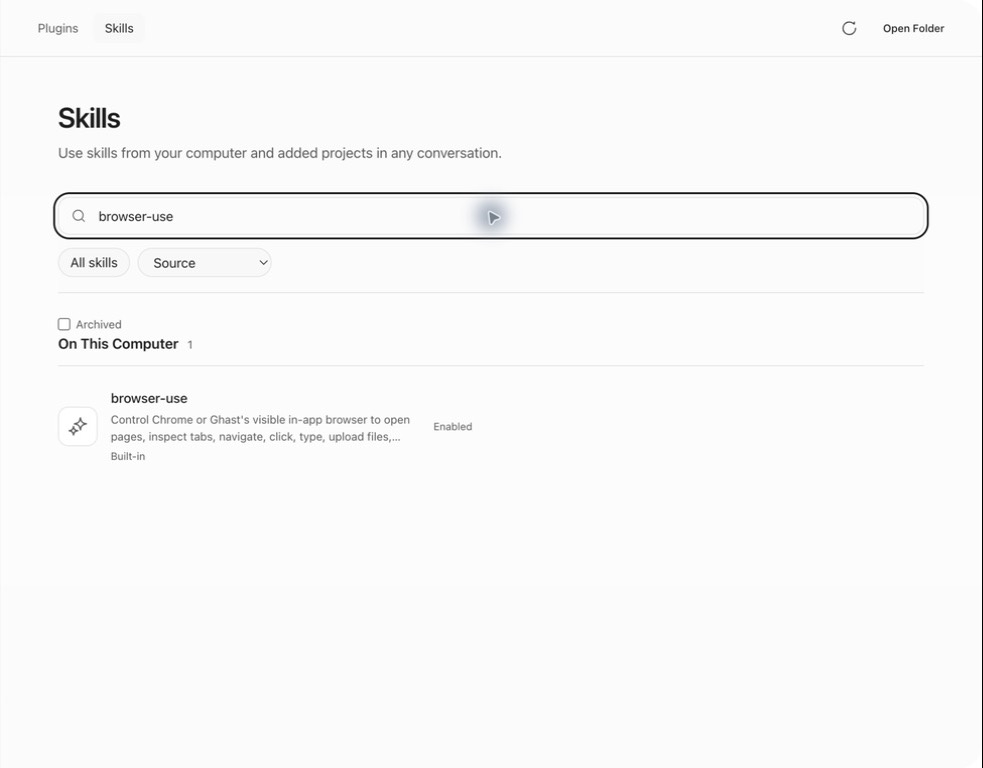
Skills learned from your work
Settings → Data → Skill Learning Suggestions controls suggestions from reusable workflows. A new Skill candidate in Chat waits for Create; an existing personal Skill created by Ghast may be updated automatically without a new confirmation each time. Turning suggestions off does not disable already installed Skills.
See Review a Skill suggestion for Create, Ignore, Retry, source-conversation requirements, model use, and the distinction from behavior proposals in Advanced diagnostics. After creation or an update, inspect the full instructions here before relying on the Skill.
Find a skill
Search matches the skill's name, description, source, and file location. The source filter includes:
- All skills;
- Global skills;
- added projects;
- other agent sources.
Turn on Archived to show only archived items and restore them. Clear both search and source filters before concluding that a skill was not discovered.
All skills resets only the source filter. To return to the normal full list, also clear the search text and turn Archived off. The count beside On this computer is the number matching the current filters, not the number enabled or available to a particular conversation.
Global groups personal, built-in and plugin skills that are not attached to a project. Project and other-agent choices depend on the skills discovered on this computer; another device may show different sources.
Open the detail view
Select a row to inspect the skill.
If several skills share a name, check the source label on each row. In the detail view, expand the source label below the description to reveal the full SKILL.md path and any compatibility notes. Compare the path and instructions before enabling or trying a particular copy; the name alone does not identify its source.
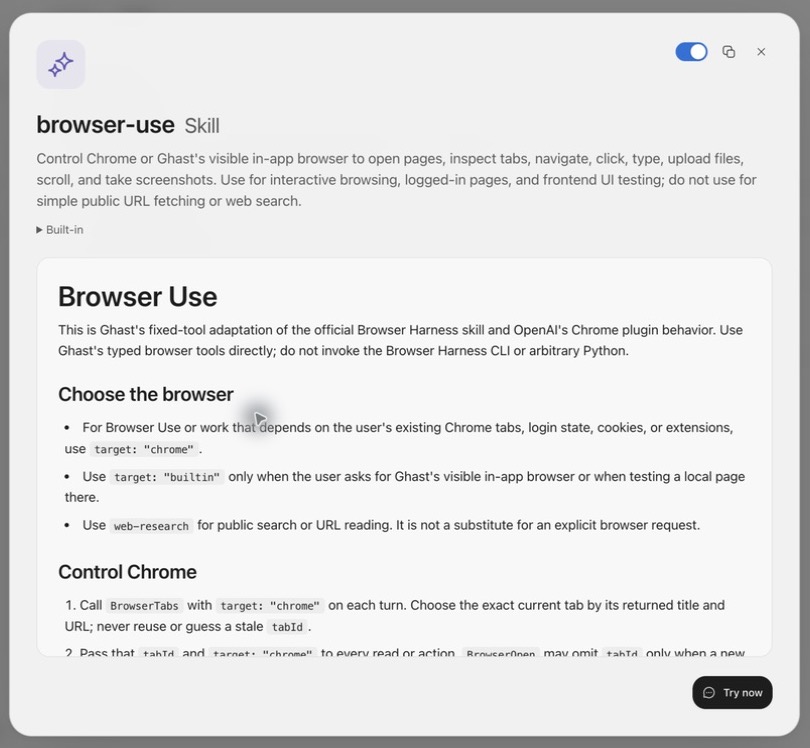
The detail view can show:
- name and purpose;
- source label;
- full path to
SKILL.md; - compatibility notes;
- complete skill instructions;
- Enable in Ghast;
- Copy file path;
- Try now;
- Uninstall for Personal skills.
Enable or disable
An enabled skill can be matched automatically, selected manually, or invoked explicitly. When disabled:
- it leaves the normal available-skill set;
- completed messages do not change;
- a run already in progress is not retroactively changed;
- a plugin skill remains subject to its plugin's main enable state.
Before enabling, check which tools it expects, whether it includes scripts or external dependencies, and whether the workflow may send or modify data. A skill cannot bypass permissions, but it can influence which actions Ghast considers and how it structures the task.
Try now
When you select Try now, Ghast:
- enables the skill first if necessary;
- creates a new conversation in Chat or Coding based on the surface you used most recently;
- inserts the skill token into the composer;
- leaves it as a draft—it is not sent automatically.
Add a concrete task, inputs, boundaries, and completion criteria before sending. Try now creates a new conversation; it does not inject the skill into the old one you were viewing.
Refresh skills
After adding or editing a SKILL.md, choose Refresh at the top. Ghast rescans known locations and updates the library.
If the skill does not appear:
- confirm the filename is exactly
SKILL.md; - confirm the YAML starts and ends with
---; - confirm
nameanddescriptionare non-empty text; - clear search and source filters;
- confirm the project has been added to Ghast;
- for a plugin skill, confirm the plugin is installed and enabled;
- refresh again.
Archived skills
Archived skills are unavailable in the normal library and selection flow. Turn on Archived, find the item, and choose Restore. After restoration, recheck its instructions and enabled state before using it with the current product version.
Archiving is not deletion. It is appropriate for a skill that is temporarily unused or potentially outdated but still worth keeping.
Uninstall or remove
A Personal skill exposes Uninstall in its detail view. Confirming deletes the skill and its files from the Ghast Personal skills directory; this is not an archive action.
Other sources are removed differently:
- remove a Plugin skill by uninstalling its plugin;
- manage a Project skill in the owning project;
- Built-in skills cannot be uninstalled from the detail view;
- manage an external agent skill in the tool that owns its directory.
Copy the file path and back up anything you need before deleting. Do not uninstall one skill to troubleshoot a plugin-wide connection problem.
Check after an update
When instructions or scripts change, reopen the detail view and review:
- added steps, tools, or network access;
- changed output format or completion criteria;
- current platform and project compatibility;
- whether the skill remains enabled.
Validate the update with a small, read-only task before using production data or a connected service.