Configure the model provider
Open Settings → 0G Compute to connect the model service used by Ghast’s built-in model settings. The current client offers 0G Compute here; you do not need to add a separate provider for every model brand.
For a first usable conversation, complete three steps: connect this account, check or add inference funds, then enable and select a model. Configuring a provider does not by itself fund the account or choose the model in your conversation.
If you completed the first-launch setup
Ghast normally sets up 0G after you sign in and prepare the local EVM wallet. It uses the wallet to authenticate with 0G, creates the account-management credential, and creates an inference key if needed. The credentials are saved for this local Profile. The authentication signature is not a payment.
- Open Settings → 0G Compute.
- Check Account funds and its wallet identity. This is the 0G inference account, not the token balance shown in Settings → Wallet.
- Use the circular refresh button within Account funds. Wait for the loading indicator to finish and check for an error or missing values.
- Scroll to Models and choose its separate Refresh button.
- Continue to Enable and test one model.
If these checks work, do not create another Management Key just to follow the manual instructions below.
During first launch, Retry 0G setup retries account setup after an error. Continue for now lets you enter the app without finishing it; it does not fix missing model access. Check the displayed error and network, or complete the missing-key recovery below after entering the client. See First launch for the account and wallet steps.
Choose the next step from what you see
| What you see | What it establishes | What to do |
|---|---|---|
| Account funds is shown | A Management Key is stored; the panel may still be loading, stale, or showing an error | Refresh the account and check the result, then test inference separately |
| Models contains rows | Ghast has a model catalog to display | Enable a suitable model and run its test; a list is not proof that inference works |
Management Key with Missing and an mk-... field | This Profile has no saved Management Key | Follow the recovery steps below |
| Use a Management Key for 0G | An inference key exists but account management is incomplete | Add a Management Key; do not discard a working inference key |
| An error below the account or model area | That operation did not finish successfully | Use the troubleshooting checks before paying or rotating credentials |
Recover a missing Management Key
The password field is shown when the Management Key is missing. Once it is saved, Account funds replaces that entry form; not seeing the field in a configured client is expected.
Prepare the correct account and key
- Under the missing-key field, choose Open 0G management keys, or open 0G Management Keys.
- Sign in yourself to the intended 0G account. Use the wallet account that corresponds to the local wallet in Ghast; do not create a key under an unrelated account.
- Create a dedicated Management Key for this Ghast installation. Its value starts with
mk-; an inference key beginning withsk-is not a substitute. - Grant the permissions Ghast needs below, and keep the full key private.
| Permission | Why Ghast needs it |
|---|---|
account:read | Read funds and usage |
keys:read | Inspect inference keys |
keys:create | Create an inference key when one is missing |
keys:manage | Manage or revoke inference keys during key maintenance |
Automatic setup requests all four permissions. A read-only key cannot create a missing inference key. These roles also match the 0G authentication guide; management keys administer the account, while inference keys make model requests.
Do not paste either key into Chat, a Skill, a Tool request, an MCP configuration, a screenshot, or a support ticket. If you cannot identify the correct 0G account, stop before supplying a key or funding it; do not export your wallet private key merely to follow this guide.
Test and save in Ghast
- Return to Settings → 0G Compute and paste the Management Key into the
mk-...password field. - Choose Test & Save. The button is disabled while the input is empty or the operation is running.
- Wait for the operation to finish. This action verifies account/key access and saves the credential; it can also create a new inference key if Ghast does not already have one. It is not a read-only connection test.
- After success, the entry field clears and is replaced by Account funds. Check its wallet identity and refreshed account values.
- Let the model catalog load, or use Refresh beside Models.
- Test one model before considering inference ready.
An existing inference key is retained during missing-Management-Key recovery. Saving a Management Key is therefore not an account-switch procedure and does not prove that an older inference key belongs to the same account. If account identity or usage does not match what you expect, resolve that before adding funds.
If Test & Save reports an error, keep the message and check whether the configured state changed before retrying. Do not repeatedly issue keys on the 0G site to diagnose a network problem.
Enable and test one model
- In Models, select a family such as GLM, DeepSeek, or Qwen to narrow the catalog.
- Choose a model appropriate for text chat and turn on its row switch if it is off. The choice saves immediately; there is no separate Save button.
- Click that row’s lightning-shaped Test this model button.
- Wait for the result. A success icon and latency mean this short inference request completed without an error. No response means it failed. The row does not show a detailed-error tooltip; check account funds, credentials, network and model availability using the troubleshooting table below.
- Return to Chat or Coding, open the model menu beside the composer, and select the enabled model.
- Follow Quickstart for a complete first message.
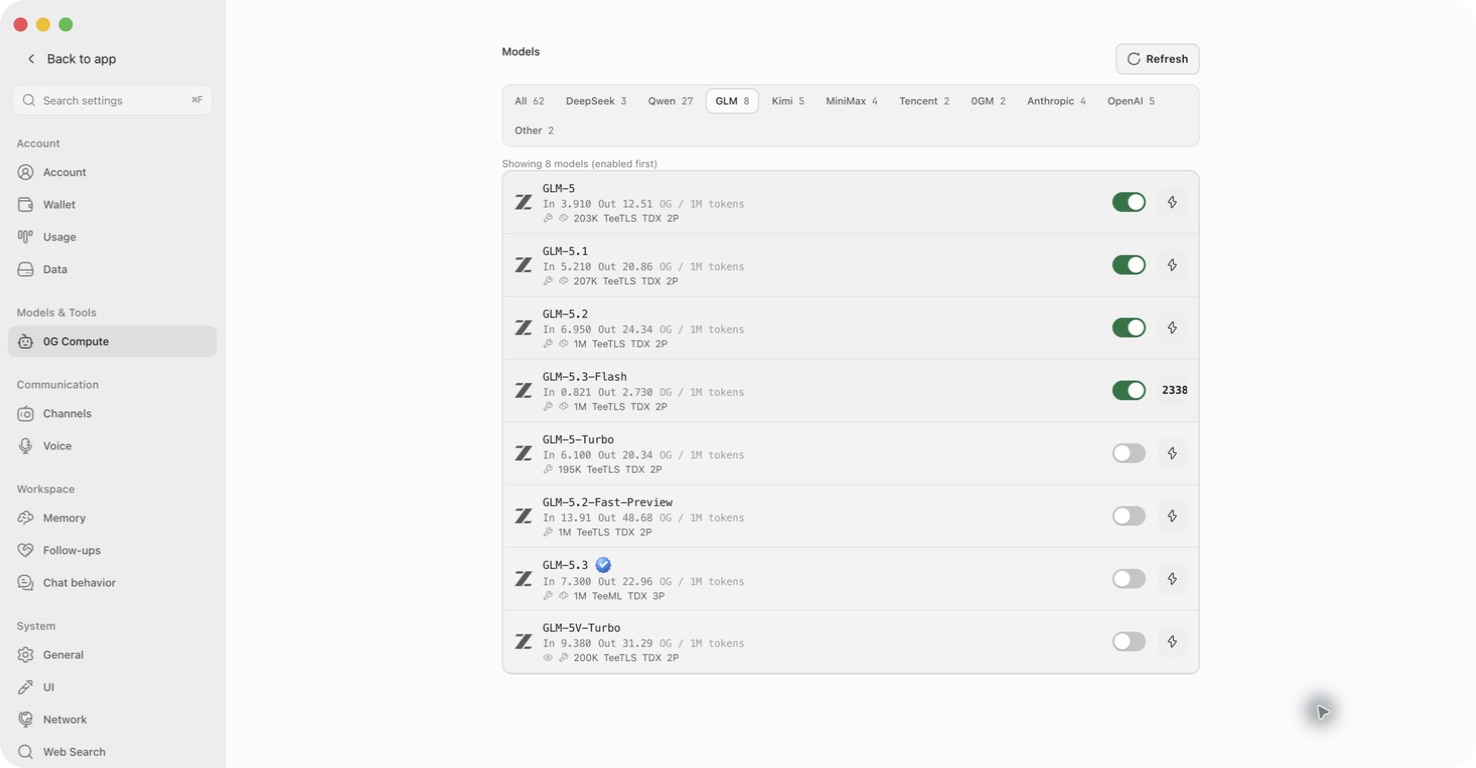
This button sends a short inference request and can use account funds. It does not test your entire conversation, long context, image inputs, Tools, or Skills. A successful test also does not turn on the model’s switch or select it in a conversation.
Model brands are not additional providers to configure
The model catalog comes from 0G Router. Family labels such as OpenAI, Anthropic, GLM, and Qwen help you find models; they are not separate provider-setup forms in this client. A 2P label reports two serving providers for that catalog entry, not two accounts you must register.
The current list can change after Refresh. Use Enable, test, and select models for the available families, capability markers, prices, primary-model selection, and the separate Background Model setting.
Local coding agents in Team have their own runtime and model controls. Do not treat 0G setup as proof that those local agents are installed or signed in; check their status in Agent Store.
When to add funds
If an existing credit or balance supports your first request, no new payment is needed simply to finish setup. Otherwise, use Fund the inference account to choose Crypto, Card, or eligible credit redemption.
Keep these checks separate:
- Account refresh checks whether Ghast can read the inference account.
- Catalog refresh loads model information.
- A model test checks a short inference request.
- Selecting an enabled model determines what your next conversation uses.
A successful wallet transaction alone does not prove the inference account has been credited. Confirm the destination account and its funds before repeating any payment.
Key rotation is maintenance, not initial setup
The 0G key actions menu offers Rotate Management Key and Rotate API key. Selecting a rotation action starts it immediately; there is no second confirmation. Do not use these actions merely to view a key or dismiss a setup warning.
Ghast attempts to revoke an old key only when it has the information needed to manage it. Saving a replacement and revoking the previous key are separate outcomes. See 0G Compute settings before rotating, especially if another client might still use the old key.
Troubleshooting
| Problem | Next step |
|---|---|
| The Management Key field is absent | Check for Account funds. A stored key hides the recovery form. Do not rotate just to make a field appear. |
| The key format is rejected | Use the complete mk- Management Key, not an inference key, wallet address, or private key. |
| Account refresh reports 401 or unauthorized | Check that the intended Management Key has not been revoked. Retain the error and use the correct account’s key-recovery path. |
| Saving or refreshing reports 403 / insufficient permissions | Check all four Management Key permissions, especially account/key read and key creation when inference credentials are missing. |
| Models is empty or Refresh fails | Check the visible error and Settings → Network. Retry catalog refresh after connectivity is restored; do not repeatedly rotate keys. |
| Funds refresh works but a model test shows No response | Account access and inference access are separate. Check usable funds, inference key state, network and model availability. The row alone does not identify the cause. |
| A model test succeeds but the composer is empty | Turn on a model switch and reopen the picker. Testing a disabled model does not enable it. |
| The account shown is unexpected | Compare it with the intended wallet/account before funding. A saved Management Key is not proof that every older credential has the same owner. |
Setup is ready for a first conversation when the intended account refreshes without error, a suitable enabled model passes its short test, and you can select that model in the composer. Completing Quickstart verifies the actual first response.