Network settings
Open Settings → Network to configure a manual proxy, request parameters, or an advanced 0G RPC endpoint.
You do not need a manual proxy just to use Ghast. Configure one when your network requires it and you have a working proxy address. These settings are not a system-wide VPN or a guarantee that every Ghast connection follows the same route.
Save, test, or discard
All configuration fields on this page require Save, including proxy mode and credentials, Prefer IPv4, timeout, retry count, user agent, and 0G RPC.
- Note the original values before making changes.
- Edit the fields. Ghast shows Unsaved changes.
- For a manual proxy, use Test proxy to check the draft before applying it.
- Click Save and wait for Unsaved changes to disappear.
- Retry a low-risk action in the feature you actually need.
Test proxy sends a real network probe using the draft, but does not save or enable that proxy for other work. A successful test is not a substitute for Save.
To abandon changes, choose Back to app or Close, then confirm closing without saving. Switching Settings pages does not discard or save the shared draft. See Settings save and discard.
Save updates the shared HTTP connection settings, but does not reconfigure every already-open browser or channel connection. If an existing connection still behaves as before, finish active work and restart Ghast before testing that feature again. A restart cannot make unsupported features adopt these settings; see connection coverage.
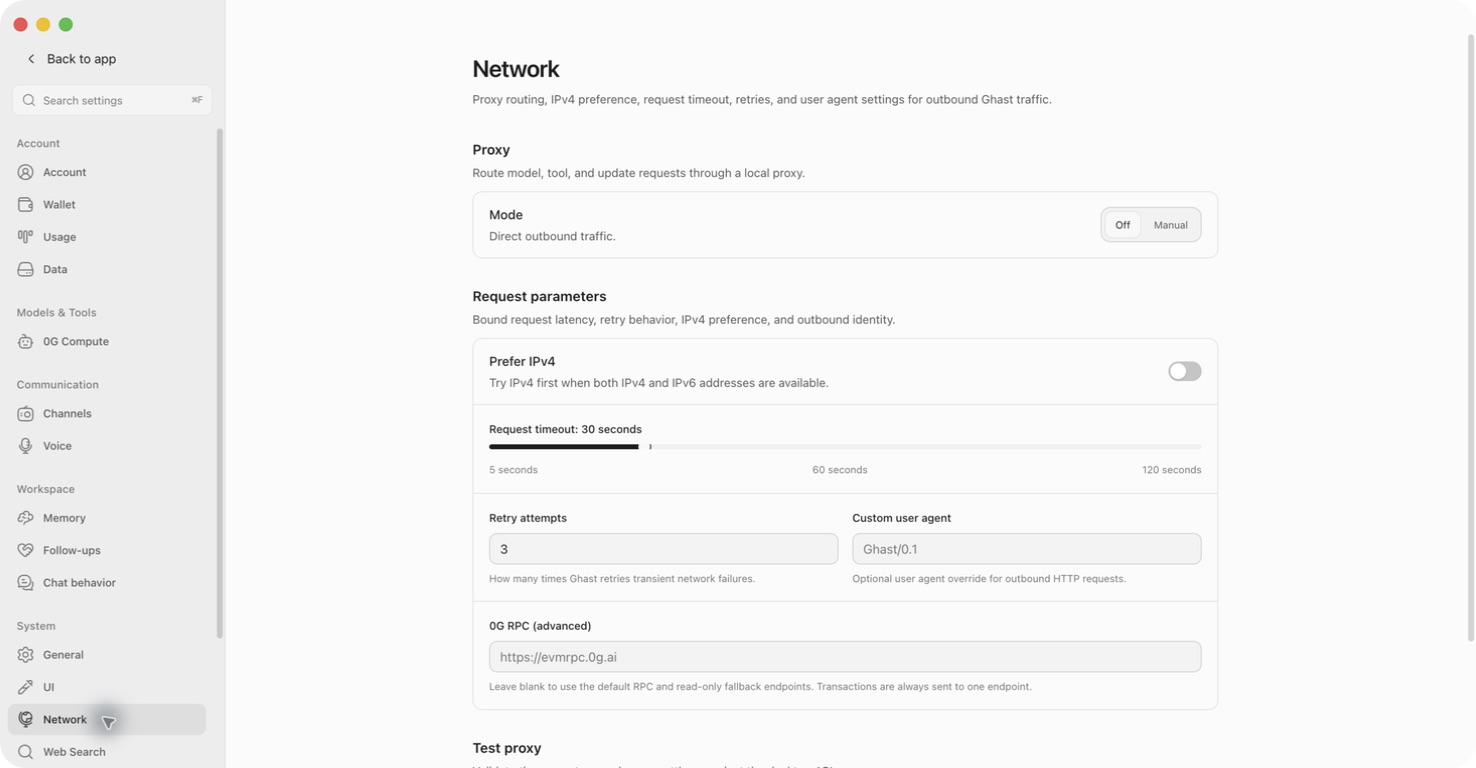
Configure a manual proxy
Have the proxy application's or administrator's protocol, host, port, and any required credentials ready. Ghast does not create a proxy server when you enable this option.
- Under Proxy → Mode, choose Manual.
- Select Proxy type: HTTP, HTTPS, or SOCKS5.
- Enter Proxy server and Port.
- If authentication is required, enter Username and Password.
- Scroll down to Test proxy, run the test, and inspect the result.
- Save only when the values are appropriate for your network.
| Field | What to enter |
|---|---|
| Proxy type | The protocol accepted by your proxy. HTTPS here describes the connection to the proxy; do not select it merely because the destination website uses HTTPS. |
| Proxy server | A hostname or IP address, without a protocol prefix, path, port, or embedded credentials. For a proxy on this computer, use the host reported by that proxy application. |
| Port | The proxy's actual listening port, from 1 to 65535. The initial value 8080 is not a guarantee that a proxy is running there. |
| Username / Password | Proxy credentials, not a Ghast account password, model API key, or wallet key. Leave them empty if your proxy does not require authentication. |
Out-of-range port values are clamped to the allowed range. Clearing or entering an invalid numeric port can restore 8080, so check the resulting number instead of assuming it remained blank.
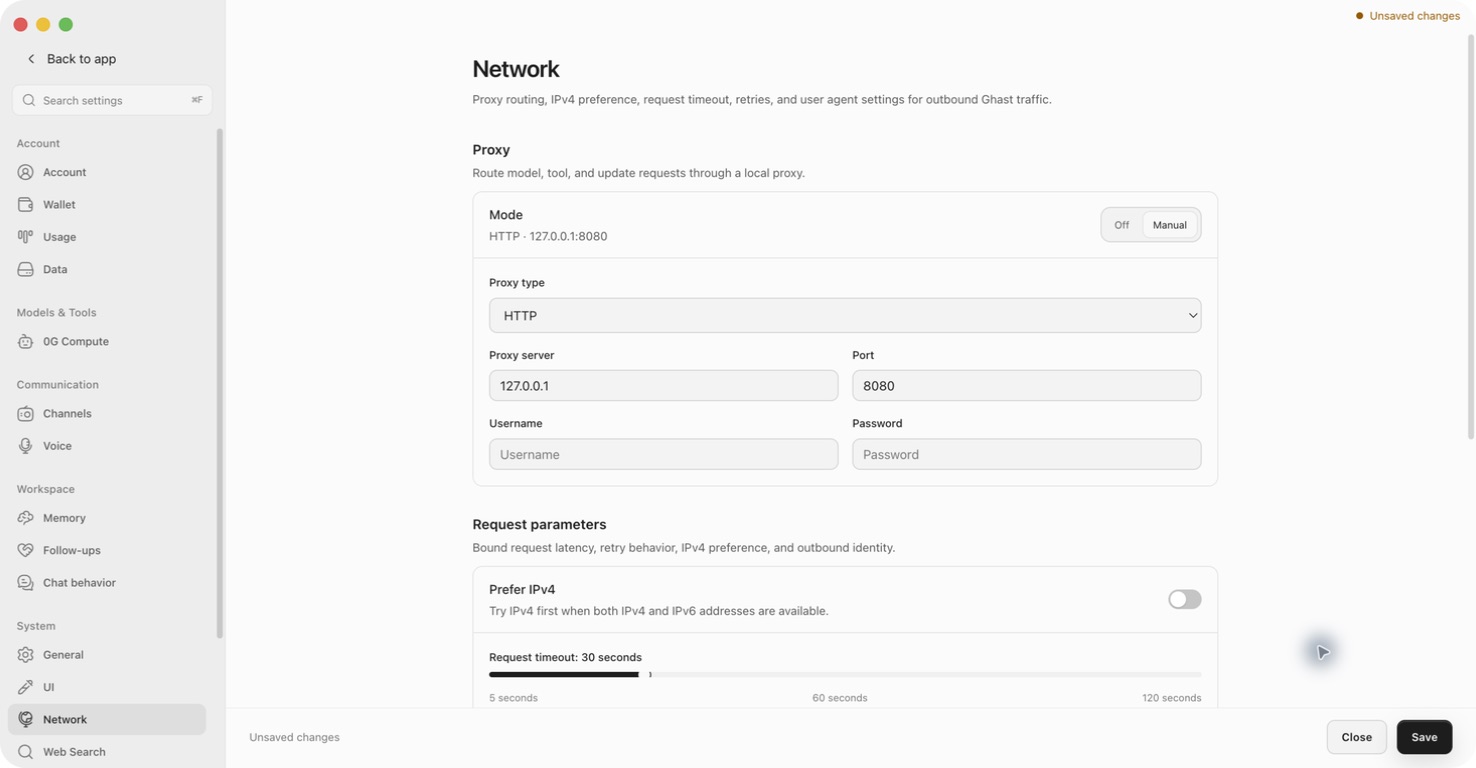
Do not save Manual with an empty host and expect requests to be blocked. An incomplete configuration is not a safe “proxy-only” mode, and different features can fall back differently.
Test the draft
The test button is available only when Manual is enabled and host/port are populated. The hint can still say Manual proxy must be enabled before testing when Manual is already selected but the host is missing.
The test uses its own approximately eight-second request budget and does not use the page's timeout, retry count, custom user agent, or Prefer IPv4 setting. Raising Request timeout does not extend this test.
| Result | What it means |
|---|---|
| Connected in …ms … | The proxy reached the public exit-IP probe. The result may include an IP address and a country flag. |
| A successful result without a flag | Country lookup may have failed; that does not turn the first successful probe into a failure. |
| Proxy failed: … | The connection or probe failed. Read the error, then check the protocol, host, port, credentials, and whether the proxy is running. |
| Proxy failed: fetch failed | A generic connection failure, not proof of any one cause. The same message can cover different connection problems. |
Displayed latency measures the initial response, not the entire country lookup or the time a model will take to answer.
Changing the server, port, protocol, or credentials does not automatically clear the previous result. Run Test proxy again before treating that result as evidence for the new values. Switching the mode to Off clears the result.
What the test sends
The probe connects through your draft proxy to icanhazip.com to obtain the exit IP, then sends that IP to api.country.is for a country lookup. These services receive the probe traffic; no conversation content is included. Proxy credentials are passed to Ghast's local desktop service and used to connect to the proxy.
A passing test does not prove that a Provider, MCP service, website, updater, WebSocket, or embedded login page is reachable. Check the intended feature separately. Before sharing a screenshot of the result, remove private proxy information and the exit IP; do not assume every error message is already redacted.
Turn off or replace the manual proxy
- Open Settings → Network.
- Choose Off, or replace the Manual fields with your new proxy details.
- Click Save.
- Retry a harmless request in the affected feature. If an existing browser/channel connection retained its earlier route, restart Ghast after finishing active work.
Off disables Ghast's manual proxy only. Despite the UI's Direct outbound traffic wording, supported requests can still follow the operating-system proxy. When system-proxy resolution is unavailable or fails, the shared HTTP path can use the process's HTTP_PROXY / HTTPS_PROXY environment variables. Off is not a force-direct switch.
Turning Off does not erase the saved host or credentials. To remove them, display the Manual fields, clear the host and credential fields, switch back to Off, and save. Do not clear or reset unrelated account settings to recover from a bad proxy.
If a saved manual proxy breaks connectivity, the Settings page remains the place to restore your previous values or choose Off. Confirm the restoration is saved before restarting. After a payment, publish, send, or other external action times out, check the destination's actual state before trying it again.
Adjust request parameters
These controls apply only to connections that use them, not every request made by every feature.
| Control | Range and default | Scope and limitation |
|---|---|---|
| Prefer IPv4 | Off by default | Forces IPv4 DNS lookup on the shared direct-connection path. It does not control proxy-side resolution, and it does not provide an IPv6 fallback for an IPv6-only host. |
| Request timeout | 5–120 seconds, in 5-second steps; default 30 | A per-attempt timeout on shared HTTP requests and a per-request timeout on 0G RPC. Features can use their own limits. |
| Retry attempts | 0–10; default 3 | Extra attempts after the initial shared HTTP request. Three retries means up to four attempts, not three total. |
| Custom user agent | Optional; empty by default | Replaces the User-Agent on supported shared HTTP/RPC requests. It does not change every embedded browser's identity. |
Change a timeout or retry count
- Move the Request timeout slider or edit Retry attempts.
- Check the displayed value. Retry values outside 0–10 are clamped; clearing an invalid value can restore 3.
- Click Save.
- Retry one low-risk task and compare the outcome before changing another setting.
For shared HTTP requests, the timeout is not an overall budget for all retries. It covers waiting for the response, not the complete lifetime of a streaming answer. A conversation may therefore continue beyond the selected timeout.
The shared retry policy includes network/timeout failures and HTTP 408, 425, 429, and 5xx responses; individual features may override it. Setting retries to 0 disables retries only on paths honoring this setting. It does not disable 0G read-endpoint fallback, SDK-specific retries, or a service's own processing.
Do not increase retries to work around invalid credentials or permission errors. Retries also cannot make an external action safe to repeat: after an uncertain send or transaction, check whether it already happened.
Use IPv4 or a custom user agent
If you enable Prefer IPv4 to investigate direct-connection problems, save it, test the affected service, and turn it back off if IPv6-only destinations stop working. It is not a way to change a proxy's exit location.
Leave Custom user agent empty unless the target service or your network administrator requires a particular value. The placeholder Ghast/0.1 is an example, not proof of a configured override. To remove your override, clear the field and save.
Change the 0G RPC endpoint
0G RPC (advanced) changes the endpoint used for 0G Mainnet blockchain requests, not the Provider's model-inference endpoint. It does not select a model, add compute balance, or replace RPC endpoints for other payment source chains.
- Obtain a trusted RPC endpoint for 0G Mainnet, chain ID 16661.
- Enter its complete HTTP or HTTPS URL in 0G RPC (advanced).
- Click Save.
- Check a read-only wallet or balance refresh before attempting a transaction.
Saving does not run a connection or chain-ID test. Test proxy does not test this RPC URL either. An invalid URL may be reported only when a blockchain feature tries to use it.
| RPC setting | Reads | Transactions |
|---|---|---|
| Empty | Uses the default Mainnet endpoint and read-only fallback endpoints for connection failures; a recently successful default endpoint may be tried first. | Uses the single default write endpoint. |
| Custom HTTP/HTTPS URL | Uses only that endpoint. The default read-only fallback endpoints are no longer used. | Uses that custom endpoint only. |
Contract errors or transaction reverts are not fixed by switching to a read-only fallback. RPC calls use the supported proxy, timeout, user agent, and direct IPv4 configuration, but not Retry attempts. Transaction receipt waiting can have a separate time limit.
To return to the standard RPC configuration, clear the field and save. If a transaction may already have been submitted, inspect its status before resubmitting; a lost response does not establish that the transaction failed.
Treat a custom RPC URL as potentially sensitive, especially if it includes a provider token. Do not place it in public screenshots or support messages.
Which connections follow these settings?
| Feature or connection | What to expect |
|---|---|
| Models and tools using Ghast's shared HTTP path | Can use the proxy and request parameters. An individual request can override timeout/retry behavior. |
| 0G blockchain RPC | Uses the applicable proxy, timeout, user agent, and direct IPv4 controls; has its own endpoint-selection policy. |
| Some embedded search and login windows | Use separately configured browser-session proxies. An already-open session may retain old settings; browser timing and user-agent behavior are separate. |
| HTTPS-only or authenticated proxies in embedded windows | The shared HTTP test can pass without establishing browser compatibility. Current browser-session routing does not preserve HTTPS-proxy transport in the same way and does not provide the same saved-credential handling. Verify the actual login/search window. |
| Plugin-provided models, MCP connections, plugin downloads, app updates, and 0G Pay service calls | Do not assume these all use this page's settings. Several use separate network implementations; test and troubleshoot the failing feature directly. |
| Shell commands, external applications, and independently launched services | Have their own network environment. Changing this page is not a system-wide proxy configuration. |
For a model-only failure, start with Provider configuration and testing. For search failures, use Web Search tests. For connection and authorization problems, see MCP setup. Keep proxy access, service authentication, model availability, and account balance as separate checks.