Team memory and files
To find a file, open Files in the conversation. To correct what a teammate remembers, open their profile’s Memory tab. Shared group records are in Group settings → Group memory. These are separate controls: forgetting a memory does not delete its conversation, and deleting a conversation does not necessarily delete its files.
Choose the right place
| You want to… | Open |
|---|---|
| Review one teammate’s remembered information | Their name or avatar → Memory |
| See that teammate’s personal folder | Their profile → Workspace |
| Browse files available in a DM | The DM → Files |
| Review shared records for one group | That group → Group settings → Group memory |
| Choose where a group works on local files | Group settings → Project folder |
| Browse group or project files | The group → Files |
| Inspect one work item’s delivery | Its Work details → Files |
Review a teammate’s memory
- Open the teammate’s profile from a DM header, a group member avatar, or Agent Store.
- Choose Memory and wait for the list to load.
- Expand Collaboration notes or Conversation memory, then expand an individual entry to read its full text and date.
- Check the full entry before removing it; its collapsed title is only a preview.
Memory can include reusable information from conversations and collaboration, such as output preferences or agreed project rules. It is not a complete transcript. Accepting work in a DM can also retain a conclusion in the responsible teammate’s memory. Do not assume every message becomes a memory or every remembered fact will be used in every reply.
Forget an incorrect item
Expand the entry, then choose Forget this. The action is submitted immediately: there is no additional confirmation or Save step. After success, the entry disappears from the list.
The original messages, work items, and files remain. There is no Bring back control for a deleted personal-memory entry. If the information is needed again, give the teammate the correct information in a new message; that is not restoration of the deleted record. If an error appears, reopen Memory to check the current list before retrying.
For a changed requirement, also tell the teammate what should replace the old rule. Removing memory does not rewrite an existing conversation or undo work already performed. Never store passwords, API keys, private keys, or one-time codes as memory.
Review group memory
- Open the group and choose Group settings in its header.
- Expand Group memory.
- Start with In use. Open Original text and source on a record to read the full content and available author/date information.
- When View source work is available, use it to return to the work that produced the record.
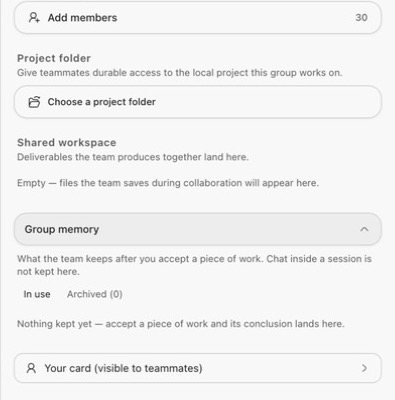
Accepted group work can retain a record here for later collaboration in this group. Eligible information from your group messages may also be remembered. A teammate’s group reply does not automatically become a shared record; their personal memory and the group’s memory are separate.
A record may contain the original accepted work rather than a short, distilled fact. Read its full text and source before treating a short preview as the complete conclusion. A search pending badge means the record has been saved but its search index is not ready; it is not evidence that the original work was lost.
Stop using an outdated group record
- Find the record under In use and inspect its full text.
- Choose No longer true.
- After the update, look under the separate No longer true subsection within the same view. The record is retained but is no longer used as an active memory.
- Add the new decision to the group if there is a replacement.
This action saves immediately, without a separate confirmation. It does not delete the source work, messages, or files. It also cannot remove text that was already included in an ongoing conversation.
Restore a group record
- For a record you marked No longer true, stay in In use, find the No longer true subsection, and choose Bring back on that record.
- For an archived record, switch to Archived, find it, and choose Bring back.
- Return to In use and check the record after the update.
An archived record and a record marked no longer true are different states; do not search only Archived for something you just invalidated. The panel has no manual Archive button. Before restoring an old decision, check whether a newer decision contradicts it.
If memory is missing or fails to load
- Confirm the teammate or group. Another teammate’s personal memory and another group’s records are not the same list.
- Check Archived as well as the invalidated subsection.
- The teammate’s Memory tab and each group-memory view currently load up to 50 records and have no Load more control. Absence from that visible list does not prove permanent deletion.
- If group memory shows an error, collapse and reopen Group memory to reload it. In a teammate’s Memory tab, use Retry when offered.
- Check the original work or conversation for a conclusion that has not appeared as a memory. Do not accept unfinished work merely to make a record appear.
Find and inspect a file
- Open the DM or group, then choose Files.
- Enter part of the file’s name in Search file names…. Search filters the file list, not file contents. Clear the query to see the other files again.
- Select the result. Searching alone does not switch the file currently open in the preview.
- For Markdown, HTML, CSV, or TSV, switch between Preview and Source. Other text files display as source text.
- Use Copy Path to copy the file’s full location, or Show in the system file manager to reveal the original in Finder on macOS.
- If the file has delivery information, check the author and associated work. Use Jump to message when available to inspect the originating reply.
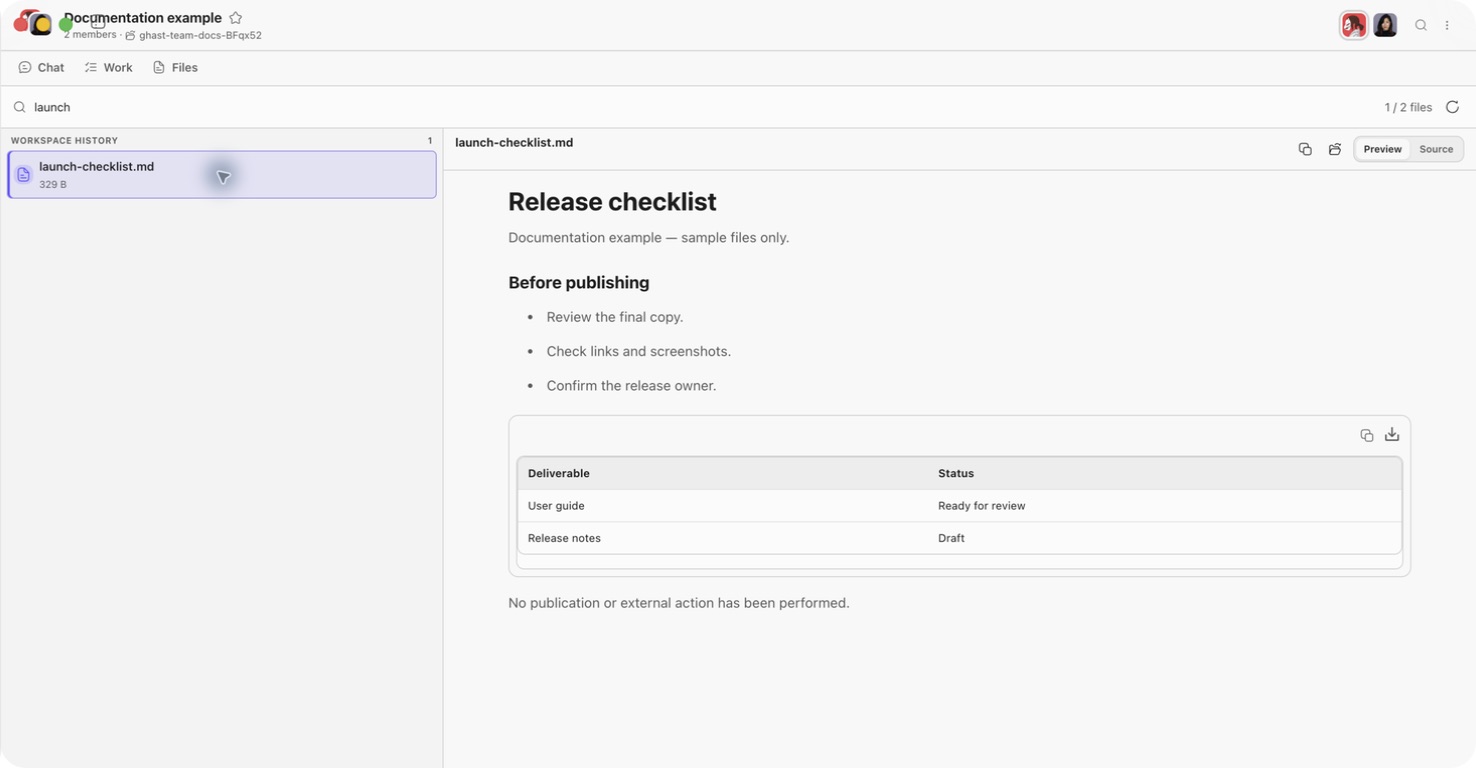
Files is a browsing and preview surface, not a file editor. Make edits in the appropriate application or give the teammate a scoped change request. A listed file is not proof that its contents meet your acceptance criteria.
Current work and Workspace history
Current work shows files for one work item, not all unfinished work. Among items with visible linked files, it prefers the most recently updated unfinished item; otherwise it uses the most recently updated completed item. Cancelled items are excluded from this choice.
Workspace history contains the other browsable files, including ordinary files without a linked work item. To review a specific delivery, open that item’s Work details → Files rather than assuming Current work is the item you need.
A DM’s Files tab can show the teammate’s personal workspace across their work, not just attachments from this conversation. Files declared in replies can also appear even when they are stored elsewhere. Listing an external file does not copy it into the workspace or guarantee that it can be previewed. In particular, DM previews are restricted to the teammate’s workspace; use the original location for an external file.
Link or change a group’s project folder
Without a project link, the group uses an internal folder managed by Ghast. Linking a local folder makes that folder the group’s workspace for subsequent file tasks.
- Finish or stop work that still depends on the old folder.
- In the group header, choose Link a project…, or open Group settings → Project folder → Choose a project folder.
- Select the smallest folder needed in the system picker and confirm. The link saves immediately; there is no separate Save button.
- Check the folder shown in the header or Group settings.
- Open Files. If it was already open, choose Refresh files to load the new folder. Close and reopen Group settings if Shared workspace still shows the old list.
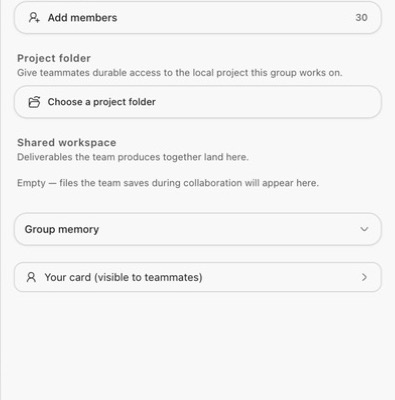
To replace the project, click the current folder and choose another. To unlink it, choose Clear project folder next to the path, then refresh Files. The group returns to its internal folder.
Linking, replacing, or clearing a project does not move, merge, or delete files from the previous folder. Existing work or messages may still refer to those older locations. Check the full path before editing or cleaning anything up.
Teammates normally create files in the group’s current workspace, but a request can explicitly require an external destination. Folder access is not an instruction to change every file: state allowed paths and whether the work is read-only.
Where attachments go
Non-image attachments sent in a DM are copied into the teammate’s workspace; in a group they go into the currently linked project or, without a link, the internal group folder. They use an attachments/<date>/ subfolder.
Images and captured app screenshots remain inline message content rather than being written to this folder. An image visible in Chat therefore need not appear in Files. See Direct messages for supported attachments and sending requirements.
Preview limits and missing files
| What you see | What to check or do |
|---|---|
| The list is empty | Confirm DM versus group, the project link, and whether a file was actually created. Clear the search. Reopen Files, or use Refresh files if available. |
| A file is missing from a large folder | The workspace browser stops at 4 levels, 200 entries per directory, and 1,000 total nodes; hidden entries and symbolic links are excluded. Inspect the original folder in Finder. |
| File too large | Files over 5 MiB cannot be loaded through this preview. Open the original in its application. |
| A binary file cannot be previewed | Open it in the appropriate application; do not expect PDF, image, spreadsheet, or media rendering here. |
| CSV/TSV looks incomplete | The table preview is capped at 200 rows, including its header, and 40 columns. Source can show the underlying text within the 5 MiB limit; use a spreadsheet app for the complete table. |
| An HTML preview differs from the website | It is an isolated static preview. Scripts and external resources are blocked. Test the original website in a browser. |
| A listed file cannot be opened | It may have moved, been deleted, or be outside the allowed preview location. Check its full path and original source; do not grant a broader directory just to clear the error. |
Preview limits do not modify or truncate the original file. When reviewing a delivery, check its real location, content and version. If a file was required but was not delivered, use Request changes; a text-only answer can legitimately have no files.
Before deleting or dismissing
Save a separate copy of files you need, and review active or awaiting-review work before proceeding. Team does not provide an Undo or trash-based recovery flow for these deletions.
| Action | Removed or stopped | Kept |
|---|---|---|
| Delete a DM | That conversation’s messages, work discussions and work items; associated running work is stopped and pending deliveries cancelled | The teammate, personal memory and personal workspace |
| Forget this in a profile | The selected personal-memory entry | Its original conversation, work and files |
| Dismiss but keep their records (re-hirable) | Running work stops and pending delivery is cancelled; the teammate is dismissed | The teammate’s records, memory, personal files and DM history, so they can be rehired |
| Delete everything (irreversible) | The teammate and their personal memory and workspace; unfinished work loses its owner and returns to To do | Existing DM history and files already written to external projects |
| Delete group | The group’s messages, work discussions and work items; associated work stops. Ghast also attempts to clear its memory and remove its internal folder | Linked project files, external files and members’ personal memory/workspaces |
Deleting a DM and reopening it later does not restore its old messages or work. Delete everything is not a command to remove every conversation or external file ever associated with a teammate.
Deletion can partially succeed. If an error appears, do not assume nothing changed or immediately repeat it. Check which conversation or teammate remains visible and which original files still exist. If a deletion error appears after the group has disappeared, its memory and internal folder may both remain partly or wholly uncleared. Even a successful response does not guarantee the internal files were removed. If cleanup is uncertain, retain the error and request support; do not delete a broad parent folder yourself.
For the confirmation steps, see Delete the group and Dismiss a teammate.