Tour the client
The Ghast main window combines left navigation, a central work area, and controls for the current task. Chat and Coding normally place a composer at the bottom. Team changes its controls for a direct message, group, or work item. Collapsing the sidebar only changes the available space; it does not delete the current content.
Top-level work surfaces
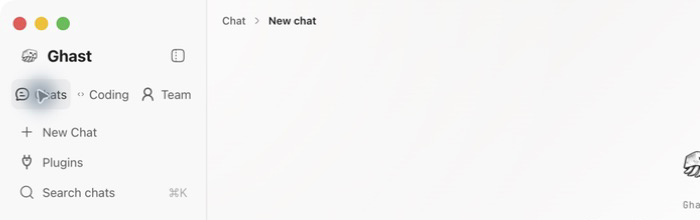
The top of the expanded navigation always offers three main work surfaces:
| Entry | Purpose |
|---|---|
| Chat | Questions, writing, research, and one-off tasks that may use tools |
| Coding | Inspect files, run commands, edit code, and review changes in a local workspace |
| Team | Coordinate agents, work items, and shared deliverables |
Sidebar for the current surface
Entries below the surface switcher change with your location:
- Chat: New Chat, Plugins, Search chats, Projects, and recent conversations.
- Coding: New coding session, Plugins, Search coding sessions, Projects, and recent conversations.
- Team: New conversation, Agent Store, search, direct messages, and groups.
- Settings: the gear at the bottom of the sidebar opens account, wallet, model service, channel, voice, memory, network, Computer Use, and interface settings.
Agent Store therefore is not a Chat entry, and Plugins is not a Team entry. A delete action beside a history item removes that record; save anything you still need before confirming it.
Conversation area
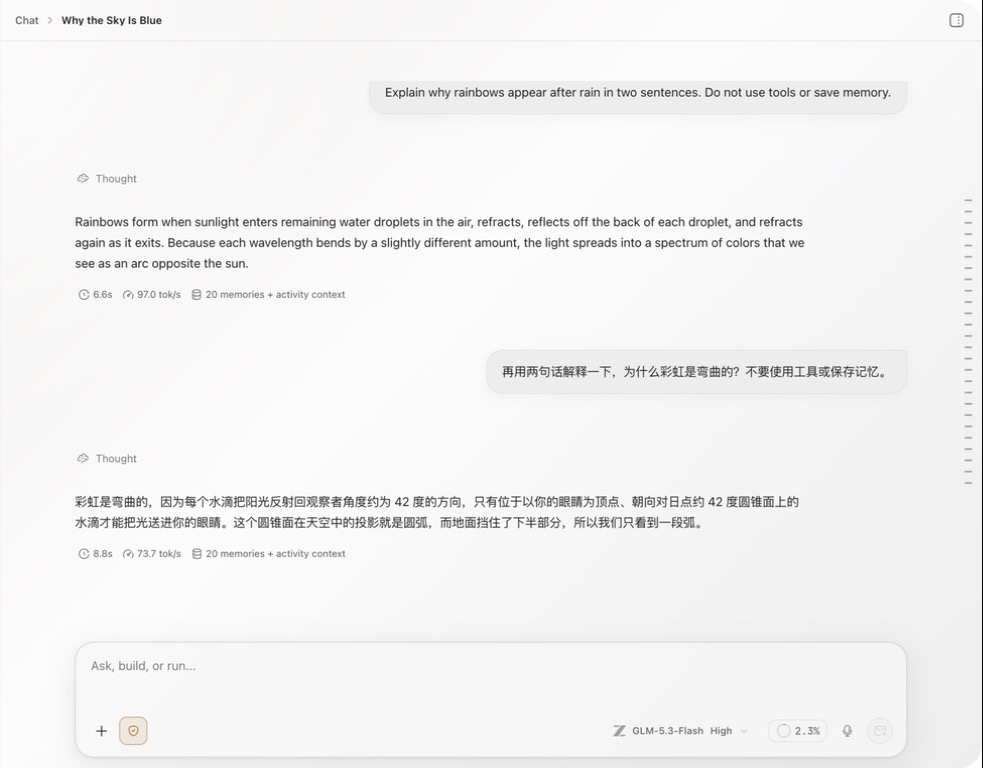
The breadcrumb at the top shows the current surface and conversation title. In Chat, the main area contains your messages, Ghast responses, a collapsible Thought section, tool activity, and run summaries.
Use Open workspace panel near a Chat title to add an auxiliary panel on the right. Available tabs depend on the conversation, workspace, and content you have opened. With no workspace selected, project files or terminal results do not appear automatically.
Composer
The composer is more than a text field. It exposes the execution conditions for the next message:
- Add (+) for attachments, app context and workspace selection. Use
/in the input to find skills and commands; there is no Tools or Skills selector in Add. - Command authorization for asking before high-risk shell commands or directly allowing shell and file access in the current conversation.
- Model and reasoning for the next response; a reasoning control appears only for models that support it.
- Context usage for percentage used, token count, model limit, input, output, and output reserve when shown.
- Voice input to start or stop local transcription.
- Send / Stop generating to submit or interrupt a run.
Workspace, Tools, and command authorization change what Ghast can access or execute. Check their current state before sending a message that involves files, commands, or an external service.
Client and documentation language
To find a previous conversation, jump to a setting, or navigate with the keyboard, see Search and keyboard controls.
Change the Ghast Desktop language in Settings → General. Change this site’s language from the switcher in the top navigation. They do not synchronize automatically.