Sign in and set up Ghast
New users sign in and complete five setup steps. Returning accounts normally skip steps they no longer need. If this device does not have a usable local wallet, Ghast still asks you to create or import one.
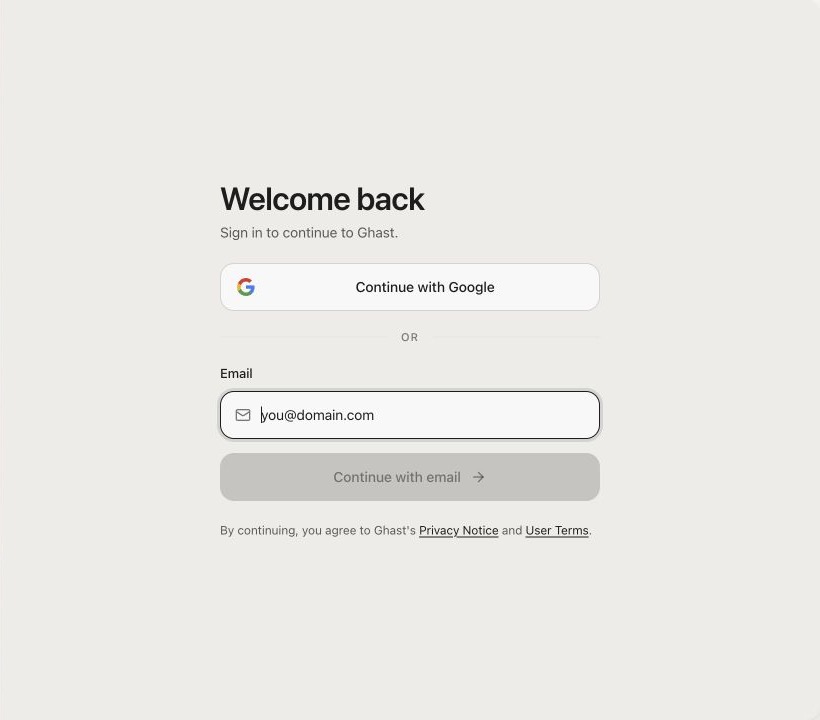
Sign in
The sign-in page offers two methods:
- Continue with Google opens the Google flow in your browser and returns you to Ghast.
- Email sends a six-digit verification code after you select Continue with email. The verification page can resend the code or return to the email field.
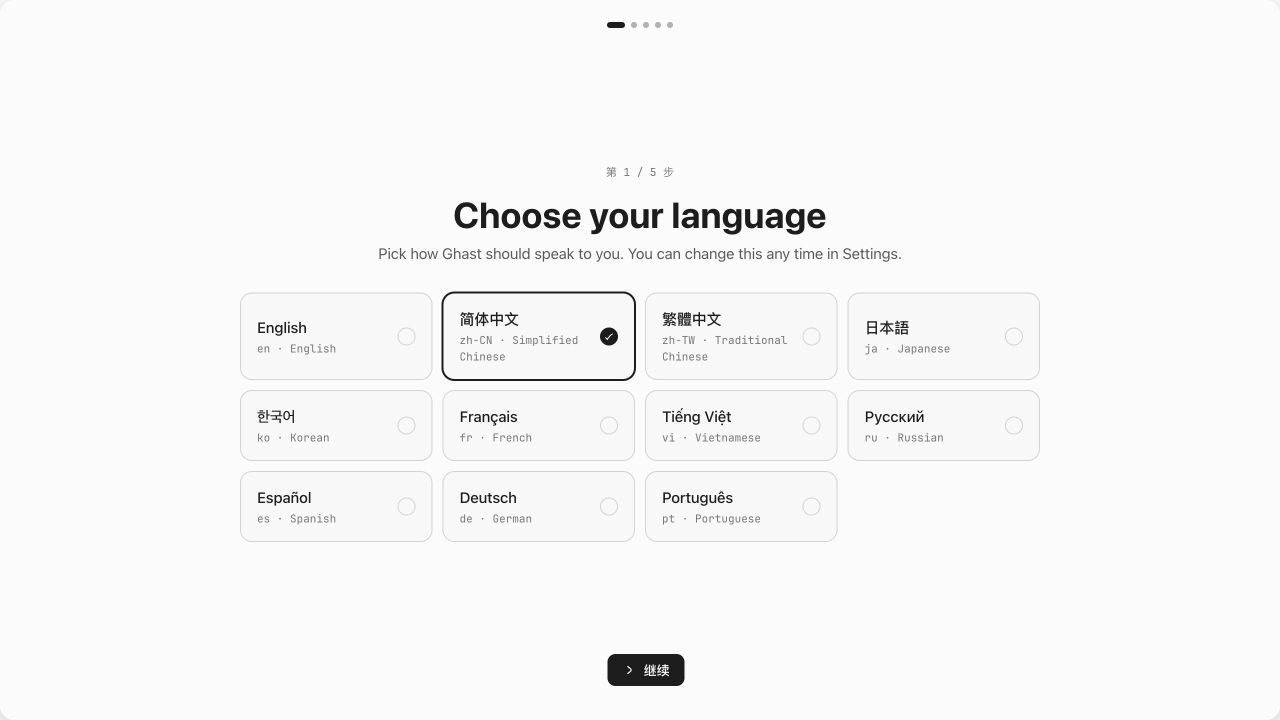
Step 1: Choose a language
Choose the language used across Ghast windows, then continue. You can change it later under Settings → General → Language. The language switcher on this documentation site is independent.
Step 2: Enter an invitation code
The available path depends on your account and the current service policy:
- When an invitation is required, enter the six letters or digits. Use Request access if the page offers it and you need an invitation.
- When the page allows onboarding without a code, select Skip for now.
The page is authoritative: if no skip action is shown, complete the invitation step before continuing.
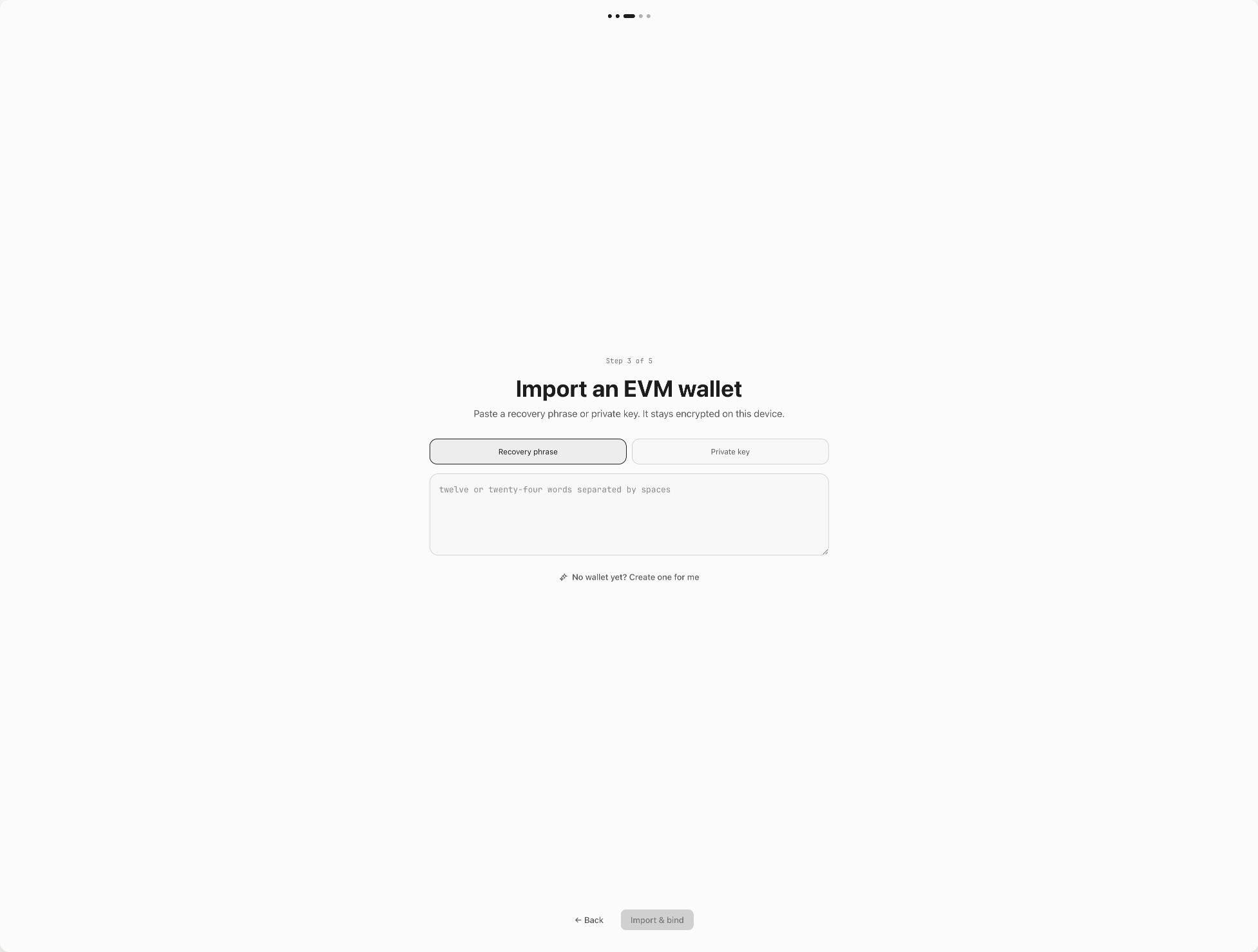
Step 3: Prepare a local EVM wallet
Ghast needs a usable EVM wallet on this device. You can:
- import a 12- or 24-word recovery phrase;
- import a private key beginning with
0xfollowed by 64 hexadecimal characters; or - select No wallet yet? Create one for me to create a wallet.
Imported key material is encrypted on this device and bound to your account. On another device that does not have this wallet, you must import or create a local wallet again.
Anyone with the recovery phrase or private key can control the wallet. Ghast cannot recover the phrase for you. When creating a wallet, write the phrase down offline and store it securely. Never paste it into a chat, webpage, screenshot, cloud drive, or support ticket, and never give it to someone claiming to represent Ghast.
Set up 0G Compute
After the wallet is ready, Ghast continues through local-wallet confirmation, sign-in to 0G Router, Management Key creation, and local storage. If setup fails, choose Retry 0G setup. When Continue for now is available, you can enter the client and finish later under Settings → 0G Compute. Skipping or failing this step can leave models that depend on 0G Compute unavailable.
Step 4: Choose what Ghast calls you
Enter the name Ghast uses in greetings and conversations. This is a display name, not a sign-in credential, and you can change it later in account settings.
Step 5: Pick an appearance
Choose Match system, Light, or Dark, then finish setup. Select Start on the welcome screen to open the main window.
After the main window opens
Do not jump straight from sign-in to sending a message. Complete Configure the model provider, Fund the inference account, and Enable, test, and select models in order. Confirm that an available model appears in the composer, then follow Quickstart. For the first run, attach no workspace, file or app context, use a non-sensitive text-only request, and check command authorization. The current Add menu has no Tools or Skills selector. A “do not use tools” instruction is not a permission barrier; inspect unexpected activity and decline unintended actions.
On a shared computer, sign out before leaving and check local conversations, downloaded files, the local wallet, and connected services.