Enable, test, and select models
After 0G Compute is configured and the account has funds, enable at least one primary model for Chat or Coding. Only models with their switch on appear in the primary Chat and Coding pickers; the Background Model is selected independently under Settings → General.
Where models come from
Ghast does not ship a permanent model list or read separate catalogs from every model company. Settings → 0G Compute loads currently available models and serving-provider data from 0G Router.
| UI term | Meaning |
|---|---|
| 0G Compute | The current user-configurable model provider and routing entry point in Ghast. |
| OpenAI, Anthropic, DeepSeek, Qwen, and others | Model brands or families in the 0G catalog, not separate Ghast providers to configure. |
1P, 2P, 3P | The current number of providers reported by 0G for that model. |
| TeeML, TeeTLS, TDX, and similar labels | Verifiability or trusted-execution metadata returned by the 0G catalog; use the current hover text for the exact meaning. |
One model brand can be served by one or more providers behind 0G Router. Ghast does not currently expose a control for pinning one serving provider; model requests use the Router path prepared for that catalog entry. Catalog entries, provider count, price, and availability can change, so the live page takes precedence over screenshots and examples.
Which models are available
The catalog is grouped by family. This is the catalog snapshot observed in the current development client; it describes that live capture, not a fixed quota:
| Family | Current count | Family | Current count |
|---|---|---|---|
| DeepSeek | 3 | Qwen | 27 |
| GLM | 8 | Kimi | 5 |
| MiniMax | 4 | Tencent | 2 |
| 0GM | 2 | Anthropic | 4 |
| OpenAI | 5 | Other | 2 |
The total was All 62. Counts can change after a refresh.
The catalog can contain 0GM, DeepSeek, GLM, GPT, Hunyuan, Kimi, MiniMax, Qwen, and other models, including vision or video-generation entries. These current examples explain the structure and are not a promise of permanent availability:
0GM-1.0-35B-A3BDeepSeek-V4-Flash,DeepSeek-V4-Flash-Vision (experimental),DeepSeek-V4-ProGLM-5,GLM-5.1,GLM-5.2,GLM-5.3-FlashGPT-5.6 LunaHunyuan-3Kimi-K2.7-Code,Kimi-K3MiniMax-H3Qwen3-VL-30B-A3B-Instruct,Qwen3.6-Plus, and others
For the complete list at this moment, open Settings → 0G Compute and select Refresh. Do not use the examples above to conclude that an account must have a specific model.
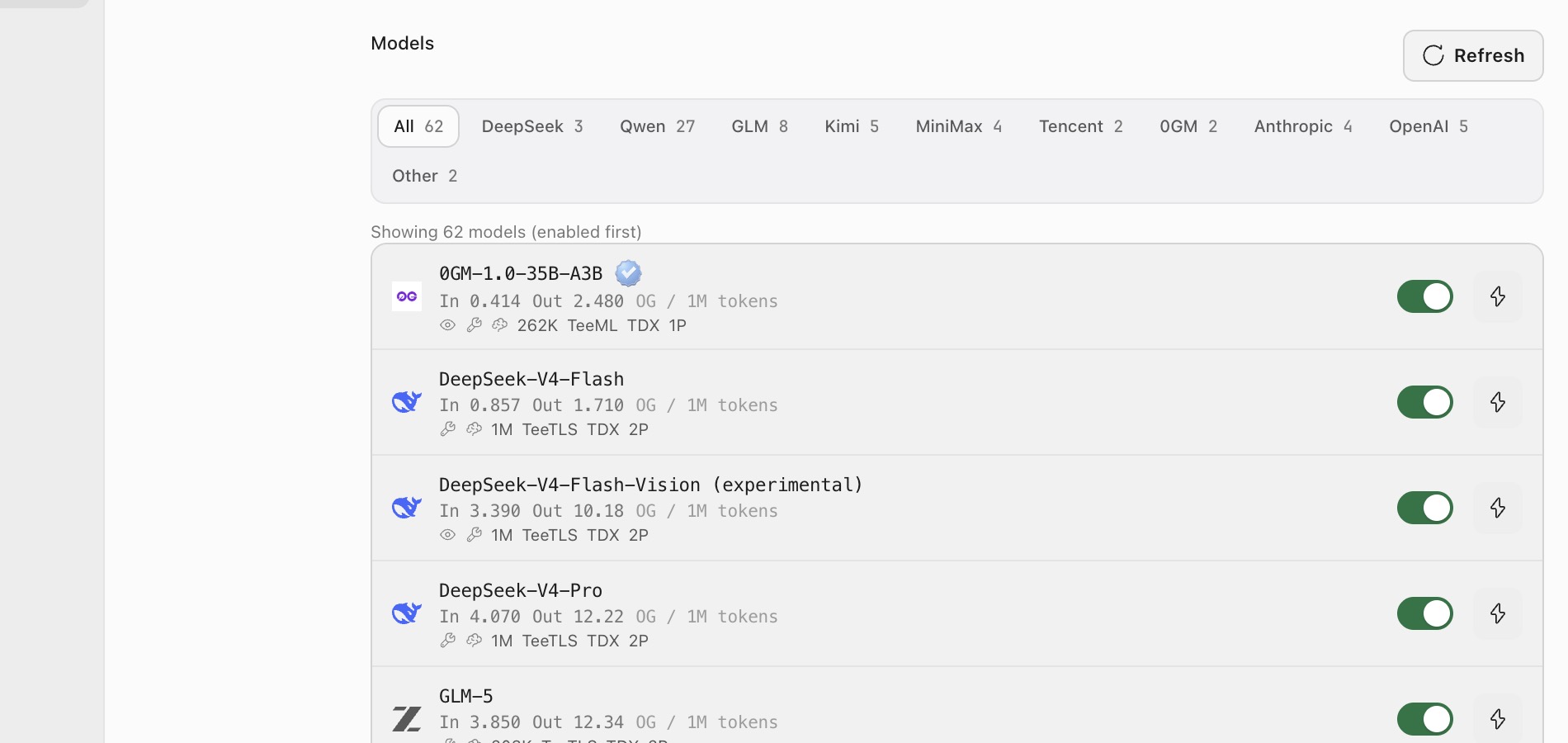
Read a model row
| Item | How to interpret it |
|---|---|
| Model name | The name shown in Ghast model pickers. experimental means the catalog marks the entry experimental. |
| In / Out | Text models normally show 0G cost per million tokens; cached-input price appears separately when available. |
| Video | Video models show per-second cost and are not ordinary text-chat models. |
262K, 1M, and similar | Context length returned by the catalog. This is a limit, not a target to fill. |
| Capability icons | Can indicate image input, image output, Tool calling, reasoning, or another detected capability. Hover for exact text. |
| Verifiability / execution labels | For example TeeML, TeeTLS, or TDX. Treat these as current 0G catalog metadata and do not generalize beyond the visible explanation. |
nP | Current provider count. More providers does not mean one request uses every provider. |
| Switch | Controls whether the model appears in the primary Chat and Coding pickers. |
| Lightning button | Runs a real short inference test for this model and reports the result. |
1. Refresh the catalog
Open Settings → 0G Compute and select Refresh at the upper right of Models. A refresh can change models, price, context, capabilities, and provider count.
If it fails, keep the visible error and check the Management Key, inference API key, account session, and Settings → Network. Do not rotate keys after a single catalog timeout.
2. Enable a model
- Use the family filters to narrow the list.
- Compare capabilities, context, input/output price, and provider count.
- Turn on the switch at the right of the model row.
- The model moves into the enabled-first section and appears in the primary Chat and Coding pickers.
The model switch saves immediately; it does not wait for Settings Save. Allow the state to settle, then reopen the conversation's model picker to confirm the model is available. If saving fails, the switch can revert without a separate error notification. Check the connection and try again after resolving the issue, rather than repeatedly toggling it.
Turning a switch off removes that model from the primary Chat and Coding pickers but does not delete conversations or alter previous responses. If a conversation had selected a model that is now disabled, choose an available model before the next send. This switch does not control the Background Model list.
3. Test a model
Select the lightning button at the far right of the row. It sends a real short request to that model rather than only probing a network port, so it can consume a small amount of inference usage.
- A loading state appears during the test.
- Success shows a success icon and latency, such as
1420ms. - Failure shows No response; the accessible description or page error contains the failure reason.
- Video-generation entries do not currently show the same inline text-model test button.
A successful short test proves only that the model returned a short result at that moment. It does not validate long context, images, Tools, Skills, MCP, Coding commands, or external services.
4. Select the primary model in Chat or Coding
- Return to a Chat or Coding conversation.
- Open the model and reasoning menu at the lower right of the composer.
- Open Model and choose from the enabled models grouped by family.
- If the model exposes reasoning levels, open Reasoning and choose the level for the next run.
The selection applies to later generations and does not rewrite completed messages. Check Chat and Coding conversations separately. Switching models does not change Tool, Skill, MCP, or command authorization.
5. Set the Background Model
Open Settings → General → Background Model. Ghast uses it for activity summaries, query rewriting, memory organization, and similar background LLM work; it is not the primary Chat or Coding model.
The Background Model list reads the available 0G catalog and does not require the model-row switch to be on. A fast, lower-cost text model is usually appropriate. Select Test after changing it. A successful Background Model test does not validate the model selected in the current conversation.
Choose a first model
Choose by task, not only by brand:
| Task | Check first |
|---|---|
| General questions and summaries | Text capability, price, latency, enough context |
| Coding and Tool workflows | Tool-calling capability, coding quality, context, connection test |
| Image understanding | Image-input or Vision marker |
| Long documents or large projects | Context limit, input price, compaction strategy |
| Video generation | Video model and per-second price; do not use it as an ordinary chat model |
For a first session, enable only a small Chat and Coding set, such as a daily primary model and a stronger complex-task model. Then choose a lower-cost Background Model separately under Settings → General. Adjust when the live catalog changes rather than enabling everything.
When a model is unavailable
| Symptom | Check |
|---|---|
| No model in the composer | Turn on at least one switch in 0G Compute, then reopen the picker. |
| Empty catalog | Refresh; check the Management Key, inference key, and network. |
| Test says No response | Check account funds, current provider count, network, and the visible error; retry once later. |
| Short test works but the real task fails | Check context, input type, Tool/Skill permissions, and task size. |
| Price or model differs from a screenshot | Use the current 0G Compute catalog. |
| The old model still seems active | Confirm the new name in the composer before sending; old messages do not change. |
Done when At least one 0G Compute model is enabled and passes its test, Chat or Coding can select it, and Account funds refresh successfully.
Next: Quickstart. For deeper model-selection behavior, see Models and 0G Compute.