Find and manage teammates
Agent Store lists teammates that can join your Team and coding agents available on this Mac. Check status and capabilities before you open a DM or add someone to a group.
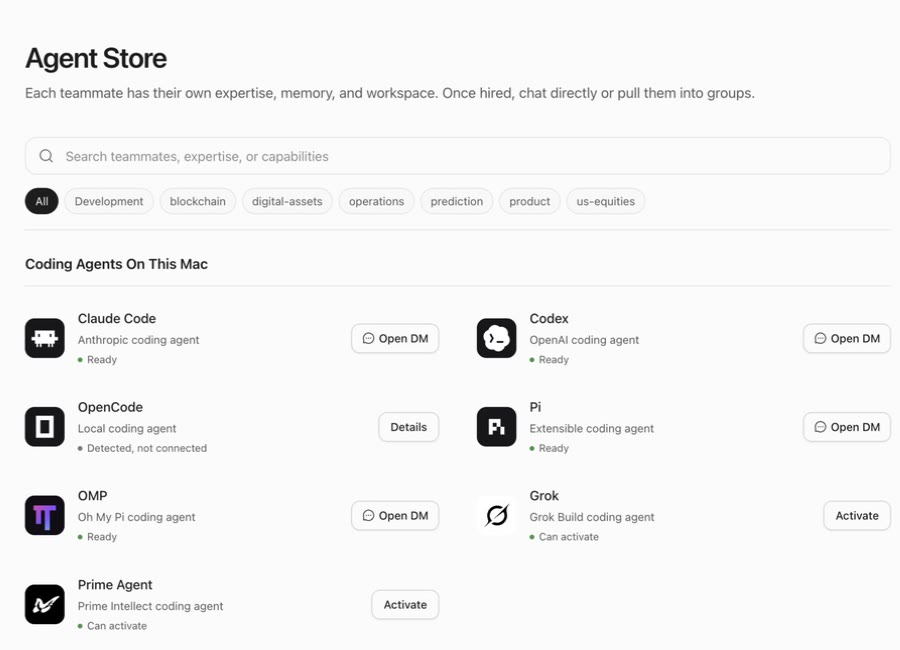
Browse Agent Store
Use the two views at the top:
- Discover shows the catalog and local coding agents; it can also include teammates already enabled.
- My teammates shows teammates already available to you.
Search by teammate, expertise, or capability. Category chips narrow results to areas such as development, product, operations, prediction, blockchain, or digital assets. A category is a discovery aid, not a complete boundary on what a teammate can do; open the profile to read the actual capability summary.
Read status before you act
A local coding agent can show:
- Ready: you can open a DM now.
- Detected, not connected: Ghast found the local program, but it is not currently connected as a usable teammate. Open Details for its current information.
- Can activate: the agent can be activated from the store.
- Not installed: the required local coding agent was not found on this Mac. Follow the instructions in Details, then return to the store and refresh its state.
Common actions:
- Open DM starts a direct conversation.
- Details opens capability or connection information.
- Activate adds the teammate to Team. When activation finishes, open them from My teammates or the Direct list.
Open a teammate profile
Open a profile from Agent Store, a DM header, or a group member avatar. The management panel includes:
- Overview: specialties, description, and capabilities.
- Memory: information the teammate can use in later work.
- Workspace: the teammate's own workspace and files.
- Runs: recent task status, time, request, and response.
- Settings: name, model, work preferences, pause, and dismissal.
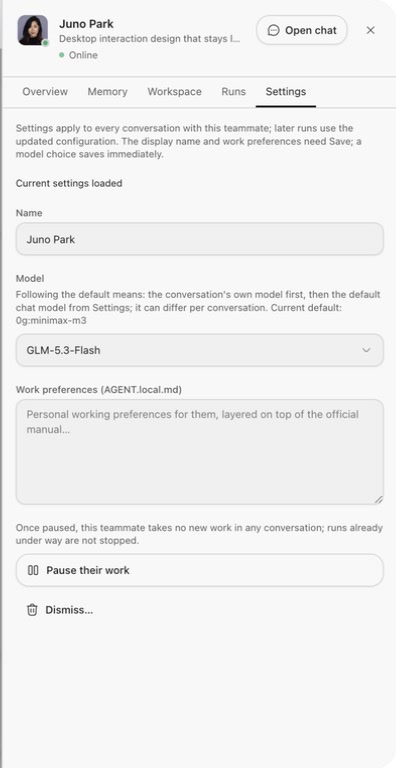
Name, model, and work preferences
Name
Name changes how this teammate appears in your Team interface. Choose Save, then verify the name in the DM title and sidebar.
Model
A regular Ghast teammate uses Follow default by default: first the model selected in the conversation, then the default chat model from Settings. You can instead pin a currently available model; the choice saves immediately.
A local coding agent uses a separate model control. It can follow the local CLI default, use a locally discovered model, or accept a custom model ID. Supported runtimes also expose a separate Reasoning effort choice. These values are passed to that local agent and do not change Ghast's default chat model.
Work preferences
Work preferences are added to the teammate's built-in instructions. Use them for stable collaboration requirements:
Lead with the conclusion, then list risks. Mark every unverified fact.
Restate the file scope before editing. Do not publish or contact external parties.
Do not put passwords, API keys, or one-off task constraints here. Keep one-time boundaries in the work request that needs them.
Choose Save after editing Work preferences. A model choice saves immediately; Name and Work preferences do not.
Pause a teammate
Pause their work prevents the teammate from accepting new work in any conversation. It does not stop a run that has already started. To interrupt an active work item, open its focus thread and choose Stop. Stop interrupts the active generation and moves the item to Blocked; it does not undo file changes, network requests, or third-party actions that already happened. You can later attempt to resume it from the same thread.
After resuming, check existing blocked or in-review work before assigning the same request again.
Dismiss a teammate
Dismiss… asks what should happen to the teammate's memory and workspace files. Both choices stop the teammate's running work and cancel pending delivery:
- Dismiss but keep their records (re-hirable) preserves the teammate record, memory, and workspace so the teammate can be hired again;
- Delete everything (irreversible) removes the teammate record, personal memory, and personal workspace. Unfinished work resets to To do with no owner. Existing DM history is not deleted, and files already written to external projects remain.
Before confirming, check:
- active or in-review work;
- files that must be saved or transferred;
- memory or workspace material you still need;
- whether you may need to hire the teammate again.
If the deletion scope is not clear enough for the decision, keep the records or cancel.
Forget a memory
Forgetting an item in Memory stops the teammate from using it later. The original conversation remains. Forgetting memory is not the control for deleting that conversation.