Groups and roundtables
A group brings several teammates into one topic. Members share chat, work items, one effective workspace, and Group memory. You can hold a normal discussion, assign a deliverable to one teammate, or ask everyone to answer the same question independently.
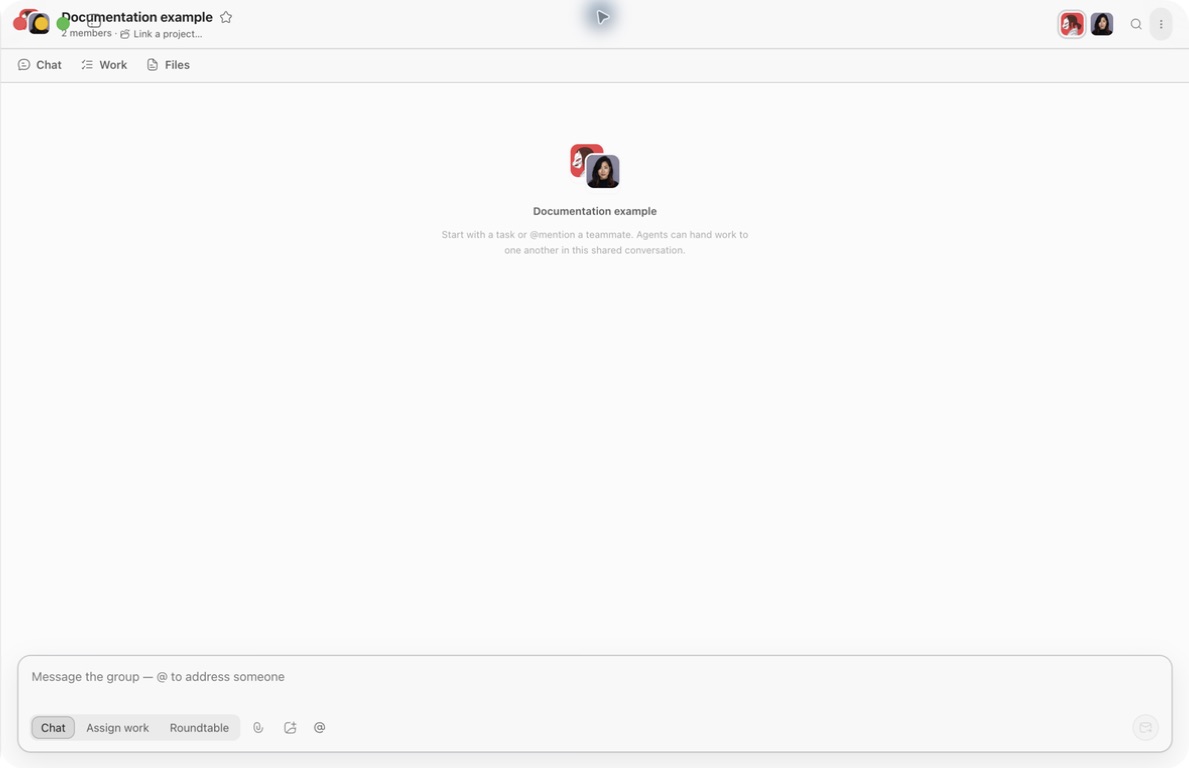
Create a group
- Open Team → New conversation.
- Enter a specific, searchable topic such as “Product launch checklist.”
- Optionally choose a project folder.
- Select teammates; you are included automatically.
- Start with a message or assign the first work item.
Choosing a project folder
A linked project folder becomes the group's effective workspace. The Files tab and Shared workspace in Group settings read that folder. Non-image attachments are copied to attachments/<date>/; images and captured app screenshots stay inline in the message and are not written to the workspace. Teammates use the effective workspace for file tasks by default, but can write elsewhere when the request explicitly requires it. Without a linked project, those surfaces use Ghast's internal group workspace.
The picker accepts images, PDF, DOC/DOCX, TXT, MD, JSON, and CSV, up to 10 MB per file. An attachment or captured app screenshot cannot be sent by itself; add a text description of the goal, scope, and deliverable.
In the system folder picker:
- select the smallest directory needed for the work;
- do not choose your home folder, credential folders, or a broad parent containing unrelated customer data;
- remove or replace access in Group settings when it is no longer needed; Files then follows the newly effective workspace;
- still state which files may be changed in each work request.
Folder access provides a boundary, not a complete editing instruction.
Group header controls
- Pin keeps an important group easy to reach.
- Member avatars open teammate profiles.
- Link a project… selects or replaces the project folder.
- Search messages searches this group.
- Group settings manages the name, members, project, memory, and your card.
- Chat / Work / Files switches between discussion, tracked work, and shared outputs.
Three composer modes
Chat
All members can see the message. Without @, every member gets one opportunity to handle it, but may choose not to answer. A structured @ mention limits the first round to the named teammates. Unmentioned group chat can therefore take more time and model calls; use it when the whole group truly needs the context.
Assign work
Creates tracked work with an owner and review state. Use @ to choose an owner manually; without a mention, Ghast routes the work by member capability. Check the owner in Work details after routing. Other members can participate, but group membership does not make everyone an owner.
Roundtable
Every teammate answers independently; the lead then summarizes agreement and differences. Roundtable is useful for:
- comparing options;
- reviewing risk;
- product or naming decisions;
- questions that need several specialties;
- collecting independent judgment before assigning execution.
A roundtable does not create a reviewable work item. After choosing a direction, use Assign work for any file or action that still needs to be delivered.
Write a useful roundtable prompt
Give everyone the same decision criteria:
Independently compare option A and option B.
Use the same criteria: launch risk, learning cost, and whether it can be delivered within two weeks.
Each person should give a recommendation and two reasons without building on another person's answer.
Finish with agreement, differences, and facts that still need verification.
“What does everyone think?” usually produces answers that are difficult to compare.
Mention a teammate
Use the mention button next to the composer, or type @ and choose a member. Mention someone when:
- only one specialist needs to answer;
- you are naming the owner of work;
- another teammate should review an existing conclusion;
- a revision needs a specific person.
Search group messages
Choose Search messages and enter a query. A normal group chat searches the Whole conversation. Inside a work focus thread, you can choose Current work or Whole conversation, which includes work threads. Try a file name, work title, decision term, error text, or owner. Results appear as message cards; open one to return to the original message.
Group settings
Name and members
Rename the group, add teammates, or remove them. A member cannot be removed when they are the group's last Agent, are currently busy, or the settings panel is already processing another member operation. Finish or reassign their work, then try again.
Project folder
The Project folder description says that a linked directory gives the group durable access. Before changing it, finish or cancel work that still depends on the old folder.
Shared workspace and Files
Shared workspace in Group settings and Files use the same effective workspace: the linked project folder when present, otherwise the internal group workspace. Files also merges external artifacts declared in messages and adds search, grouping, preview, and delivery links.
Group deletion attempts to clean up Group memory and the internal group folder. Files already written to a linked project folder remain. Changing or removing the link does not clean files from the previous project.
Group memory
Members can use Group memory in later collaboration. Your group messages that meet the memory policy may enter group scope. Eligible information in teammate replies in the group may enter that teammate's personal memory, not Group memory, when automatic memory capture is enabled. Accepted group work stores reusable conclusions in Group memory; accepted DM work stores them in the owner's personal memory.
Group-memory items currently offer No longer true and Bring back. The first supersedes an old conclusion; the second restores it. There is no separate manual Archive action. See Memory, workspaces, and files.
Your card
Your display name, role, and collaboration preference are visible to teammates in this group. Use them for communication guidance such as “lead with risk and keep conclusions concise.” Never put credentials or private information here.
Delete the group
- Open Group settings and choose Delete group at the bottom.
- Read the confirmation, Delete this group and its history?
- Choose Cancel if you still need to save files or finish reviewing work. Choose Delete group only when ready to remove the group permanently.
Deleting the group removes its messages, work discussions and work items, stops its associated running work, and cancels pending delivery. Ghast also attempts to clear Group memory and remove the internal group folder. The linked project folder, files written outside the group folder, and members’ personal memory and workspaces remain.
There is no Undo. Copy required internal files to a separate location before confirming. If an error appears, some removal may already have happened; check what remains before retrying. If deletion reports an error after the group has disappeared, both Group memory and its internal folder may still be partly or wholly uncleared. Even a successful response does not guarantee its internal files were removed. For uncertain cleanup, keep the error and request support rather than deleting a broad parent folder. See Deletion and dismissal for the differences between deleting a group, deleting a DM, and dismissing a teammate.
Move from discussion to delivery
- Establish context in Chat.
- Collect independent views in Roundtable.
- Decide which conclusion to use.
- Convert the delivery requirement into Assign work.
- Follow it in Work and inspect outputs in Files.
- Accept only after the criteria are met.
This keeps opinions separate from accountable execution.