Work items and review
Assign work turns a request into a tracked item with an owner, status, focused discussion, and a review step. Use it whenever a job needs accountable delivery, not only for code.
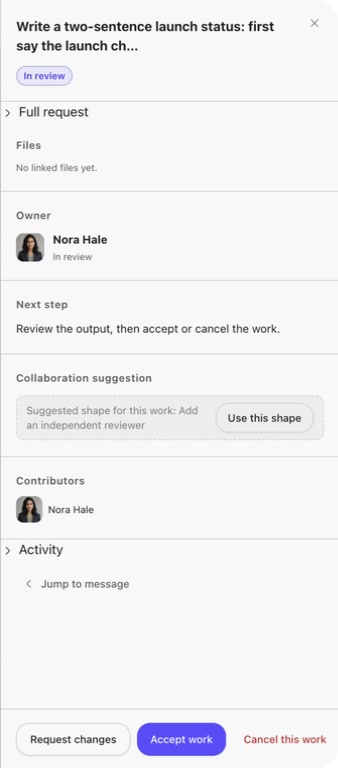
Stable-version check: the walkthrough below was verified on 2026-10-19 in Ghast AI 0.1.33 (build 0.1.33.46), on an Apple silicon Mac running macOS 27.0.1, using the existing Theo and Sana teammates and a working model/account configuration. Their underlying model was not independently identified in this run. Other platforms, local coding agents, file delivery, cancellation, and stop/resume were not retested in this walkthrough. The existing illustration is retained; follow the version-specific control names below.
Create work
From the composer
- Open a teammate DM or group.
- Choose Assign work below the composer.
- State the goal, deliverable, scope, constraints, and acceptance criteria.
- In a group, use
@to choose the owner manually; without a mention, Ghast routes the work automatically. Check the owner after sending. - Send, then open the Work details card attached to the message.
From an existing message
Use Assign as work in a message menu to turn part of a discussion into tracked work. Add any missing scope and acceptance criteria first. A useful background message is not always a complete specification.
The focus thread
Opening a Work details card enters a discussion dedicated to that item:
- the header shows the title and status;
- the main pane keeps the original request, the ownership event, replies, and Run details;
- follow-ups in the composer stay attached to this work;
- Back to conversation returns to the DM or group;
- Details opens the work panel.
Keep revision feedback in the focus thread. The teammate can treat it as a continuation of the same job, and the main chat remains readable.
Work states
| State | What to do |
|---|---|
| To do | The item exists but has not started; check the owner and request before creating anything else. |
| In progress | Let the teammate work; choose Stop to pause it, or add missing information in the focus thread. |
| In review | Compare the response and files with the full request, then request changes, accept, or cancel. |
| Done | You accepted the delivery; its discussion, files, and retained group memory remain available. |
| Cancelled | You cancelled the item; Next step says that no further action is needed. |
| Blocked | The item cannot continue. Stopping active work also puts it in this state and provides a Resume button. |
Badges beside Direct and Groups summarize work that needs review or is blocked. They are a queue, not a quality score.
Review actions
Request changes
Use this when the delivery is close but does not meet the criteria. Name the exact gaps:
Please revise:
1. add an owner for rollback;
2. use Singapore time for every deadline;
3. update the current artifact instead of creating a new file.
Choosing Request changes returns to Chat and prefills a revision draft. Edit and send that draft to submit the request; until it is sent, the work state has not changed. Continue reviewing in the same focus thread instead of assigning a duplicate item.
Accept work
Accept only when the result meets the stated finish line. The state changes to Done, but Ghast does not decide whether the reply or files are correct; finish your checks before clicking.
Cancel this work
Cancel this work is available for any non-terminal item. Request changes and Accept work appear only during review. Cancelling changes the item to Cancelled, and Next step says that no further action is needed. It does not pause the teammate's other work.
A cancelled work state does not undo file changes, network requests, or third-party actions already completed during the job. Check those systems separately when they were in scope.
Stop and resume active work
While an item is running, the focus thread provides Stop. Choosing it:
- moves the item to Blocked;
- records that you paused the teammate's work;
- provides Resume for a retryable interruption in the same focus thread, retrying that item's interrupted delivery.
Stopping one item and pausing a teammate have different scope. Pause their work prevents new assignments across conversations, but does not stop a run already under way. Neither Stop nor Resume undoes file changes, network requests, or third-party effects that already happened; check the work state and external result after either action.
Read Work details
Result and linked files
Result shows the submitted text and linked files. Use View reply to open the corresponding reply. No linked files yet is expected for the text-only example below; if the task required a file, verify that file separately before accepting.
Requirements
The panel can show Not checked or Met for extracted requirements, with supporting notes. These marks help locate checks; compare their wording with the original request and every revision yourself. They do not replace inspecting a file, command result, or external system.
Independent review and review findings
During review, Independent reviewer and Assign independent review can hand the delivery to another teammate. In this walkthrough, selecting Sana started a review in the same work thread; her findings then appeared in Review findings. Starting a review is separate from accepting the work.
Check the reply and review timestamps after every revision. In stable 0.1.33, after Theo submitted the revised reply, Result updated but Requirements and Review findings still showed Sana’s earlier wording about the previous reply. The earlier-delivery label was visible while the revision was running and was absent after it finished. A visible Met mark or an unlabelled review therefore does not prove the latest reply was checked. Open View review and compare the exact content and time. If current verification is needed, arrange it explicitly or inspect the revised deliverable yourself; do not accept on the earlier mark alone.
Needs you and acceptance
Needs you identifies the next action. During review, the panel provides an optional Acceptance note, Request changes, and Accept work. In the tested flow, acceptance changed the thread and details status to Done, removed the review actions, and showed a message that the work was finished or cancelled. Return to the conversation to keep discussing.
Request, people and history
Expand Request, people and history to find Full request, Owner, Contributors, File changes, What each teammate did, Activity, and Show in chat. The owner is responsible for the delivery; a contributor or group member is not automatically its owner. Read the complete request and history before reassigning work.
Blocker diagnostics and group memory
A blocked item can show a cause-specific explanation and action, such as waiting for approval, missing input, missing files, a failed run, or no usable project folder. Follow the stated cause instead of treating every block as a generic reason to press Resume.
After acceptance, Details can show retained group memories with author, time, and replacement relationships.
More actions → Cancel other incomplete work is a separate bulk action. It keeps the current item and immediately cancels every other non-terminal item in the same conversation, with no per-item selection or second confirmation. Review the Work tab before selecting it; it is not a confirmation option in the current item's cancel flow.
Tested example: a release checklist without publishing
This example uses fictional facts and a reply-only deliverable. It tests assignment, handoff to a reviewer, a revision, and acceptance; it does not deploy a real page.
- Open Team → New conversation → New group, give the group a topic, and choose the available Theo and Sana teammates. No project folder is needed for this text-only exercise. If they are unavailable, resolve setup in Find and manage teammates first.
- Choose Assign work, type
@, and select Theo from the suggestion list rather than relying on a plain-text name. Send:
Prepare a three-row Markdown release checklist in your reply, using only
these fictional facts: preview is ready; English and Chinese copy is approved;
the public page has NOT been published; rollback owner and launch time are unknown.
Columns: check, owner, status. Mark unknown values as TBD.
Do not use tools, read or write files, browse, contact anyone, or publish.
Deliver exactly three rows and a one-sentence list of missing decisions.
- Open Details after delivery. In the actual first reply, the three statuses were Ready, Approved, and Not published; owners were TBD, with rollback owner and launch time left unresolved. Confirm those facts yourself.
- Select Sana → Assign independent review. In the actual run Sana reviewed the three-row result and reported that both extracted requirements were met. This review covered the first reply.
- Choose Request changes. The composer prefills
Please revise the current delivery:and the work remains in review until you send. Replace or complete the draft with:
New fictional decision: Alex owns rollback; launch time and check owners
remain unknown. Keep the same three rows and columns, and keep the public
page status Not published. Change the missing-decisions sentence to state
that Alex owns rollback while launch time and check owners are TBD.
Reply only; do not use tools, files, network, or contact anyone.
- Send in the same focus thread and wait for the reply to finish. In the stable run, the thread kept its In review header during this follow-up while the composer showed Theo: Working and Stop. Use the active-run indicator as well as the header, and do not accept while work is running.
- Check the revised reply: the table still has exactly three data rows and Not published; the note now says Alex owns rollback, while launch time and check owners remain TBD. Account for the stale-review limitation above.
- After that direct check, choose Accept work. The verified result was Done in both the thread and Work details; the reply remained accessible.
If the request fails or remains pending, check the current reply/run and owner before resending. A reply-only example has no file to recover, but a file-writing job can have side effects before it finishes. Continue with Projects, workspaces, and coding sessions when the deliverable needs a local project.
Acceptance checklist
- The response covers the full request, not only the last follow-up.
- Every expected file exists and contains the intended result.
- Unknowns are explicit instead of written as facts.
- Required command or test evidence can be checked.
- For code, you inspected the actual changes in Coding or local tools.
- For external services, you confirmed the final state in that service.
- Only then did you choose Accept work.
Resolve blocked work
First check whether the item is blocked because you stopped it or because the teammate reported another issue. Then use the original focus thread to establish:
- how far the teammate got;
- the exact blocker;
- whether you need to provide access, input, or a decision;
- files or side effects already created;
- where work should resume.
Do not assign a duplicate merely because a job is quiet. Check Work details, Runs, and recent messages first, especially when the operation must not run twice.