Direct messages
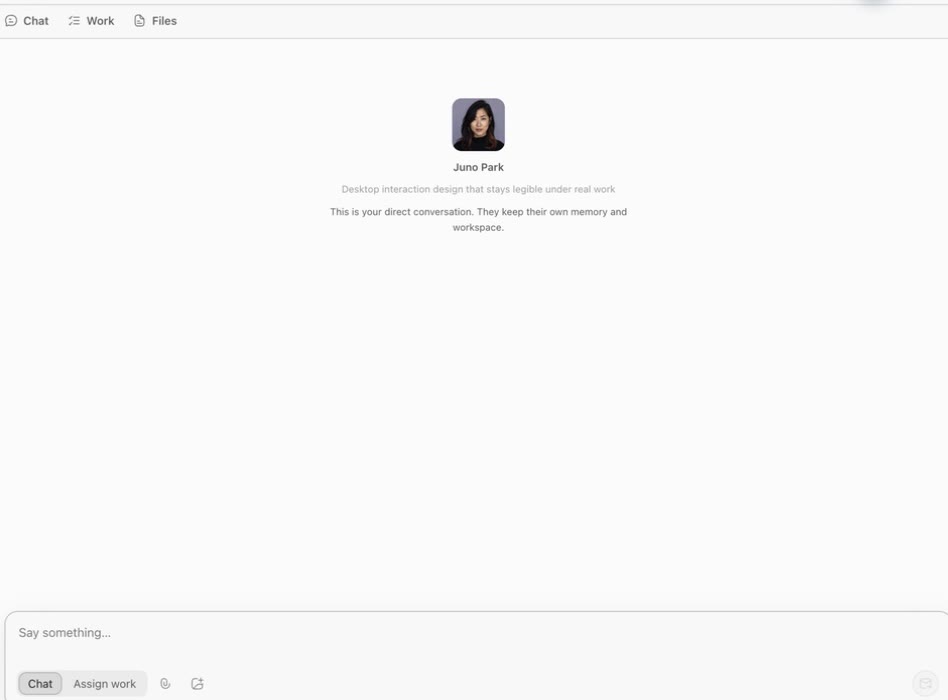
A DM is a one-to-one conversation with a teammate. The message area contains your exchange with that teammate; their profile provides separate Memory, Workspace, and Runs views.
Start a DM
Open a direct conversation from:
- Team → Agent Store → Open DM;
- the Direct list in the sidebar;
- Open chat in a teammate profile;
- a member avatar inside a group.
An empty DM shows the teammate's name, description, and a notice that they have their own memory and workspace.
Chat or assign work
Use Chat to
- ask what the teammate can do;
- add background or clarify a requirement;
- compare options;
- follow up on a previous result.
A chat reply appears in the message stream, but it does not create tracked work with a review state.
Use Assign work
Switch to Assign work for a job that needs an owner and a deliverable. Before sending, state:
- Goal: the outcome to reach;
- Deliverable: answer, file, code, or checklist;
- Scope: what may be read or changed;
- Constraints: forbidden external actions or sensitive access;
- Acceptance: how you will decide it is done.
After sending, the message gains a Work details entry. When the teammate starts, the focus thread shows the owner and current status. Keep revision feedback in that thread.
Attachments and app context
The composer has two context controls:
- Attachment accepts images, PDF, DOC/DOCX, TXT, MD, JSON, and CSV, up to 10 MB per file. Images are sent inline with the message; other supported files are copied into the teammate's personal workspace. Check the file, recipient, and contents before sending. Do not attach credentials, unrelated folders, or personal data.
- Capture app context currently sends a screenshot of the foreground window in Team. Inspect the source app first, then confirm the capture; Ghast cannot crop or redact part of the image here. If the captured attachment contains an unrelated window, customer data, a token, or private information, remove it from the message, switch the source app to a safe view, and capture again. The confirmation dialog also mentions accessibility text, but Team messages do not reliably submit that text, so write essential UI copy in the message itself.
An attachment or screenshot alone cannot be sent; enter a text description as well. Attachments and app context are only part of the request and do not define permission. State the goal and allowed and forbidden actions in the message. These statements are task constraints and do not automatically disable the teammate's or local coding agent's existing Tools and permissions.
Run details
Open Run details next to a teammate response to inspect that execution. Use it to match a reply to a run or check when it happened. Review the final delivery across the message, Work details, and Files instead of relying on this panel alone.
The three DM tabs
Chat
Messages, work discussions, quoted replies, and Run details.
Work
Tracked jobs in this DM. A badge means work needs attention. Open an item to see status, owner, contributors, linked files, and next step.
Files
Browse the teammate's workspace view, grouped into Current work and Workspace history. The profile's Workspace tab uses the same base workspace, while Files also merges external artifacts declared in messages. This is not a conversation-only attachment folder.
Current work selects one relevant item with visible linked files. Ghast first excludes cancelled work and work with no visible linked file, then prefers the most recently updated unfinished item; if none qualifies, it uses the most recently updated completed item. It is not a list of every unfinished item. Workspace history also includes other browsable workspace and deliverable files, including ordinary workspace files with no work-item source.
Text files over 5 MiB show File too large; Ghast does not display only the beginning. Binary files show that they cannot be previewed rather than exposing content metadata. CSV and TSV previews show at most 200 rows and 40 columns. Open the original file in a local editor when you need content outside these limits.
Delete a DM
Deleting a DM removes more than its visible messages. It stops the root run and any running work threads in that DM, cancels pending delivery, and deletes hidden work discussions and work items. The teammate record, personal memory, and personal workspace remain. Reopening a DM later does not restore the deleted messages or work items.
Message actions
- Copy copies the message text.
- Quote reply anchors your next message to a specific reply.
- Assign as work turns an existing message into tracked work.
Before assigning a chat message, add any missing deliverable and acceptance criteria. A line from a discussion is rarely a complete work request.
Review work in a DM
When an item enters In review, use Work details to compare the full request, reply, files, and next step. Choose Request changes for specific gaps, and accept only when the delivery meets the criteria. See Work items and review for every state and action.