Voice input and replies
Ghast offers two separate voice features:
- Voice input turns a microphone recording into an editable Chat draft using local speech recognition.
- Voice replies generates spoken replies for supported messaging channels using Microsoft Edge online voices.
Neither setting starts a live voice call or makes desktop Chat automatically read every response aloud.
Save settings or try a voice
Open Settings → Voice. The four configuration controls share the Settings draft:
- Voice input enables or disables desktop dictation and the Telegram local-recognition paths that honor this setting. It does not start a microphone recording, revoke operating-system permission, mute playback or disable every channel's audio processing.
- Language selects the language for local recognition. It is separate from the app's interface language and the spoken output voice.
- Voice selects the online output voice. Changing it does not change recognition or automatically generate a new sample.
- Voice replies chooses when supported connected channels attempt speech. It is not a desktop read-aloud or live-call switch.
After changing any of these, click Save, wait for Unsaved changes to clear, then reopen Voice and check the values. Switching settings pages does not save. Save applies pending changes across Settings, not only Voice. Let important channel tasks finish before changing their shared reply mode: automatic speech decisions use saved settings when processing a reply, so a change can affect an already-started task's eventual output.
To experiment without applying the configuration, change a value and use Preview voice if needed, then choose the footer Close or Back to app. In the close-without-saving confirmation, Cancel keeps the draft; confirming discards it. Reopen Voice to check the previous values.
Preview voice is different: it immediately sends the fixed sample and the currently selected draft voice to the online speech service. You do not need to save first. Retry next to a voice-list error also runs immediately; it reloads the list, not the saved configuration. Discarding settings cannot retract a sample already sent for synthesis.
Opening Voice itself starts voice-list loading and can prepare required runtime dependencies. It does not start microphone capture. Online voice-list/preview availability and the local recognition model's readiness are separate checks.
Set up voice input
- Open Settings → Voice.
- Under Speech to text, turn on Voice input.
- In Language, leave Auto detect selected or choose the language you will speak.
- Click Save and wait for the pending-change indicator to clear. Do not discard these changes when returning to Chat.
- Keep Ghast online for the first use so it can prepare the speech runtime and download the recognition model.
- Select Back to app and open Chat.
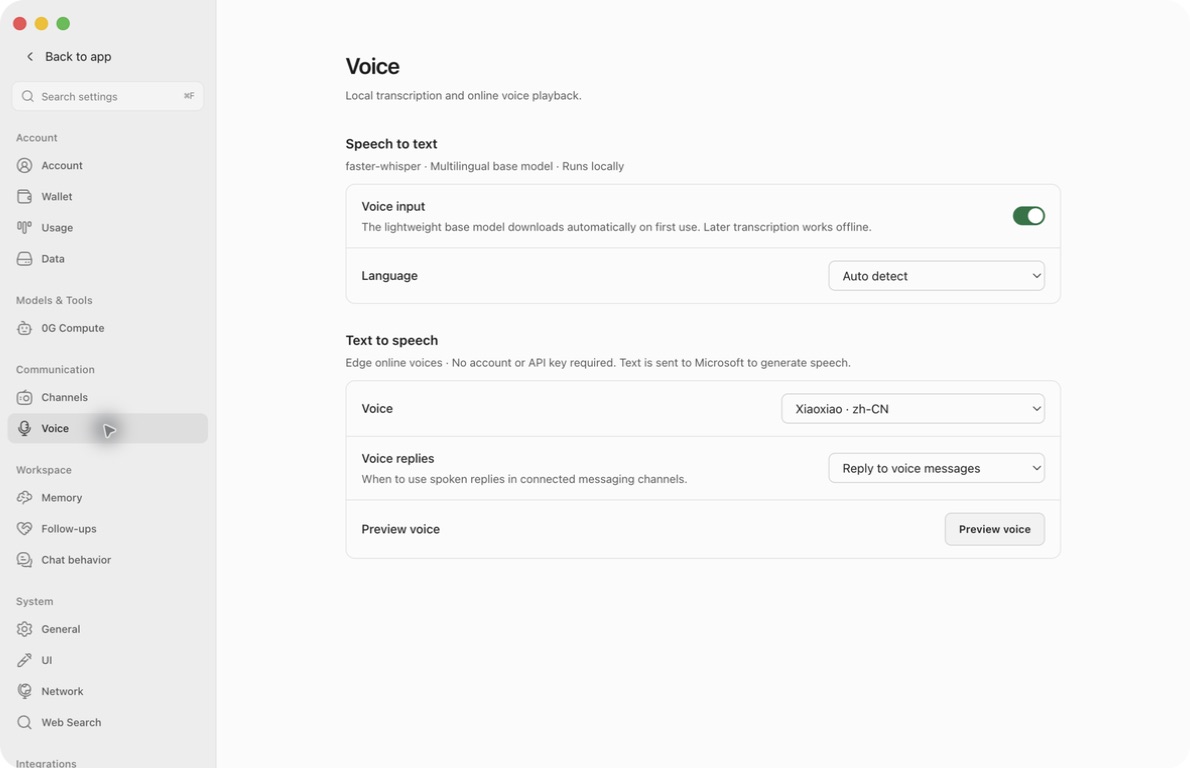
Ghast manages a multilingual faster-whisper base model automatically. You do not enable it in the chat model selector, choose another recognition-model size, or supply a speech-recognition API key on this page. After the runtime and model are prepared, local recognition can work offline. Sending the resulting draft to an online model still needs a connection.
Language selects the language to recognize, not the language in which the assistant must answer. The Voice setting below selects the spoken output voice; these are separate controls.
Recognition languages and model preparation
The current Language menu contains Auto detect, plus English, Chinese, Japanese, Korean, German, French, Spanish, Portuguese, Russian, Italian, Dutch, Polish, Turkish, Arabic, Hindi, Vietnamese and Thai. Language names remain in their own scripts in the menu. Choose one when automatic detection gets short or mixed-language recordings wrong, then save before the next recording.
There is no model-size picker, manual model-download/delete button, input-device selector, sensitivity slider or custom pronunciation dictionary in this page. Select the microphone through the operating system. The managed base model is prepared when local recognition is first requested; a successful online voice preview does not mean it has been downloaded.
Turning Voice input off and saving does not uninstall the recognition model or erase existing transcripts. Do not use that switch as a stop control for an active recording or model task: stop recording in the Chat composer and manage running tasks there.
Dictate and review a Chat message
- Open the intended Chat conversation. Check its model and any selected attachments or Tools.
- Select the microphone button, Voice input, beside the message controls.
- If the operating system requests microphone access, allow it only when you intend to record. A denied or restricted permission may open the system's microphone settings.
- On first use, wait for Preparing voice input to finish. Do not start speaking until recording begins and the sound-wave indicator appears.
- Speak a short sentence. Select the microphone button again to Stop voice input.
- Wait for Processing voice input to finish. The recognized text is appended to any existing draft, separated by a space.
- Correct names, numbers, punctuation, and commands. Delete the added text if you do not want to use it.
- Select Send only when the complete draft is ready.
Stopping the recording does not submit the message. This desktop input feature supplies text, not an audio attachment. Do not assume that sending an audio file through another feature uses the same local recognition process.
The recording button is currently available in Chat, not in the Coding or Team composers. It is unavailable while Chat is generating a response. If Voice input is turned off, selecting its microphone button opens Voice settings instead of recording.
Use a quiet setting and avoid recording people who have not agreed to be recorded. Local recognition does not make the resulting conversation private from its model provider: the transcript is sent when you submit the draft. Diagnostic logs can also contain recognized text; review them before sharing.
Choose and preview a spoken voice
- Open Settings → Voice → Text to speech.
- Wait for the Voice list to load. The selector is unavailable while it is preparing or when loading fails.
- Choose a voice using its displayed name and language/locale.
- Select Preview voice. The button changes to Generating… while the sample is prepared.
- The returned sample starts playing automatically. Use the audio player's play/pause, volume, mute and playback-position controls to listen again or stop playback.
- If the voice is unsuitable, choose another one and click Preview voice again. Changing the selector alone leaves the previous sample in the player.
- When satisfied, click Save to use that voice for subsequent speech that reads the saved preference. A successful preview has not saved it for you.
Preview uses a fixed sample sentence in the app's interface language. It does not read your current conversation or accept custom text on this settings page. Switching the voice does not translate that sample. The default voice, when no compatible voice has been saved, is zh-CN-XiaoxiaoNeural.
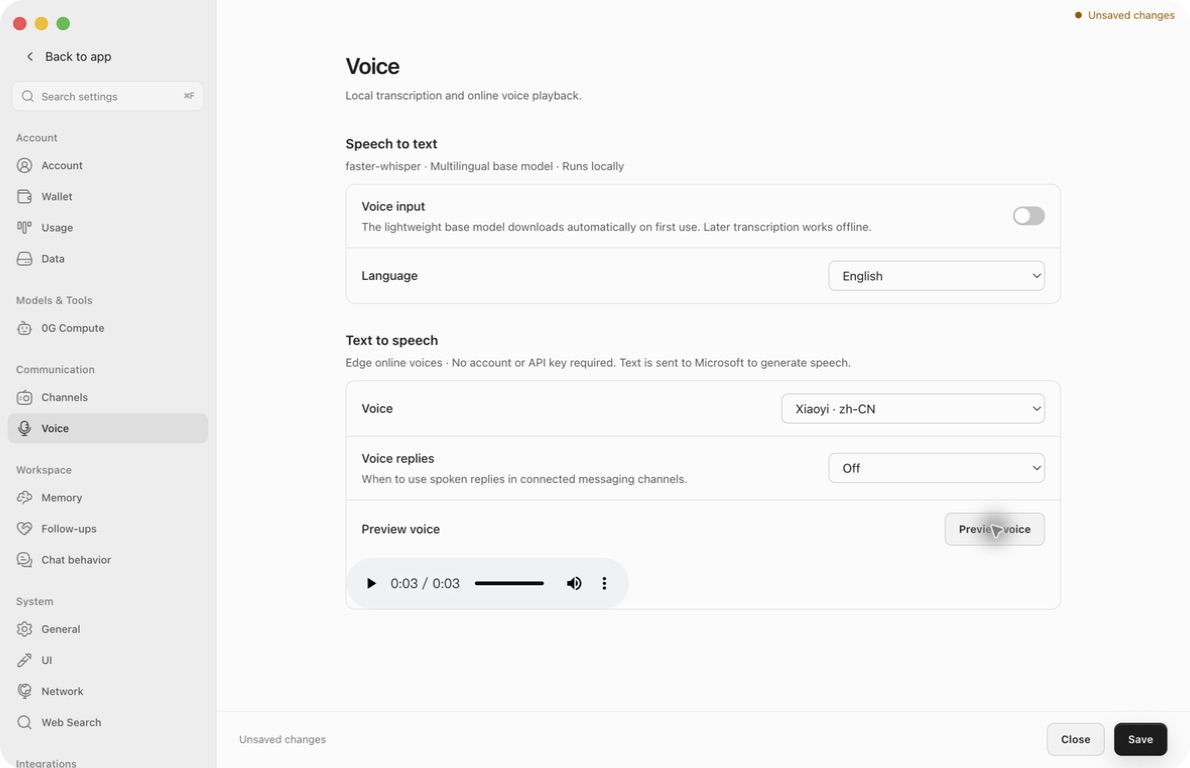
Online voices require network access. Ghast does not ask for a separate Edge account or API key, but the text to be spoken is sent to Microsoft. Preview voice still requests online speech even when Voice replies is Off: Off controls automatic channel replies, not an explicit preview.
Loading, retry and playback controls
- Preparing voice service and loading Edge voices…: wait for the list request. Its selector is disabled, but an existing/fallback voice ID can remain visible. The page can fetch a new list when reopened; it is not a permanent offline catalog.
- List error + Retry: fix connectivity and click Retry once. This requests the list again. It does not select a new voice, save settings or repeat a failed preview automatically. Do not change account credentials merely because this list failed.
- Generating…: the preview request is in progress and its button is disabled. It can be used while the input switch or automatic-reply mode is Off. This page has no separate cancel-generation button.
- Player visible: a sample was returned to the page. Player mute/volume affect listening to that sample, not future channel speech or the saved reply mode. Confirm your actual output device and audible result before relying on a preview.
- A different voice selected while an old player remains: click Preview voice to generate for the new choice. The old player's presence is not evidence that the newly selected voice was tested.
- Preview error: it is shown separately from a list-loading error. A subsequent preview clears/replaces the previous sample, so do not expect the last successful player to remain after a failed retry.
Long replies can be shortened for speech: the speech request uses up to roughly 4,000 characters. Read the text response for full instructions, links, code, and exact numbers.
Choose when channels reply with speech
In Settings → Voice, set Voice replies and click Save. This is a shared setting for channels that honor it, not a per-conversation switch:
| Option | Use it when | Behavior on channels that honor the setting |
|---|---|---|
| Off | You want automatic text replies | Do not automatically generate speech; see the Weixin exception below |
| Reply to voice messages | You want speech only in response to voice | Generate speech when the incoming message is recognized as voice; this is the default |
| Always | You prefer spoken replies | Attempt speech for eligible replies, including replies to text messages |
| Let Ghast decide | You want a mix of speech and text | Reply to voice with speech; for text input, a background-model decision may choose speech or text |
“Always” is not a delivery guarantee. Empty replies, very short or emoji-only Telegram replies, unavailable speech services, or a voice message already sent by a Tool can prevent an additional automatic voice reply.
Let Ghast decide can make an additional request to a background model for text input. That request can include a reply excerpt and recent conversation excerpts, including sender names in groups. It may use a different model from the conversation and consume that provider's model usage. If that decision cannot be made, text input normally keeps a text reply. To configure the background model, see Models and background tasks.
These options do not change the channel's allowlist, group mention rules, selected workspace, model, or Tool permissions. They also do not prevent a Tool or an explicit request from sending an audio file.
Check your channel's behavior
| Channel | What to expect |
|---|---|
| Telegram | Supports automatic speech according to Voice replies. Eligible voice replies are accompanied by a text reply. Incoming voice recognition uses the local speech service and requires Voice input to be enabled and saved. |
| Discord | Can attempt an additional spoken reply according to Voice replies. Test output using Always and a short text message. Incoming audio uses a separate recognizer with the limits below; this is not a Discord voice-channel call. |
| Weixin | Has a separate voice-message flow. Read the exception below before relying on Off or on local-only recognition. |
| Slack and Feishu | Changing this setting does not enable automatic spoken replies for these channels. |
Discord: incoming audio uses separate transcription
Discord voice messages and audio attachments do not use the desktop recognition setup described above. Voice input and Language on this page do not control their transcription.
- If an enabled OpenAI provider already has an API key, Ghast first sends the audio to OpenAI's online whisper-1 transcription service. This sends the recording to OpenAI even if you expected local recognition.
- If there is no such key, or that attempt fails or returns no text, Ghast tries a separately installed whisper command with the turbo model. The command must be available to Ghast; enabling desktop Voice input does not install it or prepare this model.
- Both paths currently request Chinese transcription. Choosing another Language in Voice settings does not change that.
- A successful transcript is needed for the incoming message to be treated as voice when applying Reply to voice messages.
Use text input when these prerequisites do not match your needs. Do not send confidential audio assuming that the local desktop recognition settings apply. These settings do not provide a separate Discord recognizer configuration.
Weixin: Off does not disable all speech
When Weixin supplies text with a voice message, Ghast handles that supplied text as ordinary text. It does not use the desktop microphone-recognition process or classify that text-only message as voice for automatic speech.
When Weixin provides the original voice without transcript text, Ghast downloads the audio and sends it as an audio attachment to the selected model. In that case:
- the model provider receives the original audio;
- if the reply contains text, used no Tools, and is not already supplying an audio file, Ghast can generate a spoken reply;
- this speech generation does not consult Voice replies, so Off does not prevent the reply text from being sent to Microsoft;
- changing to Always or Let Ghast decide does not make ordinary Weixin text messages automatically receive spoken replies.
If that content must not go to an online speech service, do not send it through this voice-message flow. Use non-sensitive text for testing. Turning off desktop Voice input is not a global block on audio processing across channels.
Test a connected channel
- Connect and configure the channel using Channels. Confirm the destination account or group and who can trigger Ghast.
- Choose a voice and complete a non-sensitive preview, then save the intended voice and reply mode.
- Choose the test for your channel:
- Telegram: send a short text request and then a short voice message in a private test conversation.
- Discord: during a quiet test period, select Always, save and send a short text message. This tests spoken output without depending on Discord's separate inbound recognizer. Remember that changing the shared mode can affect other connected channels.
- Weixin: read the audio-sharing exception first; test text and voice only with content you are willing to send through that flow.
- Slack or Feishu: use text input; this setting does not add automatic speech.
- Check the received text/audio, not only the sending indicator in Ghast.
- Compare with the selected mode and the channel table above. Restore your preferred mode and save after testing.
- For a failed voice reply, check the channel's connection and delivery error separately from the voice service.
Do not use real customer messages, private group conversations, or confidential recordings for this first check. A successful preview proves neither inbound recognition nor delivery through a messaging platform.
Know where voice data goes
| Action | Data destination |
|---|---|
| Dictating a desktop Chat draft | Microphone audio is processed by local recognition; text is added to the draft |
| Sending that draft | The transcript enters the conversation and its selected model request |
| Incoming Telegram voice | Audio passes through Telegram, is downloaded for local recognition, and the transcript enters the conversation |
| Discord incoming audio with an enabled OpenAI key | Audio is downloaded from Discord and sent to OpenAI for transcription; a failed or empty result can fall back to a separate local whisper command |
| Discord incoming audio without that key | Audio is downloaded from Discord and passed to the separate local whisper command; any transcript can enter the conversation |
| Weixin voice with supplied transcript | Platform-provided text enters the model request |
| Weixin voice without supplied transcript | The selected model provider receives the audio attachment |
| Preview or automatic online speech | Microsoft receives the text to be spoken |
| Let Ghast decide for a text message | A background model can receive reply and recent-context excerpts |
| Delivering a channel reply | The messaging platform receives the text and/or audio |
Troubleshoot voice
| What you see | What to do |
|---|---|
| No microphone button | Open Chat. Coding and Team do not currently show this recording control. Wait for a running Chat response to finish, or stop it. |
| Clicking the microphone opens Settings | Turn on Voice input and save, then return to Chat. |
| Microphone access denied | Check the operating system's microphone permission for Ghast and the selected input device. Return to Chat and try again. |
| Preparing voice input on first use | Keep the network available while dependencies and the base model download. If an error appears, resolve it before retrying. |
| Missing bundled runtime | If the error says the bundled runtime is missing, reinstall the correct Ghast build. Do not edit account data to repair speech. |
| No text or “No audio was recorded” | Check the input device and microphone level; record a short, clearly spoken sentence after the recording indicator appears. |
| Incorrect recognition | Set Language explicitly, reduce background noise, and correct the draft before sending. |
| Voice list remains preparing or fails | Check your network and configured proxy. If Retry appears, use it after fixing connectivity; otherwise reopen Voice settings. |
| Preview fails or does not play | Check the error, connection, audio output device, player volume, and mute state. Retry the preview; when the voice list is available, try another voice. |
| Preview works, but channels still use the previous voice or mode | Save the intended values and reopen Voice to verify them. Check channel-specific behavior; preview uses the draft, automatic speech reads saved settings. |
| Changing Voice leaves the same sound in the player | The player holds the previous generated sample. Click Preview voice again; the selector does not regenerate it. |
| A discarded test seems to have changed channels | Reopen and check saved values. Explicit previews run immediately, but discarded voice configuration should return to the prior values. Check for other settings saved during the same shared draft. |
| Discord does not recognize a voice message | Use text input unless the separate transcription prerequisites are met. Its current Chinese recognition setting is independent of Voice → Language. |
| A long spoken reply ends early | Read the text version. Ask for a shorter spoken summary if needed. |
| A channel sends text only | Check mode, incoming message type, channel support, connection, and speech errors. Text-only replies can be expected for the selected mode. |
| Weixin speaks while Off is selected | Follow the Weixin exception; Off is not a universal speech or data-sharing switch. |
When requesting help, include the Ghast version, operating system, chosen voice, reply mode, and the visible error. Remove private paths, transcript text, account identifiers, and credentials from screenshots or logs.