Models, tools, and run controls
The choices in the Coding composer determine how the next message runs. Check them after creating a session, especially the workspace and command authorization.
Pre-send checklist
| Control | Purpose | Check |
|---|---|---|
| Model / reasoning | Select the model and reasoning level | The model is available and supports Tools when needed |
Skills via / | Insert a skill reference into the draft | Check the result type, instructions and task scope |
| Select workspace | Choose the project directory for files and commands | The complete path is correct |
| Command authorization | Switch between Ask and Full access | A new session currently defaults to Full access |
| Context usage | Read used tokens, the limit, and the automatic-compaction threshold | Decide whether to compact manually or start fresh |
| Send / Stop generating | Start or interrupt the run | Interruption does not undo completed actions |
Add content and context
Use Add (+) for attachments, app context and workspace selection. Use / to find skills and commands; some command entries execute immediately. Attachments work well for requirements, screenshots, and small reference files. Let Ghast read project code from the workspace instead of uploading repeated copies.
App context temporarily hides Ghast, then captures the window that is in front. The result includes a text context card and can add a separate screenshot attachment. The client asks you to confirm the target before it creates either item. Before sending, inspect the window, page, accessible text, and screenshot for sensitive information. Closing the text card does not remove the separate screenshot attachment; to omit the capture, remove both items and check the composer again.
Tool access in Coding
The current Coding composer has no per-tool selector. Describe the allowed paths, permitted changes and required checks in the task. These instructions are not a sandbox: inspect command authorization and the actions proposed during the run.
For read-only investigation, explicitly prohibit edits and installation, use a controlled workspace, and inspect approval requests. Do not assume a short task or a selected Skill prevents other tools from running. See Use tools in a task.
Command authorization
- Ask requests approval before high-risk shell commands, although not every command shows a dialog. File operations and state-changing Tools are evaluated by their own policies.
- Full access directly allows Shell and file reads and writes. It also allows external-network Tools and some low- to medium-risk internal-state changes. Shell execution is unrestricted. It does not verify the target account, remote object, or intended write for you.
A new coding session currently defaults to Full access. Actively switch to Ask for a read-only investigation, unfamiliar project, or sensitive directory. Ask is not an offline mode: network reads are currently allowed by a separate network policy, while requests that mutate remote state are gated by the specific Tool or Shell policy. A Skill reference does not approve a specific command. Operating-system folder, microphone, and Screen Recording permissions, external sign-in, and MCP credentials remain separate.
Context and compaction
Hover over Context usage in the composer to see current tokens and the model limit. Send /compact alone to compact manually. In Settings → Chat behavior, you can also enable automatic compaction and adjust its threshold. The current default is 80%, with four recent user turns retained—not four message bubbles. Ghast also tries to preserve a recent token tail; see Manage context compaction for the retention rules.
After a successful compaction, the UI primarily refreshes token usage; it does not add a “compaction complete” message to the timeline. Before continuing, confirm that important constraints, filenames, and open steps remain explicit. Restate critical requirements after compaction. See Chat: Context and compaction.
During a run
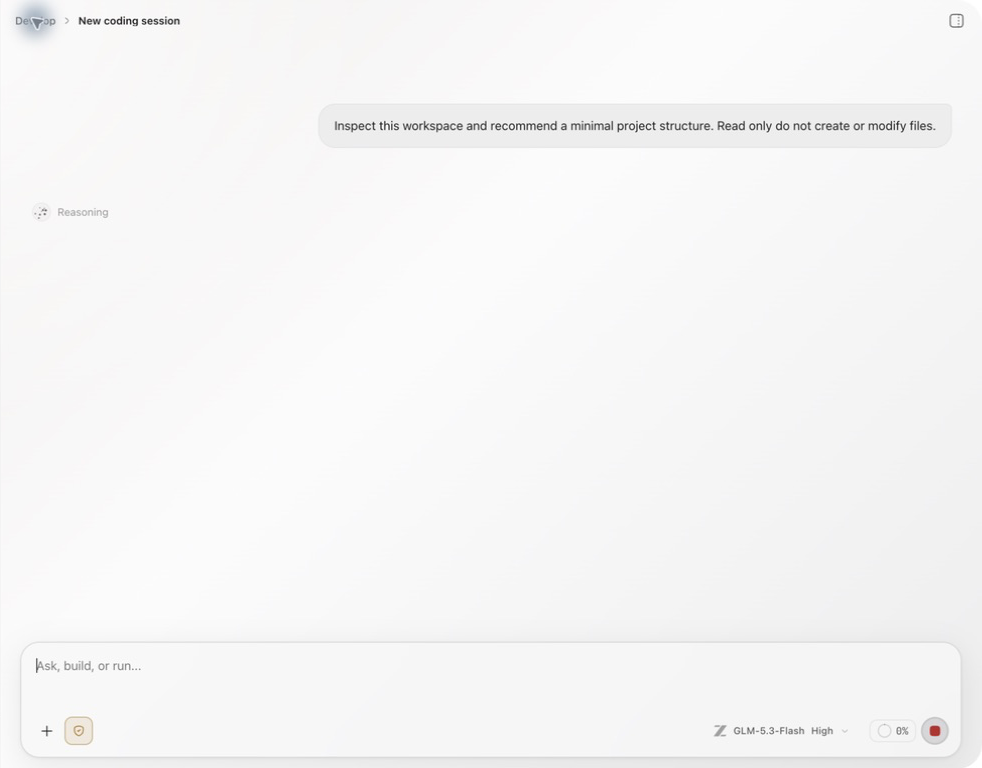
The conversation can show reasoning, Tool activity, command output, file edits, and state. Expand cards to inspect targets and results. Select Stop generating when needed. Commands already run, files already written, and external actions already submitted are not rolled back automatically.
Continue the same task
Queue a follow-up while Ghast works
- While the current response is running, type the next instruction or add its attachments.
- Select the clock-shaped Queue message button. It appears when a run is active and the draft has content.
- Check that the message appears in the queue above the composer.
- Ghast sends queued messages one at a time as the conversation becomes idle. Each can start another model request.
Queued messages retain the model, reasoning and tool options captured when queued. Changing the composer afterward does not rewrite those saved choices. If you need different content or options, remove the pending item using its trash button and compose it again. The queue accepts up to 32 messages.
The buttons are unavailable when no model is selected or you are editing an earlier message. If the expected queue entry does not appear, check the visible error and draft before adding a duplicate.
Interrupt with a correction
For a correction that should take priority now, type it into the composer and choose Interrupt and send. Ghast requests that the current generation stop, then sends that draft. This does not undo earlier commands or edits.
The arrow in the queue header is a different shortcut: Interrupt and send next queued message sends the first item already in the queue. Check that item's text before selecting it; it is not necessarily the draft currently in the composer.
Stop without starting another queued task
Remove unwanted pending queue items before selecting Stop generating. Stopping the current generation does not clear the queue, and a remaining item can start automatically when the conversation becomes idle.
After stopping, inspect the last tool result, changed files and any running terminal process. If a command or external action may have started, verify its actual state before asking Ghast to repeat it.
Recover a queued-send failure
A failed queued send can return the item to the front of the queue. Check whether it is still pending before typing the same instruction again. If it keeps failing, remove the pending item, resolve the provider or input problem, and send a single corrected request.
Resume after checking the result
Follow-up messages use the current conversation history and settings. Changing the model, Tools, Skills, or authorization affects later runs. When the workspace, outcome, or risk boundary has fully changed, start a new coding session so old paths and assumptions do not carry into another project.