Control desktop apps
Ask Ghast to read a window, fill in a desktop form, or work in a local application. Name the app and the result you want in your conversation; you do not need to write an automation script.
This guide covers the macOS setup available under Settings → Computer Use. The current Windows and Linux settings navigation does not expose this page; the steps and screenshots below are not a setup guide for those platforms.
Before you begin
- Configure and select a model that can use tools. If you have not sent a successful first message, complete model setup first.
- Open the application you want Ghast to use. If it has several windows, give the exact window or document title.
- Close or hide unrelated confidential material. Window text and screenshots returned to the conversation can be sent to the selected model provider; desktop control does not make the model request local-only.
- Start with an empty document or Calculator. Leave payments, account changes, and real messages out of the first test.
For a website task, use the browser. Desktop applications and Ghast browser sessions can be signed in to different accounts.
Set up desktop access
1. Open the permission page
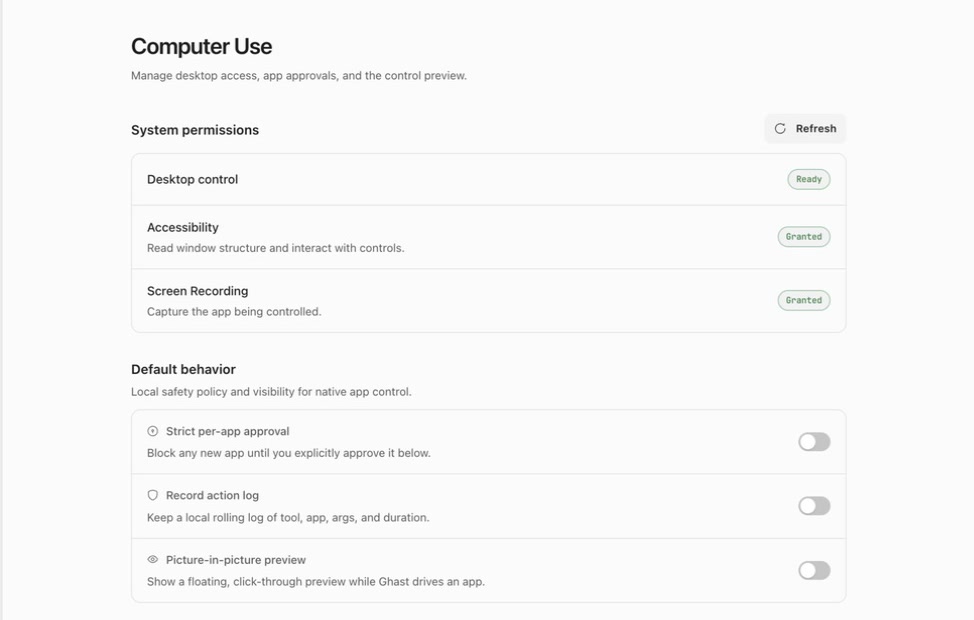
Open Settings → Computer Use and look at System permissions.
| Status | What to do |
|---|---|
| Checking | Wait for the status check to finish. |
| Needs setup | Check the two permission rows below, then follow the missing-permission steps. |
| Unreachable | Read the error shown on the page and select Refresh. If it persists, collect the diagnostic details below. |
| Ready | The local runtime and required macOS permissions passed the setup check. Continue with a small real task; this status does not test your model or guarantee control of every app. |
2. Grant missing permissions
Accessibility lets Ghast read window structure and interact with controls. Screen Recording lets it capture the app being controlled.
- For a permission that is not Granted, select its Open System Settings button.
- In macOS, enable access for the Ghast application you are using. Complete this permission change yourself.
- You can also select Trigger system permissions on the Ghast page when permission is missing.
- Follow any restart instruction shown by macOS. Return to Ghast and select Refresh.
- Confirm both permission rows say Granted and Desktop control says Ready.
If both permissions were already granted, the permission-request buttons are not shown. You do not need to revoke access just to repeat these steps.
3. Read a harmless window
Open Calculator yourself, return to a Chat or Coding conversation, select your configured model, and send:
Use Computer Use to read the current display in Calculator. Do not click, type, switch apps, or change anything. Tell me the displayed value.
Check that the response matches the actual Calculator window. An answer based only on the prompt is not a successful desktop test: the conversation should show Ghast using a desktop tool to inspect the app.
Next, use a new, empty TextEdit document for a small editing test:
Use Computer Use in the new empty TextEdit document. Type “Ghast desktop test” on one line. Do not save, close, or replace any existing document. Read the window again and confirm the exact text.
Inspect TextEdit yourself before saving or discarding the test document. If the tool is unavailable, see Troubleshooting; repeatedly granting macOS permissions will not enable a missing conversation tool.
Give a clear app task
Include the app, window, permitted change, and stopping point. For example:
In TextEdit’s “Meeting notes” window, append these three lines:
Review the release checklist.
Confirm the owner of each item.
Schedule the follow-up.
Do not save or close the document. Show me the final paragraph before doing anything else.
If several windows have similar names, tell Ghast which one to use before it starts editing. If you change the window while it works, ask it to inspect the window again before continuing.
Some operations can run without bringing the target window to the foreground. Do not assume all apps support this. If Ghast needs foreground control, finish your own interaction first and agree on the target; avoid typing or clicking in the same window while it operates.
For sending, publishing, deleting, uploading, or paying, ask Ghast to stop before the final action. Check the account, recipient, file, amount, and destination yourself. A prompt instruction is not a replacement for a permission boundary.
Take back control
On macOS, open the Ghast icon in the menu bar and select Take control of computer. The status changes to Computer Use · User in control. This blocks new calls to Ghast’s built-in desktop tools, including Team calls, and app-changing operations that use the app-approval check.
Other control integrations may still read windows, screenshots, or clipboard content while you hold control. Takeover is not a complete privacy switch. If you need Ghast to stop all desktop access, stop the active tasks and quit Ghast; manage its system permissions in macOS before using it again.
This does not undo a click already delivered or cancel an external submission that has started. Inspect the target app before retrying anything.
To continue, choose Return control to agent in the same menu. This makes desktop operations available again; it does not automatically resend a failed action or restart a stopped conversation. Return to the conversation and tell Ghast whether to inspect the result, continue, or stop.
Use the conversation’s stop control if you also want to end the current response. Taking control of the desktop is not a global pause for other tools, such as file or network operations.
Understand app approval before enabling it
Strict per-app approval and Approved apps do not cover every desktop operation. Ghast’s built-in desktop tools currently do not consult this switch or list. The app-level check used by other control integrations applies to operations that change an app and whose target application can be identified; it does not gate reading windows or screenshots, or unidentified targets.
Do not use this switch or a revoked entry as a guarantee that Ghast cannot read or control an app. To interrupt built-in desktop work, use Take control of computer; see its coverage limits above. Manage operating-system access in macOS.
Save behavior changes
The three Default behavior switches create Unsaved changes. After changing strict approval, logging, or the preview preference, select Save at the bottom of Settings. Wait for the unsaved indicator to clear; if saving fails, the changed switch is not proof that the preference was saved.
Picture-in-picture also requests an immediate show/hide when toggled, before saving. If you only tried it, turn it back to its original position before closing and discarding the unsaved settings. App pre-approval and revocation are separate actions: their successful confirmations take effect without this Save button.
Turn on strict approval
The switch is off by default. Under Default behavior, turn on Strict per-app approval and select Save if you want explicit approval for new apps on operations covered by the app-level check.
With the switch off, those operations can automatically add a new app to the approved list. Turning it on does not remove existing approvals or require them to be approved again.
Respond to a request
When Allow computer use? appears, check the application name and requested action.
| Choice | Effect on operations covered by app approval |
|---|---|
| Allow once | Allows one approval-gated request, which may contain a sequence of clicks or keystrokes. A later request in the same task may prompt again. It is neither a one-click limit nor approval for the whole task. |
| Allow always | Remembers the application for later operations until you revoke it. |
| Deny | Rejects this request; it does not create a permanent block for the app. |
While the same Ghast session remains running, an unanswered request expires after 30 minutes. A pending request may remain visible after quitting and relaunching Ghast; treat it as stale, deny it, and start a fresh task if needed. Approving it does not restart the old task. A prompt may describe a multi-action request simply as controlling the app; check the task’s intended changes before choosing Allow once.
Pre-approve an app
- Find Approved apps on this settings page.
- Select Pre-approve app….
- Choose the installed application in the macOS picker and open it in the picker. Select the application itself, not a document or installer.
- Check the approval confirmation and the list. Use the list’s Refresh button if necessary.
The list shows the application name or identifier, use count, and last use. An identifier helps distinguish apps with similar names. These counts reflect the approval-aware operations, not a full history of all desktop activity.
Pre-approval is not permission to make every possible change inside the app. Do not approve a password manager or system settings as a workaround for a refused action; complete sensitive security steps yourself.
Revoke and restore approval
Select Revoke beside the intended app, check its identity in Revoke approval?, and confirm Revoke. Choose Cancel to keep the approval unchanged.
For operations covered by app approval, a revoked app is refused until you pre-approve it again. Switching strict approval off does not restore it, and a new prompt is not guaranteed. To restore access, use Pre-approve app… again. The coverage limitation above still applies.
Show the picture-in-picture preview
Under Default behavior, turn on Picture-in-picture preview. Ghast requests a floating, click-through preview window immediately; select Save to record the switch preference. Saving does not automatically reopen the preview after restarting Ghast.
Current limitation: built-in desktop tasks in Chat and Coding do not supply images to this preview. Do not expect a live view of those tasks. The preview can remain empty or show an earlier image supplied by another control integration; it is not a continuous live recording.
The window stays above other windows, including across Spaces and full-screen apps. It is for watching, not interacting: clicks pass through to the window behind it. Use the target app or take back control when you need to intervene.
If Preview update failed appears, the enabled switch alone does not mean a preview was opened. Read the error and retry the toggle after resolving the problem. Turn the switch off to hide the preview, then select Save to keep it disabled. Always inspect the actual target app to verify a saved or submitted result.
Record a local action log
Turn on Record action log and select Save when you need local diagnostic records. This setting and picture-in-picture are off by default and are independent of strict approval.
The log retains operations reported by a control integration, such as the tool, target app, arguments, duration, and error. Built-in desktop tools are not automatically recorded in this log. An empty log therefore does not prove that no desktop activity occurred, and an entry does not prove that the external app saved or submitted successfully.
This settings page has no action-log viewer. If you share diagnostic records with support, inspect and redact sensitive text and application details first. Turn logging off and save when it is no longer needed; this stops new records, not a promise to erase existing ones.
Troubleshooting
The page never reaches Ready
Select Refresh in System permissions. Check both permission rows and the error message. Expand Diagnostics at the bottom to find the CUA Driver version, platform, and Embedded/Daemon runtime label.
When requesting help, include your Ghast version, macOS version, displayed status, permission states, diagnostic values, and the exact error. Redact personal paths or window content. Do not grant unrelated permissions or follow development build commands to repair an installed client.
Ghast answers without using the desktop, or says the tool is unavailable
Make the request explicit: “Use Computer Use to inspect [app and window].” Check the selected model, conversation tool availability, and any disabled or unavailable integration. See Tools and Plugins. Ready only checks local setup; it does not check the current model’s access to tools.
The window is visible but reading, clicking, or typing fails
Check Screen Recording for screenshot problems and Accessibility for reading controls or interacting. Confirm the exact application and window, then ask Ghast to inspect the current UI again. A stale window, changed dialog, or app-specific limitation can still cause failure with both permissions granted.
If a tool says the user is in control, use Return control to agent only when you intend to resume desktop work.
An approval is waiting, denied, or revoked
Return to Ghast and answer the visible request. Allow once covers one request, which may contain multiple actions. For a revoked app, restore it through Pre-approve app…, not by toggling strict approval off. If an action is refused for a security reason, perform that sensitive step yourself rather than attempting to bypass the refusal.
A task timed out after a click or submission
Inspect the external app first. Check whether the document was saved, the message was sent, or the form was submitted. Ask Ghast to read that state before repeating the action; a timeout or missing confirmation does not prove that nothing happened.