Connect Slack
Use Slack messages to start Ghast tasks on your computer and receive replies in the same Slack thread. Open Settings → Channels → Slack.
Keep Ghast running and the computer connected to the internet. This is a desktop connection, not an independently hosted bot. Prepare a working model first using Configure a provider and Choose and enable models.
1. Create and install the Slack app
Start with a private test channel and a workspace where you are allowed to install apps. Do not begin in a shared production channel.
Create the app
- Open the Slack Apps console.
- Choose Create New App → From scratch.
- Give the app a recognizable name and choose the intended Slack workspace. A Slack workspace is your external organization; it is not a local Ghast Workspace.
- If your organization requires approval, complete that process before proceeding. Ghast does not bypass Slack installation policies.
Add Bot Token Scopes
In OAuth & Permissions → Bot Token Scopes, add the permissions listed by Ghast's setup guide:
| Scopes | Purpose |
|---|---|
app_mentions:read | Receive mentions of the app |
channels:history, channels:read | Public-channel messages and channel information available to the bot |
groups:history, groups:read | Private-channel messages and information available to the bot |
im:history, im:read | Direct messages and their conversation information |
mpim:history, mpim:read | Group direct messages and their conversation information |
chat:write | Send and update replies |
files:read, files:write | Download incoming attachments and upload reply files |
reactions:write | Add reactions to messages |
users:read | Resolve sender display names |
These are the current client's setup permissions, not a guarantee that Ghast imports all historical messages. Slack also requires the corresponding event subscriptions; granting a scope alone does not subscribe to messages. See the Slack Events API.
Enable Socket Mode and create the App Token
- Open Socket Mode and turn on Enable Socket Mode.
- Open Basic Information → App-Level Tokens → Generate Token and Scopes.
- Add
connections:writeand generate the token. - Keep the resulting
xapp-token private.
Socket Mode delivers events over an outbound WebSocket connection. You do not need to publish a webhook URL, expose a local port, or set up a tunnel. The app-level token opens that connection; it is not the token used to post replies. Slack Socket Mode, connections:write.
Subscribe to bot events
Under Event Subscriptions, enable events and add these under Subscribe to bot events:
| Event | Messages it supplies |
|---|---|
app_mention | Explicit mentions of the app |
message.channels | Public-channel messages |
message.groups | Private-channel messages |
message.im | Direct messages |
message.mpim | Group direct messages |
Use bot events, not a user-token subscription. If you want people to message the app from its Messages tab, enable that tab and Allow users to send Slash commands and messages from the messages tab in App Home. This Slack option permits messages; it does not add Ghast slash commands. Slack's direct-message setup.
Install and invite
- Choose Install App → Install to Workspace and approve the requested permissions.
- Copy the Bot User OAuth Token, beginning with
xoxb-, from OAuth & Permissions. - After adding scopes, reinstall the app so the installed token has the updated permissions. Slack local setup guidance.
- In your test channel, invite the bot using Slack's channel integration controls or
/invite @YourBot.
Both tokens must belong to the same intended app. Do not substitute a Slack signing secret, client secret, verification token, or xoxp- user token.
2. Enter the credentials in Ghast
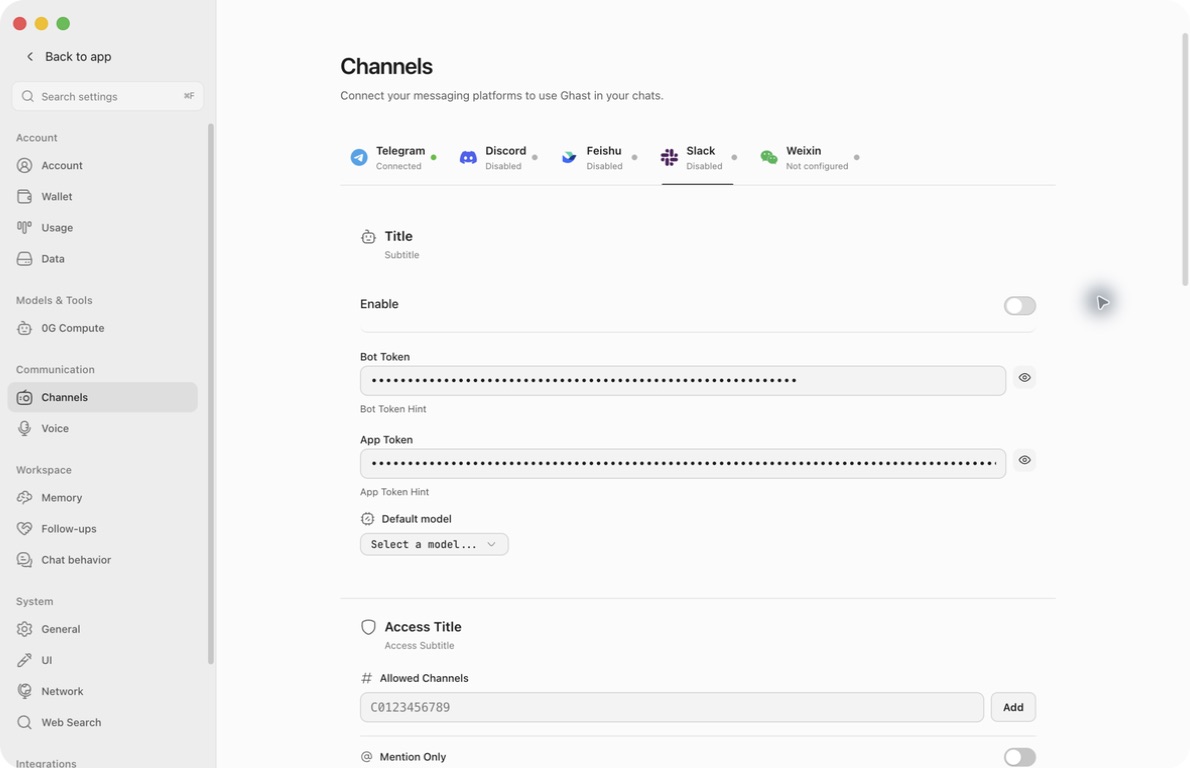
| Control | What to enter or do |
|---|---|
| Bot Token | Paste the xoxb- Bot User OAuth Token. Ghast uses it to authenticate the bot and call Slack's Web API. |
| App Token | Paste the xapp- App-Level Token with connections:write. Ghast uses it for Socket Mode. |
| Eye button beside each token | Reveal or mask that field independently. Keep both masked when sharing your screen. |
| Default model | Choose an enabled, usable model for Slack tasks. This is separate from Chat's default. |
| Enable | Turn on after configuring access, model and workspace below, then click Save. |
The enable control requires both token fields to be nonempty when turning on. That is not credential verification: token format and authentication are checked when the bot starts. Slack settings currently have no Verify credentials or Send test message button.
Changes to tokens, model, enablement, allowed channels, mention-only and workspace bindings are drafts until Save. Switching platform tabs does not save them. Use the footer Close and confirm closing without saving to discard a draft.
Saving changed Slack settings restarts its connection, including when you only change an access rule or model. Finish important running tasks before saving; do not assume an in-progress reply survives a restart.
3. Limit where messages are accepted
To find an ID without writing code, open the intended Slack channel in a browser and inspect its URL. In https://app.slack.com/client/TEXAMPLE/C0123456789, TEXAMPLE identifies the workspace and C0123456789 is the channel to enter. Copy only the conversation segment, not the full URL. For a DM, open the conversation with this bot—not a person's profile—and use its conversation ID rather than a U… user ID. Slack documents the workspace/channel URL structure.
If you cannot identify the conversation reliably, ask the Slack app administrator to confirm it. Administrators can use Slack's Conversations API lookup. Do not temporarily clear the allowlist just to discover an ID in a production workspace.
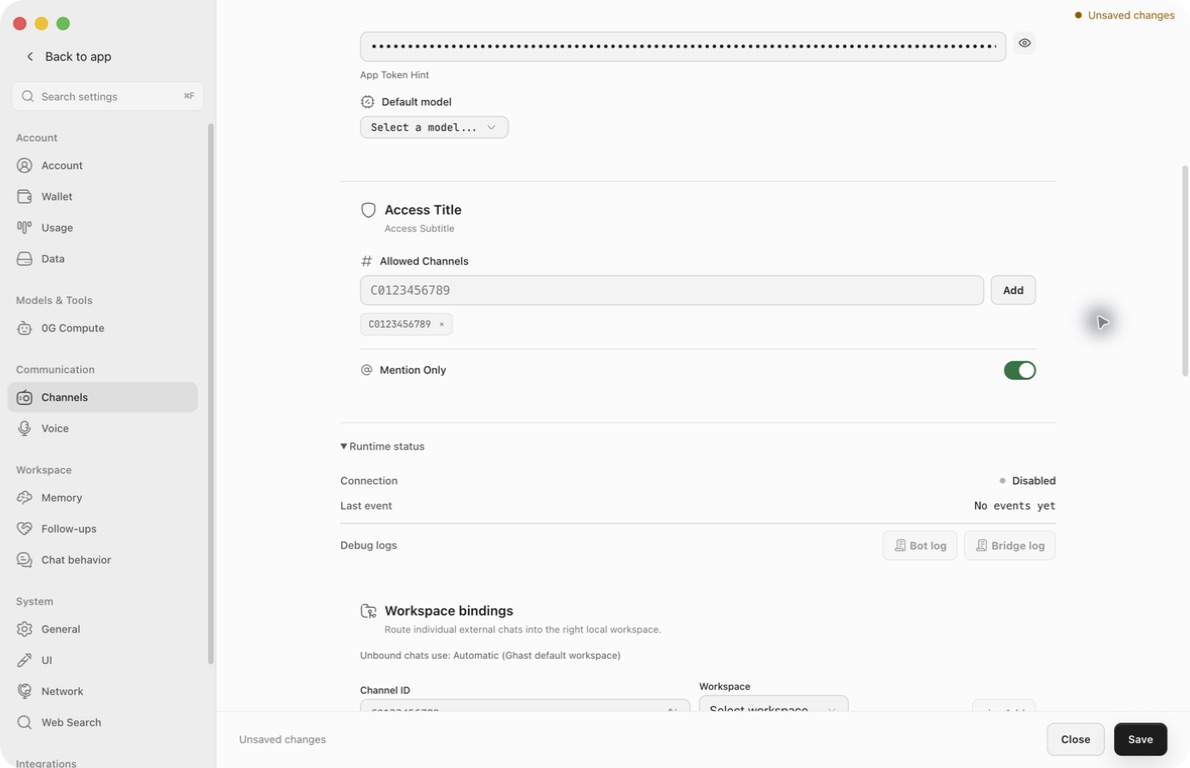
In Allowed Channels, enter a Slack conversation ID, such as the fictional C0123456789, and click Add or press Enter. Verify it appears as a chip, then Save. Typing without adding does not change the list.
Use an ID, not #channel-name, an app ID, a workspace ID or a message URL. The client trims spaces and ignores duplicate additions; it does not verify that an ID exists or is accessible to this bot. Remove a chip with its × button and save to remove that entry.
| Allowed-channel list | Result |
|---|---|
| Empty | Ghast does not restrict by conversation ID. Slack's delivery permissions and membership still apply. |
| One or more IDs | Only exact matching conversation IDs pass, including direct messages and group DMs. |
| Channel ID listed | Threads inside that channel use the same allowed-channel ID; do not enter the thread's timestamp. |
| Only a public channel listed | A DM is not implicitly allowed. Its own conversation ID must also be listed if you want to accept it. |
The list is not a per-person allowlist. Anyone whose messages reach the bot in an allowed conversation can start tasks, subject to the mention rule below. Workspace bindings do not grant or deny access.
4. Choose when Ghast responds
Use Mention Only to require an explicit bot mention in public and private channels.
| Incoming message that passes the allowed-channel list | Mention Only on | Mention Only off |
|---|---|---|
| Public/private channel message containing an actual Slack @mention of the bot | Accepted | Accepted |
| Public/private channel text without that mention | Ignored | Accepted |
| Reply inside a public/private channel thread, without a new @mention | Ignored | Accepted |
| Direct message or group DM | Accepted without a mention | Accepted without a mention |
| Message authored by a bot, including this bot | Ignored | Ignored |
| Message edit or deletion event | Does not start a new turn | Does not start a new turn |
“Accepted” means eligible to enter Ghast, not a guarantee of a successful model response. A valid incoming attachment can accompany a message; an empty message without usable attachments is skipped.
Use Slack's actual @mention picker. Merely typing ghast, replying to the bot in a channel thread, or copying Discord's !new syntax does not bypass Slack's mention rule.
For Slack, the allowed-channel and mention checks happen before attachment download and recent-history recording. Messages rejected by those checks do not enter that incoming-message path. This differs from Discord and Telegram group behavior. Previously accepted content can still remain in a Ghast conversation or local memory after you tighten the rules.
The Chinese UI hint “DM always responds” only describes the mention exemption. A nonempty allowed-channel list still applies to DMs. Neither a DM nor a mention bypasses that list.
5. Select the model and local workspace
Model choice
Configure credentials and enable models first; Slack's picker only offers models from enabled, usable providers. If the desired entry is absent, return to model setup, then reopen the picker.
An explicitly selected Slack default takes priority even in an existing Slack conversation. With no Slack-specific model, an existing conversation's stored model is used, otherwise Chat's default is the fallback. Changing a default does not enable a model, create credit or fix provider authentication.
Workspace bindings
- Create a suitable non-temporary local Workspace before binding it.
- Under Workspace bindings, choose a known Channel ID, or enter an ID manually. The picker can show previously known conversations; it is not proof the bot currently has access.
- Choose a Workspace, then click Add. Both values are required.
- Verify the ID-to-workspace row and click Save.
- To replace a binding, remove its row and add the ID with the new workspace, then save.
An explicit, existing channel binding is preferred; otherwise Ghast uses General → Default workspace, then its automatic default workspace. The “Unbound chats use” line helps you check that fallback.
Binding is by channel/DM ID, not by person or thread. Newly created threads in that conversation use the selected workspace. Existing Slack threads retain their existing Ghast conversation's workspace; saving a new binding does not move those conversations. Start a new top-level message to use the new routing and check its workspace before requesting file access. A message arriving while its thread is busy can create a new branch using the current workspace choice.
Keep the bound and fallback workspaces narrow. Slack messages may initiate model/tool work on your computer, and results can be sent back to participants in that Slack conversation.
6. Verify the first reply
- Confirm your example inputs have been replaced with real IDs, the intended model is usable, and the workspace is correct.
- Enable Slack, click Save, and expand Runtime status.
- Wait for Connected and check the displayed Slack workspace, if present.
- In an allowed test channel, send an explicit mention: “@YourBot Reply only with
slack-ready-47.” - Open that message's thread in Slack. Confirm the exact reply appears there, not merely in Ghast.
- Reply in the same thread with “@YourBot What string did you just return?” Keep the mention when Mention Only is on.
- Separately test an allowed DM, an excluded conversation, and an unmentioned channel message using non-sensitive text. Verify the behavior matches your restrictions.
- Test attachments only after plain text works.
There is no built-in Slack command menu for /new, /model, /stop, or conversation switching. Do not import Telegram or Discord command instructions. Use Ghast's desktop controls for model settings and inspect an active task there.
Threads, context and concurrent messages
- Each top-level Slack message creates a separate Ghast conversation, including top-level DMs. Continue inside the existing Slack thread when you want to retain that conversation.
- Participants in the same Slack thread share that mapped conversation; it is not isolated by sender.
- Replies are sent inside the original message's thread. A new top-level message does not automatically inherit the previous top-level message's context.
- If another message arrives while that thread is generating, Ghast creates a branch and routes the later turn there rather than waiting in a simple queue. Wait for the reply when order matters.
- Recent Slack context contains accepted messages observed during the current connection and relevant local sender-profile context when available. Ghast does not automatically fetch the whole channel or old thread history when first contacted.
- Saved Ghast conversation history and the connection's recent-message buffer are different. Restarting the bot is not a way to erase saved conversations or memory.
Attachments, streamed replies and reactions
Incoming images, audio, video and files can be downloaded and passed to the generation workflow. Actual understanding depends on the chosen model and available tools; an accepted file is not proof it was read successfully.
Files whose reported size exceeds 20 MiB are skipped. Files without an available private download URL, inaccessible files, and Slack Connect attachment stubs that require an extra lookup may also be skipped. If an attachment was missed, try a smaller ordinary upload in the permitted test conversation and check the logs.
Text replies can appear as an edited message while generation continues; long replies may be split. Voice-input turns do not use that partial-text streaming path. Do not assume audio transcription or a spoken reply works just because the file appears in Slack; see Voice input and replies.
Ghast can upload local result files into the same thread and add an emoji reaction to an incoming message. A reaction is not confirmation that the model task finished. Confirm files are meant for every recipient in that Slack thread before requesting them.
Read status and logs
Expand Runtime status:
| Item | What it tells you |
|---|---|
| Connection | Whether Slack is disabled, connecting, connected or in an error state. Connected does not prove message delivery or model availability. |
| Slack workspace / start time | Runtime identity and when this connection started, when available. |
| Last event | When a Slack envelope last reached the client. Even an event that does not become a Ghast task can update it. An old timestamp can simply mean an idle workspace. |
| Bot log | Connection, authentication, events, filtering and Slack API failures. |
| Bridge log | Message-to-Ghast routing, model generation and reply handling. |
Log buttons are disabled if the runtime has no corresponding log path. Available logs open inline, showing the latest 200 lines by default. Use Refresh to read again and × to close; the viewer is not a continuously updating log stream.
Logs may contain message snippets, user/channel IDs, workspace names and local paths. Remove sensitive content before sharing them. Never publish either token.
Troubleshooting
| Symptom | Check in this order |
|---|---|
| Enable is unavailable | Both token fields must be nonempty; then verify the correct token types before saving. |
| Token-prefix or authentication error | Put xoxb- in Bot Token and xapp- in App Token; confirm they belong to the same app. Replace revoked tokens in Slack and save the replacements. |
| Cannot connect Socket Mode | Enable Socket Mode, grant the App Token connections:write, and check that the computer/network permits the connection. |
| Connected, but Last event never changes | Check bot event subscriptions, app installation and channel membership. Reinstall after adding scopes. A socket can connect without message events being subscribed. |
| Events arrive, but no task starts | Check the exact allowed-channel ID, mention rule, bot-authored messages and empty/unsupported attachment-only messages. |
| Channel works, DM does not | Check the DM conversation ID against the allowlist, message.im subscription, im:history, and App Home Messages settings. |
| First mention works, threaded follow-up does not | Mention the bot again in a public/private channel thread while Mention Only is on. |
| Model missing or provider failure | Configure and enable a usable model, check credit/authentication, choose Slack's default and save. |
| New workspace binding seems ignored | Test a new top-level Slack message. Existing mapped threads keep their conversation's workspace. |
| Local reply exists but Slack is empty | Open the original thread, then check Bot/Bridge logs, chat:write, membership and any rate-limit or token errors. Avoid repeatedly resending a task that may already be running. |
| Text arrives but a file does not | Check the 20 MiB incoming-file limit, private-file access, Slack Connect limitations and files:read/files:write. |
| English headings say “Title” or “Body” | This client build has incomplete Slack English translations. Use this guide's named controls and token prefixes; the Chinese client has the fuller labels. |
Disconnect
Turn off Enable and click Save to stop the connection. This does not uninstall the Slack app, revoke its credentials or remove old Slack/Ghast messages.
When retiring the integration, also remove the app from the Slack workspace or revoke its tokens in Slack. Review saved conversations and local memory separately. Do not use a connection restart as a privacy reset.