Connect Discord
Use Discord to send tasks to Ghast and receive replies in a server channel or a direct message. Ghast Desktop runs the connection on your computer: keep the app running, signed in, and online.
Open Settings → Channels → Discord. You do not need to write a bot program or deploy a separate service.
Before you connect
Prepare:
- a Discord application with a bot token and permission to install it in your test server;
- a working model in Ghast—complete provider setup and send a successful local Chat message first;
- a small, non-sensitive workspace for any file-related task;
- the server and channel IDs that should receive the bot.
Ghast's Discord server and channel allowlists apply to server messages, not direct messages. There is no allowed-user or “disable DMs” control on this page. Do not treat this as an owner-only remote control for your computer. If you cannot accept the bot's reachable audience, leave it disabled.
1. Prepare the Discord application
- Open the Discord Developer Portal and create or select your application.
- Open Bot and obtain its bot token. Paste this token into Ghast's Bot token field—not an Application ID, public key, OAuth client secret, or your personal Discord token. Keep it masked when taking screenshots or sharing your screen.
- In the application's Bot → Privileged Gateway Intents, enable MESSAGE CONTENT INTENT. Ghast needs message content for its normal message-based conversations. Server Members Intent is not required for the current Ghast connection.
- Install the bot in your test server. Use the application's server-install link, or the OAuth2 → URL Generator route shown in Ghast's Setup guide, with the
botscope. - Give it View Channels, Send Messages, Read Message History, Attach Files, and Add Reactions for the test channel. Do not give it Administrator just to make setup easier. Check channel-specific permission overrides as well.
Discord's application setup guide explains token creation and installation. Ghast already supplies the running bot: the tutorial's example app, custom web server, and HTTP interaction endpoint are not setup requirements for Ghast.
Resetting an existing token invalidates the previous one. If you rotate it, update Ghast and save again; a token still visible as dots is not proof that Discord accepts it.
2. Add server and channel restrictions
In Discord, enable User Settings → Advanced → Developer Mode. Right-click the server and choose Copy Server ID; right-click the intended channel and choose Copy Channel ID. See Discord's ID instructions.
In Ghast's Access control section:
- Paste one ID into Allowed server IDs.
- Click Add or press Enter. Confirm that the ID appears as a chip below the input.
- Add each intended channel in Allowed channel IDs the same way.
- Remove a chip with its × button if you added the wrong ID.
- Keep the bot disabled until the model, workspace, and reply behavior are ready.
Typing an ID is not enough: it must appear in the list. Add IDs separately, not as a comma-separated string. These fields do not look up a name or validate whether Discord recognizes the ID. Duplicate IDs are not added a second time.
| Server list | Channel list | Which server messages pass |
|---|---|---|
| Empty | Empty | Messages from any server channel the bot can access |
| Filled | Empty | Any accessible channel in a listed server |
| Empty | Filled | Only the listed channels, in any accessible server |
| Filled | Filled | The server and the channel must both be listed |
These lists do not grant Discord permissions and do not filter DMs. An allowed server is not an allowed person: other members who can post in an allowed channel may also invoke Ghast.
Threads have their own channel IDs. A parent channel's ID does not automatically match messages in its threads. Add the actual thread ID if it should be allowed, and bind that ID separately if it needs a particular workspace.
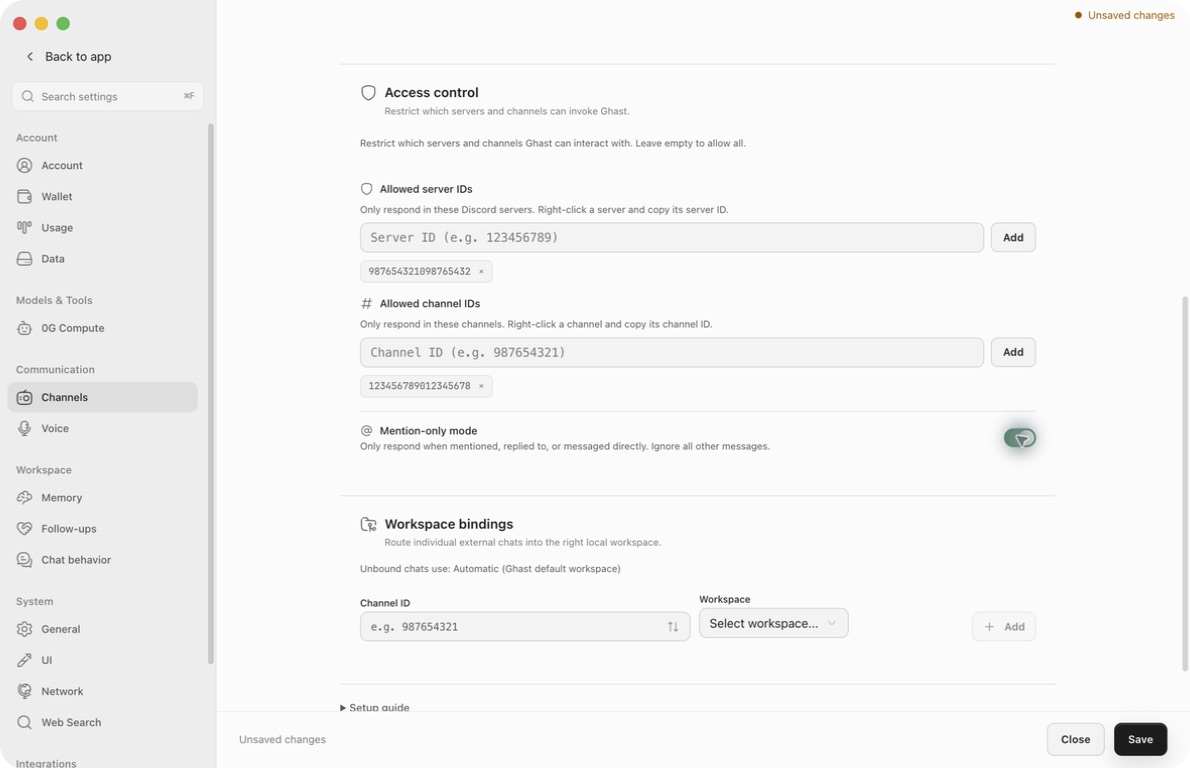
3. Choose when Ghast replies
Turn on Mention-only mode to suppress most ordinary server chatter. It is not a strict “only messages containing @Bot” rule.
| Incoming message | Behavior |
|---|---|
| Direct message to the bot | Goes to Ghast without a mention |
| Server message mentioning the bot | Goes to Ghast after the server/channel checks |
| Reply to a message sent by the bot | Also triggers Ghast |
Message containing ghast, in any letter case | Also triggers Ghast; the text need not be an actual Discord mention |
Message beginning with ! or / | Enters command handling |
| Ordinary server text with Mention-only on | Does not start the ordinary reply-decision check |
| Ordinary server text with Mention-only off | Can be evaluated to decide whether a reply is useful; turning the switch off does not guarantee a reply to every message |
The reply-decision check uses a model and can consume usage even when no full reply is sent. If no usable decision model is available or the decision request fails, ordinary unmentioned chatter is kept quiet. Explicit triggers above do not depend on that decision.
Other bots are not universally excluded: Ghast ignores its own messages, but another bot can still reach the trigger logic. Avoid putting mutually responsive bots together.
After server/channel filtering, Ghast processes attachments and records recent server history before deciding whether to reply. Unmentioned messages can therefore appear as context in a later task. Audio can be downloaded and transcribed before the mention check; a successful transcript can also enter reply-decision processing while Mention-only is on.
Do not use Mention-only to protect private channel content from local storage or model processing. Restrict the bot's actual channel access instead. Read Discord voice input before sending audio, including the conditions under which audio is sent to OpenAI.
4. Select a model
Choose Default model in the Discord bot section, then save.
An explicit Discord default is preferred for subsequent Discord tasks, including an existing mapped conversation. Without one, an existing conversation can keep its stored model; a new conversation uses the Chat default. Leaving this field empty is not a request to use the background model for ordinary replies.
If the picker has no usable model, return to the provider and model setup. Check that the provider is enabled and has valid credentials or an authenticated plugin connection. A bot token connects Discord; it does not provide model access, inference credit, or a free model.
5. Bind a workspace
Under Workspace bindings:
- Select a known channel, or enter its channel ID manually. The known-channel picker also provides a manual-ID field.
- Choose a workspace.
- Click Add. Confirm that a
channel → workspacerow appears. - Click Save when all changes are ready.
Add is unavailable until both a channel ID and a workspace are selected. Temporary workspaces do not appear in the selector. If the target workspace is missing, add/open it through Workspaces, then return here.
A saved channel binding takes priority over General → Default workspace. With no valid binding or selected default, Ghast uses its built-in default workspace. “Automatic” does not mean whichever project you are looking at in the app.
Removing a binding returns that channel to the fallback workspace; it does not block incoming messages or delete files. To change an existing binding, remove its row and add the channel with the new workspace, then save. For Discord, the next incoming task also updates an existing mapped conversation to the currently resolved workspace. Wait for running tasks to finish before rerouting.
6. Save, enable, and test
- Review the token, both allowlists, Mention-only mode, model, and workspace.
- Turn on Enable Discord bot, then click Save. An empty token disables the enable switch.
- Wait for the Discord tab's status to update. Saving changed Discord settings restarts its connection; Save returning successfully does not prove that login or message delivery succeeded.
- In the allowed test channel, mention the bot and send: “Reply only with
discord-ready-47. Do not use tools.” - Confirm that the matching reply appears in Discord, not just in Ghast.
- Test a DM separately if you intend to use DMs. Its access behavior differs from server messages.
- Test attachments, thread replies, and workspace reads separately with non-sensitive examples.
Configuration edits show Unsaved changes. Switching platform tabs does not apply them. To abandon edits, close settings and confirm close without saving; reopen Discord settings to verify the saved values. Disabling the bot also requires Save.
Changing saved Discord settings restarts the bridge even if you only changed the model, a list, or a workspace binding. Make changes between tasks: do not assume an in-flight generation or its external delivery survives a restart.
Commands and shared conversations
Send commands as plain messages beginning with ! or /. If Discord opens its own slash-command picker, use the ! form.
Unrecognized commands can be passed to the agent as ordinary task text rather than rejected. Do not send a command experimentally if its text asks for a write or an external action.
| Command | Purpose and scope |
|---|---|
!help / !start | Show the bot's short command guide |
!model | Display the Discord default and a provider/model menu |
!new Meeting notes | Create a conversation with an optional title; use a DM when you need to establish a new personal conversation |
!stop | Request stopping an active generation in the current Discord channel |
Selecting a model from the Discord menu changes the shared Discord default, not just your personal conversation. The menu is not an owner-only settings screen; people able to interact with it can affect that shared choice. Treat access to it accordingly. The menus display up to 25 providers and up to 25 enabled models for a provider; use the desktop model selector for other choices. If a menu says the session expired, send !model again.
Server-channel messages normally share a Ghast conversation across senders. A new message arriving while that conversation is busy can branch into another conversation; it is not necessarily queued behind the previous response. Do not use !new as a privacy boundary or a guarantee that shared group history has been cleared.
!stop is channel-scoped, not a promise to stop only work started by the sender, nor to undo a tool action. Check the resulting task state before retrying a write or send.
Troubleshooting
| What you see | What to check |
|---|---|
| Cannot enable | Enter the bot token. A model selection alone is not a Discord connection. |
| Disabled | The saved enable switch is off. Finish configuration before enabling and saving. |
| Connecting, stopped, or error | Keep Ghast running; check the token, internet access, and Discord app's Message Content Intent. After saving, wait for a fresh status. |
| No reply in a server | Check the exact server and channel IDs, that each ID was added as a chip and saved, channel overrides, and an explicit @Bot trigger. |
| Parent channel works, thread does not | Add the actual thread ID to the channel allowlist; verify Discord permissions for that thread. |
| DMs work despite a server restriction | Expected: the server and channel lists do not block DMs. |
| Ordinary text gets no response | Try an explicit mention. Mention-only and the reply-decision model can intentionally keep ordinary chatter quiet. |
| “No model configured” | Select a working Discord default, save, then test again. |
| Wrong model after a remote selection | !model changes the shared default. Reopen desktop settings before making another change; do not overwrite it with an old settings draft. |
!new confirms a new conversation, but the server discussion continues the old one | Current limitation: the command creates a sender-specific mapping, while ordinary server messages use a shared channel mapping. Use a DM for a personal new conversation; do not interpret the confirmation as clearing the server's shared context. |
| Workspace is wrong | Check the exact channel/thread ID binding, General default, and whether the saved workspace still exists. |
| Reply text works but images/audio/files do not | Check model capabilities, attachment download, Attach Files permission, and the separate voice prerequisites. |
| Local reply exists but Discord has no final message | Generation and delivery are separate. Check the target channel and bot permissions; do not blindly repeat a task with external side effects. |
Disconnect
Turn off Enable Discord bot and Save. This stops the connection; it does not erase Ghast conversations, locally stored media, or messages already sent to Discord, and it does not revoke the bot token. Remove the bot from servers or revoke its token in Discord when retiring the integration.