Search the web
Use Ghast to find sources, read a specific page, or search posts visible to your X or Xiaohongshu account. Start in Settings → Web Search. Search settings are separate from the model provider that generates your answers.
Choose the task
| What you want | What to ask Ghast to use |
|---|---|
| Find public pages about a topic | WebSearch; give keywords and source requirements. |
| Read an exact article or documentation page | WebFetch; provide the full URL and the section you need. |
| Search X posts or accounts | XSearch; sign in to X below first. |
| Search Xiaohongshu notes | RednoteSearch; sign in to Xiaohongshu below first. |
| Click, fill a form, or inspect a local development page | Browser tools. For a page beside your Coding conversation, see Browser. |
You still need a configured model and the relevant tools available in the conversation. A working search connection does not configure your model, and a successful chat message does not prove that Ghast searched.
Start without a search API key
- Open Settings → Web Search.
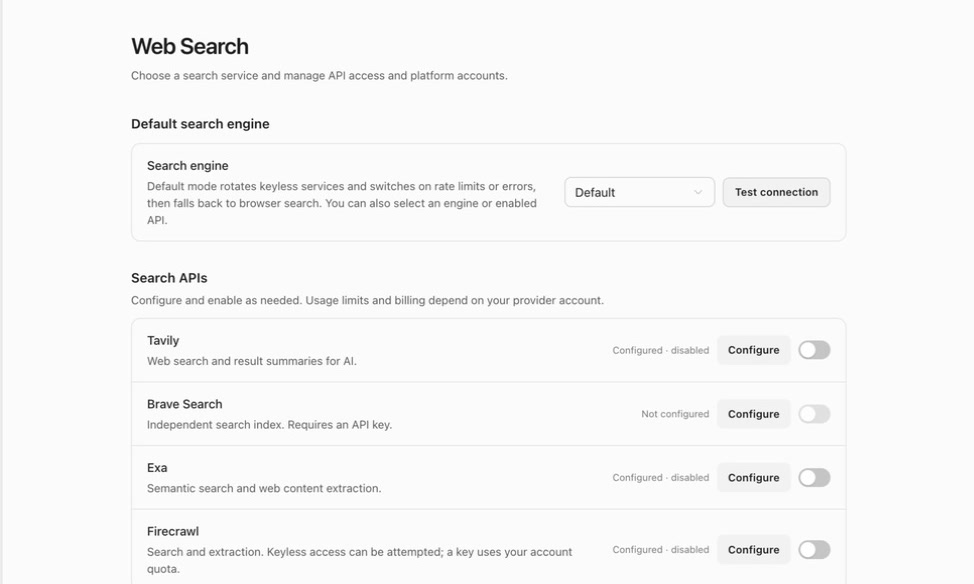
- In Default search engine → Search engine, keep Default, or select Google, Bing, Sogou, or Baidu. These choices do not require a search API key.
- If you changed the selection, click Save at the bottom of Settings. Wait for Unsaved changes to clear.
- Click Test connection beside the picker.
- After a successful test, return to your conversation and try the first search.
Google sign-in is optional for ordinary web search. X and Xiaohongshu sign-in are only needed for their corresponding platform searches; you do not need to connect every account to begin.
Understand the engine choices
Default tries services that do not need your own API key and can use a built-in search engine if necessary. It does not mean Google only, and it does not mean the search happens offline.
Choosing a named engine makes it the preferred service, not the only possible destination. After an error or empty result, Ghast may try another service, including an enabled account-backed search API even outside research requests. Some research requests can also use enabled APIs for additional sources. The engine picker does not restrict where query text can be sent. If a query must stay with one approved service, do not rely on this picker as an enforcement control.
Time, language, region, and source requirements can affect which service handles a request. Check the returned sources and dates instead of assuming every engine applies the same filters.
Read the connection test
The top Test connection button appears for Default and the four built-in engines. It does not appear when a third-party API is selected.
- Testing… means the request is still running; the test button is disabled.
- OK · … result · …ms means this test returned results. Hover over the status for the sample title and, where available, the service used.
- Failed · …ms means the test did not return a usable result. Hover over the status for the error.
The built-in/default test searches for “OpenAI”; it does not send your conversation history. A test checks the engine currently selected in the picker but does not save your settings. Save a changed selection before relying on it in conversations.
A passing test is specific to that query, network, and moment. If Default fails but the Google row’s test succeeds, you can select Google at the top, save, and verify a real conversation search. Do not assume either result proves every route works.
Add a search API
Use Search APIs if you want to use your own account with one of these services.
| Service | Configuration needed |
|---|---|
| Tavily | API key and enabled switch. |
| Brave Search | API key and enabled switch. |
| Exa | API key and enabled switch. |
| Firecrawl | Enabled switch; an API key is optional. Without one, Ghast can attempt keyless access, but availability is not guaranteed. |
Search API access and quota belong to the search service account. A model-provider key or a Ghast compute balance does not replace the search service’s API key or account quota. Search results can also be included in model requests, which use the selected model’s billing.
Configure, enable, and select
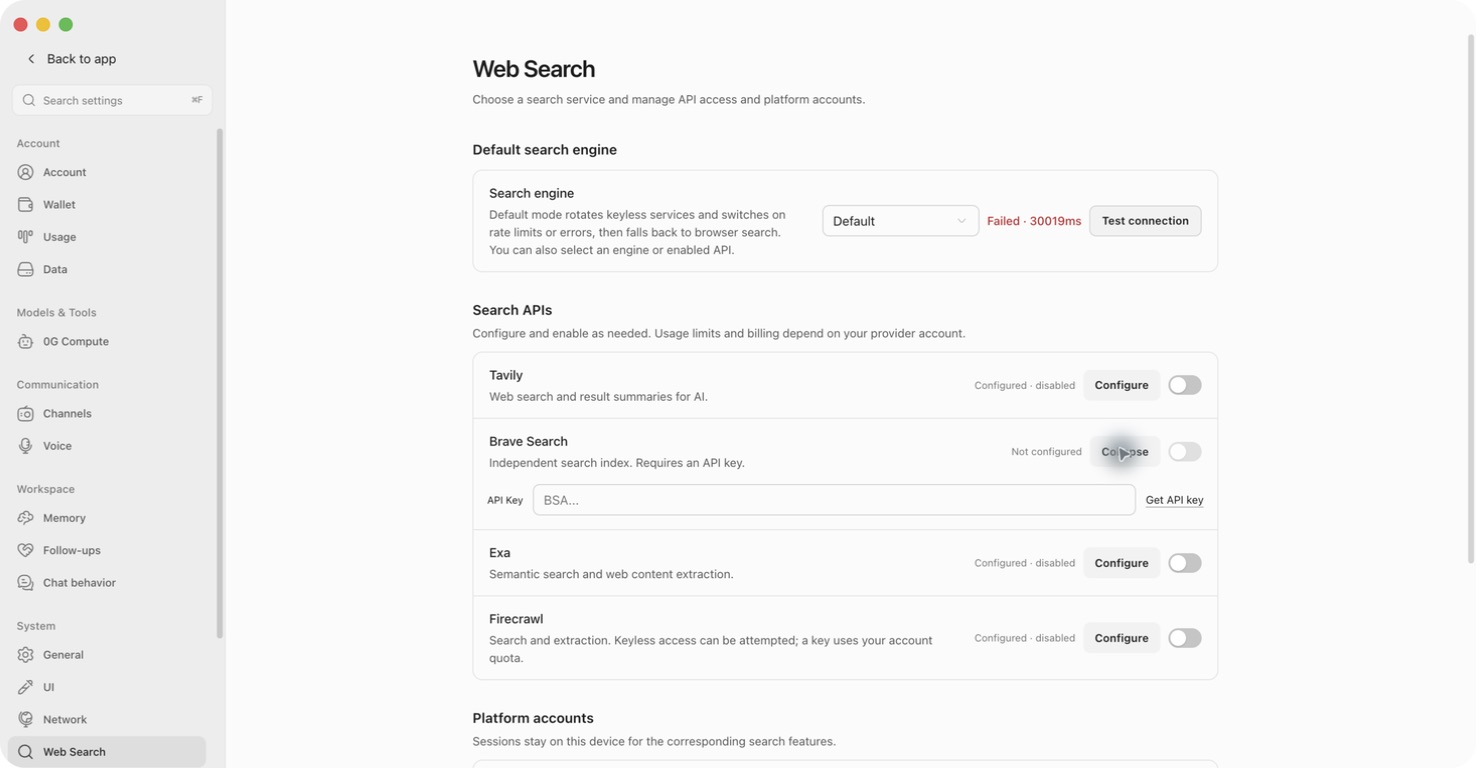
- Click Configure beside the service.
- Select Get API key to open that service’s key page. Create or obtain the key in your own account.
- Paste the key into the API Key field in Ghast. Do not paste it into a conversation.
- Turn on the service’s enable switch. For Tavily, Brave Search, and Exa, the switch is disabled while the key field is empty.
- Choose the service in the top Search engine picker if you want it as the default. Merely enabling it does not make it the default.
- Click Save at the bottom of Settings. There is no separate Save button inside the expanded key field. Collapse only hides the field.
- Run a simple public search in a conversation and inspect the result and service information. There is no dedicated connection-test button for these API services.
What each API status means
| Status | Meaning |
|---|---|
| Not configured | A required key is missing. |
| Configured · disabled | A key is entered but the service is off. This does not verify that the key is valid. |
| Key optional | Firecrawl has no key entered and is not enabled. |
| Enabled | The configuration meets the selection requirements; it does not prove a request has succeeded. |
| Default | This service is selected in the engine picker. Save pending changes before using it. |
After changing a key, repeat a conversation search. Because searches can fall back to other services, a successful answer alone is not proof that the replacement key worked. Check the tool’s service information where available, or the search provider’s account usage.
Disable a service or remove a key
Turn the service off and save to stop selecting that account-backed configuration for searches. To remove the key from this setting, expand Configure, clear the field, and save.
If you disable the currently selected API, the picker changes to Google. Removing a required key from the selected Tavily, Brave Search, or Exa configuration also selects Google. Review the picker before saving. Removing a Firecrawl key can leave Firecrawl selected and enabled for keyless attempts.
Removing a key in Ghast does not revoke it at the provider. If a key was exposed, revoke or rotate it in the provider account as well. Exa and Firecrawl can still be contacted through keyless search after their API rows are disabled. Other fallback services may also receive the query.
Connect platform accounts
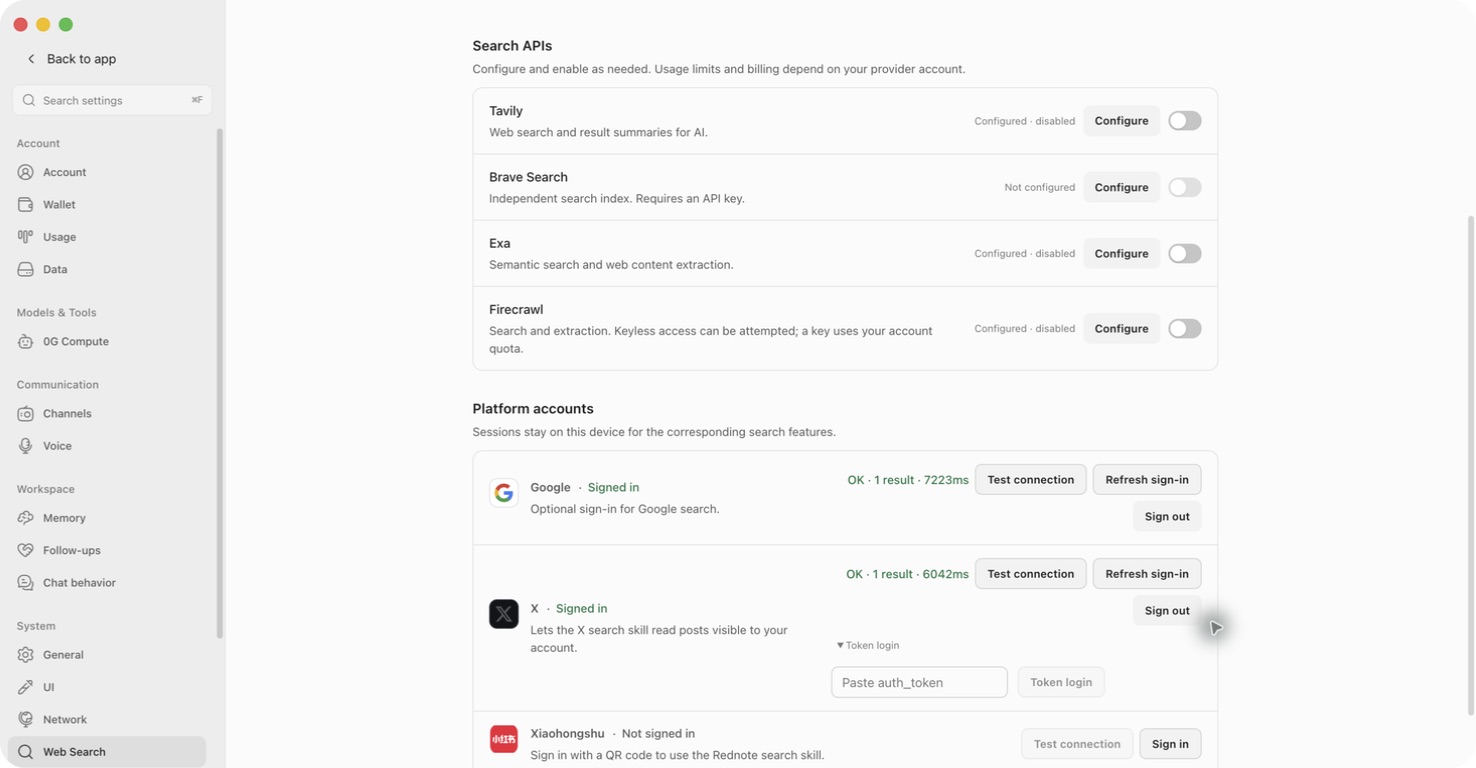
Under Platform accounts, each service has its own sign-in state and test. These sign-in actions take effect separately from the Settings Save button. An account marked Signed in can still have an expired or unusable session; use its test to check actual access.
Google
- Click Sign in, or Refresh sign-in if a session already exists.
- Complete authentication yourself in the opened window, using the intended Google account.
- Return to Ghast and wait for Signed in.
- Click Test connection on the Google row. This tests Google regardless of the engine selected at the top.
Google sign-in does not automatically switch the default engine to Google.
X: sign in and search posts
- On the X row, click Sign in or Refresh sign-in.
- Complete X authentication in the opened window.
- Return to Ghast, check Signed in, and click the X row’s Test connection. Its test query is “OpenAI”.
If you already have a session token and need to import it, expand Token login, paste your own X auth_token into the password field, then click Token login or press Enter. Successful import clears that field. Use the normal sign-in window if you do not have a token; do not ask the assistant to extract one from your browser.
The token grants account access. Never place it in chat, a screenshot, a support ticket, or a shared file. Token too short, No auth_token, or Import failed is not a successful sign-in; inspect the error and use the sign-in window if needed.
In a conversation, ask for the result type you need:
- Recent posts: “Search X for recent posts about [topic]. Give the post dates and links.”
- Popular posts: “Find top-ranked X posts about [topic], not a latest-post list.”
- Accounts: “Find X accounts whose profiles match [topic].”
- Media or discussion context: ask for visible media, or to open the original posts and read available thread/reply context.
X search is not the default web-search engine and will not appear in that picker. Its active capability is search and reading, not posting, liking, following, reposting, or sending direct messages. Ask Ghast to draft text in the conversation when you want something to review before posting yourself.
Xiaohongshu: QR sign-in and note search
- Click Sign in on the Xiaohongshu row.
- Wait while Ghast prepares the session, opens the sign-in page, and requests a fresh QR code.
- Scan the displayed code with the Xiaohongshu mobile app using the intended account. Complete any confirmation in the app.
- Wait for Signed in, then click Test connection. The button is disabled while signed out; its test searches for “美食”.
Use Cancel to abandon an in-progress sign-in, or Close after an error. Do not reuse or share expired QR codes. Refreshing sign-in creates a fresh session; complete that flow before starting a platform search.
Try:
Search Xiaohongshu for Shanghai café guides. Read the details of three relevant notes, separate what each author says, and include the original note links. Do not like, collect, comment, or publish anything.
You can request all notes, image notes, or video notes, and ask for detail-page reading when summaries are insufficient. Current RednoteSearch supports general ranking only, not latest or popularity sorting. A “current” request still needs dates checked in the returned notes; do not treat ranking as a date filter.
Sign out or change accounts
Click Sign out beside the intended platform, check its name in Sign out?, then confirm Sign out. Cancel keeps the session.
This clears that platform session saved by Ghast on this device. It does not delete the platform account, remove API keys, or erase previously returned content from conversations. To change accounts, sign out, sign in with the other account, and test again. Do not assume this also signs out your separate system browser.
Run your first search
In a conversation with a working model and WebSearch available, send:
Use WebSearch to find three official pages about the Python pathlib module. Use docs.python.org sources. Give the page titles and links, and distinguish search snippets from pages you actually read.
Then check the response:
- Did Ghast actually use WebSearch, rather than answer from memory?
- Are the links on the requested domain and relevant to the question?
- Does the answer distinguish snippets from page content?
- For time-sensitive work, do the pages show the needed publication or update dates?
- If results conflict or are incomplete, did Ghast say so?
Domain restrictions describe the sources you want returned, not the companies that may receive the query. Search snippets may be truncated, and repeated queries may reuse recent results rather than perform a new live search. For an important update, ask Ghast to read the original page and check its date.
Inspect the search and reading records
Expand the activity group above the answer, such as Searched · Read pages. Check the actual search query and the URLs in each Read pages entry. Select Used … sources below the answer to expand its source links; this count is not the number of pages read in full.
If a reading entry shows Content truncated, do not accept a claim that the complete page was read. Ask for the relevant heading or missing section to be fetched separately. Opening a source link lets you inspect the page yourself; it does not retroactively give the model the entire page.
Read a specific page
Give the complete URL and the question or section:
Use WebFetch to read this URL: [paste URL]. Summarize only the installation requirements section. If that section is missing or incomplete, say so instead of filling the gap from memory.
For long pages, ask for a named heading or a specific section. A truncated response is not proof that the whole article was read. If you need a table, image, interactive content, or sign-in that the extracted text does not contain, ask to inspect the page in a browser.
WebFetch handles HTTP(S) pages and rejects common localhost/private-network addresses by default. For an intentional local development task, use the Browser panel and confirm the exact local URL.
A page read is not always signed out. Browser-backed WebFetch can use existing Google or Xiaohongshu search sessions. Check which account is connected and whether the page contains private material before asking Ghast to read it. Opening a page in another browser does not guarantee it uses the same session.
Know what leaves your device
Search queries go to external search services. Default/keyless searches can contact Exa, Parallel, Firecrawl, or Keenable. Fallbacks can contact built-in engines, DuckDuckGo, or other enabled Tavily, Brave Search, Exa, or Firecrawl account-backed configurations, including after an ordinary search returns no results. Keyless search requests do not attach your browser cookies or platform sign-in credentials, but that does not make the query anonymous or local-only.
Signed-in platform searches use the corresponding account session. Page contents, search results, and visible account data returned to the conversation can then be sent to the selected model provider. Do not include confidential queries, keys, cookies, or private-page content unless that data flow is appropriate for your task.
Before any browser task that sends, uploads, publishes, purchases, or deletes, confirm the site, account, target, and final action. Content found on a page does not authorize new actions.
Troubleshooting
A third-party engine is greyed out
Check the key and enable switch under Search APIs. Tavily, Brave Search, and Exa need both; Firecrawl needs only its switch. Save the change. Configured · disabled is not ready to select.
There is no Test connection button beside the picker
This is expected for a selected third-party API. Save its configuration and verify it with a conversation search. The Google row’s test only checks Google; it does not test the selected API.
The test fails, times out, or returns no results
Hover over the test status for its error. Check Settings → Network, including the proxy actually in use. Try a simple public query or test another built-in engine. A blocked page, verification challenge, rate limit, and a connectivity failure can all prevent results; failure alone does not identify which occurred.
Do not repeatedly replace keys or refresh every account before identifying the failing service.
Signed in, but platform search fails
Test that platform’s own row. If the session expired, use Refresh sign-in. If the status says Restart required, restart Ghast and retry after saving any intended settings changes. Sign-in alone does not prove a search returned results.
For Xiaohongshu QR errors, cancel the old attempt before creating a new one. If the message reports a blocked network, use a trusted network or proxy. Do not bypass platform verification or share the QR code to troubleshoot.
The answer has no search tools or citations
Check the model, available Tools, and the relevant Skill. Explicitly request WebSearch, XSearch, or RednoteSearch for the intended source. A model-generated answer is not evidence of an online lookup.
A URL returns a login page or incomplete text
Verify the full address and the intended account. Ask Ghast to use a browser for interactive sign-in or page inspection. Complete authentication yourself; do not put passwords or one-time codes in the conversation. If a page cannot be read, ask for the limitation to be reported rather than a guessed summary.