Connect Weixin
Use the Weixin connection to send Ghast tasks from the messaging connection authorized on your phone and receive replies while Ghast runs on your computer. Open Settings → Channels → Weixin.
This is a QR-authorized bot connection, not an import of your WeChat account. Do not expect it to synchronize all contacts, personal chats, groups or past chat history. The current connection routes incoming messages by remote sender ID; it does not provide a separate group or thread workflow.
Before signing in
- Configure a usable provider, complete any required funding, and enable a model. WeChat sign-in does not supply model access or credit.
- Prepare a non-sensitive local workspace. Check Settings → General → Default workspace before accepting the first message: a sender without an explicit binding can use that default.
- Keep Ghast running with internet access. This is a local connection, not an independently hosted service that keeps working after you quit the app.
- Be ready to scan on your own phone and inspect its authorization screen. Account eligibility and the destination offered by the phone must be established there; Ghast does not display a supported-account catalog or a minimum WeChat version on this page.
There is no Weixin sender allowlist, pairing approval, group allowlist or mention-only switch in Ghast. Treat every sender whose messages reach this configured connection as able to start a task. A workspace binding selects a workspace; it does not deny other senders. Do not authorize a connection whose audience you cannot establish or whose messages should not reach your selected model and tools.
1. Set the model and workspace
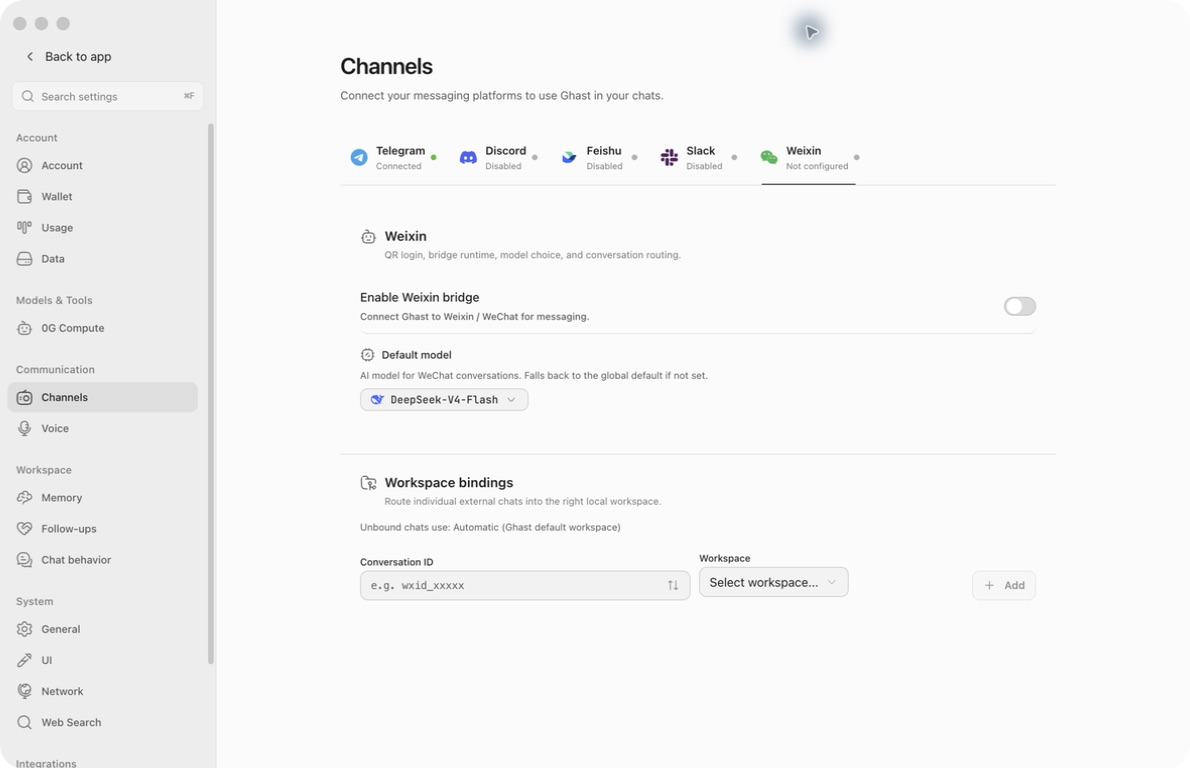
- Enable Weixin bridge: turn on after reviewing the model and workspace, then save. Turning it on also reveals the login panel before saving.
- Default model: select a model from an enabled, authenticated provider. If there are no usable options, finish provider setup first.
- Unbound chats use: read the effective fallback workspace shown here. Change the general default if that workspace is too broad.
- Conversation ID: select a known external conversation or enter its exact remote ID. A display name, phone number or guessed WeChat username is not a substitute.
- Workspace: select an existing non-temporary local workspace for that ID.
- Add: add the ID/workspace pair to the settings draft. It is disabled until both are supplied. Save to apply it.
Which model will respond?
An explicit Weixin default takes priority over an existing conversation's stored model. With no explicit Weixin default, Ghast uses the existing conversation's model, then Chat's default. The picker can display Chat's fallback even when no separate Weixin default has been saved; the displayed name alone does not prove an explicit override.
Choosing a model here does not enable it or renew its authentication. Test the provider/model in its own settings first, then send a separate Weixin test message after connection. Successful local model testing does not prove external delivery.
Bind a sender's conversation
- If the sender is already known, open Conversation ID and search/select the recorded entry. You can also enter an exact ID manually. The example
wxid_xxxxxis a hint, not a rule from which to construct an ID. - Choose Workspace and click Add.
- Check the new row and click Save. To change an existing pair, remove its row and add the correct pair, then save. Removing a row does not erase the chat history or deny that sender.
- Send a new harmless message and check the corresponding local conversation's workspace before asking it to access files.
If no conversation is known yet, first keep the fallback workspace narrow and complete a plain-text test. Return to the picker after Ghast has recorded that connection's sender. The remote conversation ID is not the local Ghast conversation ID. Do not publish either in screenshots or support posts.
Resolution is: valid explicit binding → General default workspace → built-in Default workspace. Changing the mapping applies to an existing mapped conversation on its next accepted incoming message; it does not move files, clear context or isolate previous messages. A missing/deleted workspace can cause fallback, so recheck bindings after deleting a workspace.
2. Enable, save and scan
- Turn on Enable Weixin bridge and click the footer Save. Review other pending settings first: Save applies the shared settings draft, not just this platform tab.
- Click Show QR code when you are ready to authorize the connection.
- Scan the QR code using WeChat on your own phone. Inspect the connection/account information and confirm only the intended authorization on the phone.
- Keep the settings page open while it waits for confirmation. Follow the messaging destination shown by the phone after authorization; do not assume every existing personal chat has been connected.
- Check the logged-in indication and expand Runtime status. Then perform the first-message test below.
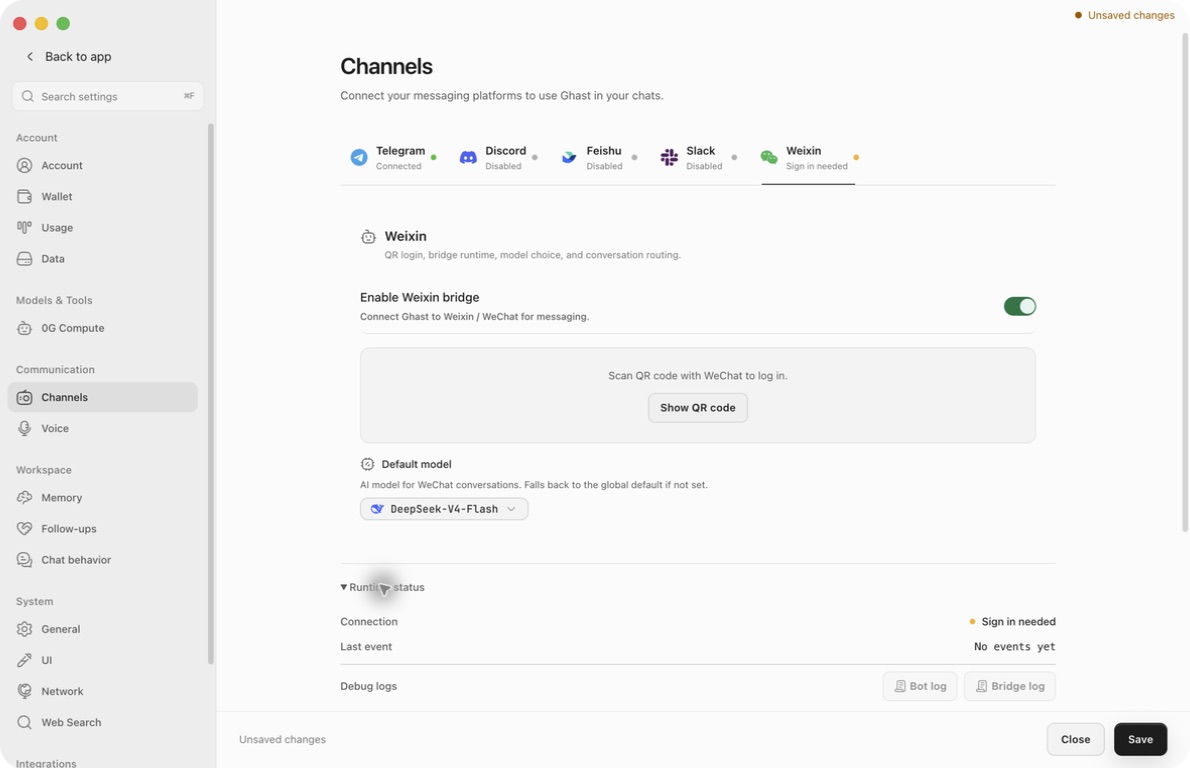
Save is not a login confirmation
| Action | When it takes effect |
|---|---|
| Change enablement, default model or workspace bindings | After Save. Changing saved Weixin settings restarts its connection, including model-only and binding-only changes. Wait for important work to finish first. |
| Show QR code, Retry, Refresh | Direct login actions. They request or check a real login session without waiting for Save. |
| Confirm the QR authorization on the phone | Completes the login flow; Ghast attempts to store the credential and start receiving immediately. It is not an unsaved settings change. |
| Log out | Immediately stops the local bot and clears its stored login credential and receive cursor. No Save or separate confirmation dialog is required. |
| Footer Close, then confirm discarding | Discards unsaved configuration. It does not undo a completed login or logout. |
The QR button works even when you have only turned on the switch in an unsaved draft. Showing a QR starts a background login flow; hiding the panel, switching tabs or discarding that draft is not a reliable cancellation control. Only request a code when you intend to complete the connection. Do not scan an old or shared screenshot, and never publish a live QR or its login URL.
Expired, missing or rejected QR codes
- Use the current code shown in Ghast. The login flow can replace an expired code; do not keep scanning an earlier image.
- If the page explicitly reports expiry, use Refresh. If it is generating a code without displaying one and offers Retry, use that button and inspect any inline error.
- If the same failed state persists, do not repeatedly assume that a visible code is still valid. Stop scanning it, inspect the Bot/Bridge logs, and restart the connection by saving it off and then on once it is safe to interrupt work. Request a new code afterward.
- If the phone confirms but Ghast reports that the login token could not be saved, the login has not completed locally. Restore access to the current profile's encrypted storage before trying again; repeated scanning does not fix locked credential storage.
- If the connection later reports sign-in needed after token expiry/revocation, authorize again. An old logged-in screenshot does not prove a current session.
Ghast's page does not offer a dedicated Cancel login button. Do not use Log out as an assumed cancellation mechanism for an unfinished QR flow; it is intended for an established login.
3. Check the first reply
- In the messaging destination established by the phone authorization, send one non-sensitive text such as: “Reply with Weixin connected. Do not use tools or access files.”
- Wait for a reply before sending another task. Keep Ghast open and check the local conversation if no reply arrives.
- Confirm all three separately: the incoming message reached Ghast, the intended model produced an answer, and that answer appeared back on the phone.
- Confirm the conversation uses the intended workspace. Only then test a small non-sensitive attachment or a narrowly scoped file task.
There is no Verify credentials, Detect recipients or Send test message button in this Weixin settings panel. A Running badge or saved configuration does not replace the phone-to-Ghast-to-phone test.
Conversations, timing and task control
The current route keeps a local conversation for each remote sender ID. Later accepted messages from that same sender reuse the mapping and can use prior conversation context. It does not create a new conversation for every message, nor expose independent group threads.
| What you send or see | Current behavior and how to use it |
|---|---|
| Several text messages in quick succession | Ghast waits about 1.5 seconds for a pause and combines them. Put a precise instruction in one message where possible. |
| Only an image, file, video or untranscribed voice item | It can wait about 15 seconds for a text caption before starting. This initial delay is not necessarily a connection failure. |
| Media followed by its instruction | The pending batch can be submitted as soon as it contains both media and text. Send one complete attachment task and wait for the answer. |
| Another task while the previous one is running | There is no reliable per-sender queue or separate busy-run branch here. Overlapping requests can interfere with response tracking. Wait for completion, or manage the running task in Ghast. |
| A typing indicator or an early acknowledgment | Progress only. A short text may be sent when tool work starts; the client does not continuously edit a streamed WeChat answer. |
| A “still processing” message after about one minute | The connection is still waiting for the model task; it is not a finished answer. |
| A timeout after about five minutes of waiting for generation | The remote wait ended. It does not guarantee that the local model/tool task was stopped. Inspect it in Ghast before retrying to avoid duplicate work. |
These timings describe the current batching and generation wait, not an end-to-end delivery guarantee. Media download/upload and platform/network delays add time.
Weixin has no implemented remote /new, /stop, /model or /help command workflow. Such text can be sent to the model as ordinary input; do not rely on it to reset a conversation, stop a task or change settings. Use Ghast's conversation controls and model settings. Rebinding a workspace or signing out does not create a clean conversation history.
Messages, attachments and audio
Incoming content
| Content | What reaches the task |
|---|---|
| Text | The received text, including combined short messages. |
| Textual quote/reply | Available quoted text/title can be prepended to the instruction. This is not retrieval of the complete original conversation. |
| Image, video or ordinary file | Ghast attempts to download the item and attach its bytes to the model request. Successful download does not mean the selected model supports that format. |
| Voice with platform-provided transcription | The transcription is used as text; Ghast does not also download that voice item in this path. |
| Voice without platform transcription | Ghast attempts to download the audio and pass it as audio to the selected model. This is not a promise of local speech recognition for every voice message. |
| Media without an instruction | Ghast supplies a generic request such as inspecting an image or transcribing audio. Add your own caption to specify the actual task. |
If an attachment download fails, the remaining text or successfully downloaded items can still proceed. Ask the model to identify the received files before relying on a document analysis. If neither usable text nor media remains, there may be no task or reply.
The page provides no file-size setting or published universal attachment limit. Do not transfer another platform's limit, such as Slack's 20 MiB input check, to Weixin. Start small; large files can fail at the platform, network or model boundary.
Outgoing content
Text replies are simplified from Markdown rather than rendered as Ghast's rich output. Headings, emphasis and code fences lose formatting; links can appear as text with their URL. There is no automatic long-text splitting in this connection. Request a concise answer or an actual generated file for a long report, and verify it on the phone.
Ghast can attempt to send real output files discovered in tool results or the final answer, including images, videos and ordinary files. A path written by the model is not itself a delivered attachment: the file must exist and the upload must succeed. Check that every expected file appears and opens; a delivered text answer does not prove all attachments were delivered. Output files are uploaded to the messaging service/CDN, so do not request delivery of private files unintentionally.
Voice replies
Weixin's audio path differs from ordinary Chat playback:
- An output audio file can be sent as the reply; when several are produced, the current special voice path uses the first one, not a guaranteed multi-track bundle.
- For downloaded voice input, a text-only answer with no tool calls can trigger text-to-speech. This path can request speech even when automatic voice reply is Off; do not treat that switch as a complete Weixin audio-disable control. Read Voice input and replies.
- That synthesized answer uses at most about 4,000 characters of text. It is not an unlimited spoken version of a long report.
- The audio is sent as an attachment, with conversion toward MP3 and a fallback file path. Do not promise a native WeChat voice bubble or universal playback compatibility.
- A selected audio reply can replace the text reply. Failure to upload that audio does not reliably resend the omitted text; inspect Ghast's answer and ask for a plain-text retry after checking the failed task.
Runtime status and logs
Expand Runtime status while enablement is on. The login panel and runtime section can also appear in an unsaved enablement draft.
- Connection: local state such as sign-in needed or running. Running is not proof that the next incoming message, model call and reply upload will succeed.
- Started, when available: when the local receive process started, not when every task completed.
- Last event: last recorded incoming event. No events yet can mean no event has arrived; an old timestamp can also mean an idle conversation.
- Bot log: login, receive polling and media send/download activity. Disabled when no log path is available.
- Bridge log: local model connection, conversation dispatch and generation/delivery diagnostics.
- Log-panel Refresh: reloads the displayed log tail. The viewer shows the latest 200 lines, not the complete history or a continuously streaming console.
Open one log at a time and refresh after reproducing a problem once. Avoid changing unrelated settings as a diagnostic step: saving a changed Weixin model or binding restarts the connection.
Logs can include login URLs, remote IDs, message excerpts and local file paths. Error replies can also include internal error details. Inspect and redact both before sharing; never post a complete log or QR screenshot by default. Do not upload the local stored login credential for troubleshooting.
Pause, log out or change accounts
- Pause receiving while retaining the saved login: turn off Enable Weixin bridge and click Save. Later enable and save to attempt to resume the stored session. Expired or revoked credentials still require a new login.
- Remove the local login: while the logged-in panel is visible, click Log out only when ready. It acts immediately and clears the local credential and receive cursor. This does not delete existing Ghast conversations, their workspace mappings or files, or claim to revoke every session on the platform.
- Leave it off after logout: also turn the enable switch off and save; logout does not itself rewrite that saved switch.
- Change the authorized account: finish or stop current work in Ghast, log out, and authorize the intended account using a new QR. Review the model, fallback workspace and existing bindings before accepting messages. Do not assume logout cleared old configuration or history.
After a connection restart, send a fresh harmless incoming message before testing another reply. The per-sender reply context is held in memory and is rebuilt from incoming messages; an old conversation ID alone does not guarantee a valid new outbound reply.
Troubleshooting
| Symptom | Check next |
|---|---|
| No login panel | Turn on the enable switch. Save the intended configuration before requesting a code. |
| QR missing, stale or rejected | Follow QR recovery; read the inline error and logs. Do not scan a shared image or infer validity from its presence. |
| Phone confirmed, client still needs sign-in | Check whether credential storage failed, whether the current profile is usable, and whether authentication was revoked. |
| Logged in / Running, but no task | Send one new plain-text test to the destination established by authorization; check Last event and Bot log before diagnosing the model. |
| Task appears locally, but no answer | Check provider authentication, enabled model and balance, then Bridge log. Inspect the local run before retrying a timeout. |
| Text arrives but a file/audio is missing | Check whether the file exists, media upload failed, the model supports the input, or audio replaced the text. Verify the actual attachment on the phone. |
| Wrong workspace or retained old context | Check the exact remote sender ID, binding and fallback. A binding is routing, not a history reset or sender restriction. |
| Replies became unreliable after several quick tasks | Stop sending overlapping requests. Inspect and finish/stop existing local work, then try one new message. |
| No reply after saving settings | A changed Weixin configuration restarts the connection. Check login/runtime and send a fresh incoming test after restart. |
Continue with Channel settings, voice behavior, or permissions and approvals.