Browser
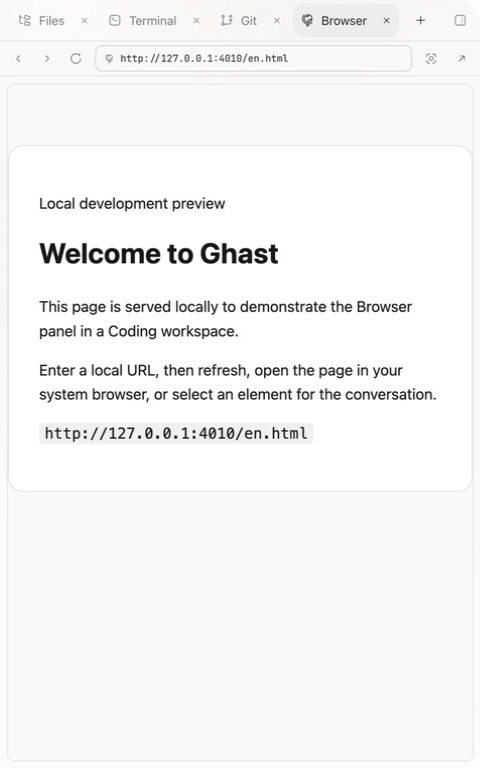
The Browser panel opens a local development page or website beside the coding conversation. Choose Workspace panel → New tab → Browser.
Open a page
Enter a complete address and confirm it. Common uses include:
- opening a local server such as
http://127.0.0.1:3000; - reproducing a layout, interaction, or error state;
- refreshing after a change to check the same flow;
- opening the page in the system browser for broader debugging.
The toolbar contains Back, Forward, Refresh, the address field, Select an element for chat, and Open in browser. Element selection is available only for local preview URLs that Ghast recognizes; it does not work on external pages. A blank or connection-error page usually means the address is unavailable or the service is not running; it is not a build result.
Select an element for chat
On a local preview, choose Select an element for chat, then click the target. Ghast adds context about that element to a later message, which is useful for requests such as “fix this button” or “adjust this section.” On an external page, use a screenshot, app context, or a browser capability that supports that site instead.
The context card includes the page URL and title, element tag, generated CSS selector, position and dimensions, and truncated text, HTML, and attributes. Current limits are 1,200 characters of text, 5,000 characters of element outerHTML, and the first 16 attributes. Each attribute value is capped at 500 characters, and inline style is omitted. This is not a complete DOM snapshot; content beyond those limits is not sent with the message.
Before sending, review the context card in the composer:
- The URL belongs to the target page.
- The selection is the intended element, not a larger region containing sensitive data.
- Truncation has not removed a child element or attribute needed to explain the issue.
- The current page state reproduces the problem.
- The prompt states expected behavior and completion criteria.
Element context helps identify the target. It does not authorize file changes or browser actions; the workspace, Tools, command authorization, and site sign-in still control them.
Signed-in pages and sensitive data
Do not place passwords, one-time codes, private keys, or recovery phrases in the conversation. Before selecting an element on a signed-in page, check for account names, internal URLs, customer data, and tokens. When login must happen in the external browser, use Open in browser, then return to a page state that contains no sensitive information.
Finish a UI task
Reproduce the issue first, make the change, then refresh the same path. Check responsive issues at the target window size. For save, upload, or sign-in flows, confirm both the visible result and the underlying data state. A rendered page does not replace terminal output, logs, network responses, or backend state.