Connect Telegram
Connect a Telegram bot to Ghast to send tasks from your phone or a group and receive replies in Telegram. Your computer runs the connection: keep Ghast Desktop running, signed in, and online.
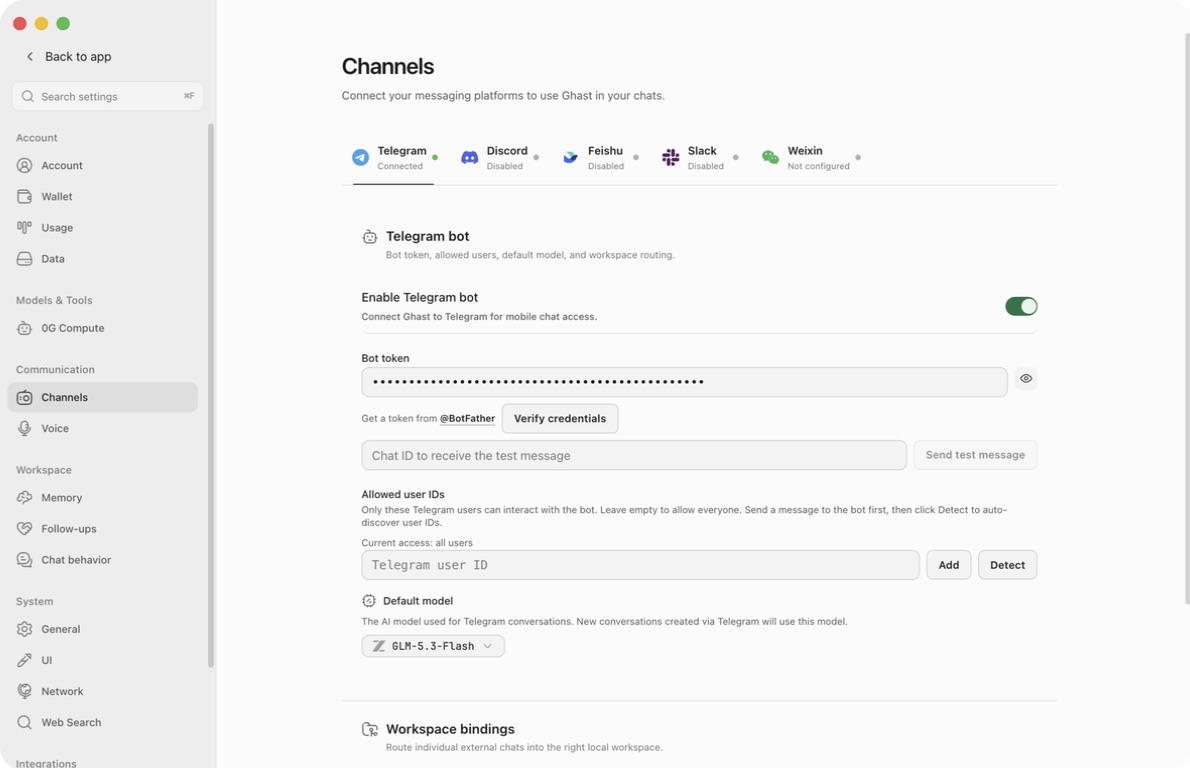
Open Settings → Channels → Telegram. The page contains the bot token, three different setup/test actions, a user list, the default model, and workspace bindings. Group participation and Telegram privacy mode are configured in Telegram, not with a separate “Groups” switch in Ghast.
Before you start
Use a bot dedicated to this Ghast installation, a working provider and model, and a small workspace without sensitive files. Test private chat before adding the bot to a group.
Allowed user IDs applies to ordinary private-chat messages. An empty list allows all private-chat senders who can reach the bot. The list is not a group-member allowlist: group messages take a separate path, and this page has no group-ID allowlist.
Adding only your own user ID therefore does not make a bot in a shared group owner-only. Review group membership, bot visibility, model usage, and workspace access separately.
1. Create the bot and enter its token
- In Telegram, open the official @BotFather.
- Send
/newbotand follow its prompts for a display name and username. - Copy the resulting bot token into Bot token in Ghast. This is a bot credential, not your personal Telegram login code, phone number, user ID, or model API key.
- Keep the token masked using the eye control. Never include it in a support message or screenshot.
- Click Verify credentials and check that the returned username is the intended bot.
Telegram's bot creation tutorial describes obtaining the token. You do not need to implement its example bot: Ghast supplies the running program.
Do not reuse a token that another service is already polling. Ghast receives messages through long polling and does not require a public callback URL. A previously configured webhook conflicts with polling; moving such a bot requires deliberately retiring its previous connection. See Telegram's update-delivery FAQ.
2. Understand the three buttons
| Action | What it actually does | What success does not prove |
|---|---|---|
| Verify credentials | Uses the token currently in the input to request the bot's identity from Telegram | Does not save, enable the bridge, send a chat message, test the model, or validate a workspace |
| Detect | Reads people and Telegram history already recorded in the current local Ghast profile and lists known user IDs | Does not query all Telegram users, validate the entered token, or add anyone to the allowlist automatically |
| Send test message | Validates the current token, then sends a fixed Ghast test message to the explicitly entered Chat ID | Does not test inbound messages, the allowlist, model generation, tool access, or workspace routing |
Verification and test-send use the current token field, including an unsaved edit. The bot need not be enabled for these tests. A previously successful result remains only evidence for the token tested at that time; editing the field is not another verification.
Send test message sends a real external message. It does not generate model output and does not use the inbound user allowlist as an outbound recipient restriction. Check the recipient before clicking. No chat is automatically chosen for you.
3. Add allowed users
Use the person's numeric Telegram user ID, not their @username, display name, or a negative group Chat ID.
If you already know the ID
- Enter one ID in Allowed user IDs.
- Click Add or press Enter.
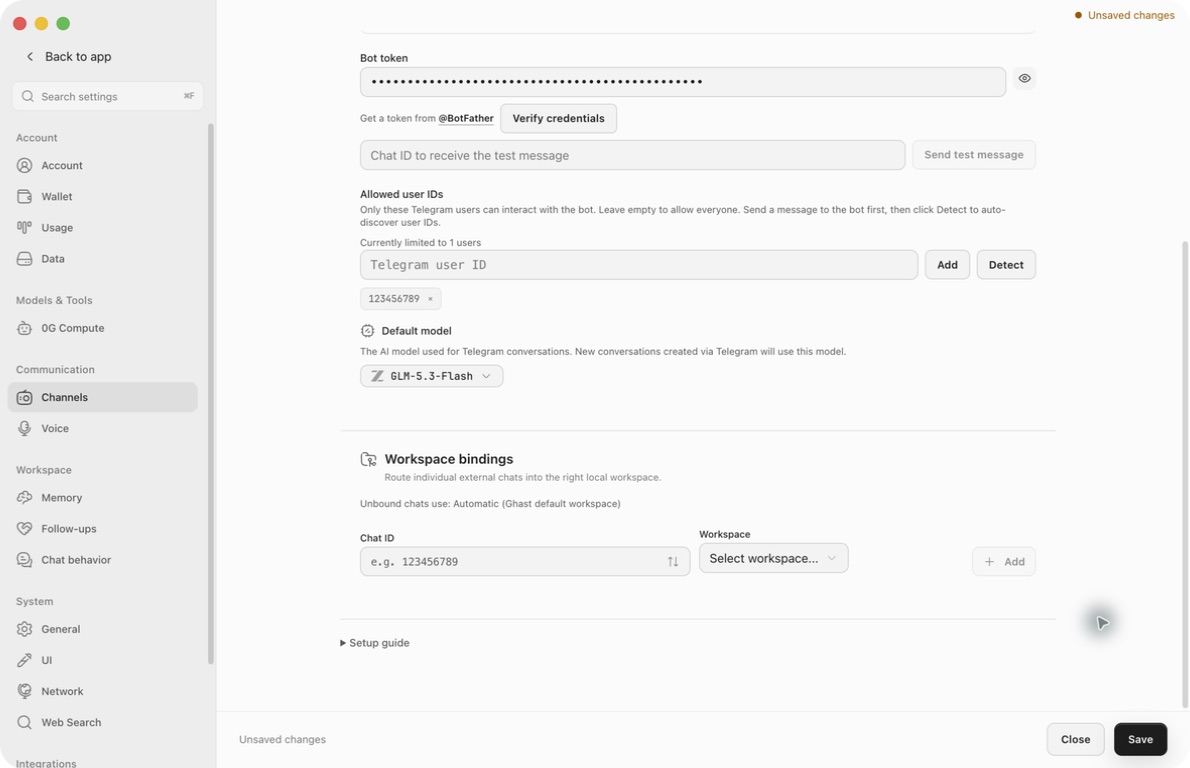
- Confirm that the ID appears as a chip and the access summary changes.
- Repeat for other intended private-chat users.
- Click Save when the rest of the configuration is ready.
Typing without adding does not update the list. Add one ID at a time; the field does not validate a person's identity or split a comma-separated list. Duplicate entries are not added again. Remove a chip using its × button.
The summary reflects your current draft. “Currently limited to 1 users” beside Unsaved changes does not mean the running bot has already adopted that restriction.
Find a previously seen user with Detect
- If the bot has already handled a non-sensitive message from the intended user, click Detect.
- Review the returned name and numeric ID.
- Click that user's result to add it to the draft. An added result displays a check mark.
- Save the configuration.
Detection searches local records, including previously seen group participants; a returned person is not necessarily a user of the token currently typed into the form. Recheck the identity. Detection can also return old records and is not proof that the person can currently message this bot.
If nothing appears, Ghast may not yet have a local record for that person. Use a known ID instead. Do not temporarily open a production bot to everyone just to populate detection.
Removing the final allowed user leaves the list empty, which allows everyone in private chats; it does not deny everyone. To stop access, disable the bot and save.
4. Choose the model and workspace
Default model
Choose a working Default model and save. The order for a Telegram task is:
- an explicitly selected Telegram default;
- the model already stored on the mapped conversation;
- the Chat default, if no conversation model is available.
An explicit Telegram default can therefore change the model used by an existing Telegram conversation on its next task. It is not limited to new conversations despite the short settings hint.
If no model is configured, Ghast returns a model-configuration error rather than treating the bot token as a source of inference. Check model enablement and availability. Provider charges and balances are separate from the Telegram connection.
Workspace bindings
- In Workspace bindings, select a known external chat or enter its Chat ID manually. The picker also provides manual entry.
- Select a non-temporary workspace.
- Click Add and confirm the
chat → workspacerow. - Save.
The ID here identifies the conversation, not the person. Private-chat IDs are positive; group/supergroup IDs are negative. Preserve a group ID's minus sign and full value.
A valid chat binding takes priority over General → Default workspace. If neither is available, Ghast uses its built-in default workspace. “Automatic” is not the project currently visible on your desktop. The next Telegram task also reattaches an existing mapped conversation to the currently resolved workspace.
To replace a binding, remove its row and add the same chat with the new workspace, then save. Removing a binding returns the chat to the fallback workspace—it does not block that chat or delete its files.
5. Save and verify a private conversation
- Review the bot token, allowed users, model, and workspace.
- Turn on Enable Telegram bot and click Save. An empty token disables the enable switch.
- Wait for the Telegram tab's status to refresh. Connected means polling has succeeded with no current polling error; it does not prove a model reply.
- In Telegram, open your bot and press Start or send
/start. - Send: “Reply only with
telegram-ready-47. Do not use tools.” - Confirm the matching reply arrives in Telegram.
A bot cannot initiate a new private conversation with a person who has never contacted it. See Telegram's introduction. For the optional outbound-only test, enter the known Chat ID to receive the test message, then click Send test message. The field accepts digits, optionally starting with a minus sign; a username or t.me link will not enable the button.
The test result can show a valid bot identity and a send failure. That means token validation succeeded but delivery to that recipient failed—check the Chat ID, whether the user started or blocked the bot, and whether the bot can send in that group.
Groups: visibility, triggers, and history
Only add Ghast to a group whose members and content may be processed by your local Ghast installation and its configured services.
Configure Telegram's side deliberately
Use BotFather's /setjoingroups if the bot should be allowed into groups. Group Privacy controls which ordinary group messages Telegram delivers. Keep it enabled unless broader group participation is intended. Disabling it with /setprivacy makes more group content available, and Telegram says the bot must be re-added for this change to take effect. Bots made group administrators receive broader message visibility regardless. See Telegram privacy mode.
For explicitly enabled communication with other bots, see Telegram's Bot-to-Bot Communication Mode. It is not required for chatting with people; do not enable it just to troubleshoot a human message.
What Ghast does with delivered group messages
There is no Telegram Mention-only switch on this Ghast page.
- Mentioning the bot username, replying to the bot, or including
ghastin text can trigger a task. - Supported slash commands can enter command handling.
- Other delivered messages can enter a background reply-decision check. Ghast may also continue a discussion after its recent reply without requiring a fresh mention.
- Adding the bot to a group can itself start a greeting task; do not assume it waits for the first explicit prompt.
- Media, history, links, and participant information can be processed before a reply decision. “No reply” does not mean “not collected.”
The background check can consume model usage, include recent group text and images, and sometimes choose to participate without an explicit request. Its participation behavior is not a strict allow/deny policy. Restrict platform visibility and the bot's group membership rather than relying on silence.
Topics are not isolated workspaces
Telegram topics can carry a reply location, but the current Ghast conversation and workspace mapping uses the group Chat ID, not a separate topic key. Participants and topics in the same group can share a Ghast conversation and group history. Do not use topics as private task boundaries, and test that replies arrive in the intended topic.
Commands and conversation scope
Use these commands in a private conversation for personal conversation management:
| Command | Purpose |
|---|---|
/start or /help | Display the available command guide |
/new Project notes | Create another conversation with an optional title |
/conversations or /list | Show the conversations mapped to your Telegram user |
/conversation 2 or /switch 2 | Select a numbered item from the latest list |
/stop | Request stopping an active generation in the current Telegram chat |
/model | Open provider/model buttons and change the shared Telegram default |
Conversation numbers are list positions, not permanent conversation IDs. Fetch the list again before switching. The list is user-scoped, not just the current group's history; do not request it in a shared group if its titles should remain private.
Current group limitation: ordinary group traffic uses a shared group mapping, whereas /new and /conversation update a sender-specific mapping. A confirmation in a group is not proof that subsequent ordinary messages switched to that new conversation. Neither command erases group history.
If a task is already running, a new message can branch into another conversation instead of waiting. /stop targets an active generation in the chat, not necessarily only the sender's task or a specific topic, and it does not undo completed tool actions.
Changing models from Telegram
/model shows buttons for enabled providers, then up to 50 enabled models for the chosen provider. Choose the model to update the Telegram-wide default, not only a personal conversation. Use the desktop selector if the desired model is not shown. For “Session expired,” send /model again.
These buttons are not an owner-only administration interface. The private-message user check is not re-applied to model-button callbacks, and group members may be able to interact with them. Keep model menus out of groups where that shared change would be inappropriate. Reopen desktop settings before further edits so an old settings draft does not overwrite a remote model change.
Saving, closing, and disconnecting
Token, enable switch, user-list edits, model, and workspace bindings are draft settings until Save. Switching platform tabs does not save them. Close settings and confirm close without saving to abandon the draft.
Saved Telegram changes restart its bridge, including changes only to a model or binding. Make them between tasks; an in-flight response or external delivery is not guaranteed to survive the restart. Verification, detection, and test-send are immediate actions, not pending changes that closing settings can undo.
To disconnect, turn off Enable Telegram bot and save. This does not revoke the token, remove the bot from Telegram groups, clear existing conversations/media, or delete sent messages. Retire those separately when no longer needed.
Troubleshooting
| Symptom | Check |
|---|---|
| Cannot enable | Enter a bot token first. |
| Token verifies but no inbound reply | Save and enable; confirm polling status, allowed private user ID, available model, and no other polling/webhook consumer. |
| Detect is empty | It uses local records, not a live Telegram directory. Enter a known user ID manually if necessary. |
| Detect shows unexpected people | Results can come from earlier local private/group records, not only the current bot. Verify IDs before adding. |
| Test-send is disabled | Enter a numeric Chat ID, not a username/link; wait if another test is running. |
| Identity appears but test-send fails | Check recipient ID, first-contact/block state, group membership, and send permission. |
| Adding an ID appears to have no effect | Click Add, confirm a chip, then Save. Input alone is not a list entry. |
| Group users bypass the allowed-user list | The list restricts private messages, not group membership. |
| Group text is missing | Telegram privacy mode may prevent delivery; Ghast cannot process events it does not receive. Decide visibility deliberately, rather than granting administrator automatically. |
| Replies span topics or use an unexpected workspace | Topics share group-level routing. Check the full group Chat ID and fallback workspace. |
| Model changed for other Telegram conversations | Remote model buttons update a shared default. |
| Text works but voice or media does not | Test separately using Voice input and replies; text delivery does not prove attachment processing or transcription. |
| Repeated polling/network errors | Keep Ghast online, check network settings, token validity and competing bot connections. Never share logs containing token-bearing Telegram API URLs. |