Terminal
The Terminal panel runs commands directly in the selected workspace and can show sessions started by the agent. Open Workspace panel → New tab → Terminal.
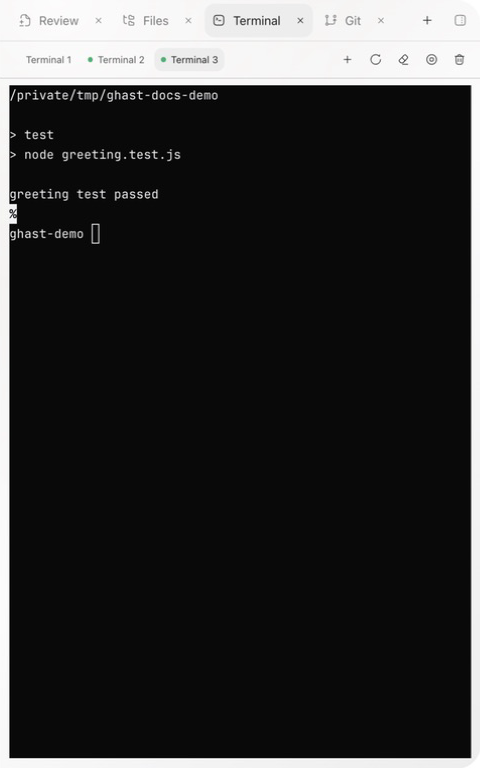
Create and switch sessions
With no terminal open, the panel shows No terminal sessions. Select New terminal to create one rooted in the current workspace. You can keep multiple terminals and switch from their tabs. A tab title does not prove the working directory; after switching or taking over, run pwd (cd on Windows) before a project command.
Terminal state can be running, connecting, exited, killed, closed, or error. The state does not replace command output; read the last output and exit information.
Control the current terminal
Hover over toolbar icons to identify the action before clicking. In particular, Kill acts immediately without a confirmation dialog; it is not a way to hide the tab.
| Action | Result |
|---|---|
| Reconnect | Reconnect to a running session; for an exited or killed session, the same button requests a replacement session |
| Clear output | Clear visible output without undoing any command or file change |
| Interrupt process | Send an interrupt to the foreground process |
| Kill | Terminate the terminal session |
| New terminal | Keep existing tabs and open another session |
If an interrupted process remains active, inspect its state before using Kill. Closing the panel does not necessarily stop a long-running development server.
Recover a disconnected or ended session
- Select the intended terminal tab and read its latest output. Closed or Connection error can describe the panel's connection, not proof that the underlying process ended.
- Choose Reconnect once. While connecting, the button is disabled; wait for the resulting state rather than opening repeated replacement terminals.
- If the session was still running, inspect the existing prompt or process after reconnecting. Do not automatically repeat its last command.
- If the session was Exited or Killed, reconnecting creates a replacement. It does not resume the old program, replay its command or restore its in-memory state. Verify the directory and prepare any required environment again.
- If no usable prompt returns, inspect the application or process independently before retrying a write, installer or server start.
An open shell can remain Running after a command fails. Read the command's output and exit result; the terminal's green state is not a passed-test indicator.
Interrupt without confusing it with rollback
- Confirm which session and foreground process are active.
- If this is an agent session, coordinate with the agent before taking over.
- Choose Interrupt process. It sends the terminal equivalent of Ctrl+C; the program decides how to handle it.
- Check for a returned shell prompt and inspect any partial files or external changes. If you deliberately need to terminate the entire session, use Kill only after this check.
Interrupt is disabled while disconnected, after exit/termination, or while observing an agent session without takeover. Neither Interrupt nor Kill reverses completed work.
Clear output clears the terminal display, not the running process or a secure record of past output. It is unavailable when the panel has not received output. The display has a bounded scrollback of 10,000 lines; preserve important results separately rather than treating it as a permanent log archive.
Take over an agent terminal
A terminal opened by the agent can be read-only while you observe it. Select Take over to let the client type into that same session. Takeover does not revoke the agent's existing input capability, so both sides can still affect the same process. Confirm what is running and stop or coordinate the agent before manual input.
After takeover, wait for a connected session and click inside the terminal before typing. The observing indicator and takeover button should no longer apply to that session. The panel does not offer a matching “return to read-only” control; closing and reopening it is not a reliable way to revoke input access.
Before running a command
- Check the current directory and branch.
- Read the full command, including pipes and redirects.
- Identify network access, dependency installation, lockfile changes, background processes, and external writes.
- Know how the process should stop.
- Check whether the same action already ran in a conversation Tool card.
Terminal output helps interactive investigation but does not decide that the task is complete. Put important commands and results back into the main conversation, then confirm state in Git or the target application.