Git panel
Git brings the current branch, remote synchronization, worktree changes, staging, commits, stashes, and history into one panel. Open Workspace panel → New tab → Git. When the workspace is not a Git repository, the panel can offer Initialize Repository. It initializes Git in the current directory immediately. If no .gitignore exists, Ghast also creates a preset for common dependency folders, build output, editor files, logs, caches, and temporary files. Its environment-file entries are exactly .env, .env.local, and .env.*.local; it does not ignore names such as .env.production. After initialization, inspect the actual .gitignore and unstaged files for credentials or local configuration before staging anything.
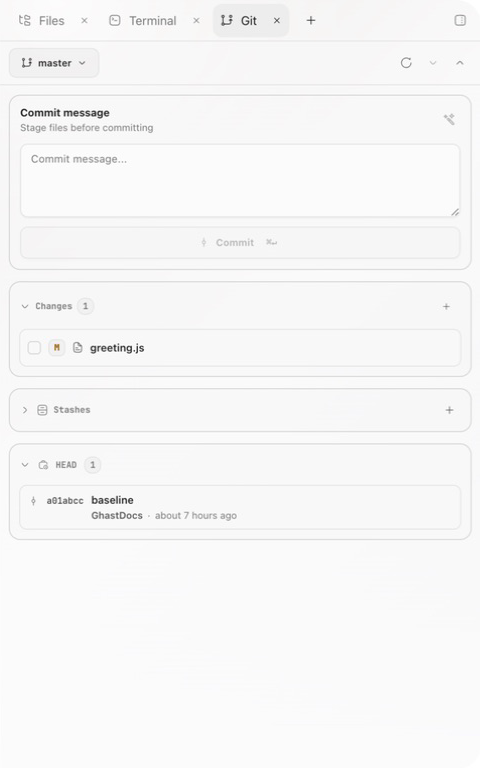
Branches and remote synchronization
- The branch menu lists local and remote branches and accepts a name for a new branch. Creating it also checks it out immediately.
- Fetch updates remote references without merging them into the current branch.
- Pull appears when an upstream exists; otherwise the panel says No upstream set.
- Push sends current-branch commits. The first push can offer Push and set upstream.
Before switching, creating, or pulling a branch, inspect uncommitted changes. Git can refuse the action or require conflict resolution. Do not discard files merely to bypass a conflict.
Inspect and stage changes
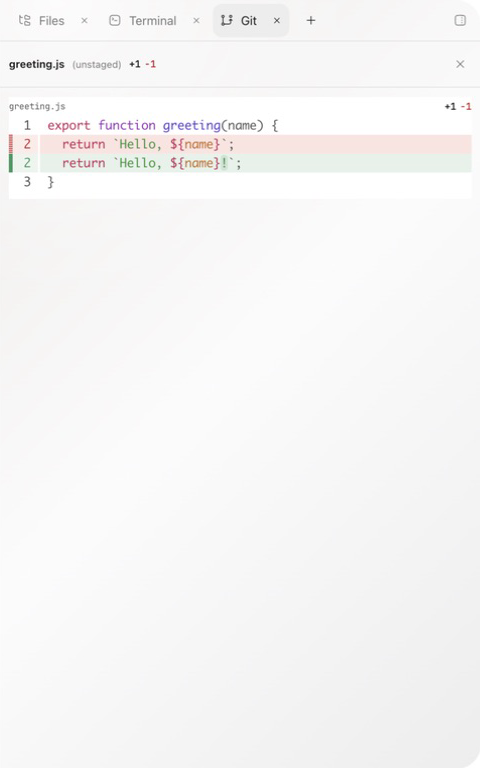
Changes are grouped into conflicts, staged, and unstaged. Select a file to open its diff. Each section exposes applicable individual and bulk actions.
- Stage, unstage, or open one file.
- Stage all or unstage all in a section.
- Discard an unstaged change to a tracked file. Untracked files do not offer this action.
- Resolve conflict files before continuing a rebase or merge.
Staging selects content for the next commit; it does not create one. Do not use Stage all when the project contains unrelated files. Discard changes for a tracked file runs immediately with no second confirmation and can permanently overwrite workspace content, so open each diff before clicking it. Untracked files do not offer this action and must be reviewed separately.
Commit
After staging at least one file, enter a message and select Commit. Generate commit message with AI provides candidate text from staged content; verify both its scope and wording.
Before a commit, confirm:
- Only task files are staged.
- Every diff has been reviewed.
- Required checks finished against the current files.
- The message describes the actual outcome.
- No secrets, logs, build output, or personal files are included.
A commit remains local until Push succeeds for its branch.
Stashes
Optionally enter a message, then select Stash Changes. Ghast uses plain git stash push, so untracked files are not included. Each stash can offer:
- Pop stash to restore it and remove the stash record when successful;
- Drop stash to delete the stash record without restoring content or showing a second confirmation.
Restoring can conflict with current files. Drop may be irreversible, so a stash is not a long-term backup. Preserve untracked files separately with a commit, copy, or an explicit Git command that includes them.
History
History starts at HEAD and lists commits. Select one to view author, time, message, changed files, additions, and deletions. Use Load more for earlier entries. Viewing history does not check out the selected commit.
Safe sequence
- Refresh and inspect the branch and all changes.
- Open the diff for each target file.
- Stage files selectively.
- Run checks against the current version.
- Commit and inspect the worktree again.
- Push or continue to Pull requests and conflicts only when authorized.