General settings
Open Settings → General to change how Ghast starts and stays open, choose a model for background work, set the interface language, or configure the app-context shortcut. Default workspace is at the bottom of the page.
Save your changes
This page combines saved settings with controls that apply immediately.
| Control | How the change takes effect |
|---|---|
| Background Model, Start minimized, Minimize to menu bar, Keep running after close | Choose the value, then click Save. Testing a model does not save it. |
| Launch at login, Hide dock icon | The switch immediately requests the operating-system change, and also leaves an unsaved Ghast setting. Click Save to retain the setting. |
| Language | Changes the interface immediately and saves separately. No additional Save is required. |
| Global shortcut and Clear shortcut | Register or remove the shortcut immediately and save separately. Check the status below the label. |
| Default workspace | Saves as soon as you select an option. No additional Save is required. |
For Save-required controls, wait for Unsaved changes to disappear. Moving to another Settings page does not save the draft. To abandon it, choose Back to app and confirm closing without saving.
If you changed Launch at login or Hide dock icon, toggle it back to the intended value and click Save. Merely leaving without saving does not reverse the operating-system action already requested.
Save or discard an existing draft before changing language or the default workspace. This avoids mixing separately saved preferences with an older Settings draft.
See saving and discarding settings for the shared Settings controls.
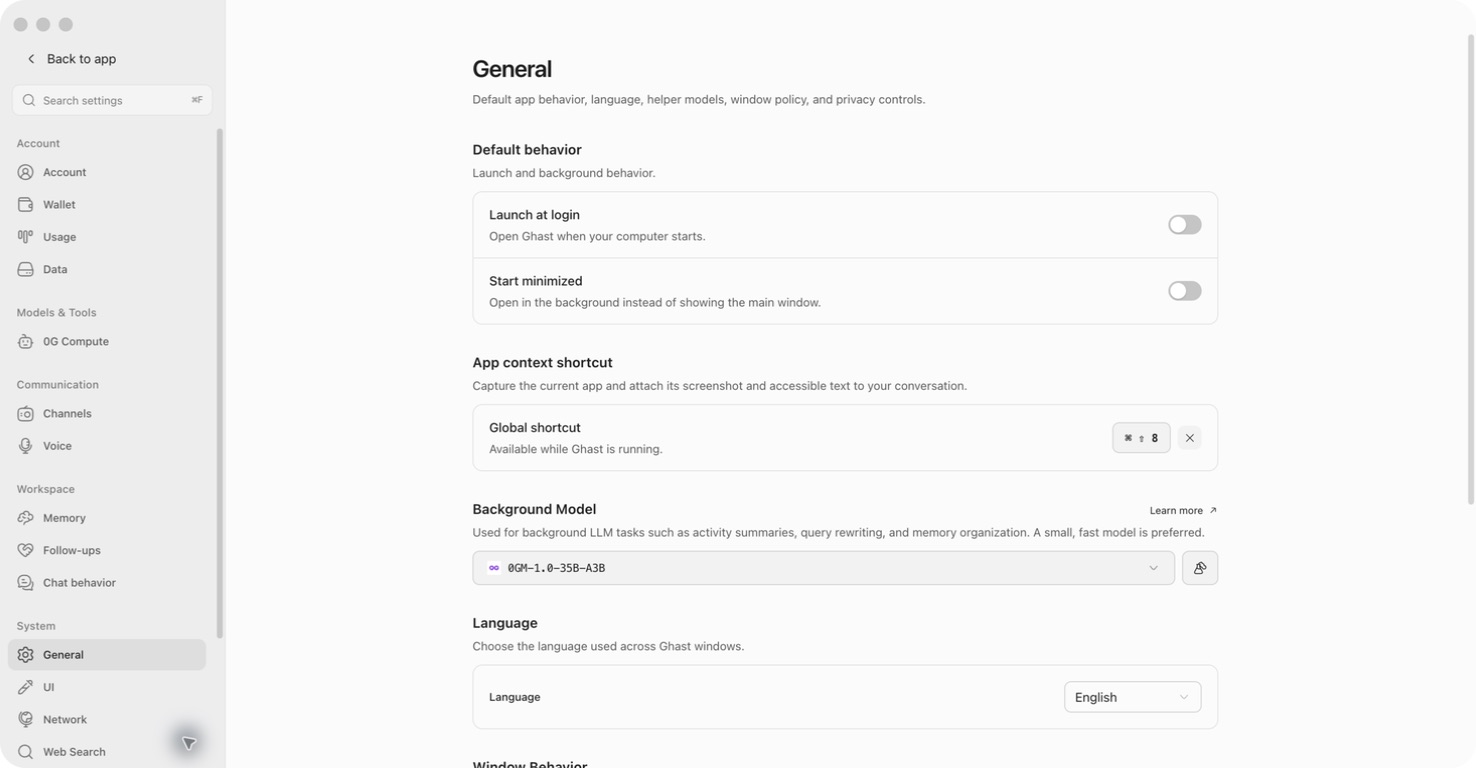
Start Ghast at login
- Under Default behavior, turn on Launch at login.
- To keep the main window out of the way on startup, also turn on Start minimized.
- Click Save.
The two switches do different things: Launch at login requests automatic launch when you sign in to your computer; Start minimized controls whether the main window appears when Ghast starts. Start minimized does not launch Ghast on its own or schedule an AI task.
To stop automatic launch, turn Launch at login off and save. To show the main window on the next launch, turn Start minimized off and save. These changes do not require quitting an active task immediately.
If automatic launch does not work, check your operating system's login-item settings as well as the switch in Ghast. The switch alone is not confirmation that the operating system accepted the request.
Set an app-context shortcut
Use app context when you want to ask about another application's visible window. Ghast captures a window image and available accessibility text; this is a one-time attachment, not continuous screen sharing or permission for the model to operate your computer.
Record, replace, or clear the shortcut
- In App context shortcut → Global shortcut, click Record, or click the currently displayed key combination.
- While Press shortcut... is displayed, press a supported combination:
- macOS: Command + Shift or Command + Option, plus a key.
- Windows/Linux: Ctrl + Shift or Ctrl + Alt, plus a key.
- The final key may be a letter, digit, Space, or F1–F24. Shift and Option/Alt may both be included.
- Check that the chosen combination is displayed and the status says Available while Ghast is running.
Press Esc, or click elsewhere, to cancel recording. To replace a shortcut, record another combination in the same control. If the combination is already in use, the row shows an error; choose a different one. A failed new registration does not replace the previous working shortcut.
Click the × button, labelled Clear shortcut, to remove the binding immediately. This does not delete any captured attachment or already sent message.
Capture and inspect the result
- Prepare the intended Chat or Coding conversation in Ghast.
- Bring the target application's window to the front. Hide sensitive content before capture.
- Press the configured shortcut while Ghast is running. It starts capture without a separate confirmation dialog.
- When Ghast returns to the front, check both the image attachment and the Appshot context text above the composer.
- Add your question and send only after checking the captured application and window.
The button alternative is Add → Capture app context → Capture in the composer. This route first shows Capture the window behind Ghast?; choose Cancel if the wrong application is behind Ghast. Ghast briefly hides during capture, so the result depends on which external window actually becomes frontmost—not which app you intended to capture.
The attachment can include the app name, window title, a browser URL where available, and up to 12,000 characters of accessible text. A screenshot is not proof that all text was captured. Some apps provide little accessible text, and long text may be truncated.
The image and Appshot context are separate composer items. Remove the image attachment and close the text quote with its × / Remove quote control. Removing one does not remove the other. Capture does not automatically send a message, but any parts left in the composer can accompany a later message to the selected model.
If nothing is attached, verify Ghast is running, check the shortcut status, and try the composer button. For Could not capture the front window, bring a visible target window forward and retry. If the image or text is missing, check macOS screen-recording and accessibility permissions; the capture control does not guide you through every missing permission. See Computer Use permissions for the permission settings, and keyboard shortcuts for mode-specific limitations.
Choose and test a background model
Background Model is used by background AI work such as activity summaries, query rewriting, and memory organization. It does not replace the model selected in your conversation. Features with their own model settings can use those instead.
- Configure a Provider if none is available.
- Open the Background Model selector.
- Search by model name, model ID, or Provider name. Select a model from the intended Provider.
- Click the flask-shaped Test button next to the selector.
- Read the result, then click Save to apply your selection.
The selector uses models supplied by enabled, configured Providers. A Provider requiring authentication must be authenticated. ACP agents are not offered as background models. This is a separate selector from the conversation model menu; a listed model is not necessarily a suitable background model.
What Test checks
Test makes a real request to the selected Provider with a short, fixed activity-summary example and checks for a structured response. It can consume Provider quota. It does not send your current conversation or capture your screen for this test.
A passing result establishes this small background-generation check. It does not test tool execution, MCP, Coding, long conversations, or the quality of every memory/activity task.
| Result | How to interpret it |
|---|---|
| Test Passed | The request succeeded without a speed or price warning. |
| Test Passed, Response Is Slow | The successful test took more than 2.5 seconds and no more than 5 seconds. |
| Test Passed, Response Is Very Slow | The test succeeded but took more than 5 seconds. This is a latency warning, not a failed request. |
| Test Passed, Cost Is High | The known catalog price is above $0.80 per million input tokens or $4 per million output tokens. Price warnings take precedence over the moderate-speed warning. |
| Test Failed | The request or structured-response check failed. Read the error shown beneath the result. |
The very-slow warning takes precedence over the price warning. Displayed Input / Output prices are catalog rates per million tokens, not the charge for this test. Missing prices do not mean the model is free. The result clears after about five seconds and also clears when you change the selected model.
If the test fails, check the Provider connection, credential status, balance/quota, and network settings, then test again. If only background features fail while Chat still works, test this model separately rather than assuming Chat's model was used.
Return to the default
If an explicit model is selected, reopen the selector, leave the search empty, and choose Use default. Click Save, then reopen General to check which model is displayed.
This removes your explicit choice and lets Ghast resolve a background model from the configured Providers. It does not mean “use the current conversation model,” nor does it guarantee a working replacement whenever an explicitly chosen model becomes unavailable.
Change the interface language
- Finish or discard any other pending Settings changes.
- Under Language, open the language menu.
- Choose a language. The interface changes immediately; you do not need to click Save.
The current menu offers English, 简体中文, 繁體中文, 日本語, 한국어, Français, Tiếng Việt, Русский, Español, Deutsch, and Português. Some product or external-service labels can remain untranslated.
This setting does not translate existing conversations, files, or prompts. Configure reply language separately in Settings → Chat behavior. The documentation site's language menu is also independent of the client's language.
Keep Ghast available without its main window
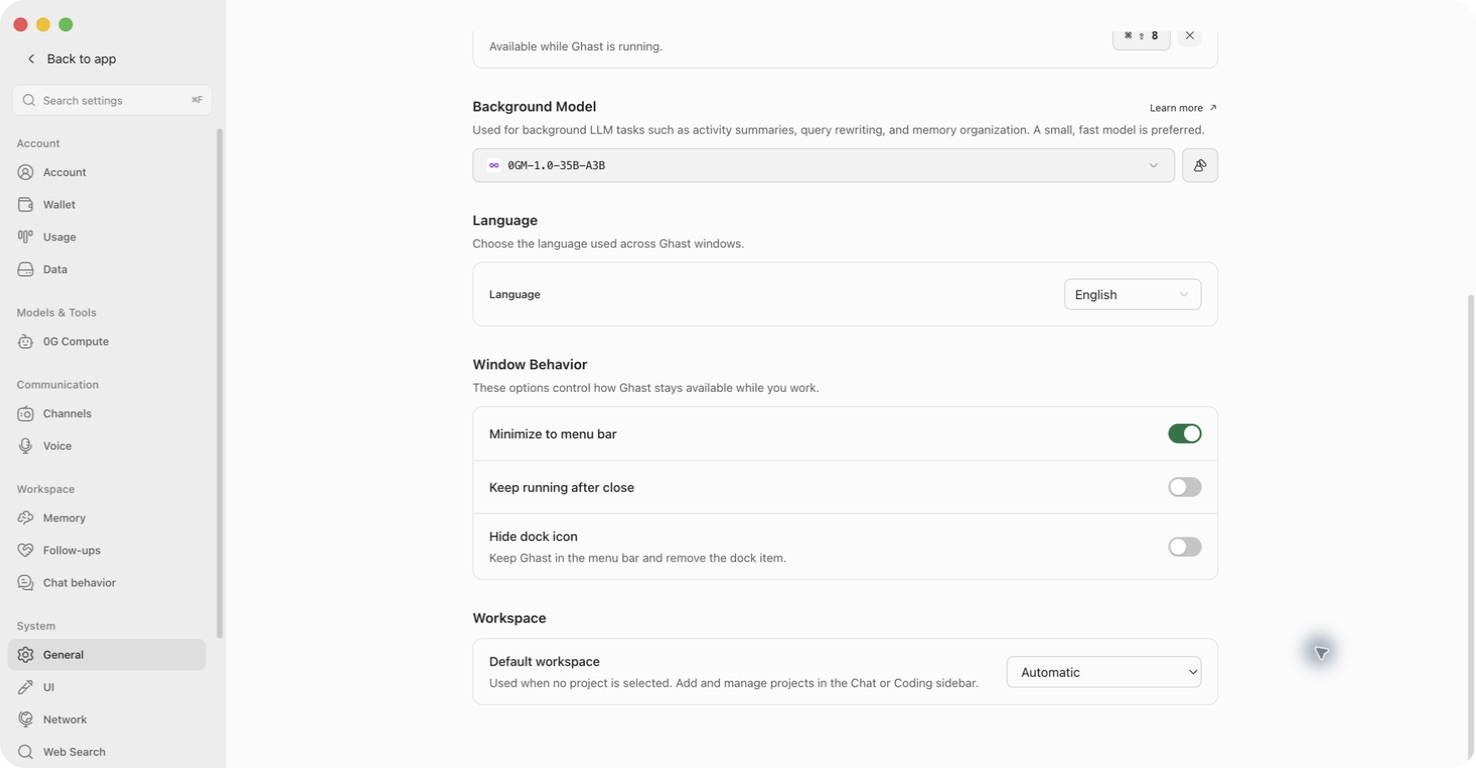
| Setting | When enabled | How to undo |
|---|---|---|
| Minimize to menu bar | Minimizing hides the main window instead of leaving a minimized window in the Dock/taskbar. Restore Ghast from its menu-bar/tray entry. | Turn it off and save. |
| Keep running after close | Closing the main window hides it instead of closing that window normally. Ghast keeps running. | Turn it off and save. |
| Hide dock icon | On macOS, requests removal of Ghast's Dock item immediately; the menu-bar entry remains the way back. | Turn it off and save to request the Dock icon again. |
These options are not controls for pausing or cancelling AI work. Before hiding a window, check any running task. To exit Ghast, use Quit from the application or tray menu; on macOS, Command + Q is the quit action. Do not use the close button as proof that all background work has stopped, even with Keep running after close turned off.
Choose a default workspace
Use Default workspace as a fallback for work that has no more-specific workspace binding, including unbound external-channel chats. It is not a command to move every conversation into one project.
- Add the project through the Chat or Coding sidebar if it is not already listed.
- Finish or discard pending Settings changes.
- Scroll to Settings → General → Workspace.
- Select a project in Default workspace, or choose Automatic. The selection saves immediately.
- Reopen General to check that it was retained. A save error appears as a notification.
Temporary workspaces and Git worktrees are not offered in this particular dropdown. If the list is unavailable, wait for loading to finish; a loading error is shown below the control. Reopen the page after resolving the error.
Which project does a conversation use?
| Situation | Workspace behavior |
|---|---|
| External-channel chat with a specific workspace binding | Its specific binding takes precedence over General. |
| Unbound external-channel chat with a valid default selected here | Uses the selected default. |
| Unbound external-channel chat with Automatic, or a default that no longer exists | Falls back to Ghast's built-in Default workspace. Automatic does not guess your active project. |
| A regular new Chat or Coding conversation created outside a project | Can still have no workspace. Select the project in that conversation or create the task under a project; do not rely on this setting to bind it. |
| An existing local Chat or Coding conversation | Keeps its own project; changing General does not migrate it. |
For existing Telegram, Discord, Feishu, and Weixin channel conversations, a changed binding/default is applied when the next incoming message is processed. An ordinary incoming Slack message does not rebind the existing conversation. If that conversation is already generating, however, Ghast creates a new branch using the workspace resolved at that time and makes it the active mapped conversation. See channel workspace bindings before changing a default used by external chats.
Choose a project appropriate for the work those channels may request. Do not use a broad folder containing unrelated private projects as a convenient catch-all. For local project selection and workspace modes, see projects and workspaces.