Chat behavior
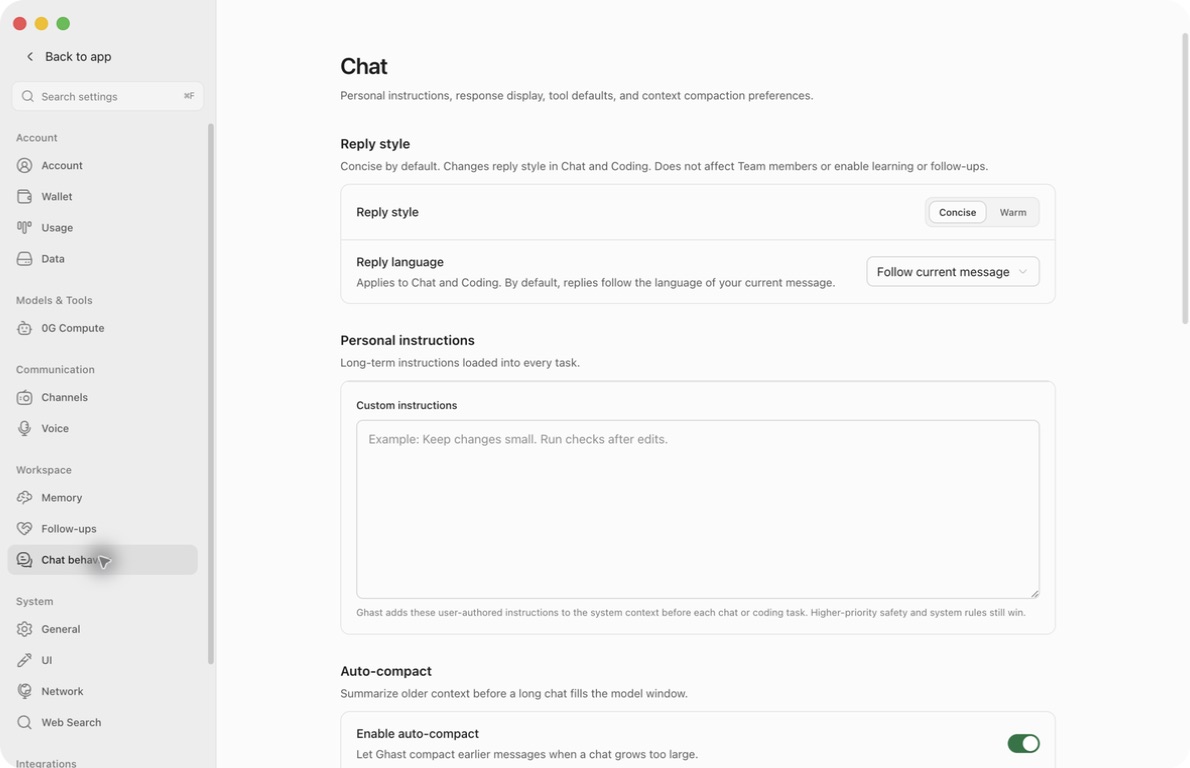
Open Settings → Chat behavior. The page heading itself is Chat. This page controls response preferences, context handling, and capability defaults; it does not configure a Provider or grant file/tool permissions.
Save or discard changes
- Change the controls you need.
- Click Save at the bottom.
- Reopen Chat behavior to verify the values.
- For generation settings, try a new request. For display settings, inspect a relevant existing or newly completed message.
Every configuration control on this page uses a draft until Save. A highlighted style, changed slider, or hidden compaction field is not proof that the runtime configuration changed.
Close asks whether to discard unsaved changes. Cancel keeps the draft; confirming discards it. Configuration changes do not rewrite previous answers or reverse a compaction that has already happened.
Saved generation preferences are read when Ghast prepares the relevant request. Do not expect an answer already being streamed to adopt a new style, language, or temperature. Display settings can affect existing rendered content after synchronization. Tool and Skill defaults initialize conversations; previously saved conversation selections can take precedence.
Choose a reply style
- Concise favors a direct answer, normally one paragraph or at most three short points. The default prompt asks for roughly no more than 100 English words or 160 Chinese characters.
- Warm favors friendly, conversational prose. It does not require an emotional interpretation of a practical request.
These are instructions to the model, not guaranteed length limits. An explicit request for a detailed explanation, a particular format, or a complete deliverable takes precedence. Current-task instructions also override the style preference.
Style applies to ordinary Chat and Coding, not Team members' own personalities. It does not enable Follow-ups, preference learning, or extra permissions.
Choose the reply language
Follow current message follows the user's own latest request, not quoted documents, code, tool output, or injected context. Mixed-language requests follow the main request; language-neutral input can keep the preceding user language.
For a fixed language, open the selector and choose one of the current options: English, 简体中文, 繁體中文, 日本語, 한국어, Français, Tiếng Việt, Русский, Español, Deutsch, or Português. Save afterward.
A fixed selection governs assistant prose, including progress updates and final replies, even when you write the next request in another language. Code, identifiers, names, and quotations retain their form. A translation or artifact explicitly requested in another language can use that requested language.
To change menus and buttons instead, use Settings → General → Language. Reply language and voice recognition language are different settings.
Add personal instructions
Use Custom instructions for stable preferences that should accompany future Chat or Coding requests:
Give the conclusion first, then the verification result.
Keep changes small and list anything not verified.
- Enter the text in the personal-instructions box.
- Click Save.
- Start a small request where the preference is relevant.
- To stop including it, clear the box and save again.
These are user-authored preferences, not a replacement for higher-priority system, safety, or explicit current-task instructions. They do not enable a Skill or grant permissions.
Only the first 32,768 characters of trimmed instruction text are included in the prompt. The field does not provide a live remaining-character counter or warn when extra text will not be included. Keep instructions focused rather than using the box as a document archive.
The text is sent to the Provider used for the task. Do not put API keys, tokens, passwords, private keys, customer records, or secrets here. Use the current conversation or an appropriate project file for temporary project state.
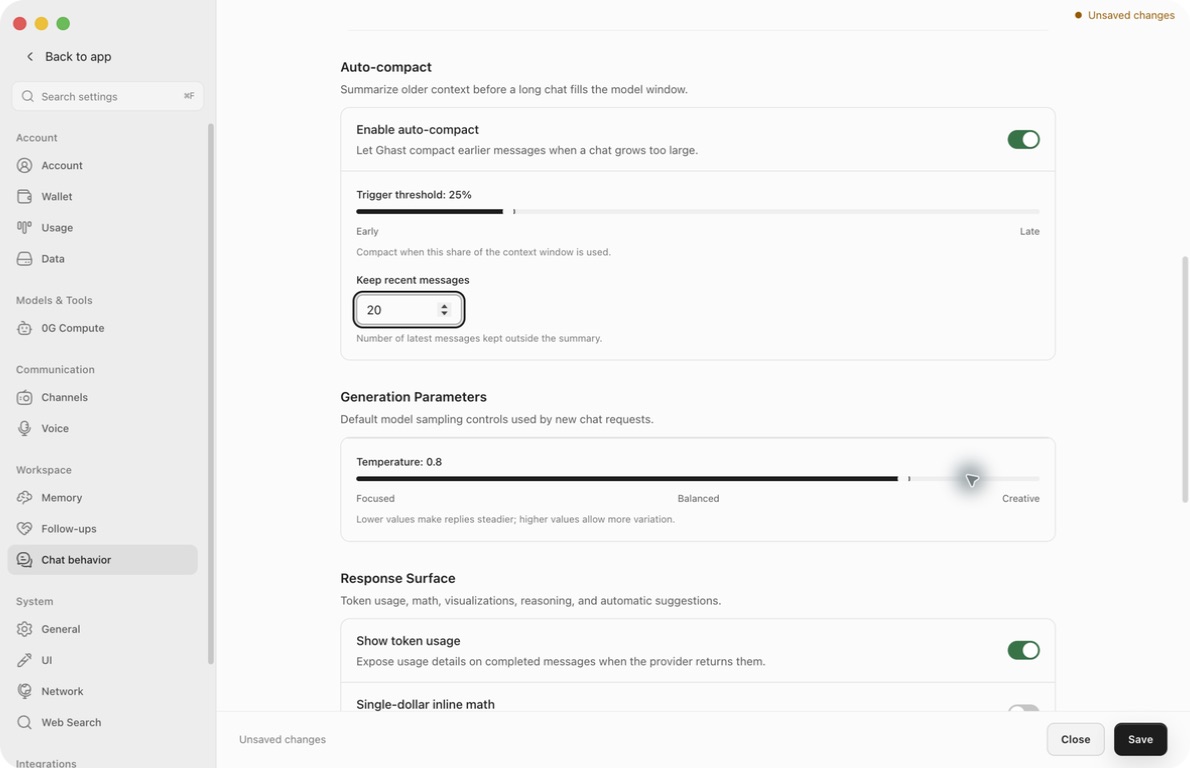
Configure automatic compaction
Compaction summarizes older context so later requests can continue within the model's window. It is separate from durable Memory and does not preserve every old detail verbatim.
- Turn on Enable auto-compact.
- Set Trigger threshold between 5% and 95%, in five-percentage-point steps.
- Set Keep recent messages between 2 and 20.
- Click Save.
The supplied defaults are enabled, 80%, and 4; an existing Profile may have different values. Turning off the switch hides the two fields without resetting them.
Despite the label “messages,” retention follows user-turn boundaries, not a literal number of chat bubbles. Ghast can retain additional recent context. A lower threshold gives earlier compaction; a higher one leaves less spare room.
Output-space reservation can trigger compaction before the percentage threshold. Turning automatic compaction off does not increase the model's context capacity or restore details already summarized.
Use Manage context compaction for manual /compact, what summaries retain, failure handling, and verification afterward. Do not press Save expecting it to immediately run compaction.
Set Temperature
The slider ranges from 0 to 1 in 0.1 steps, with a supplied default of 0.7. Lower values generally reduce variation; higher values allow more variation. It is not a correctness control or a guarantee of deterministic answers.
The value is sent only when the model supports it. Ghast omits it when a 0G model explicitly does not advertise support, or when Anthropic reasoning is enabled. A visible slider change therefore does not prove the selected model used that value.
This page has no Max tokens control. Output length is governed by the model and Provider limits, not an old global 2,048-token field.
Control the response display
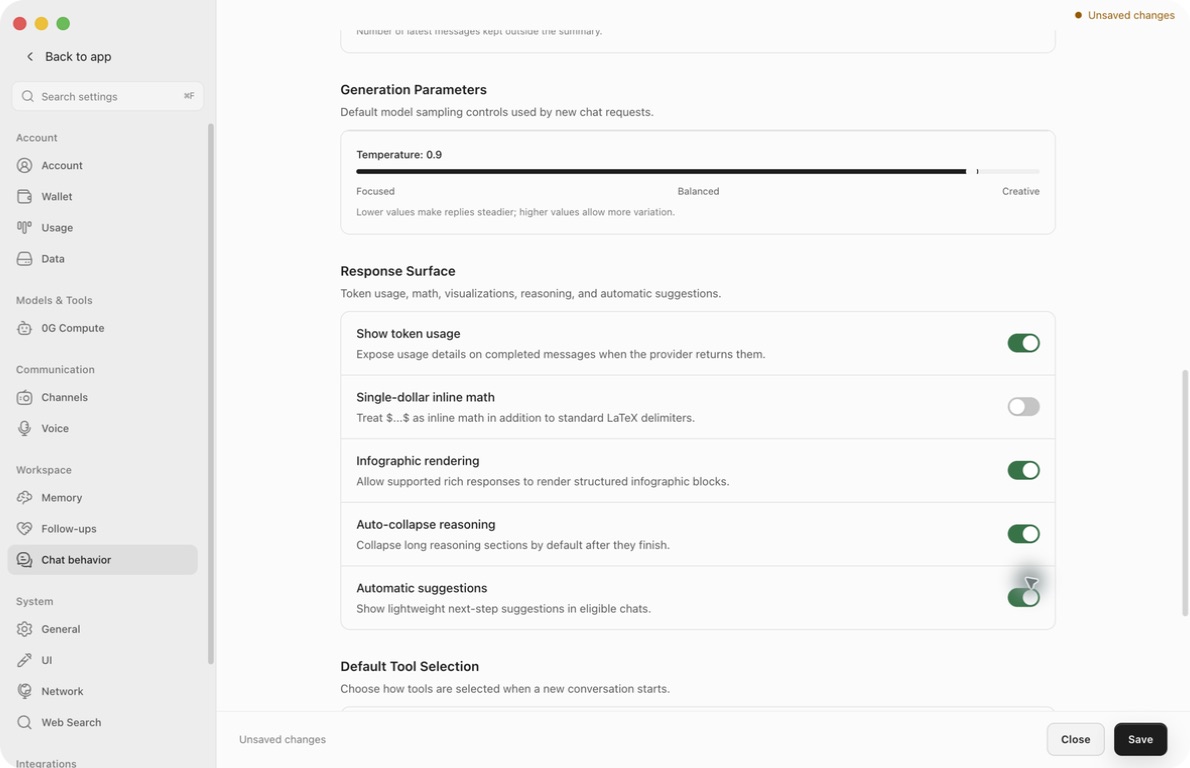
Show token usage
The switch is present, but the current message-usage view is not wired to this preference. Usage details can remain available when it is off. Do not use it to hide sensitive usage information.
Availability of individual usage fields still depends on what the Provider returns. This option does not disable billing or usage collection.
Single-dollar inline math
Allows $...$ to be interpreted as inline mathematics in addition to standard delimiters. The supplied default is off.
Turn it off if ordinary prices or dollar-denominated text are being interpreted as formulas. This changes rendering, not the stored response or the model's numerical reasoning.
Infographic rendering
Enabling adds guidance for the model to produce supported structured infographic blocks. It does not turn every answer into a chart or create a real screenshot of an application.
Turning it off stops adding that generation guidance; it is not a blanket switch that removes existing rich blocks from the message renderer. The supplied default is on.
Auto-collapse reasoning
Controls how available reasoning is presented, not whether the model reasons, its reasoning budget, or its cost. The supplied default is on.
When off, a streaming reasoning section can open automatically. A normally collapsed section may still close shortly after streaming ends; disabling the option is not an “always keep reasoning open” promise. You can manually expand an available section. Providers that do not expose reasoning will not gain one through this switch.
Automatic suggestions
The supplied default is off. When enabled, eligible completed answers can be analyzed by the general background model for quick replies.
Suggestions require explicit choices in the answer and a request for the user to choose. An open-ended “What do you think?” is not enough. Ghast can display two to five supported choices, rather than inventing general next steps for every response.
The analysis may send the end of the assistant's response to the background-model Provider and consume usage. No usable model, too little text, no suitable options, or a failed analysis can leave no suggestions.
Clicking a suggestion sends it as the next message, rather than merely filling an editable draft. Read the option before clicking, especially when it means “proceed.” Ordinary task permissions still apply.
Turning this setting off hides quick replies and stops eligible new suggestion generation. It does not delete metadata already saved on earlier messages.
Set Tool and Skill defaults
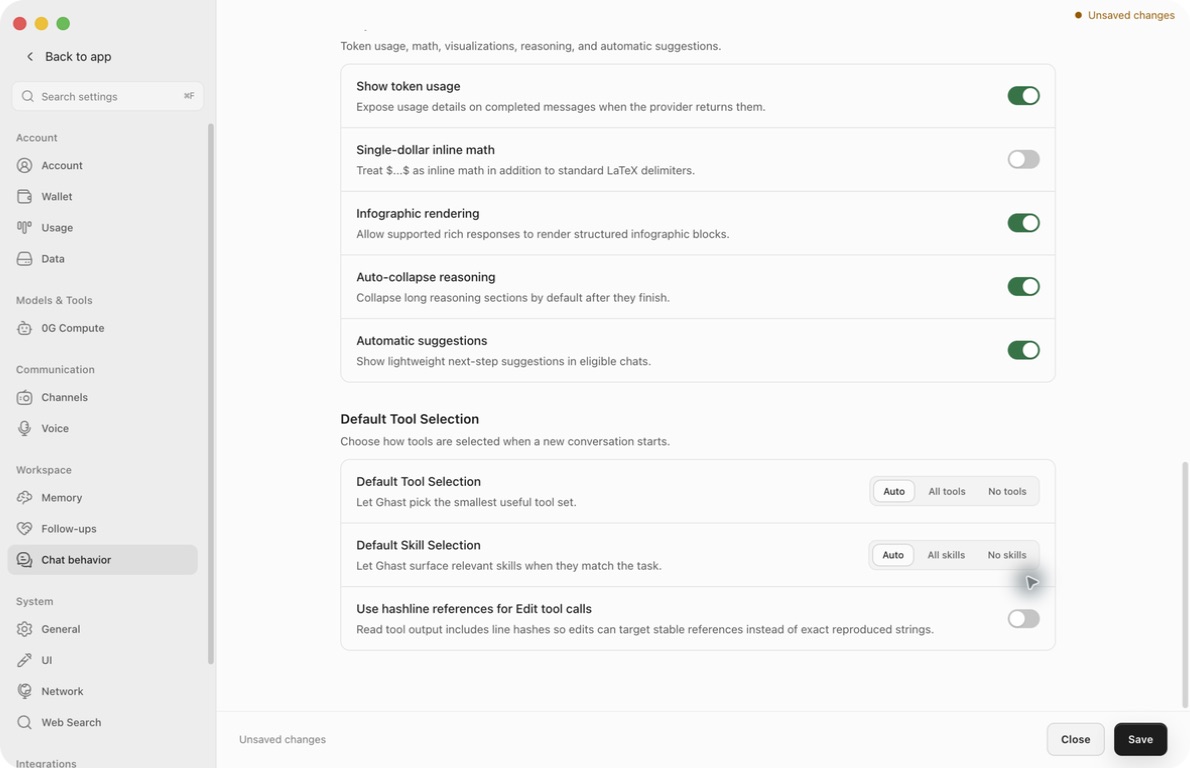
Default Tool Selection
- Auto starts with automatic tool selection.
- All tools starts with the built-in tool catalog and tools from enabled MCP servers available to the client.
- No tools starts without proactively selected tools.
Save, then open a new conversation for a small, clearly scoped task and inspect its actual tool activity. The current composer has no per-tool selector for checking this setting. Existing conversation selections may be restored instead of replaced. All tools does not install missing tools, authenticate a connection, or make an unsupported model tool-capable.
Default Skill Selection
- Auto enables automatic Skill selection.
- No skills starts without manually selected Skills.
- All skills is present, but currently initializes the ordinary Chat selection as empty rather than selecting the installed catalog. Use slash search to insert the Skill you need into the draft; do not rely on this setting to load all of them.
Neither None option is a strict no-tools security mode. Coding paths, tool discovery, explicit plugin references, Skill tool declarations, and always-injected Skills can contribute capabilities under their own rules. Check the active selections and task permissions together.
Use hashline references for Edit tool calls
When enabled and saved, supported Read output includes hashed line references that editing tools can use to identify lines. This does not force every edit to use a different tool or replace permissions and change review.
If a file changes and its references become stale, reread the affected content before retrying an edit. Turning this option on is not protection against every concurrent-write conflict. The supplied default is off.
Troubleshoot a setting that seems ineffective
- Nothing changed after clicking a control: save and reopen; do not confuse the draft with applied configuration.
- An existing answer did not change: generation settings do not rewrite old content. Test with a new request.
- Language is unexpected: distinguish fixed reply language, interface language, and an explicitly requested translation or artifact language.
- Temperature has little effect: check the selected model's support and reasoning mode; it is not a universal control.
- All skills did not select everything: use explicit Composer selection; the current default option does not expand the catalog.
- Reasoning still collapses or usage still appears: follow the limitations above, not the labels alone.
- No suggestions appeared: the reply may not contain a qualifying choice, or the background model may be unavailable. Do not enable unrelated Follow-ups or Memory settings to fix suggestions.
Before a sensitive task, review personal instructions, selected capabilities, permissions, and the Provider that will receive the request.