Follow-ups
Follow-ups helps you return to unfinished work in its original conversation. It is not a calendar alarm, a guarantee of continued execution, or proof that the underlying work has completed.
Open Settings → Follow-ups. Reply style is configured in Chat behavior; learning long-term preferences is configured in Memory. These are separate choices.
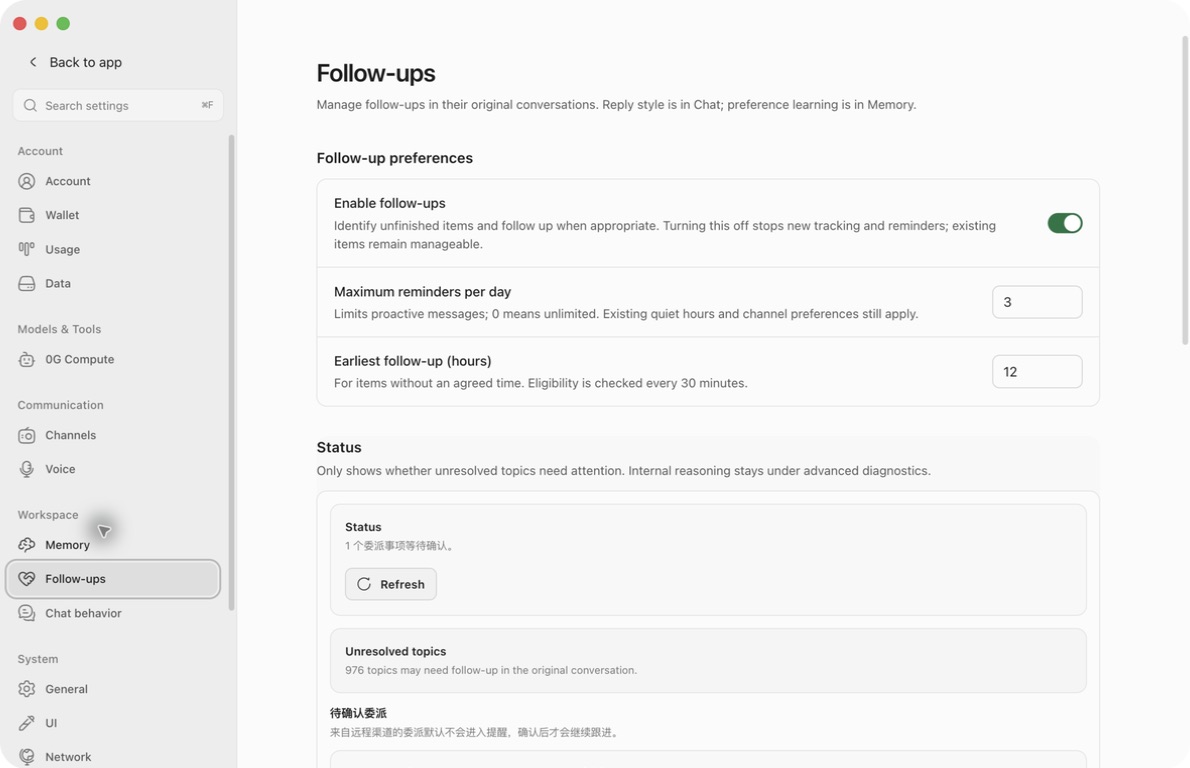
Enable and save
- Check Settings → General → Background Model. Follow-up review and reminder decisions use this model, not the Memory-specific model override.
- Open Settings → Follow-ups and turn on Enable follow-ups.
- Set Maximum reminders per day and Earliest follow-up (hours).
- Click Save at the bottom.
- Reopen the page and verify your choices. Use Refresh to reload tracked items and decision history.
Enabling also turns on tracking of explicit unfinished items, main-window proactive delivery, and automatic application of follow-up review results. It does not turn on every connected channel or enable preference learning.
All three configuration controls are drafts until Save. The Status panel uses the draft switch and may say “paused” before the saved setting changes. This is not a live confirmation that the background process has stopped.
To abandon a draft, click Close and confirm discarding it. Cancel keeps the draft open. Accept/Decline, topic actions, and diagnostic feedback execute immediately; discarding Settings cannot undo them.
Have Ghast track an unfinished item
Describe the remaining work in the conversation where you want to continue. Include what is unfinished, what should happen next, and any agreed time. For example:
The release checklist is still waiting for the test results.
Tomorrow afternoon, ask me whether the results are ready.
Do not publish anything or modify the release.
After the reply, check Settings → Follow-ups → Unresolved topics. A visible item confirms tracking; an assistant's promise in chat alone does not.
Not every message creates a follow-up. Identification requires an eligible conversation and a successful background-model review. Incognito/capture-excluded conversations and Team-owned conversations do not enter this ordinary follow-up flow. Team has its own task behavior.
Turning Follow-ups off stops new tracking and proactive reminders through this feature, but it does not delete existing items or disable Memory's separate preference learning.
Set the frequency and timing
Maximum reminders per day
Enter a whole number from 0 to 20. The default is 3. 0 means unlimited, not disabled; use the master switch to pause reminders.
The allowance is shared across this Profile's proactive initiatives, not three per conversation. It resets on the device's local day. It counts decisions permitted to proceed, so the number of messages you actually see can be smaller if delivery fails. Increasing the limit does not bypass quiet hours, topic restrictions, or channel preferences.
Earliest follow-up (hours)
Enter a whole number from 1 to 168. The default is 12. It supplies an earliest time for items without a specific agreed time; it does not schedule all reminders exactly that many hours later.
An item with its own time uses that value. Changing this setting does not bulk-edit existing item timestamps. The date under an item is an earliest eligible time, not a delivery appointment. It is displayed in the device's local time; some labels currently remain Chinese even with an English interface.
The number fields reject values outside their ranges. If replacing a value, select the whole number before typing and check the displayed result.
Why a reminder can arrive later
Ghast checks eligibility approximately every 30 minutes while the desktop process is running, with an initial check shortly after startup. Quitting Ghast, sleeping the computer, or having no usable model/network can delay this process. This is not a server-side calendar alarm.
The default quiet period is 22:00–08:00 in device-local time. Fallback scheduling can move an item to the configured morning time, 09:00 by default. Existing time-window preferences and topic/conversation cooldowns also apply.
This page has no quiet-hours editor, timezone selector, per-channel follow-up switches, or per-item date picker. Do not look for these controls here. The two numeric fields do not override retained time policies.
At the next eligible check, the model can still decide not to remind you. A new user turn, an active response, a resolved topic, prior negative feedback, a veto, or a daily limit can also prevent delivery.
Pause and resume
- Turn off Enable follow-ups.
- Click Save.
- Reopen to verify that the saved switch is off.
Existing topics and pending approvals remain manageable. Pausing does not erase past reminders, retract sent messages, or stop unrelated work already running.
To resume, enable and save again. Existing unfinished items may become eligible; review them first if you do not want old work to resurface. 0 reminders per day is not a pause.
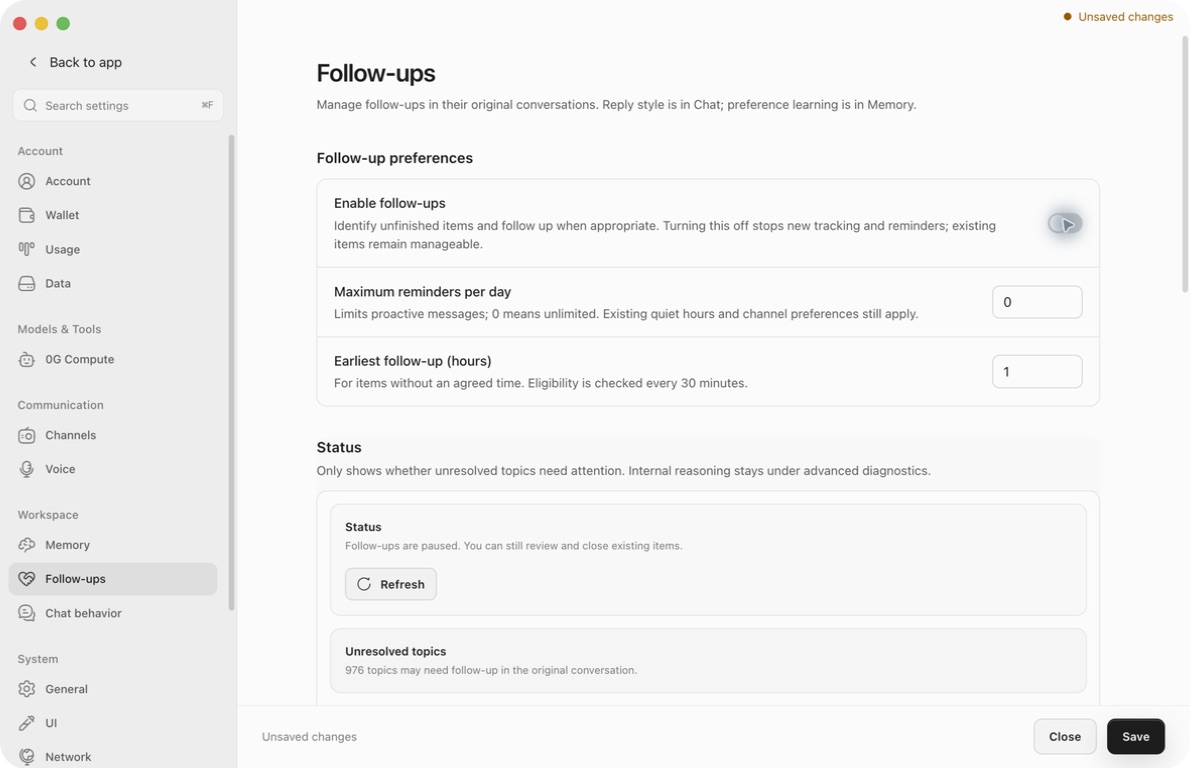
Read Status and refresh
Status summarizes loading, a fetch error, pending approvals, open topics, or an enabled state with nothing needing attention. Pending approvals take priority over the ordinary open-topic summary.
Unresolved topics counts outstanding tracked work, not completed jobs or scheduled notifications. A large count does not mean all items are due now. The page initially shows five topics; Show more adds ten at a time, up to the 50 most recently updated open topics loaded for this view. It is not a complete searchable task archive.
Refresh reloads the status snapshot, items, and recent decisions. It does not force a reminder, run the scheduler immediately, retry failed work, or save configuration. The page also revalidates when it regains focus.
If loading fails, do not treat an empty section as evidence that the items are gone. When the draft switch is off, “paused” can take precedence over the status error; check again after returning to the intended configuration.
Handle an unresolved topic
Read the topic and its next eligible time, then choose the action that matches your intention:
| Action | What it means |
|---|---|
| Done | You mark the item resolved. This records your decision; it does not verify the underlying work. |
| Ignore | Dismiss this item without claiming the work was completed. |
| Do not ask again | Veto the item and save a topic-level restriction against future prompts about matching content. |
These buttons run immediately, without a confirmation dialog. The list reloads after a successful action. An error appears below the item lists if the request fails.
There is no Undo, reopen, completed-item archive, per-item snooze, title editor, or reschedule control here. The item title itself does not open the original conversation; return through the main conversation list.
Use Do not ask again only for an ongoing preference. It can affect future matching topics, not just hide this row, and toggling Follow-ups off/on is not a reset of that preference. Removing a Memory fact alone is not a documented way to revoke it.
Review a remote delegation
When an assignment requires your approval, Pending approvals shows its title and available source/platform details.
- Check who requested it and what they are asking.
- Accept makes the objective active and eligible for later follow-up.
- Decline vetoes the objective so it does not continue as an accepted assignment.
- Check the refreshed state or any displayed action error.
Both actions apply immediately and have no confirmation dialog. Acceptance is not proof that the task ran, a promise of an immediate reminder, or blanket permission for consequential actions. It does not enable a disconnected bot or opt a channel into proactive delivery.
The visible approval list is limited to five entries from the objectives loaded for this view. Diagnostics may count more pending approvals than this panel shows; Refresh is not pagination, and the panel has no Show all control. Do not infer that a missing assignment was accepted or rejected.
Where reminders appear
Ordinary main-window follow-ups append a message to the original conversation and mark it as having unread proactive activity.
If that message is still unread, Ghast attempts a native notification. The system may suppress it according to notification support or OS settings. Its preview can include reminder text; consider this before allowing lock-screen previews.
Clicking the native notification brings a Ghast window forward; it does not reliably select the exact source conversation. Use the conversation list to find the unread item.
A connected Telegram, Discord, Feishu, or Weixin bot is not automatically opted into this feature. Remote delivery also requires the retained follow-up/channel preferences, an approved objective where required, and a working connection. The master switch only enables main-window delivery; this page does not offer remote opt-in controls.
Inspect a decision or give feedback
Expand Advanced diagnostics (optional) when reminders are missing or unsuitable. Some diagnostic labels currently remain Chinese.
- Activity metrics cover the displayed recent window, normally 28 days. Open topics and pending approvals include all outstanding items, not just activity created during that window.
- Initiative history shows up to five recent decisions. Expand a row to see the topic, proposed content, why now, decision result, and saved reaction.
- An allowed decision is not sufficient proof of successful delivery or completed work. Conversely, a declined decision explains why no reminder was sent.
Feedback buttons are immediate:
- Helpful records that the reminder was useful.
- Not needed records an ignored reminder; repeated feedback can reduce later matching reminders.
- Inappropriate records negative feedback that can block later matching reminders.
- Do not ask again stores an ongoing topic-level restriction.
Feedback is not the same as the topic's Done action and is not proof of task completion. Do not publish diagnostic text unredacted: it can contain private topics, messages, and delegation identities.
Troubleshoot missing or repeated reminders
- The switch looks on, but nothing happens: save first, verify the General background model is usable, and check that the item actually appears.
- The item exists but is not due: read its eligible time; the global earliest-delay setting does not reschedule it.
- The time has passed: keep Ghast running, allow for the 30-minute check, then consider quiet hours, the daily cap, conversation activity, and prior feedback.
- Refresh does not send anything: this is expected; it reloads data only.
- A remote assignment is waiting: review approval and connection status. Accept does not enable remote proactive delivery.
- Diagnostics show model failure or evaluation error: check the General background model and network. The affected objective may be paused after failure; this page has no Resume or Retry-objective control. Do not assume fixing the model or switching the master toggle will resume that item. Preserve the visible error and use About → Send feedback.
- An old topic keeps appearing: use Ignore if it is just closed, or Do not ask again for an ongoing topic restriction. Do not use a veto merely to postpone it.
Follow-up review can send recent conversation context, relevant personalization, and prior reminder feedback to the configured background-model provider. It may consume model usage. Do not treat enabling it as a purely local, cost-free timer.