Usage and About
Open Settings → Usage to inspect recorded model activity. Open Settings → About for your installed version, privacy preferences, updates and feedback. Usage is not a wallet, invoice or payment history; use Account and Wallet to manage funds.
Choose a usage period
The initial view is This month. Choose a preset at the top of Usage:
- Today: since midnight in your computer's local time zone.
- This week: the last seven days, measured back from the current time—not the calendar week starting Monday or Sunday.
- This month: since the first day of the current local month.
- This year: since January 1 of the current local year.
- All time: all usage history available to this profile. It does not guarantee a complete lifetime account history.
For a specific interval:
- Click Custom.
- Select the start and end dates in the calendar. Use the month navigation to reach another month.
- Click Apply. Both endpoints must be selected; the range includes the whole start and end days in local time.
- To leave the current filter unchanged, click Cancel before applying.
Choosing another preset changes the active filter. A previously chosen custom interval can remain on the Custom button without being active. These are page filters, not saved preferences: leaving and reopening Usage returns to This month.
Ghast attempts a 0G account sync when this page opens. A fresh balance can trigger an already-enabled automatic top-up rule. If you do not want automatic payments, check your automatic top-up configuration before opening Usage; viewing statistics does not suspend it.
Read the four summary cards
- Tokens used: input plus output tokens in the selected period. The large number uses compact notation such as
korM; the smaller input/output figures provide the breakdown. - Messages: the number of recorded usage entries or imported requests, not the number of prompts you typed. One conversation can generate several model requests. Its average cost is total recorded cost divided by this count; a dash appears when there are no entries.
- Spend: the sum of available recorded costs and estimates for the period. Read the currency limitation below before using it.
- Cache read: reported cached-input tokens, with cache-write tokens shown underneath. A zero can mean that the provider or imported history did not supply that metric; it is not proof that caching was unavailable.
Only activity that produces a local usage record or is imported through 0G sync appears here. The page does not identify whether every Voice, Web Search, Channel, background-model or tool operation is included. Do not use its message count as a complete count of everything Ghast did.
Understand the displayed cost
The current page appends 0G to every cost, including non-0G providers. Imported 0G costs use 0G, but estimates calculated from the general model pricing catalog use USD rates. Mixed-provider totals and average costs can therefore combine different units without conversion. Do not use them as a converted 0G bill, reimbursement amount or cross-provider price comparison.
Where a record supplies a numeric cost, Ghast uses it. Otherwise, it estimates input, output, cache-read and cache-write costs from the available model pricing. An estimate can change when catalog pricing changes; it is not necessarily the rate charged at the time of an older request.
Missing pricing produces a zero estimate. Small amounts are also rounded for display: four decimal places below 0.01, three below 1, and two otherwise. Zero displayed cost does not prove that a request was free.
For reconciliation, compare the same date range with the relevant provider's official usage and billing records, using that provider's currency and time zone. Wallet deposits, promotional credit and model consumption are different records; a top-up does not itself represent tokens used.
Inspect the chart and model breakdown
Tokens by day
Hover a bar to see its date and token count; a cost can also appear when available and nonzero. The peak label describes the highest displayed bar, not a spending limit.
The chart has 30 positions and shows the latest 30 date entries returned for the selected range. Missing dates are not filled between entries. Consequently, All time or This year can summarize more history in the cards than is visible in the chart, and 30 bars need not mean 30 consecutive calendar days.
The chart uses recorded total-token values; the summary card uses input plus output, so incomplete or differently reported provider fields can produce a difference. Chart date labels currently use English month/day formatting even in the Chinese interface. Bars do not open individual requests, and this page has no token/cost chart toggle.
Top models and providers
Top models shows up to four model entries; Top providers shows up to five providers. Both are ordered by recorded cost, not by message count or token use. The model subtitle shows tokens; the provider subtitle shows messages.
A bar is scaled against the highest cost in its own list. It is not a percentage of your remaining budget or the overall total. Zero-cost entries can have no filled bar despite showing tokens. The currency limitation also applies to these rankings.
Detailed table
The table lists model/provider pairs with Model, Provider, Messages, Input, Output, Cache read and Cost. The same model used through different providers can appear in separate rows. If the table is wider than the window, scroll it horizontally to reach the cost column.
The current page does not offer model/provider filters, search, column sorting, pagination, per-request drill-down or CSV export. Use the date range to change the displayed data; use provider records when you need individual charges or an export.
Sync, history and missing records
Ghast tries to sync 0G history when Usage opens and approximately every three minutes while it remains open. Statistics are cached briefly, so a completed request need not appear immediately. An unavailable or unconfigured 0G account does not prevent already stored local statistics from displaying.
The first 0G history import looks back 90 days; subsequent syncs resume from the latest imported date. Account history can include requests made by other clients using the same 0G account. It is not necessarily usage from only this Ghast installation. Once imported, 0G history replaces overlapping local 0G estimates to avoid double-counting; totals may change during synchronization.
When Ghast is migrating older local usage records, a progress notice shows the processed count and percentage. Wait for it to complete before treating totals as settled. A failed migration displays an error, but Usage has no migration-retry button. Preserve the message for a feedback report instead of deleting your profile.
An empty chart or zero cards means no matching data is available to this view—not that your account was never charged. Check the period, account, provider history and sync availability first.
Find your installed version
Open Settings → About. The Ghast Desktop card shows the installed version. Include that version when reporting a problem, together with your operating system and the action that failed.
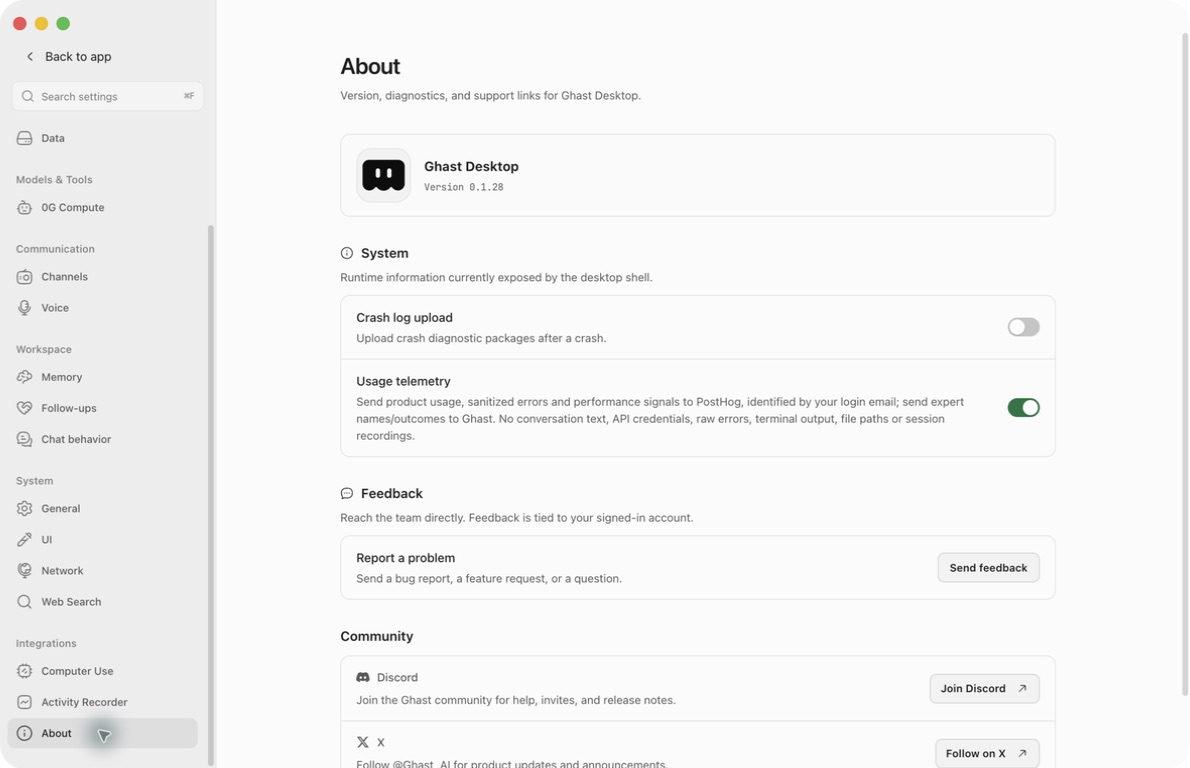
The automatic-update area appears only when the environment supports updates and has update configuration. Its absence does not by itself mean an update check failed. The System section currently contains privacy switches; it is not a complete hardware inventory or a diagnostics-file browser.
Check, download and install an update
In an installation that exposes automatic updates:
- Open About and choose Check now to request an update check. Supported installations also check automatically after startup and periodically while running.
- If a version is available, inspect its version and recent changes, then choose Download now. Finding an update does not automatically download it.
- Wait for download progress to finish. Checking is unavailable while an update operation is busy. If an error appears, read it and retry when the connection is available.
- When prompted to restart, save your files and finish or safely stop active tasks first. Choose Restart now only when you are ready for Ghast to exit and install.
- After relaunch, reopen About and confirm the version. Test the workflows you rely on with low-risk actions before resuming production writes.
A downloaded update remains ready to install. The updater is configured to install on app quit, so a later exit may install it even if you previously chose Later. Do not rely on that button to hold a version indefinitely.
The displayed recent-changes preview is limited to up to six text items; it is not a full release archive. Last-check time belongs to the current About view and can reset when reopened, so “Never” is not conclusive evidence that no background check has ever occurred. About does not provide an update-channel selector, version pinning or rollback.
Save privacy preferences
Crash log upload and Usage telemetry are separate preferences. Changing either creates an Unsaved settings draft.
- Set each switch to the state you want.
- Click the settings Save button and wait for completion.
- Reopen About to verify the saved values.
Switching settings categories does not discard the draft. Close offers a discard confirmation when changes are pending; confirm only if you want to abandon them. Save applies pending settings changes, including any you made in other categories.
Checking/downloading updates, sending feedback and opening community links are direct actions. They do not wait for Save, and discarding a settings draft cannot undo them.
Control crash diagnostic uploads
Crash log upload is off by default. Enable it and save when you want to provide crash diagnostic packages.
Packages can include app version and build information, operating system/runtime versions, crash state, sanitized recent diagnostic events and runtime context such as model/provider/tool identifiers or hashed conversation identifiers. These are diagnostic data, not a full conversation export; they can still describe what the app was doing around a crash.
Turning the switch off and saving stops subsequent queue uploads while it remains off. It does not erase local diagnostic files, withdraw data already sent or cancel a transfer already in progress. Pending crash reports are retained rather than deleted by this switch and can become eligible for upload again if you later enable it.
About has no control to browse, download or delete all local diagnostic packages. Do not interpret this switch as “disable all local logging,” and do not use it to stop Activity Recorder.
Control usage telemetry
Usage telemetry is on by default. When enabled, Ghast sends:
- product-use events, sanitized errors and performance signals to PostHog, associated with your login email;
- Expert names and run outcomes to Ghast.
The telemetry policy excludes conversation text, API credentials, raw error text, terminal output, file paths and session recordings. This does not make the feature anonymous: the login email and named Expert activity remain relevant privacy considerations.
To opt out, turn Usage telemetry off and Save. PostHog collection is disabled and its queued events are cleared; pending Ghast usage batches are discarded when the upload queue processes the withdrawn consent. This does not recall data already delivered or guarantee cancellation of in-flight requests.
Turning telemetry off does not delete the Usage statistics, prevent model requests, stop Activity Recorder, turn off crash uploads, or disable feedback that you explicitly submit. Manage those separately. See Data and privacy.
Send a useful feedback report
- Sign in to your Ghast account, then open Settings → About → Send feedback.
- Choose a category: Something is broken, Feature request, Question or Something else. A newly opened dialog defaults to Something is broken.
- Describe the action, expected result and actual result. For a bug, include a short reproducible sequence, Ghast version and operating system.
- Review the text for private information, then click Send feedback. The button is disabled for empty or whitespace-only text. The field has a 4,000-character limit; emoji can consume more than one counted unit.
- Wait for Feedback sent. The dialog closes shortly afterwards. If an error appears, the text remains available to correct or retry.
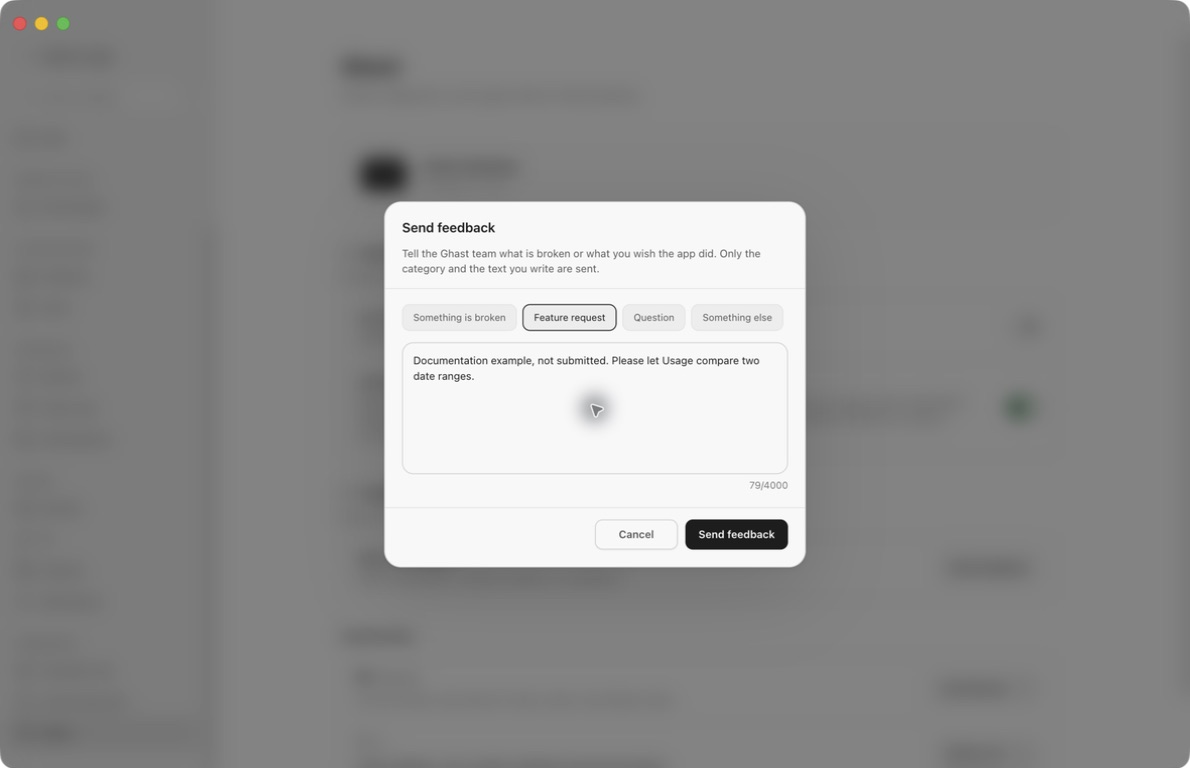
Clicking Cancel discards the text. Reopening starts a blank report with the default category; drafts are not automatically saved. While a report is being sent, the input, categories and Cancel action are disabled. There is no attachment picker, submission history or reply inbox in this dialog.
What a feedback submission sends
Feedback is a deliberate submission associated with the signed-in account, separate from the telemetry and crash-upload switches. It sends your category and written description, and can include app version, platform and build channel. The dialog's “only category and text” wording does not describe those additional technical fields.
It does not automatically attach your current conversation, logs or screenshot. Anything you paste into the description is nevertheless sent as part of the report: remove credentials, cookies, private keys, unrelated personal information and private project content first. Do not paste an entire chat or terminal log when a short, redacted reproduction is enough.
If sending fails
| What you see | What to do |
|---|---|
| Sign-in required | Sign in again under Account, then retry. A session can expire even when an account is still displayed. |
| Too many submissions | Wait a few minutes before retrying; do not repeatedly click Send. |
| Delivery/network failure | Check your connection and try again. Keep a safe copy before cancelling, since Cancel clears the draft. |
| Send is disabled | Enter a non-whitespace description. If submission is already in progress, wait for its result. |
Open community links
Join Discord and Follow on X open external community destinations. Opening the link does not automatically join a server or follow an account; complete any external sign-in or confirmation yourself. Treat community posts as public and remove sensitive information before posting.