UI
Open Settings → UI when text is too small, controls feel crowded, or you want a different theme. Interface language is in General; reply language and reasoning display are in Chat behavior.
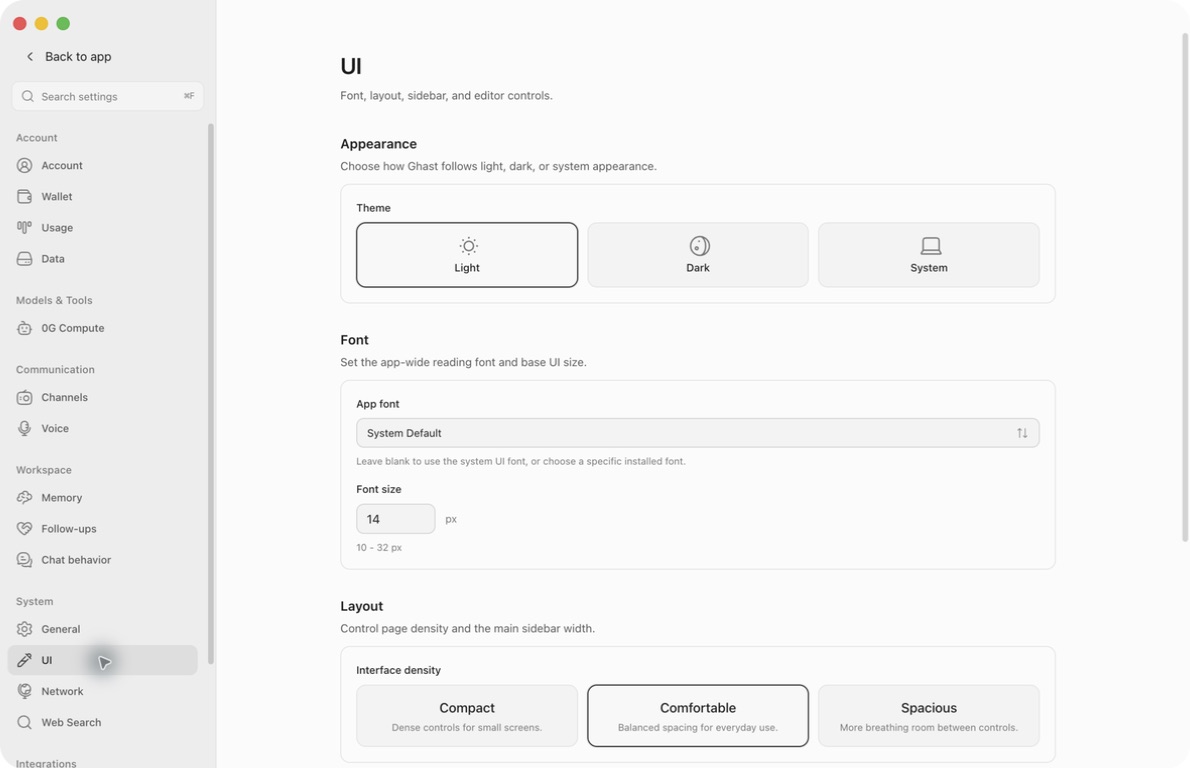
Preview, save, and undo a change
All seven controls on this page require Save: theme, app font, font size, density, line numbers, word wrap, and tool-card expansion.
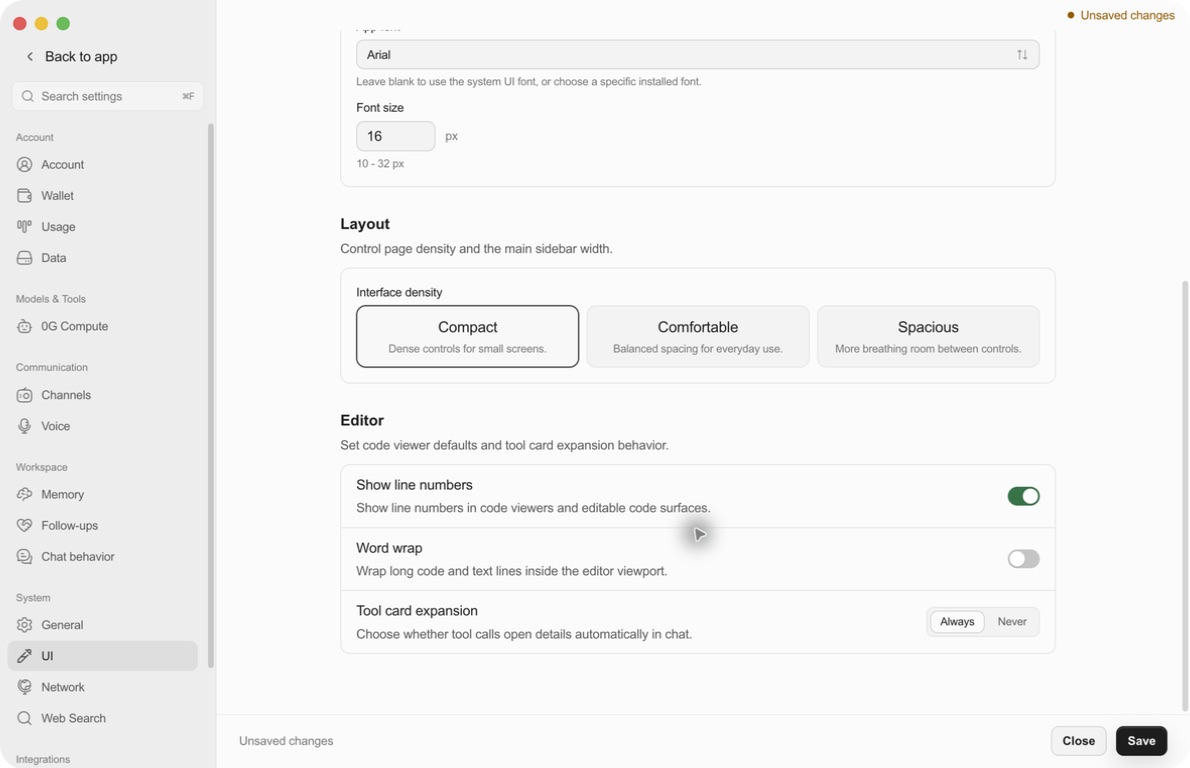
- Change the option you want. Unsaved changes and a bottom bar appear.
- Check the result. Font, size, and density preview in the current window; selecting a theme does not change the window's colors until you save.
- Click Save. Wait for the unsaved indicator and save bar to disappear. A save error means persistence has not been confirmed.
- Reopen this page to check the saved selection. Display changes do not require a new conversation.
To abandon a draft, click Close in the bottom bar and confirm closing without saving. Cancel in that confirmation keeps you in Settings with the draft intact. Switching Settings categories is not a discard action: drafts remain, and Save includes pending changes from other categories too.
There is no page-wide reset button. Undo an already saved change by choosing the previous value and saving again; closing Settings does not undo it. If an abandoned font preview still appears, reopen Settings to load the saved appearance before making further adjustments.
Choose a light or dark theme
Select Light, Dark, or System, then Save.
| Choice | What to expect |
|---|---|
| Light | A fixed light appearance, independent of the operating system's setting. |
| Dark | A fixed dark appearance. The page changes color after Save. |
| System | Uses the OS light/dark preference when Ghast resolves its theme. This is the supplied default. |
With System, changing the operating system's appearance while Ghast is already open may not update the client immediately. If it does not, restart Ghast when running tasks have finished, or explicitly choose Light/Dark and save. Do not assume an instantaneous live switch with the OS.
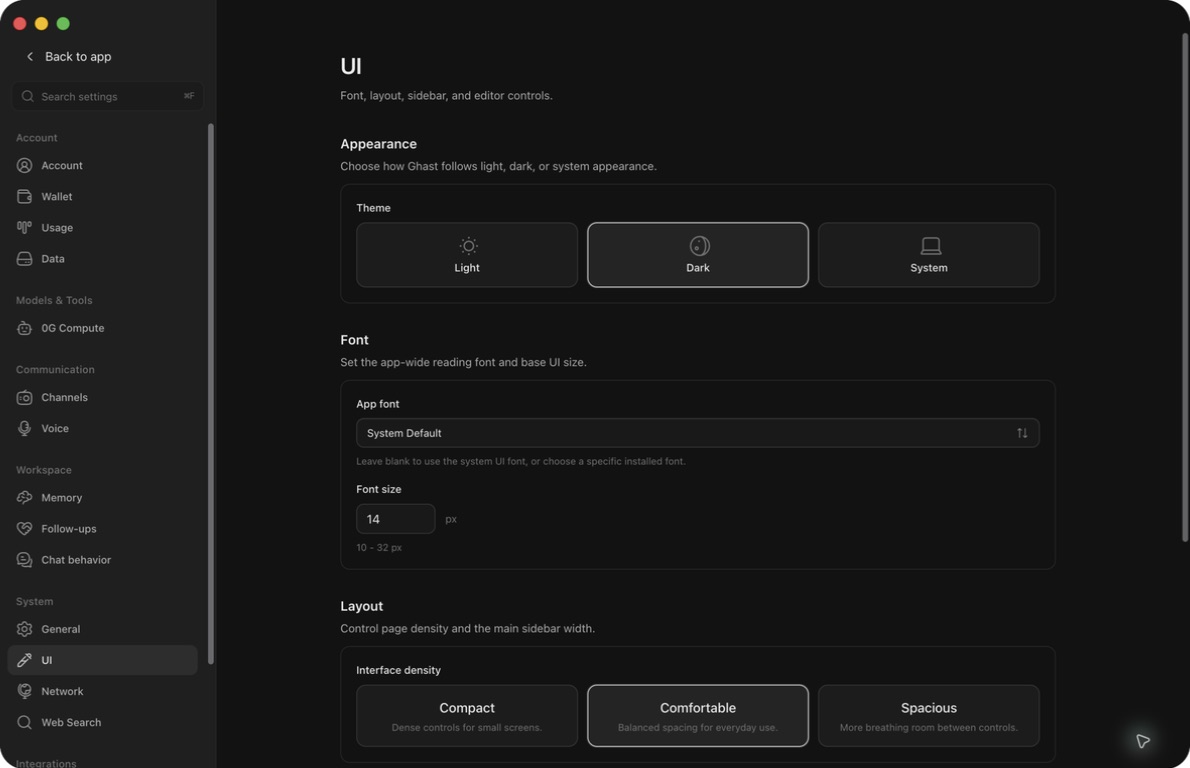
This styles Ghast itself; it does not force third-party websites, embedded content, or the operating system into the same theme. This page has no theme marketplace or custom palette editor.
Choose an installed app font
- Open App font. Ghast loads fonts installed on this computer; the selector is disabled while loading.
- Type part of a name in Search fonts. Results are installed font names, not downloadable packages.
- Select a result. Its name replaces System Default, the list closes, and the current window previews it.
- Check the characters you use, then Save.
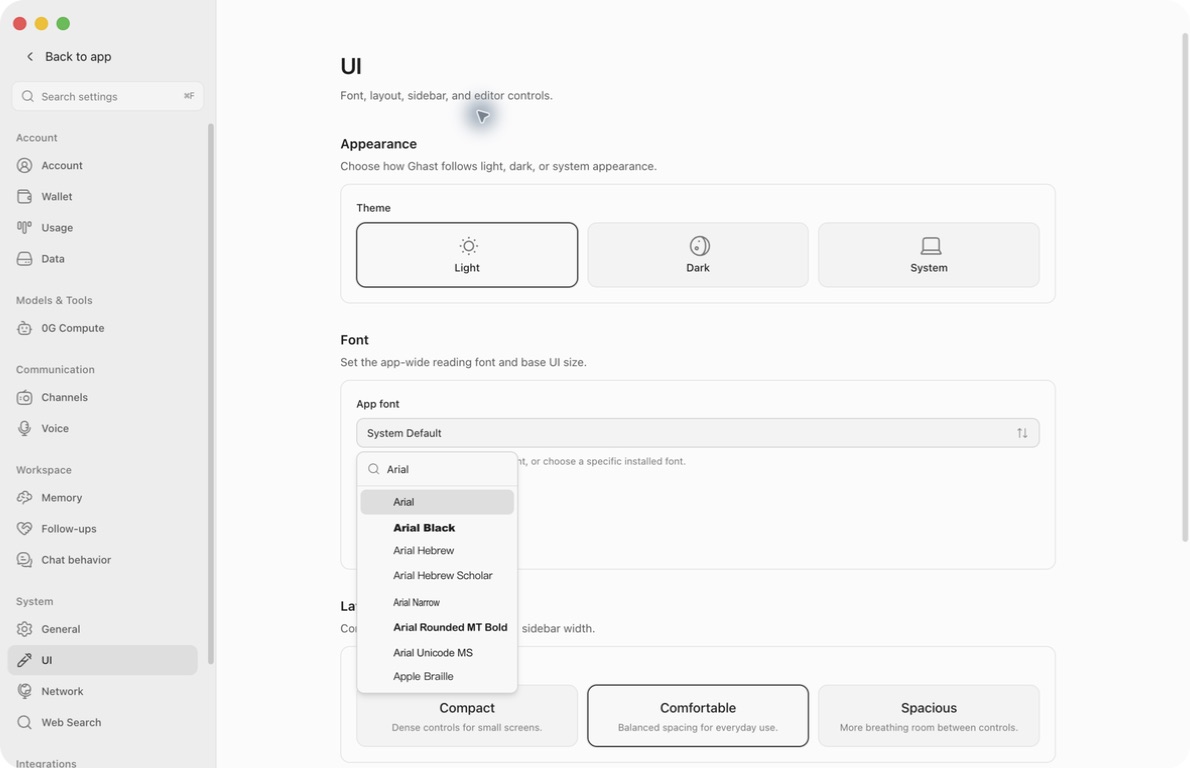
To restore the standard interface font, reopen the picker, clear the search, choose System Default, and save. The helper's “leave blank” wording refers to this option; there is no separate empty custom-font field.
If no results appear, clear the search or try a shorter name. Install a missing font through the operating system, then leave and reopen the UI category to reload the list. A failed font-list load can leave only System Default available without a detailed page error; an empty list alone does not prove there are no installed fonts.
App font changes the interface's reading/display font. Code surfaces can keep their own monospaced font, and missing characters can use a fallback. This is not a separate terminal-font or code-font setting.
Adjust text size
Font size accepts 10–32 px; the stepper changes it by 1px. The supplied default is 15px, although an existing profile may use another value. Select the whole number before replacing it. Out-of-range values are limited to the nearest boundary: 33 becomes 32 and 9 becomes 10.
This is the base interface size, not a promise that every heading, caption, or code block uses that exact size. Text using Ghast's type scale grows proportionally. Preview a modest increase, check the sidebar and reading area, then save.
Font size is separate from OS display scaling or window zoom. If the entire app is unexpectedly large or small, check those separately; changing Font size will not reset them.
Change spacing and density
Choose an Interface density, then save:
| Option | Use it for |
|---|---|
| Compact | Tighter controls and less vertical space on a small display. |
| Comfortable | Balanced spacing; the supplied default. |
| Spacious | More room between controls and rows. |
Density previews immediately in the Settings window. It changes spacing, padding, and line height in surfaces using these preferences, not message retention, context size, or model output. Font size and density are independent: larger text can be combined with Compact spacing.
Wrap long code lines
Turn Word wrap on and save to wrap long lines within supported code blocks. It is on by default. Turn it off to retain long lines and scroll horizontally where the code viewer supports it.
This only changes display: it does not insert newlines into files, edit code, or change text sent to a model. It applies to code-block display, not universally to every editor, terminal, preview, or embedded webpage. Ordinary paragraphs wrap independently of this switch.
Understand the line-number switch
Show line numbers is present and can be saved, but currently does not control line numbers across Ghast's code views. Individual viewers decide whether to show them; for example, a Team file preview can display numbers independently of this switch. The supplied setting is off.
If toggling it changes nothing, repeated saves or restarting will not make an unsupported viewer follow it. Displayed line numbers are also different from hashline references used by file tools: this appearance switch does not enable those references or change editing behavior.
Choose when tool details open
Set Tool card expansion and save:
- Always opens ordinary expandable tool-card details automatically.
- Never, the supplied default, normally leaves those details closed. You can open them manually. Failed ordinary tool cards can still open automatically to show the problem.
This is not “expand everything.” A summary containing several tool calls has its own expand/collapse state. Successful Read, Glob, Grep, WebSearch, XSearch, and WebFetch calls can appear as short activity rows instead of full detail cards; successful ToolSearch calls can be hidden. Specialized task, question, and rich-output cards also have their own presentation.
If Always is saved but you see a collapsed group, expand that group first. Switching back to Never does not forcibly close every visible card; an already open card may need closing manually. Hiding details does not stop a tool, delete its result, reduce model-context cost, or approve a permission request. See tool results for output and error inspection.
Resize or reorganize the sidebar
These controls are in the main app, not in Settings → UI:
- Open the sidebar's mode selector to choose its simple or project view. The selection saves directly, without this page's Save button.
- Drag the sidebar edge to adjust its width. The width saves when dragging ends.
The Layout description may mention sidebar width, but this page has no width slider. It also has no minimap or separate terminal-font controls.
Troubleshooting
| Problem | What to do |
|---|---|
| Dark is selected but the window is light | Check Unsaved changes and click Save. The selection outline can represent a draft. |
| The font changes here but not elsewhere | Save first. Code and embedded content may use independent fonts; check that the font contains the required characters. |
| Text is crowded or controls move below the window | Try System Default, a smaller size, or Comfortable density. Scroll the Settings content to reach lower controls; the Save bar appears at the bottom while changes are pending. |
| Line numbers do not respond | The global switch is not connected to the current code viewers; see the limitation above. |
| Tools remain collapsed with Always | Expand the outer group. Activity rows and specialized cards are not governed by ordinary detail-card preferences. |
| You want the previous appearance back | Close and confirm to discard an unsaved draft. For saved changes, choose the previous options and save again. |